Access Dashboard Request Guide
"Learn how to request access to a dashboard on the LondonHDS Service Desk. Follow step-by-step instructions to register, create an account, activate two-factor authentication, and submit your access request. Make sure to check your email for activation links and complete the necessary forms to gain access efficiently."

Download Presentation

Please find below an Image/Link to download the presentation.
The content on the website is provided AS IS for your information and personal use only. It may not be sold, licensed, or shared on other websites without obtaining consent from the author. If you encounter any issues during the download, it is possible that the publisher has removed the file from their server.
You are allowed to download the files provided on this website for personal or commercial use, subject to the condition that they are used lawfully. All files are the property of their respective owners.
The content on the website is provided AS IS for your information and personal use only. It may not be sold, licensed, or shared on other websites without obtaining consent from the author.
E N D
Presentation Transcript
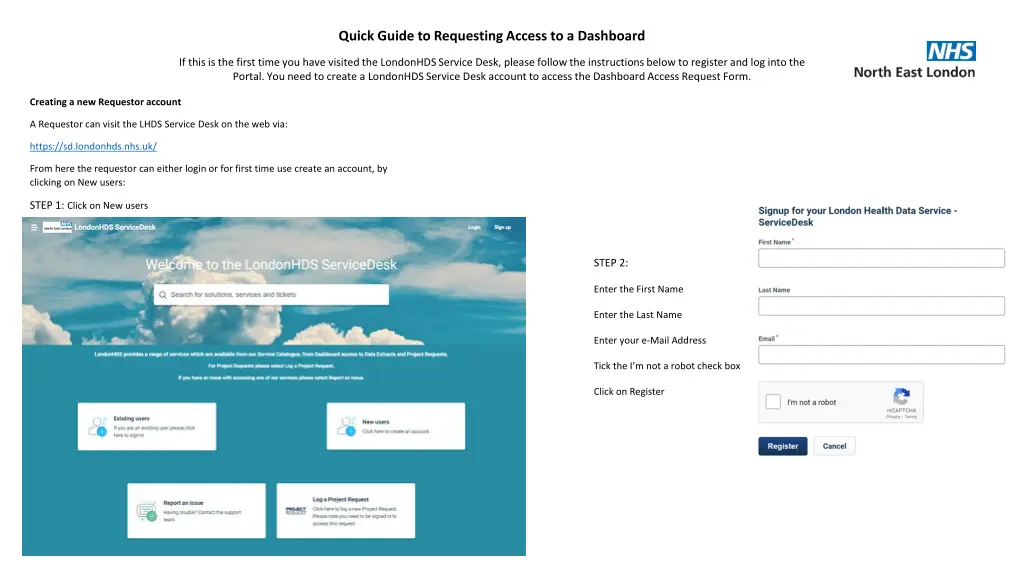
Quick Guide to Requesting Access to a Dashboard If this is the first time you have visited the LondonHDS Service Desk, please follow the instructions below to register and log into the Portal. You need to create a LondonHDS Service Desk account to access the Dashboard Access Request Form. Creating a new Requestor account A Requestor can visit the LHDS Service Desk on the web via: https://sd.londonhds.nhs.uk/ From here the requestor can either login or for first time use create an account, by clicking on New users: STEP 1: Click on New users STEP 2: Enter the First Name Enter the Last Name Enter your e-Mail Address Tick the I m not a robot check box Click on Register
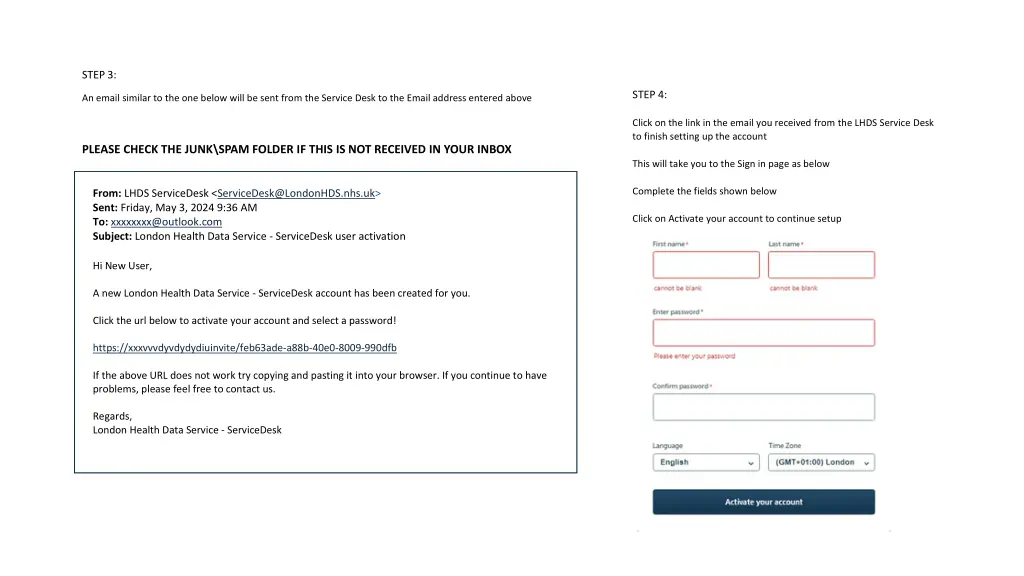
STEP 3: STEP 4: An email similar to the one below will be sent from the Service Desk to the Email address entered above Click on the link in the email you received from the LHDS Service Desk to finish setting up the account PLEASE CHECK THE JUNK\SPAM FOLDER IF THIS IS NOT RECEIVED IN YOUR INBOX This will take you to the Sign in page as below Complete the fields shown below Click on Activate your account to continue setup From: LHDS ServiceDesk <ServiceDesk@LondonHDS.nhs.uk> Sent: Friday, May 3, 2024 9:36 AM To: xxxxxxxx@outlook.com Subject: London Health Data Service - ServiceDesk user activation Hi New User, A new London Health Data Service - ServiceDesk account has been created for you. Click the url below to activate your account and select a password! https://xxxvvvdyvdydydiuinvite/feb63ade-a88b-40e0-8009-990dfb If the above URL does not work try copying and pasting it into your browser. If you continue to have problems, please feel free to contact us. Regards, London Health Data Service - ServiceDesk
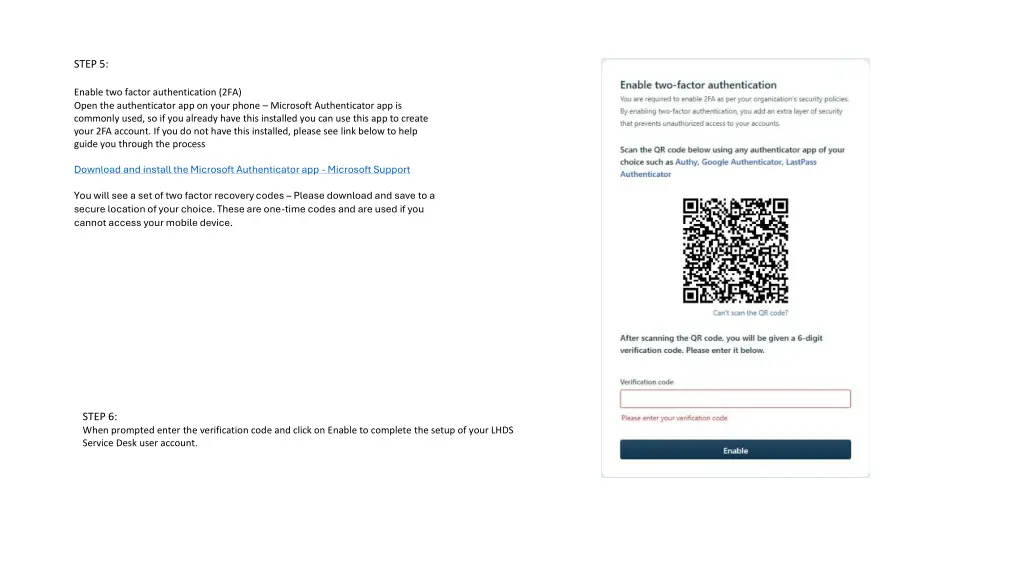
STEP 5: Enable two factor authentication (2FA) Open the authenticator app on your phone Microsoft Authenticator app is commonly used, so if you already have this installed you can use this app to create your 2FA account. If you do not have this installed, please see link below to help guide you through the process Download and install the Microsoft Authenticator app - Microsoft Support You will see a set of two factor recovery codes Please download and save to a secure location of your choice. These are one-time codes and are used if you cannot access your mobile device. STEP 6: When prompted enter the verification code and click on Enable to complete the setup of your LHDS Service Desk user account.
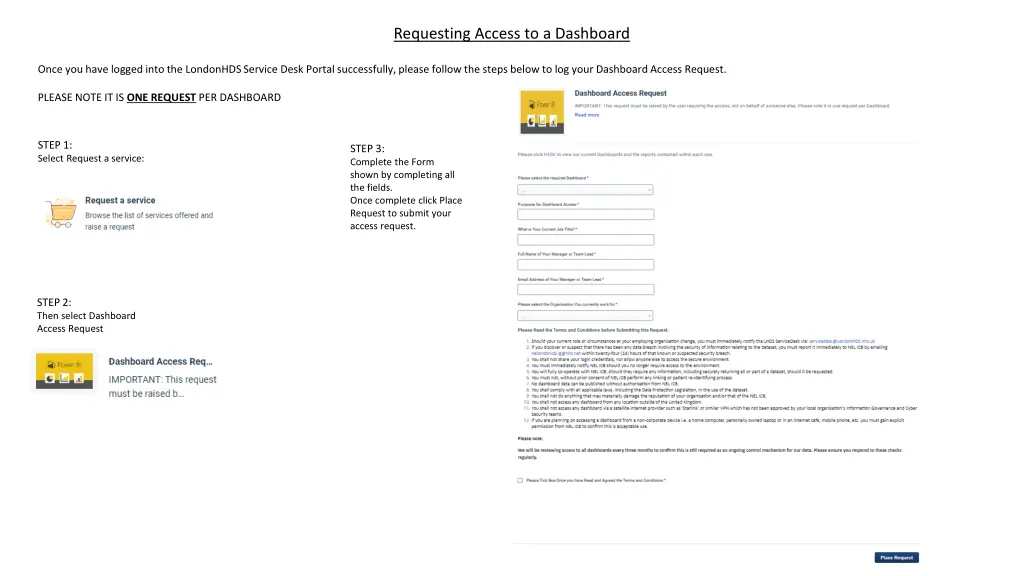
Requesting Access to a Dashboard Once you have logged into the LondonHDS Service Desk Portal successfully, please follow the steps below to log your Dashboard Access Request. PLEASE NOTE IT IS ONE REQUEST PER DASHBOARD STEP 1: Select Request a service: STEP 3: Complete the Form shown by completing all the fields. Once complete click Place Request to submit your access request. STEP 2: Then select Dashboard Access Request