"Learn how to animate shapes and control the display on evive screen using evive Display Extension. Interface evive with PictoBlox and upload firmware for a seamless experience in physical computing. Explore shaping blocks and predefined shapes for creative projects."
Please find below an Image/Link to download the presentation.
The content on the website is provided AS IS for your information and personal use only. It may not be sold, licensed, or shared on other websites without obtaining consent from the author. If you encounter any issues during the download, it is possible that the publisher has removed the file from their server.
You are allowed to download the files provided on this website for personal or commercial use, subject to the condition that they are used lawfully. All files are the property of their respective owners.
The content on the website is provided AS IS for your information and personal use only. It may not be sold, licensed, or shared on other websites without obtaining consent from the author.
evive Display Extension evive Display Extension allows you to control the display on evive screen (change colour, font size, and font colour), draw shapes, write text, and display values on the screen. 3
Interfacing evive with PictoBlox Connect evive to your laptop/PC and open PictoBlox. In PictoBlox, go to the menu and click on the Boards Select the evive. 5
Upload Firmware You have to upload the firmware into the device before interacting with it. Click on Upload Firmware button. Once you successfully uploaded the firmware you will see evive logo on evive display. 7
Shape Block Display () of size () px at position (), (), color () & background () block is used to draw characters and symbols on evive TFT Display. The matrix size for the block is 20 horizontally and 16 vertically. 8
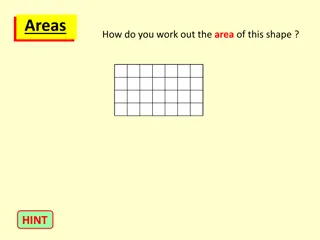
Shape Block - Parameters 1. The matrix having 20 x 16 boxes. You can either enable or disable a particular box by clicking on the box. If the box is enabled, its color is white, else the color is dark red. You can draw any shape using this. 9
Shape Block - Parameters Size of the matrix on the TFT display. We are making a matrix of 20 x 16. Using this option, we can set how big the matrix will display on the screen. If we set 1 px, then each box will have the width and the height of 1px. If we set 8 px, then each box will have the width and the height of 8px. 13
Shape Block - Parameters X position of the top left corner pixel of the matrix from where the matrix will be displayed. Y position of the top left corner pixel of the matrix from where the matrix will be displayed. 14
Shape Block - Parameters The primary color of the shape. All boxes colored white in the matrix will be displayed with this color. 15
Shape Block - Parameters The background color of the shape. All boxes colored dark red in the matrix will be displayed with this color. 16
Character Animation on Display In this activity you will make a smiled face go up, down, left and right using keyboard keys. Make 2 variables to track X and Y coordinates of the character. 18