Complete Course Guide: Logging in, Viewing Profiles, and Passing Quizzes
Learn how to log in, access student profiles, complete quizzes, and follow course sequences effectively. Understand the importance of watching videos fully, answering questions, and submitting responses for successful course completion.

Download Presentation

Please find below an Image/Link to download the presentation.
The content on the website is provided AS IS for your information and personal use only. It may not be sold, licensed, or shared on other websites without obtaining consent from the author. If you encounter any issues during the download, it is possible that the publisher has removed the file from their server.
You are allowed to download the files provided on this website for personal or commercial use, subject to the condition that they are used lawfully. All files are the property of their respective owners.
The content on the website is provided AS IS for your information and personal use only. It may not be sold, licensed, or shared on other websites without obtaining consent from the author.
E N D
Presentation Transcript
YAYA Orientation Slides Please download and refer to these slides if you have any questions
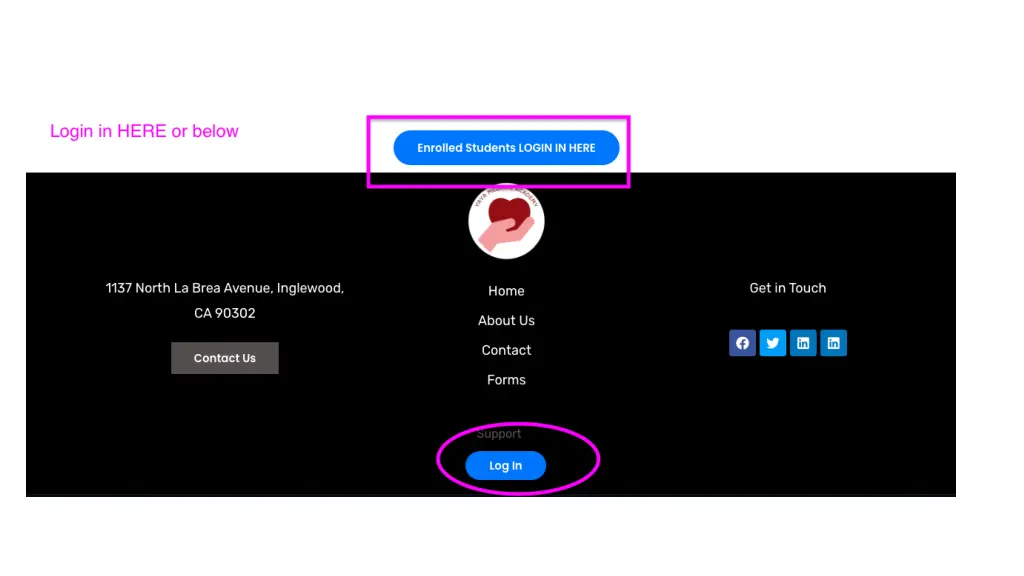
Where do you login? Please note the web address for the CNA program subdomain at cna.nurseassistantschoolyaya.com
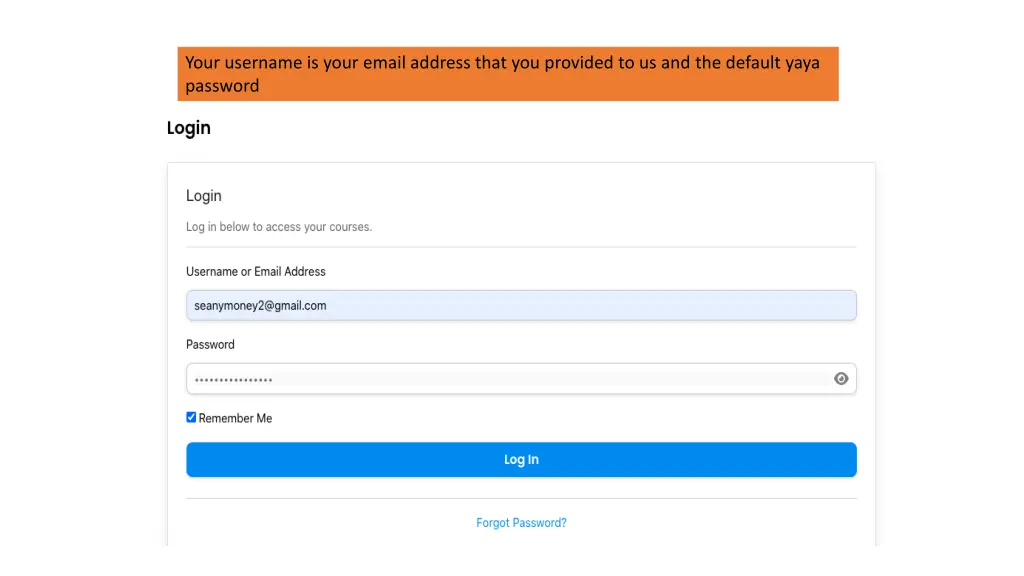
Your username is your email address that you provided to us and the default yaya password
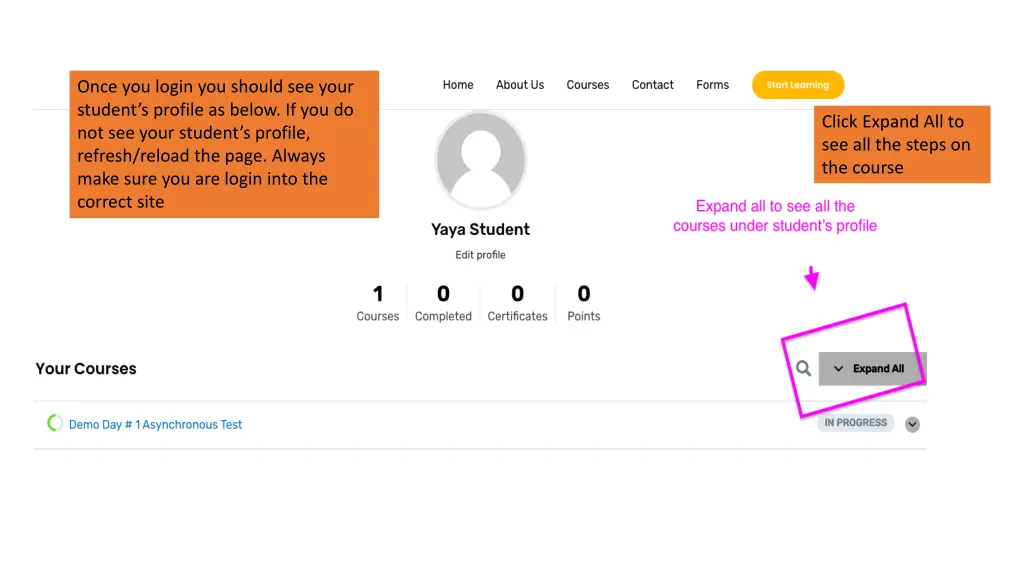
Once you login you should see your student s profile as below. If you do not see your student s profile, refresh/reload the page. Always make sure you are login into the correct site Click Expand All to see all the steps on the course
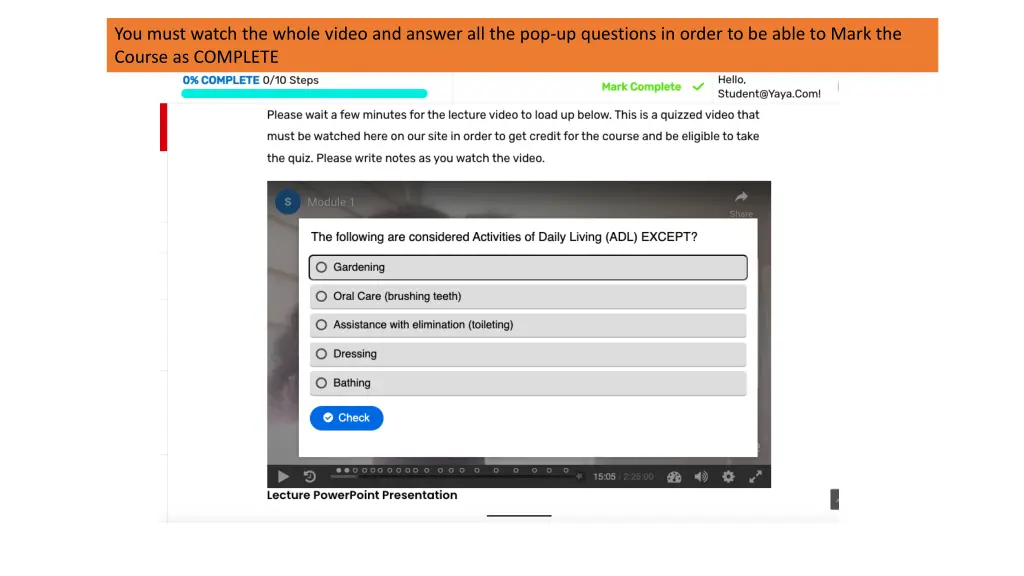
You must watch the whole video and answer all the pop-up questions in order to be able to Mark the Course as COMPLETE
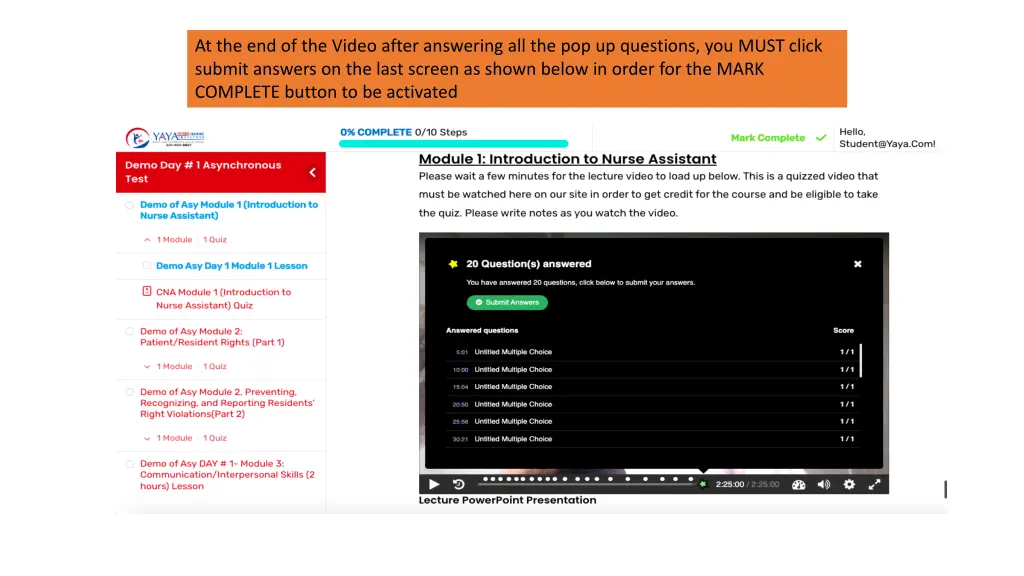
At the end of the Video after answering all the pop up questions, you MUST click submit answers on the last screen as shown below in order for the MARK COMPLETE button to be activated
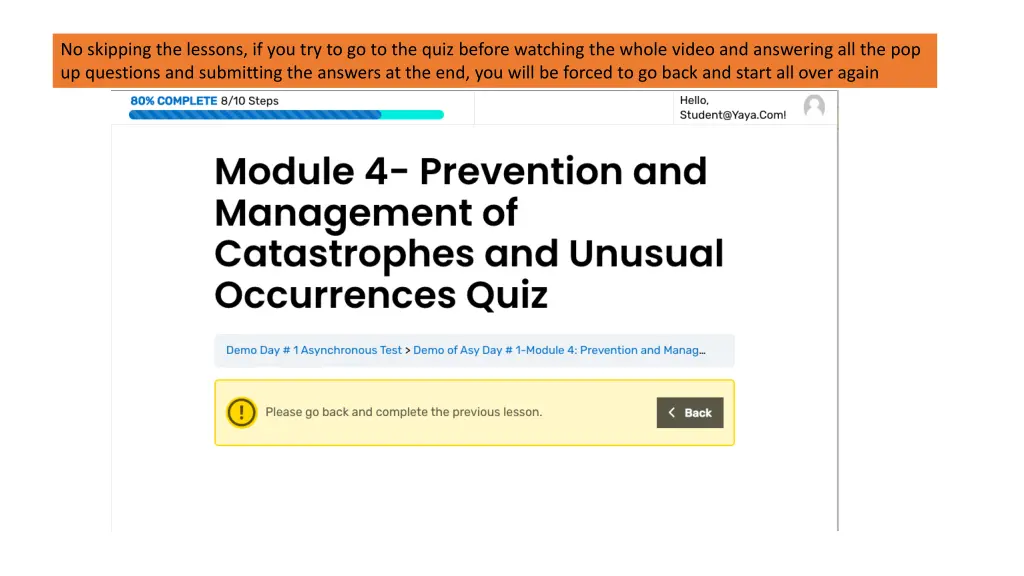
No skipping the lessons, if you try to go to the quiz before watching the whole video and answering all the pop up questions and submitting the answers at the end, you will be forced to go back and start all over again
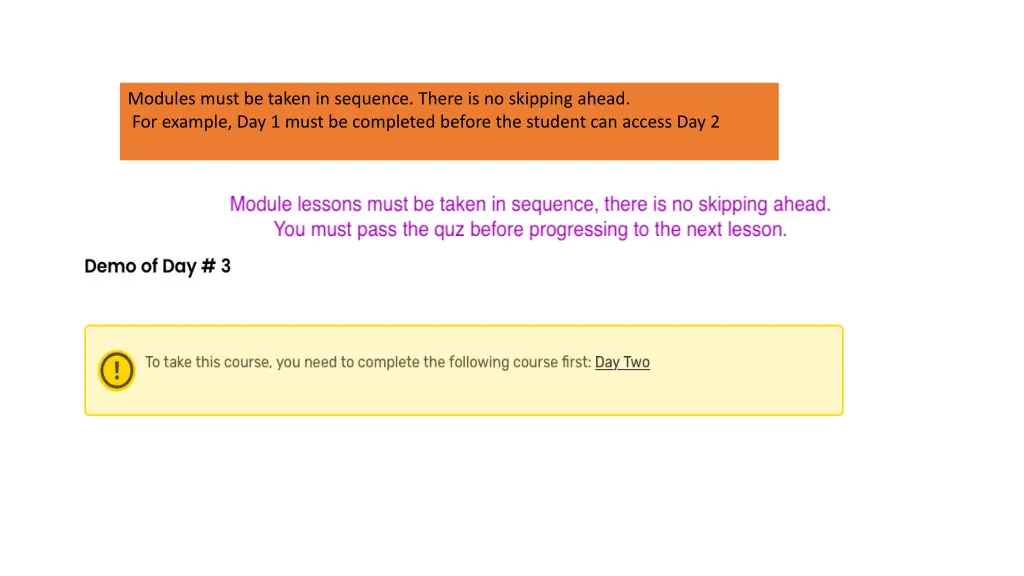
Modules must be taken in sequence. There is no skipping ahead. For example, Day 1 must be completed before the student can access Day 2
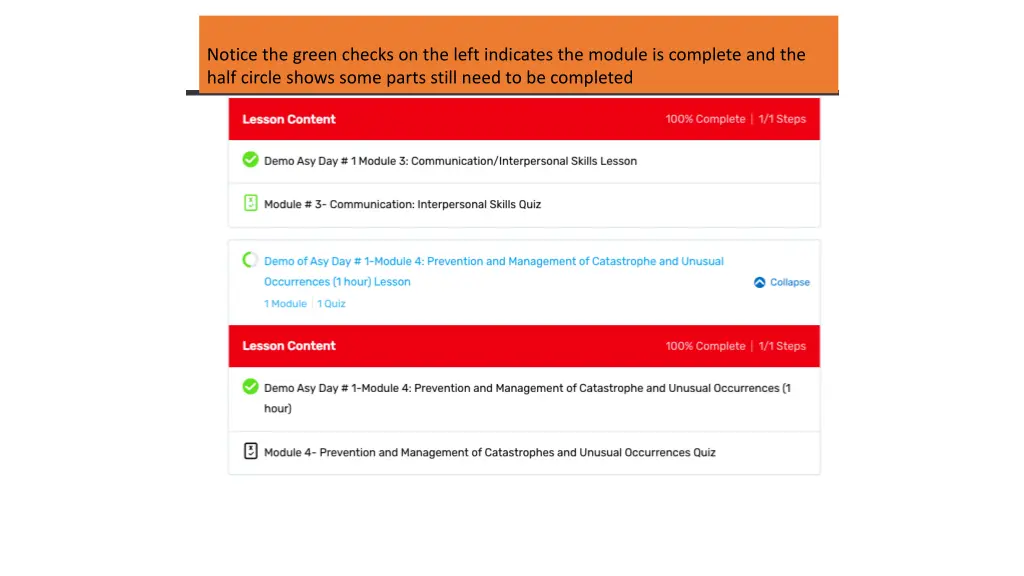
Notice the green checks on the left indicates the module is complete and the half circle shows some parts still need to be completed
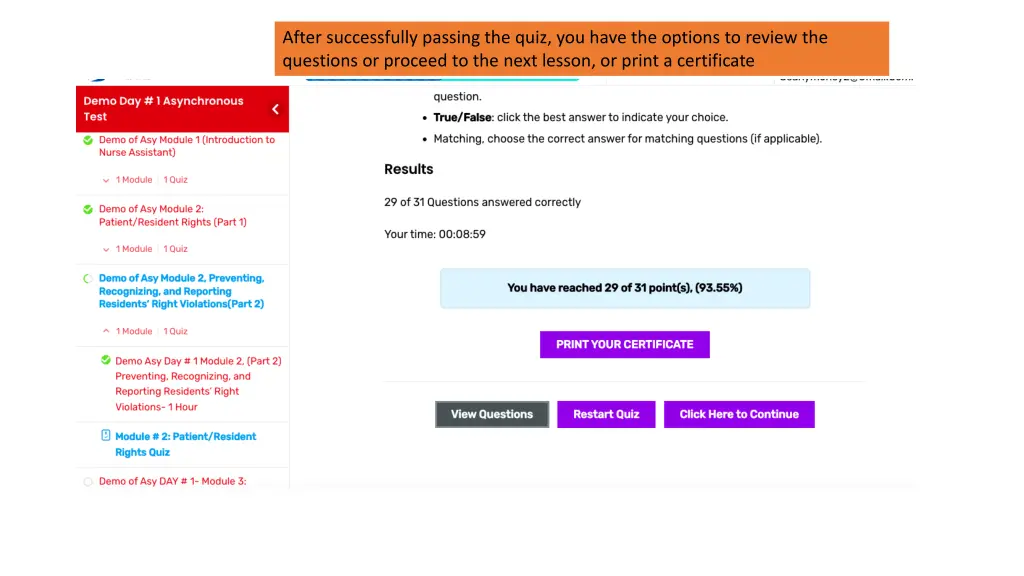
After successfully passing the quiz, you have the options to review the questions or proceed to the next lesson, or print a certificate