Learn how to register for and use PupilPath Mobile efficiently, including important steps, guidelines, and features for parents, guardians, and students. Find out about online versus mobile usage, push notifications, and essential information required for registration.
Please find below an Image/Link to download the presentation.
The content on the website is provided AS IS for your information and personal use only. It may not be sold, licensed, or shared on other websites without obtaining consent from the author. If you encounter any issues during the download, it is possible that the publisher has removed the file from their server.
You are allowed to download the files provided on this website for personal or commercial use, subject to the condition that they are used lawfully. All files are the property of their respective owners.
The content on the website is provided AS IS for your information and personal use only. It may not be sold, licensed, or shared on other websites without obtaining consent from the author.
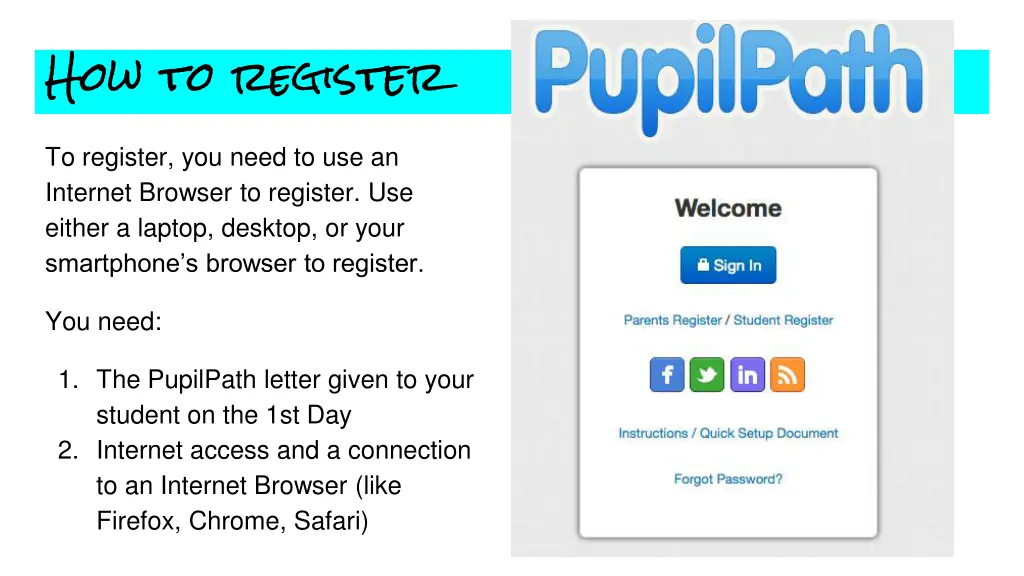
How to register To register, you need to use an Internet Browser to register. Use either a laptop, desktop, or your smartphone s browser to register. You need: 1. The PupilPath letter given to your student on the 1st Day 2. Internet access and a connection to an Internet Browser (like Firefox, Chrome, Safari)
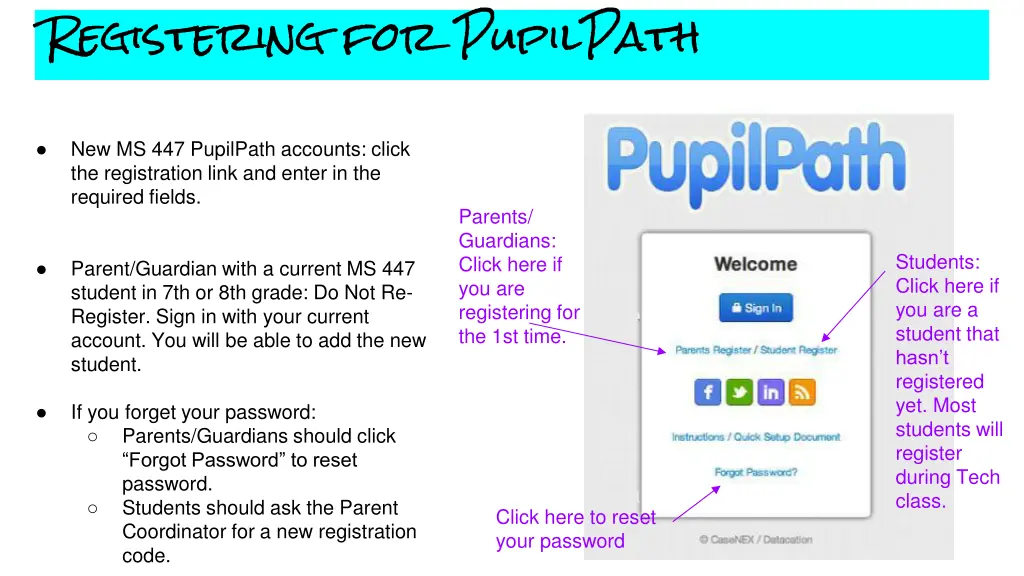
Registering for PupilPath New MS 447 PupilPath accounts: click the registration link and enter in the required fields. Parents/ Guardians: Click here if you are registering for the 1st time. Students: Click here if you are a student that hasn t registered yet. Most students will register during Tech class. Parent/Guardian with a current MS 447 student in 7th or 8th grade: Do Not Re- Register. Sign in with your current account. You will be able to add the new student. If you forget your password: Parents/Guardians should click Forgot Password to reset password. Students should ask the Parent Coordinator for a new registration code. Click here to reset your password
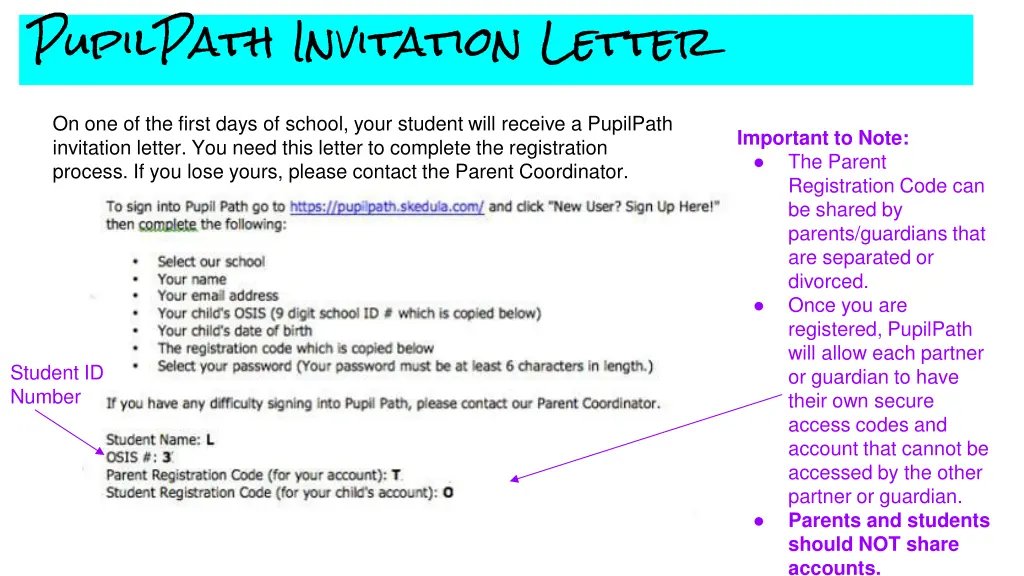
PupilPath Invitation Letter On one of the first days of school, your student will receive a PupilPath invitation letter. You need this letter to complete the registration process. If you lose yours, please contact the Parent Coordinator. Important to Note: The Parent Registration Code can be shared by parents/guardians that are separated or divorced. Once you are registered, PupilPath will allow each partner or guardian to have their own secure access codes and account that cannot be accessed by the other partner or guardian. Parents and students should NOT share accounts. Student ID Number
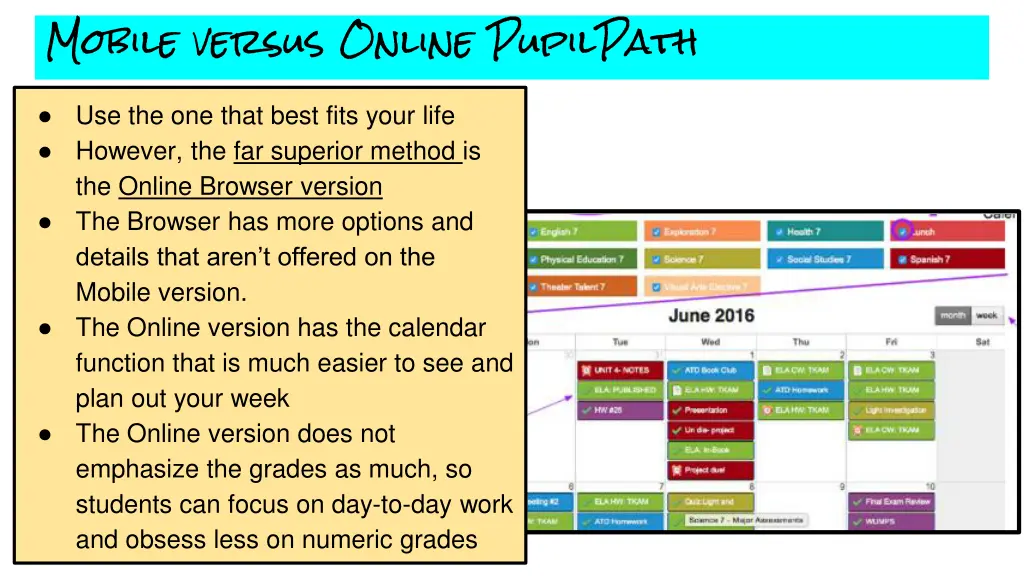
Mobile versus Online PupilPath Use the one that best fits your life However, the far superior method is the Online Browser version The Browser has more options and details that aren t offered on the Mobile version. The Online version has the calendar function that is much easier to see and plan out your week The Online version does not emphasize the grades as much, so students can focus on day-to-day work and obsess less on numeric grades
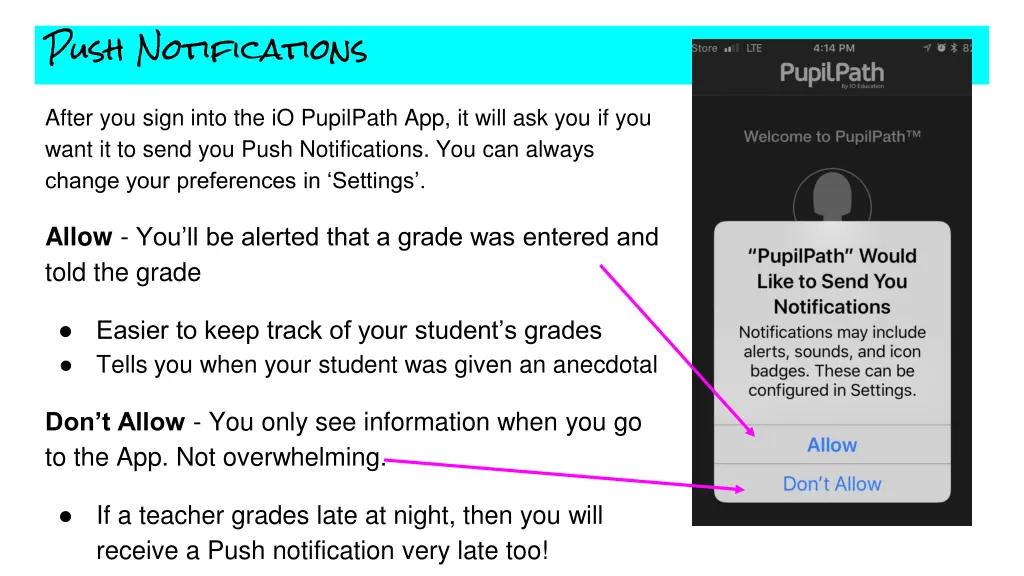
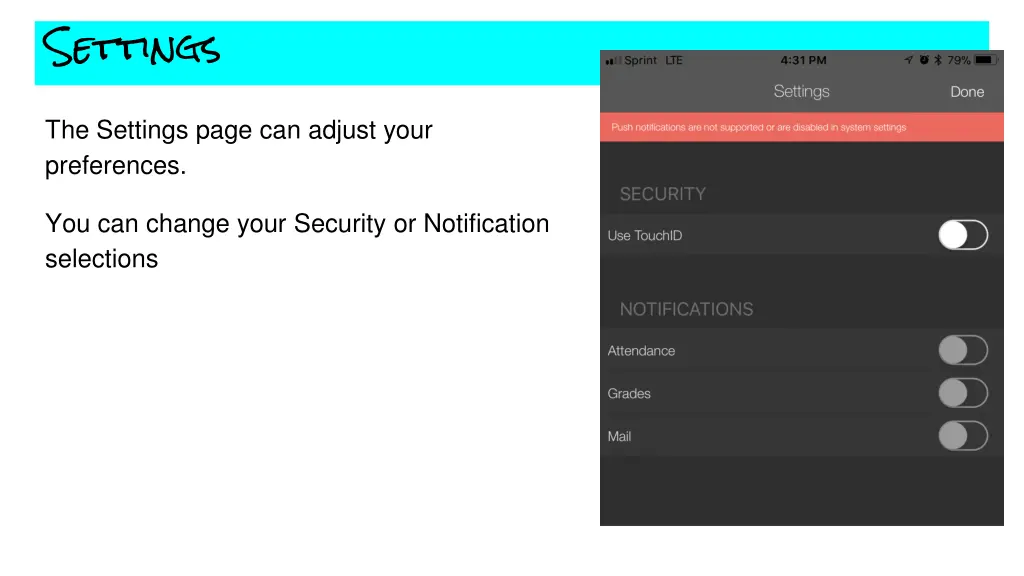
Push Notifications After you sign into the iO PupilPath App, it will ask you if you want it to send you Push Notifications. You can always change your preferences in Settings . Allow - You ll be alerted that a grade was entered and told the grade Easier to keep track of your student s grades Tells you when your student was given an anecdotal Don t Allow - You only see information when you go to the App. Not overwhelming. If a teacher grades late at night, then you will receive a Push notification very late too!
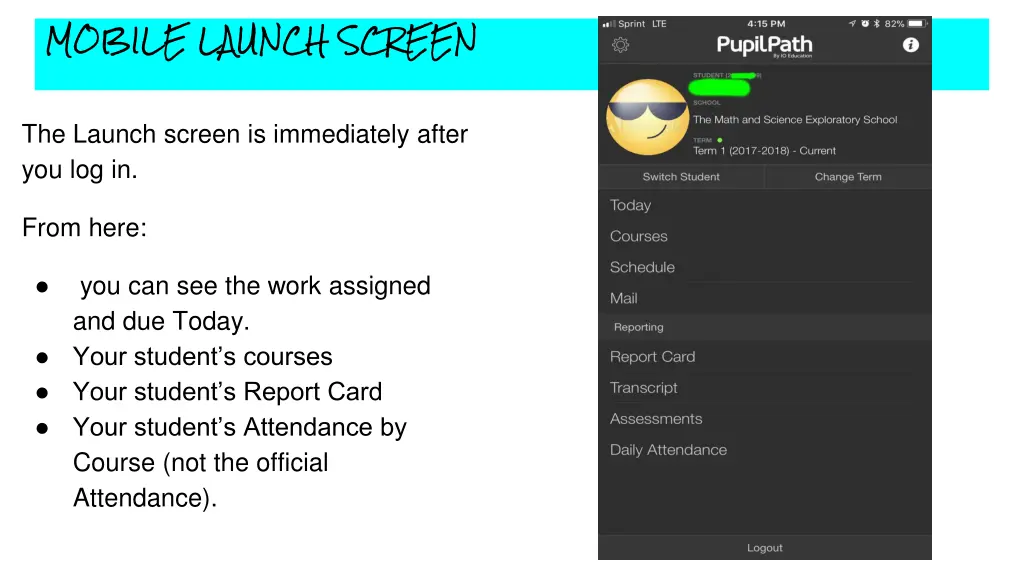
MOBILE LAUNCH SCREEN The Launch screen is immediately after you log in. From here: you can see the work assigned and due Today. Your student s courses Your student s Report Card Your student s Attendance by Course (not the official Attendance).
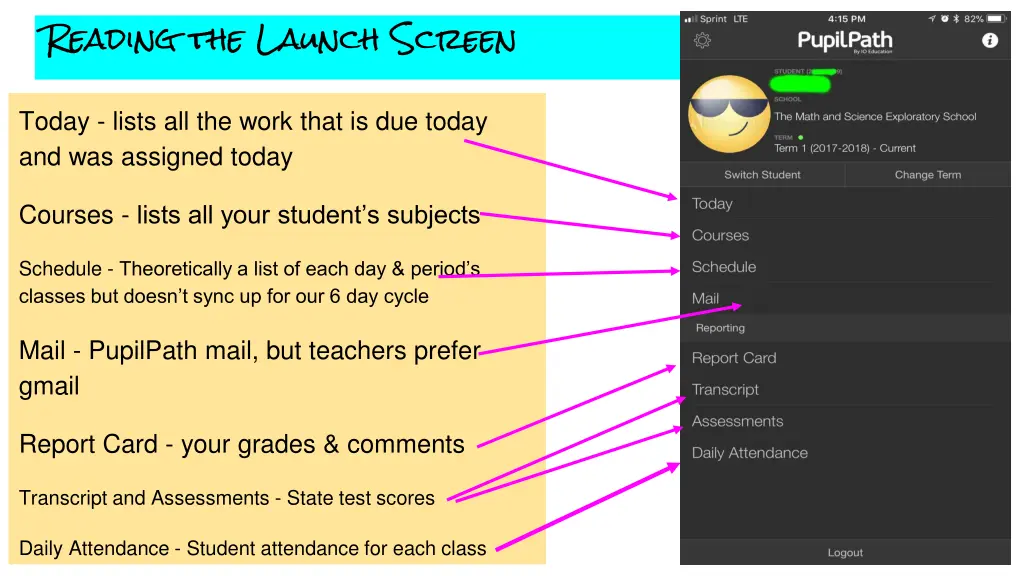
Reading the Launch Screen Today - lists all the work that is due today and was assigned today Courses - lists all your student s subjects Schedule - Theoretically a list of each day & period s classes but doesn t sync up for our 6 day cycle Mail - PupilPath mail, but teachers prefer gmail Report Card - your grades & comments Transcript and Assessments - State test scores Daily Attendance - Student attendance for each class
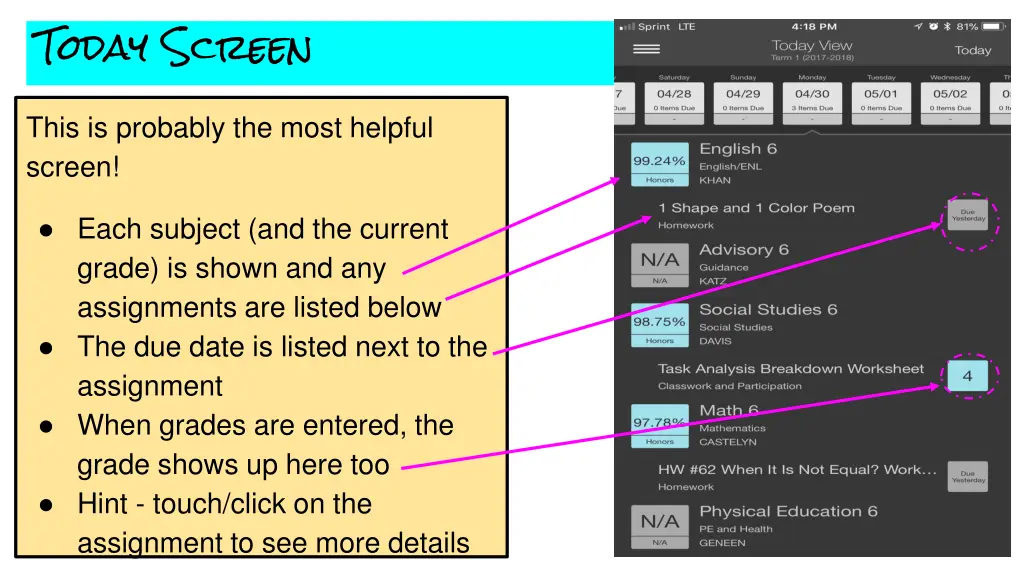
Today Screen This is probably the most helpful screen! Each subject (and the current grade) is shown and any assignments are listed below The due date is listed next to the assignment When grades are entered, the grade shows up here too Hint - touch/click on the assignment to see more details
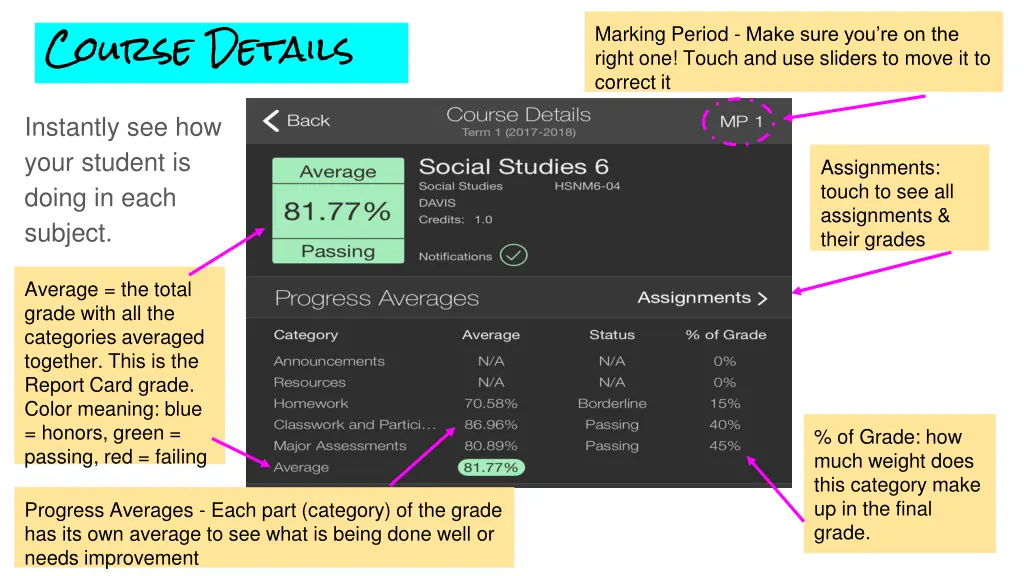
Course Details Marking Period - Make sure you re on the right one! Touch and use sliders to move it to correct it Instantly see how your student is doing in each subject. Assignments: touch to see all assignments & their grades Average = the total grade with all the categories averaged together. This is the Report Card grade. Color meaning: blue = honors, green = passing, red = failing % of Grade: how much weight does this category make up in the final grade. Progress Averages - Each part (category) of the grade has its own average to see what is being done well or needs improvement
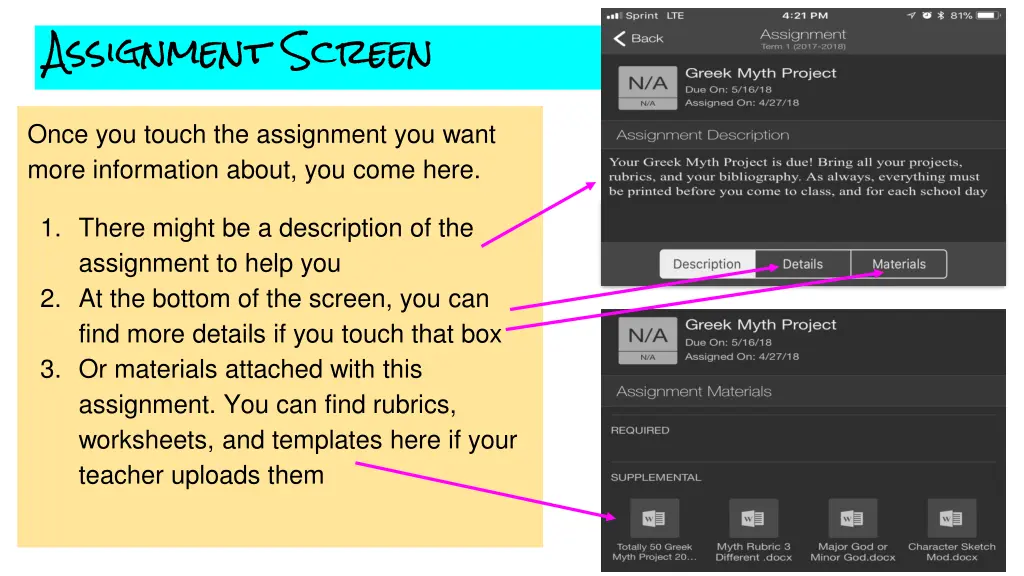
Assignment Screen Once you touch the assignment you want more information about, you come here. 1. There might be a description of the assignment to help you 2. At the bottom of the screen, you can find more details if you touch that box 3. Or materials attached with this assignment. You can find rubrics, worksheets, and templates here if your teacher uploads them
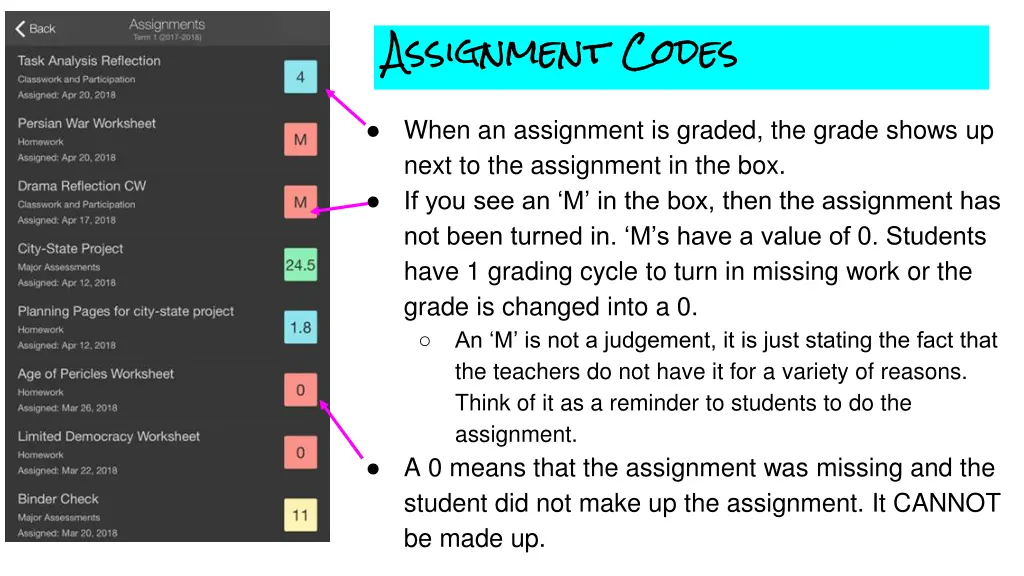
Assignment Codes When an assignment is graded, the grade shows up next to the assignment in the box. If you see an M in the box, then the assignment has not been turned in. M s have a value of 0. Students have 1 grading cycle to turn in missing work or the grade is changed into a 0. An M is not a judgement, it is just stating the fact that the teachers do not have it for a variety of reasons. Think of it as a reminder to students to do the assignment. A 0 means that the assignment was missing and the student did not make up the assignment. It CANNOT be made up.
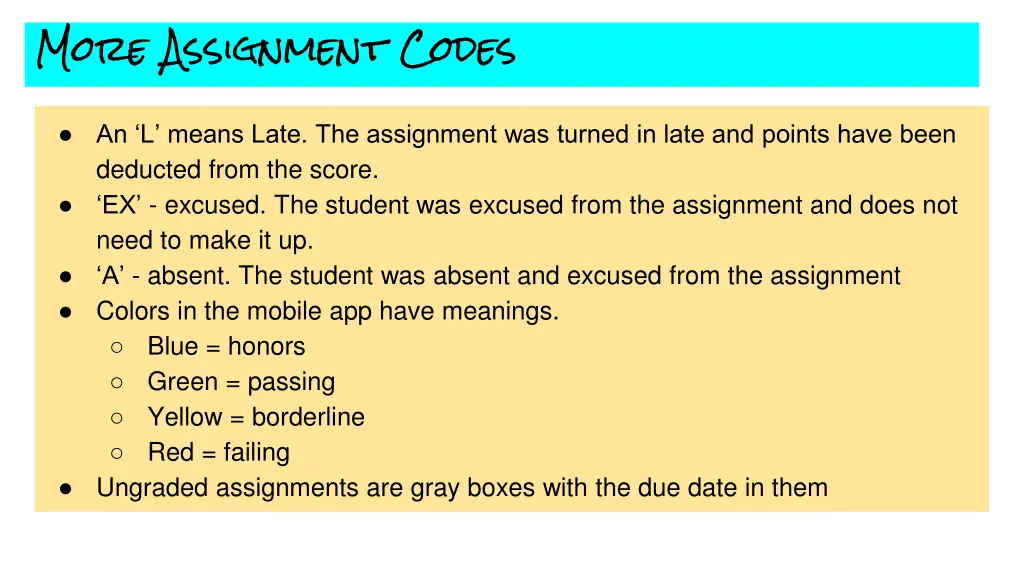
More Assignment Codes An L means Late. The assignment was turned in late and points have been deducted from the score. EX - excused. The student was excused from the assignment and does not need to make it up. A - absent. The student was absent and excused from the assignment Colors in the mobile app have meanings. Blue = honors Green = passing Yellow = borderline Red = failing Ungraded assignments are gray boxes with the due date in them
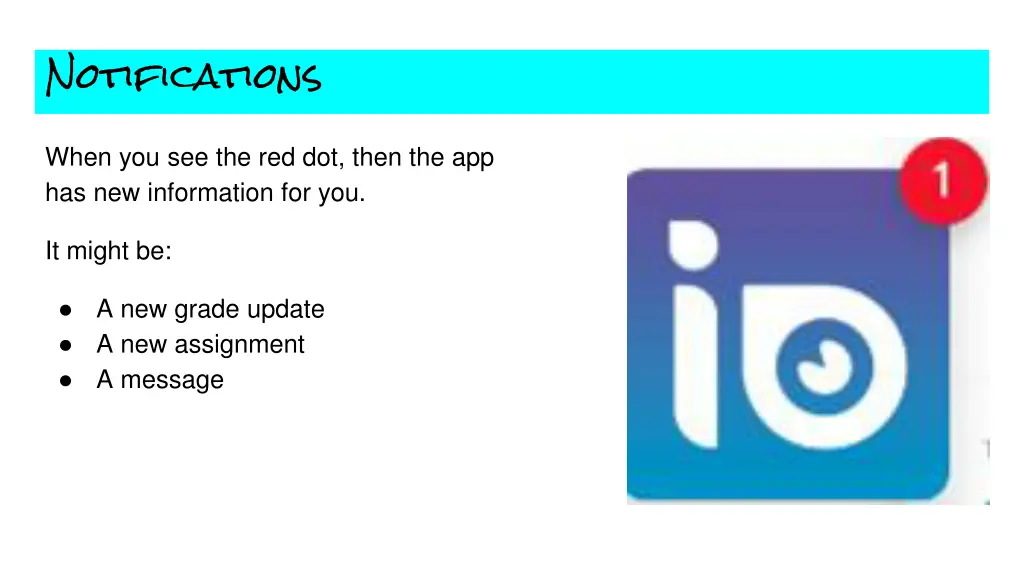
Notifications When you see the red dot, then the app has new information for you. It might be: A new grade update A new assignment A message
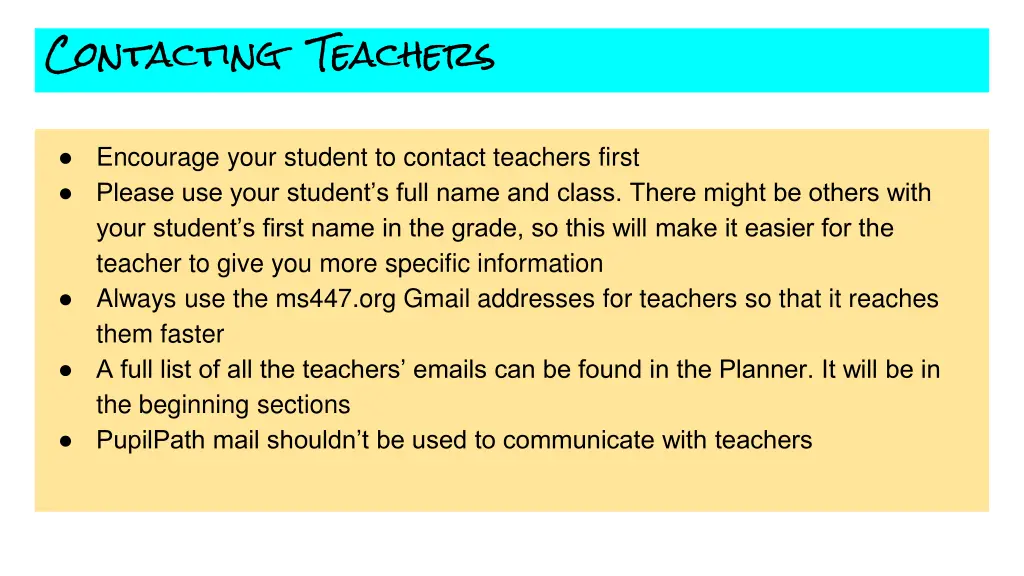
Contacting Teachers Encourage your student to contact teachers first Please use your student s full name and class. There might be others with your student s first name in the grade, so this will make it easier for the teacher to give you more specific information Always use the ms447.org Gmail addresses for teachers so that it reaches them faster A full list of all the teachers emails can be found in the Planner. It will be in the beginning sections PupilPath mail shouldn t be used to communicate with teachers
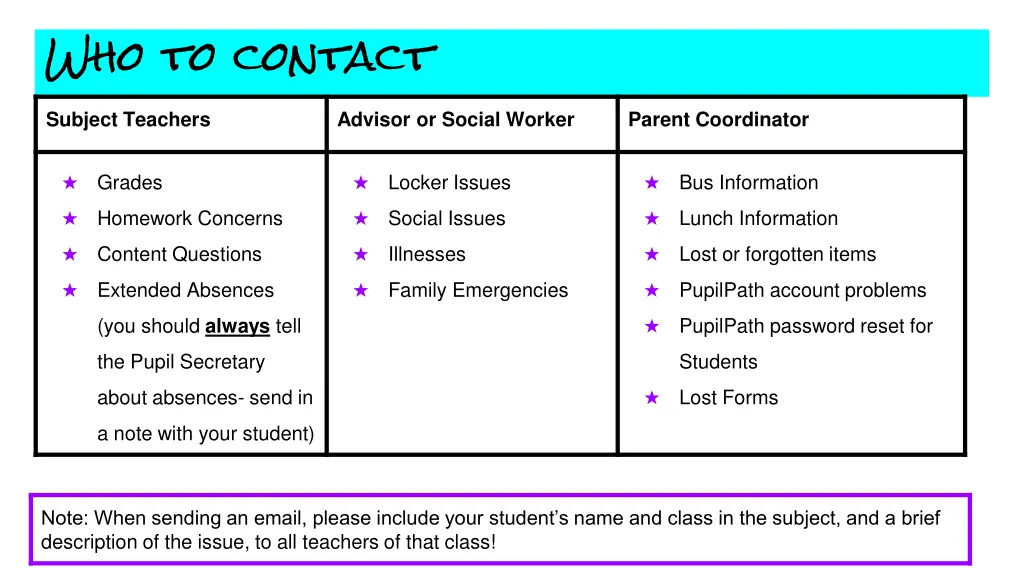
Who to contact Subject Teachers Advisor or Social Worker Parent Coordinator Grades Locker Issues Bus Information Homework Concerns Social Issues Lunch Information Content Questions Illnesses Lost or forgotten items Extended Absences Family Emergencies PupilPath account problems (you should always tell PupilPath password reset for the Pupil Secretary Students about absences- send in Lost Forms a note with your student) Note: When sending an email, please include your student s name and class in the subject, and a brief description of the issue, to all teachers of that class!
Forgotten Passwords If your student forgets or loses their PupilPath password, then email the Parent Coordinator for a new one. The Parent Coordinator is Amy Sirot (asirot@gmail.com)
Settings The Settings page can adjust your preferences. You can change your Security or Notification selections