Creating Accessible Online Forms: Key Highlights
In this informative content, you will learn essential aspects of creating accessible online forms, such as ensuring users know what is being requested, the availability of help text, and clear error indications. The content covers text fields, multiple choice fields, and considerations for tools like Survey Monkey. Gain insights into fostering inclusivity in online form design for improved user experiences.

Download Presentation

Please find below an Image/Link to download the presentation.
The content on the website is provided AS IS for your information and personal use only. It may not be sold, licensed, or shared on other websites without obtaining consent from the author.If you encounter any issues during the download, it is possible that the publisher has removed the file from their server.
You are allowed to download the files provided on this website for personal or commercial use, subject to the condition that they are used lawfully. All files are the property of their respective owners.
The content on the website is provided AS IS for your information and personal use only. It may not be sold, licensed, or shared on other websites without obtaining consent from the author.
E N D
Presentation Transcript
Accessible Online Forms (Just the Highlights) Terrill Thompson Manager, IT Accessibility Team tft@uw.edu or @terrillthompson https://uw.edu/accessibility
To successfully complete an online form, all users need to know 1. what is being requested in the field that currently has focus 2. whether there is supplemental help text available 3. whether there are errors in their submission (and if so, exactly what those errors are)
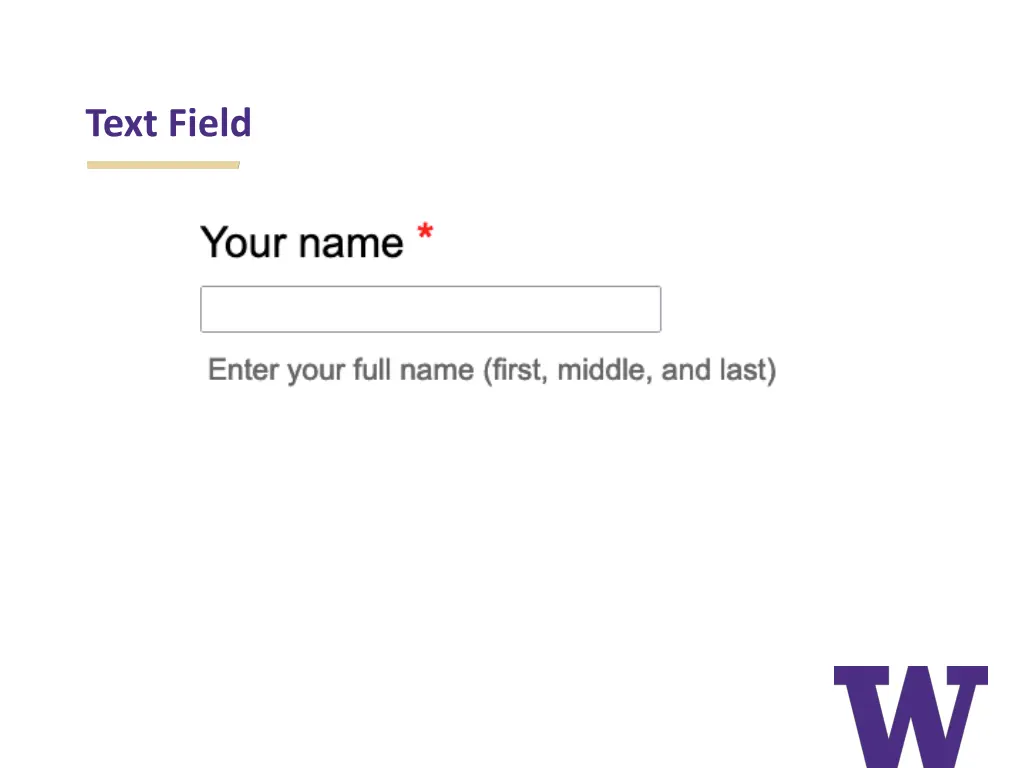
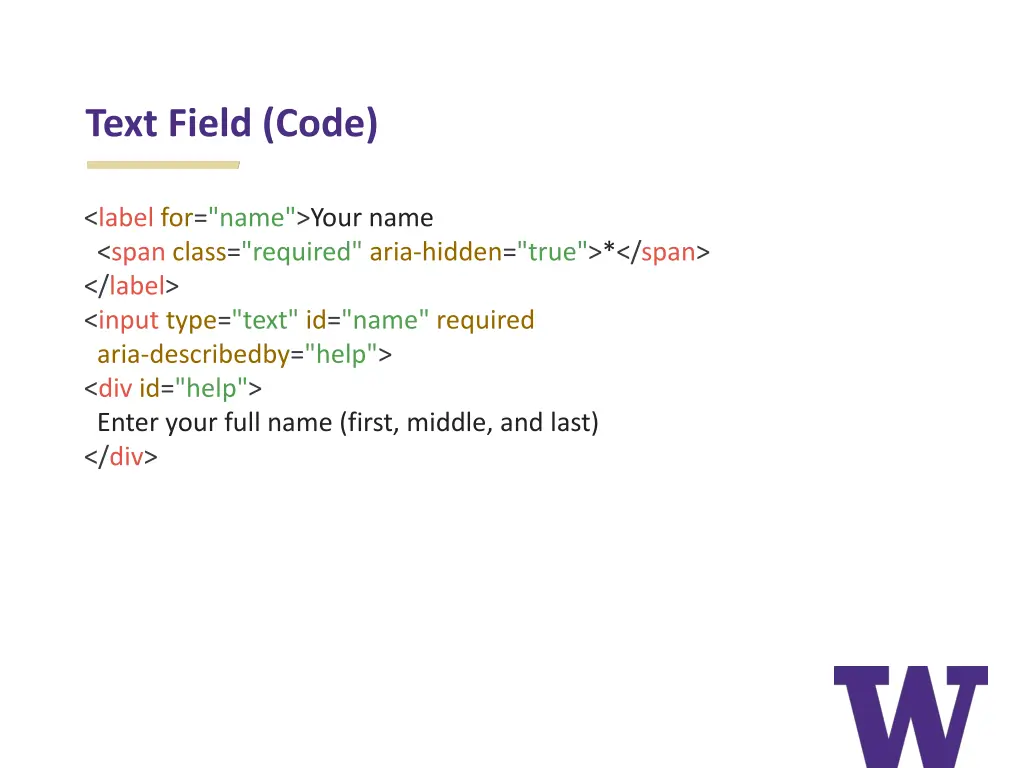
Text Field (Code) <label for="name">Your name <span class="required" aria-hidden="true">*</span> </label> <input type="text" id="name" required aria-describedby="help"> <div id="help"> Enter your full name (first, middle, and last) </div>
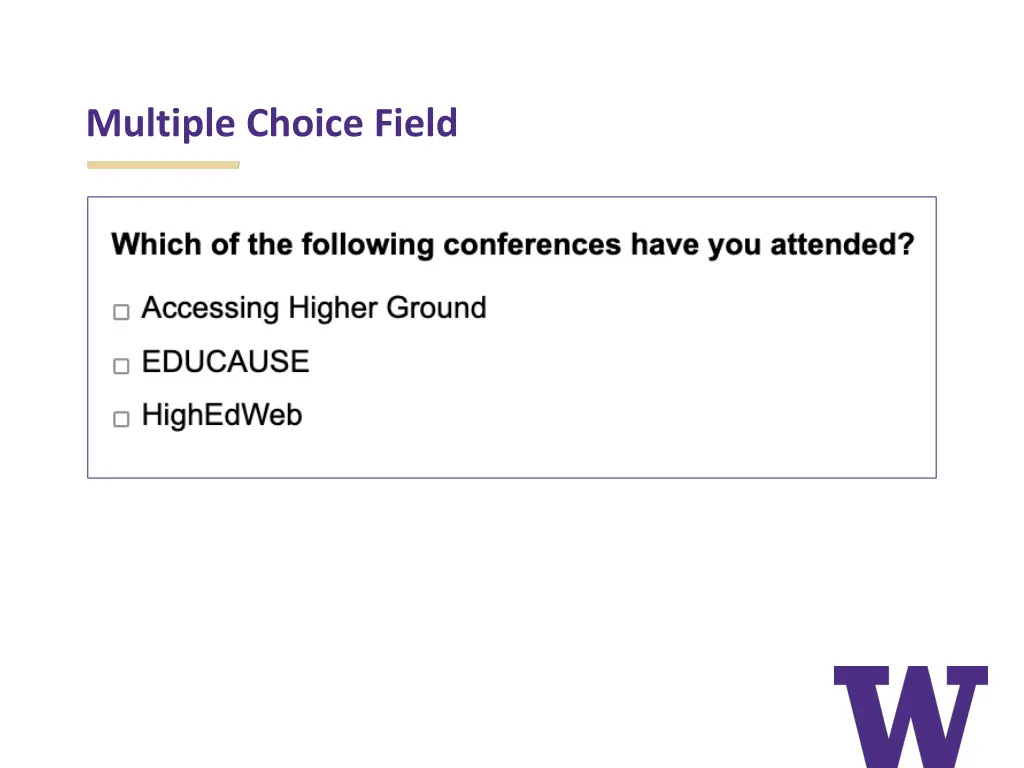
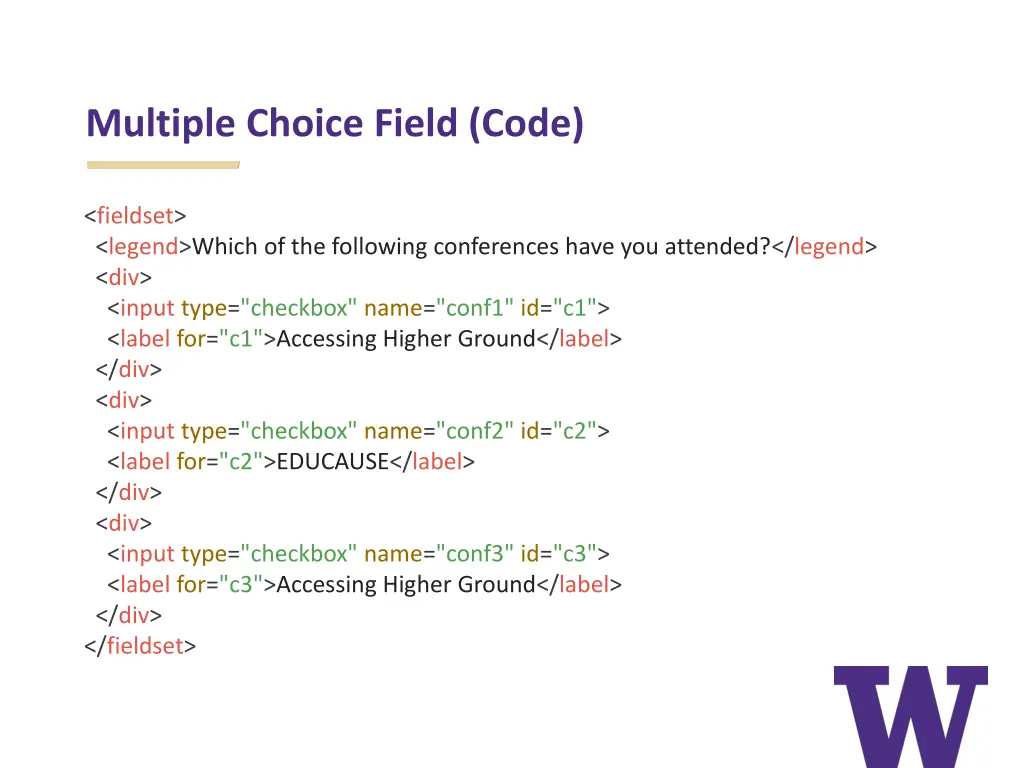
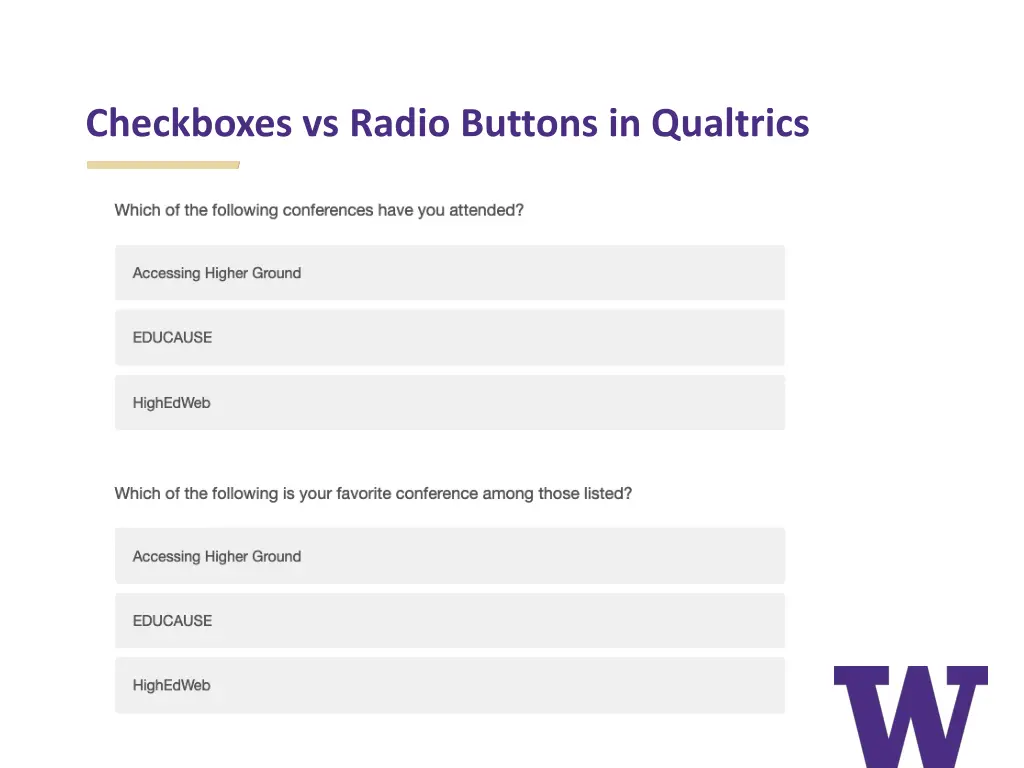
Multiple Choice Field (Code) <fieldset> <legend>Which of the following conferences have you attended?</legend> <div> <input type="checkbox" name="conf1" id="c1"> <label for="c1">Accessing Higher Ground</label> </div> <div> <input type="checkbox" name="conf2" id="c2"> <label for="c2">EDUCAUSE</label> </div> <div> <input type="checkbox" name="conf3" id="c3"> <label for="c3">Accessing Higher Ground</label> </div> </fieldset>
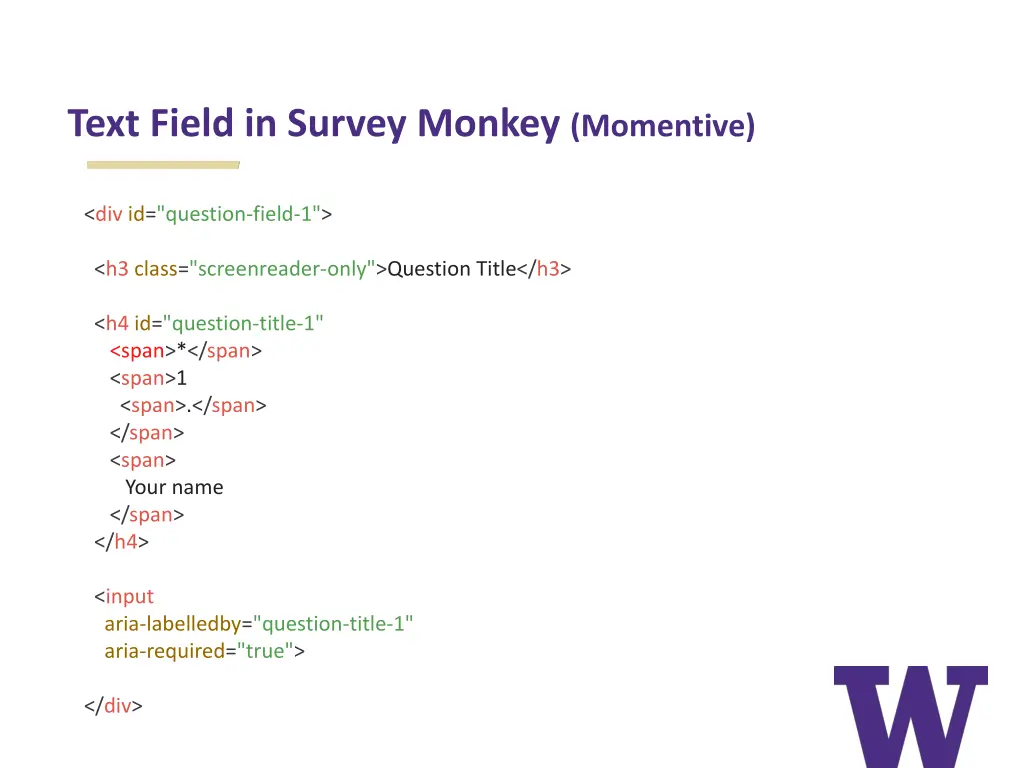
Text Field in Survey Monkey (Momentive) <div id="question-field-1"> <h3 class="screenreader-only">Question Title</h3> <h4 id="question-title-1" <span>*</span> <span>1 <span>.</span> </span> <span> Your name </span> </h4> <input aria-labelledby="question-title-1" aria-required="true"> </div>
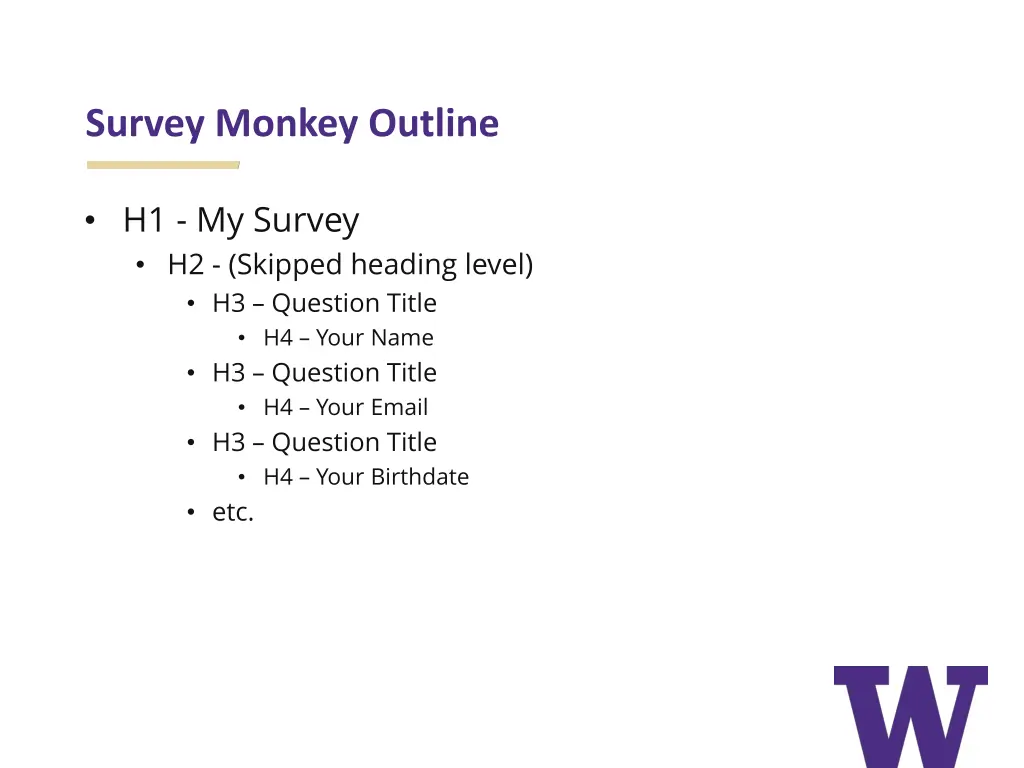
Survey Monkey Outline H1 - My Survey H2 - (Skipped heading level) H3 Question Title H4 Your Name H3 Question Title H4 Your Email H3 Question Title H4 Your Birthdate etc.
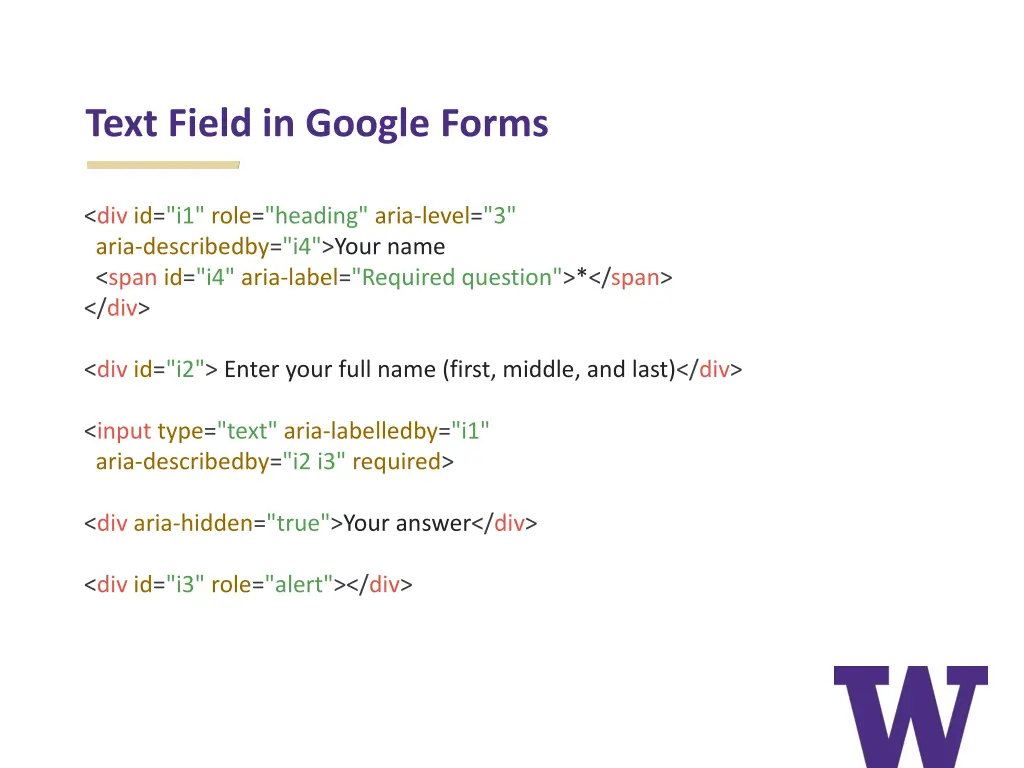
Text Field in Google Forms <div id="i1" role="heading" aria-level="3" aria-describedby="i4">Your name <span id="i4" aria-label="Required question">*</span> </div> <div id="i2"> Enter your full name (first, middle, and last)</div> <input type="text" aria-labelledby="i1" aria-describedby="i2 i3" required> <div aria-hidden="true">Your answer</div> <div id="i3" role="alert"></div>
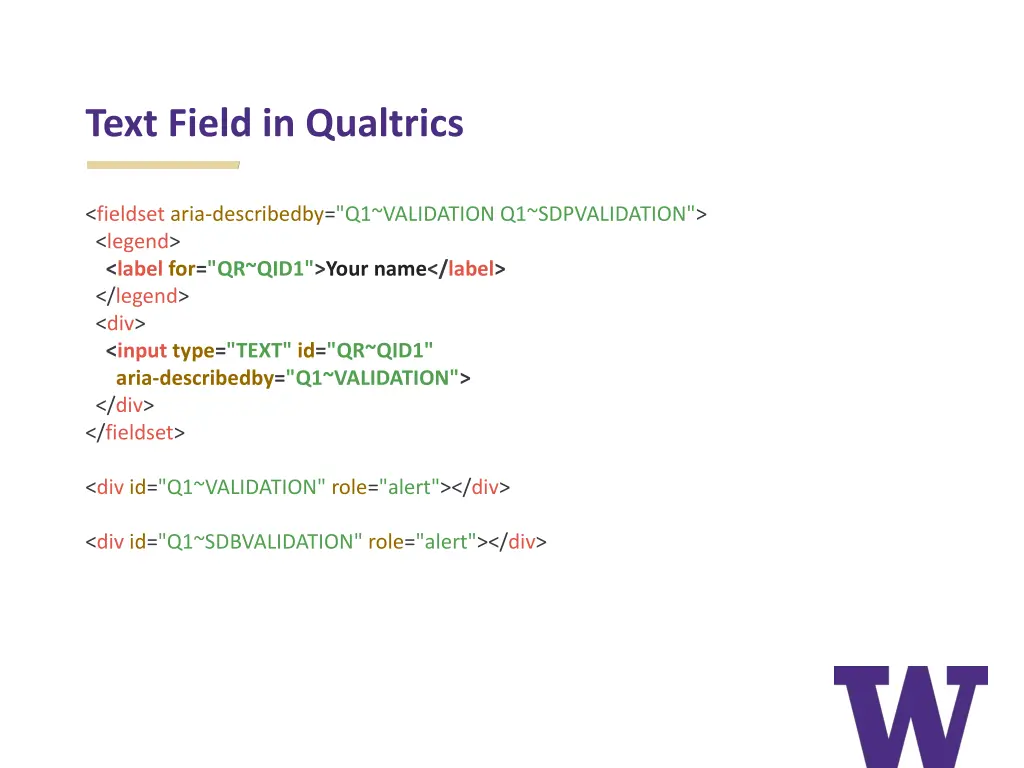
Text Field in Qualtrics <fieldset aria-describedby="Q1~VALIDATION Q1~SDPVALIDATION"> <legend> <label for="QR~QID1">Your name</label> </legend> <div> <input type="TEXT" id="QR~QID1" aria-describedby="Q1~VALIDATION"> </div> </fieldset> <div id="Q1~VALIDATION" role="alert"></div> <div id="Q1~SDBVALIDATION" role="alert"></div>
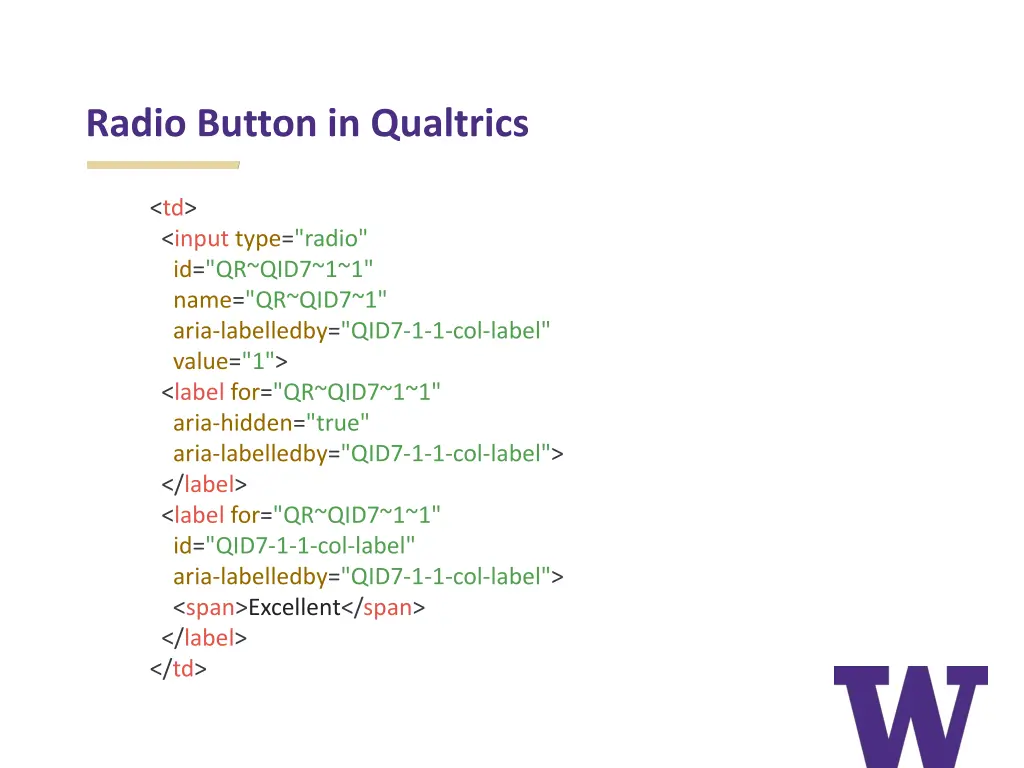
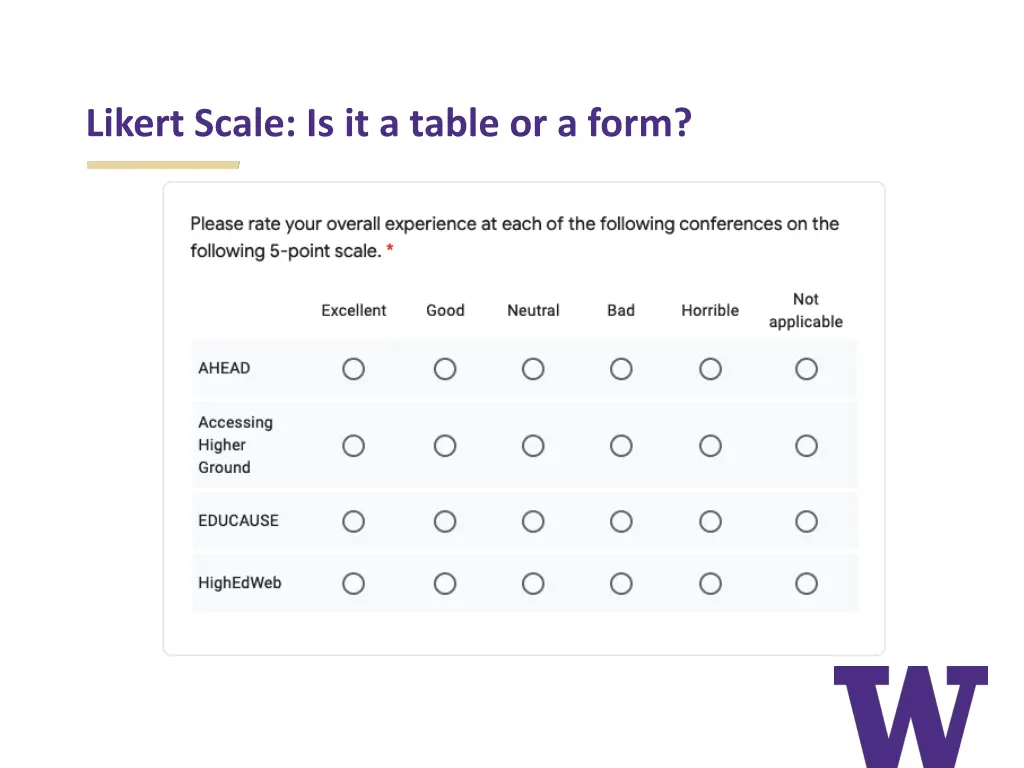
Radio Button in Qualtrics <td> <input type="radio" id="QR~QID7~1~1" name="QR~QID7~1" aria-labelledby="QID7-1-1-col-label" value="1"> <label for="QR~QID7~1~1" aria-hidden="true" aria-labelledby="QID7-1-1-col-label"> </label> <label for="QR~QID7~1~1" id="QID7-1-1-col-label" aria-labelledby="QID7-1-1-col-label"> <span>Excellent</span> </label> </td>
Issues with Forms in Tables JAWS and NVDA identify all radio buttons as "One of one" if they're in separate table cells Screen readers announce table information (e.g., "Row 3 of 4", "Column 3 of 7") in addition to form information, which creates a lot of extra verbiage
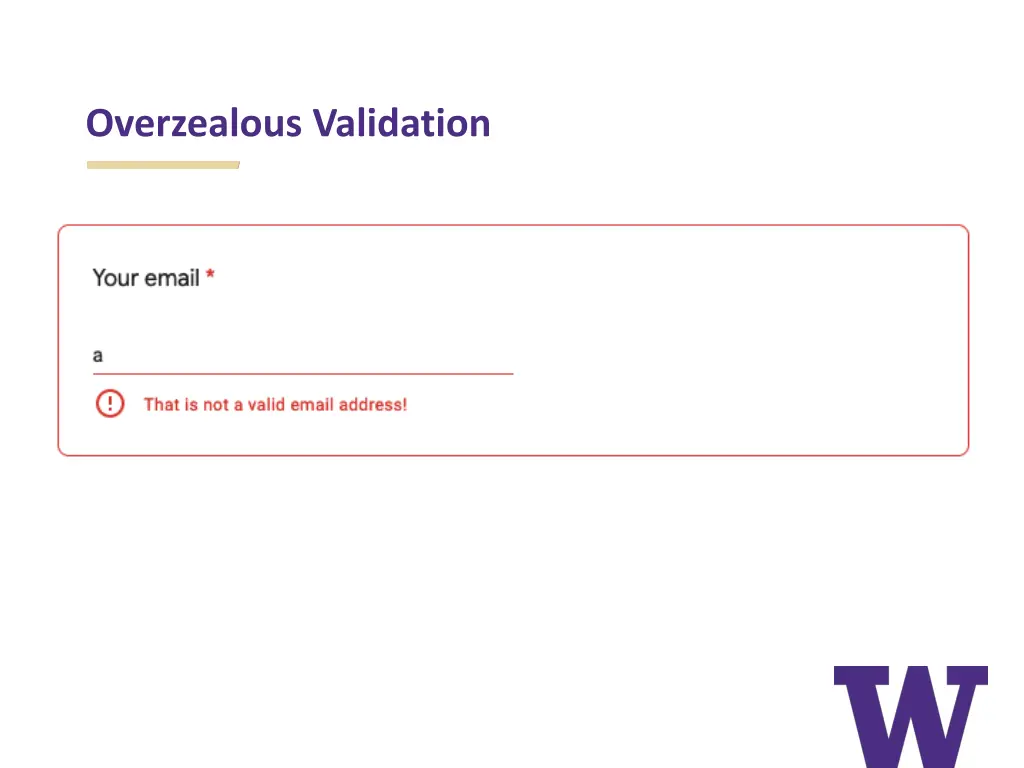
Summary: Survey Tools (1 of 2) Both Google and Microsoft have highly sophisticated forms that use ARIA extensively, but perhaps excessively (forms are extremely verbose) Neither Qualtrics nor Survey Monkey do client-side error checking; it's all server side. Qualtrics doesn't even indicate whether fields are required (neither in the code nor in the user interface)
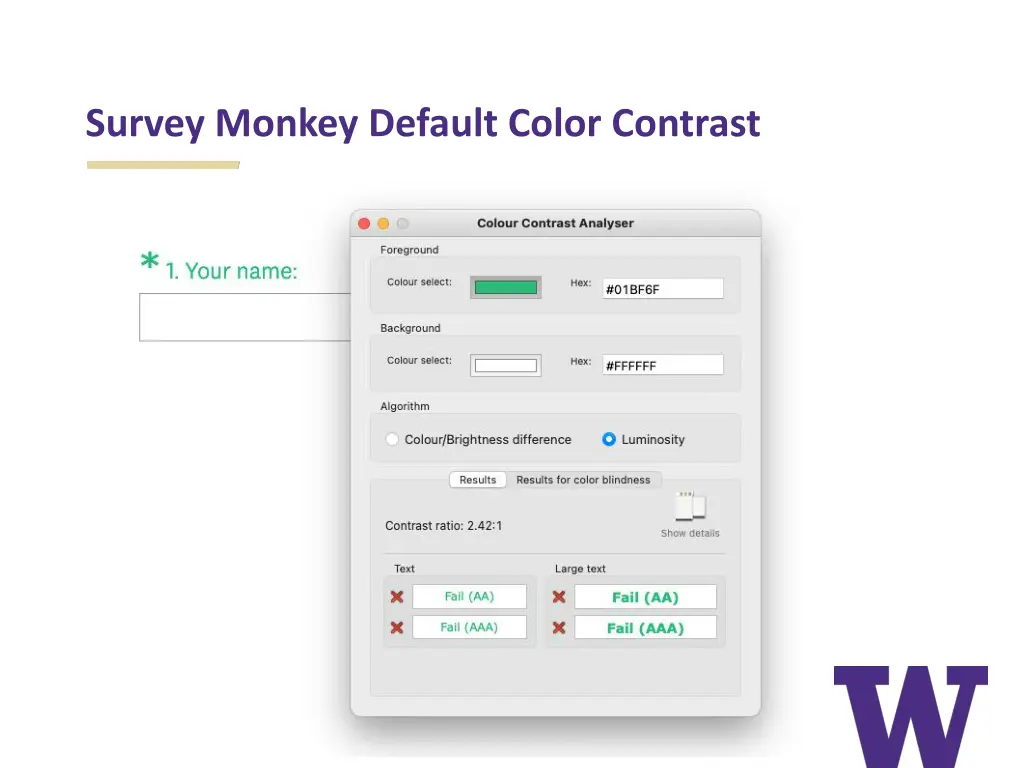
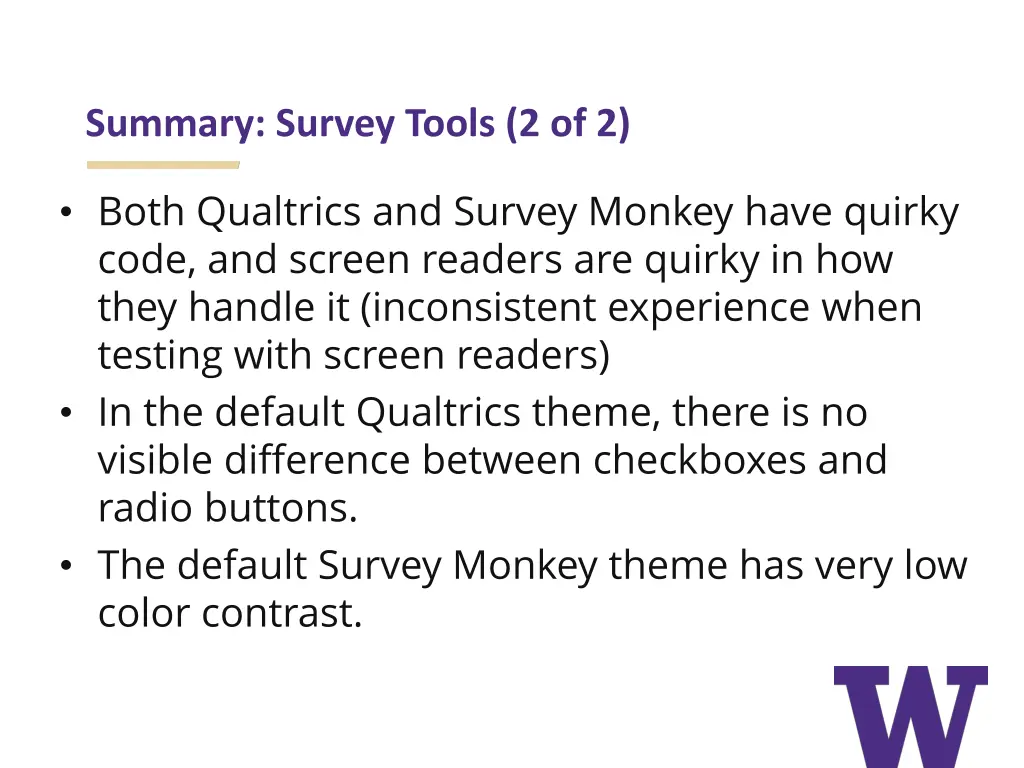
Summary: Survey Tools (2 of 2) Both Qualtrics and Survey Monkey have quirky code, and screen readers are quirky in how they handle it (inconsistent experience when testing with screen readers) In the default Qualtrics theme, there is no visible difference between checkboxes and radio buttons. The default Survey Monkey theme has very low color contrast.
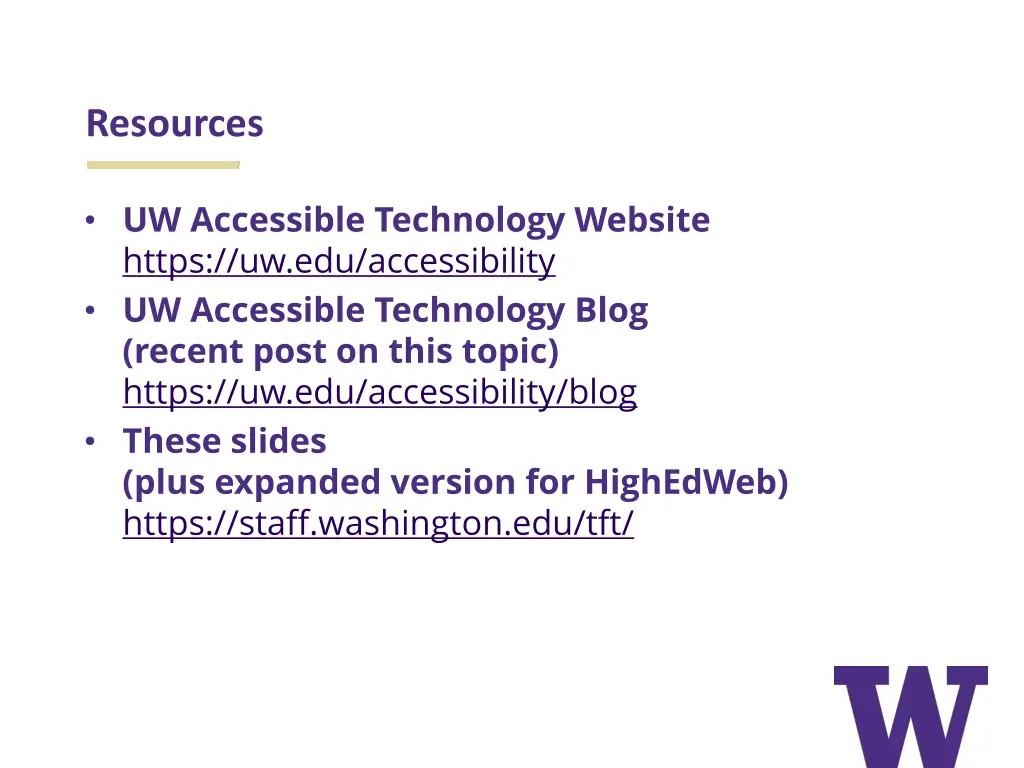
Resources UW Accessible Technology Website https://uw.edu/accessibility UW Accessible Technology Blog (recent post on this topic) https://uw.edu/accessibility/blog These slides (plus expanded version for HighEdWeb) https://staff.washington.edu/tft/