"Learn how to adjust lighting using DWIN.T5L.DGUS with step-by-step software settings, development steps, and demonstration. Explore rotation adjustment, variable icon settings, and touch controls for a seamless experience."
Please find below an Image/Link to download the presentation.
The content on the website is provided AS IS for your information and personal use only. It may not be sold, licensed, or shared on other websites without obtaining consent from the author. If you encounter any issues during the download, it is possible that the publisher has removed the file from their server.
You are allowed to download the files provided on this website for personal or commercial use, subject to the condition that they are used lawfully. All files are the property of their respective owners.
The content on the website is provided AS IS for your information and personal use only. It may not be sold, licensed, or shared on other websites without obtaining consent from the author.
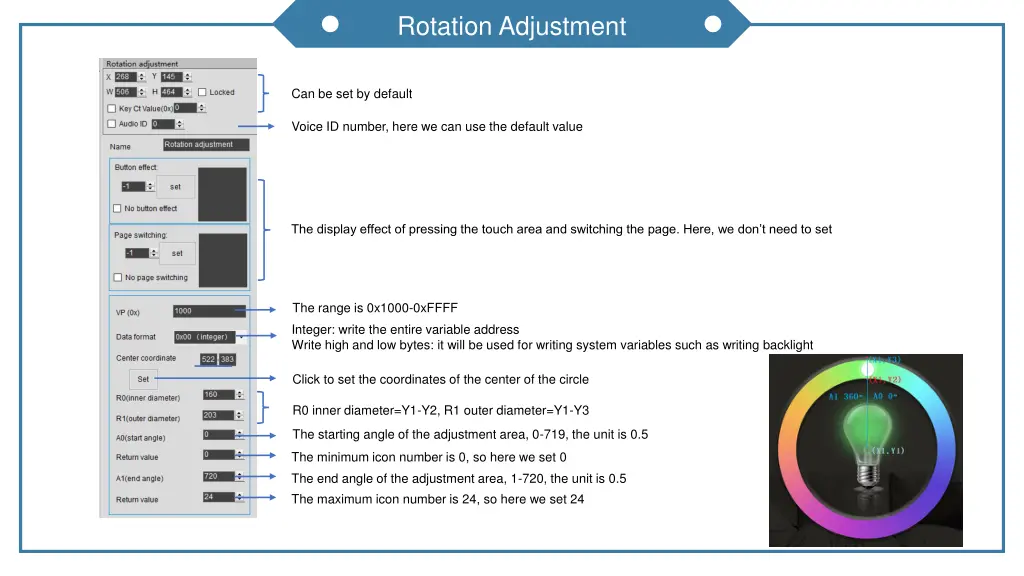
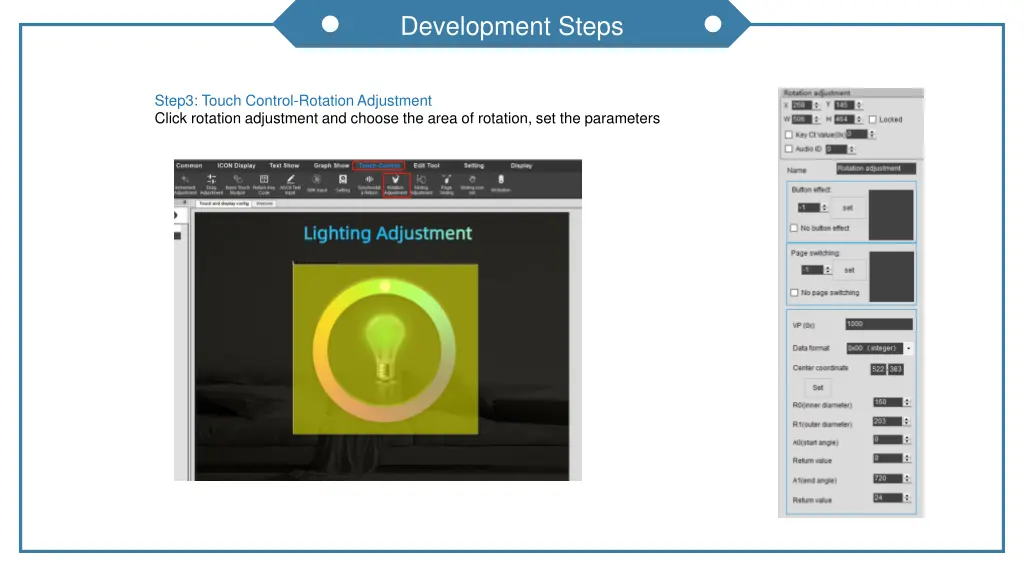
Rotation Adjustment Can be set by default Voice ID number, here we can use the default value The display effect of pressing the touch area and switching the page. Here, we don t need to set The range is 0x1000-0xFFFF Integer: write the entire variable address Write high and low bytes: it will be used for writing system variables such as writing backlight Click to set the coordinates of the center of the circle R0 inner diameter=Y1-Y2, R1 outer diameter=Y1-Y3 The starting angle of the adjustment area, 0-719, the unit is 0.5 The minimum icon number is 0, so here we set 0 The end angle of the adjustment area, 1-720, the unit is 0.5 The maximum icon number is 24, so here we set 24
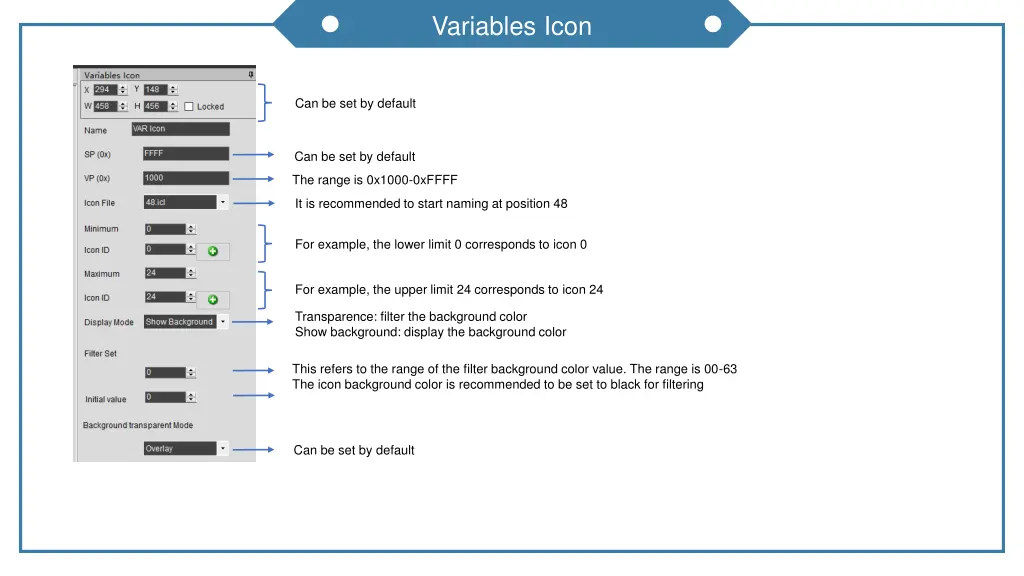
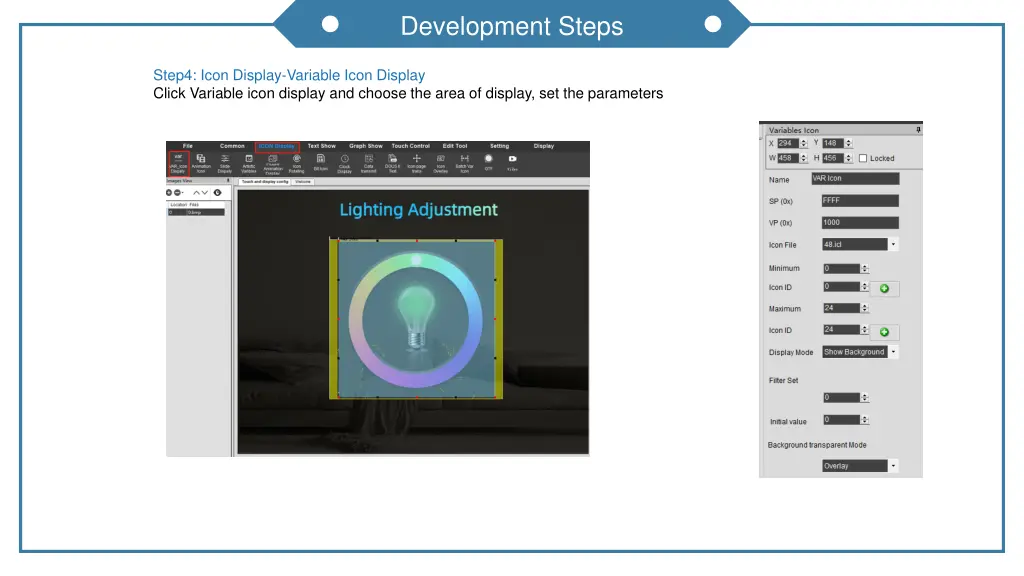
Variables Icon Can be set by default Can be set by default The range is 0x1000-0xFFFF It is recommended to start naming at position 48 For example, the lower limit 0 corresponds to icon 0 For example, the upper limit 24 corresponds to icon 24 Transparence: filter the background color Show background: display the background color This refers to the range of the filter background color value. The range is 00-63 The icon background color is recommended to be set to black for filtering Can be set by default
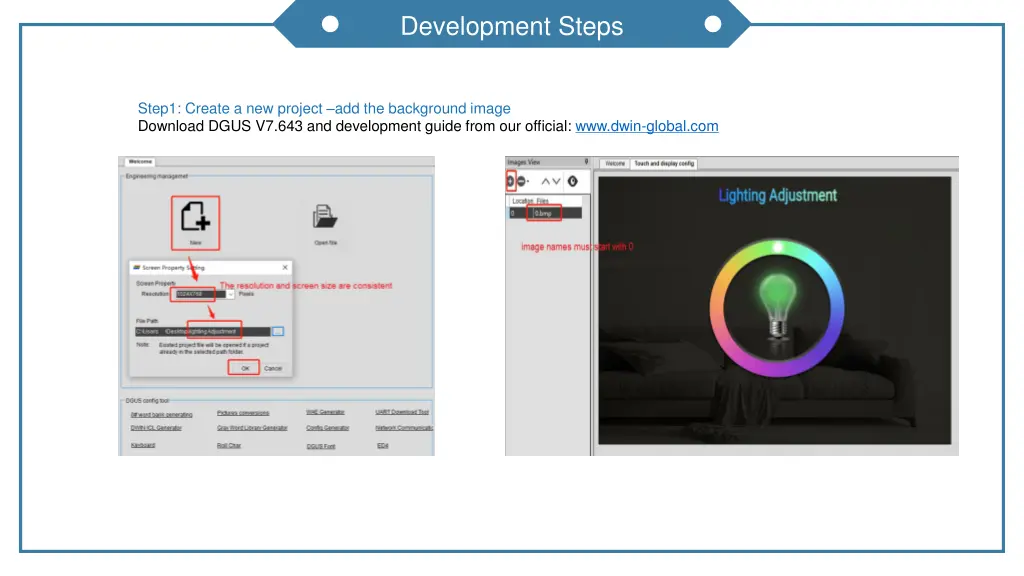
Development Steps Step1: Create a new project add the background image Download DGUS V7.643 and development guide from our official: www.dwin-global.com
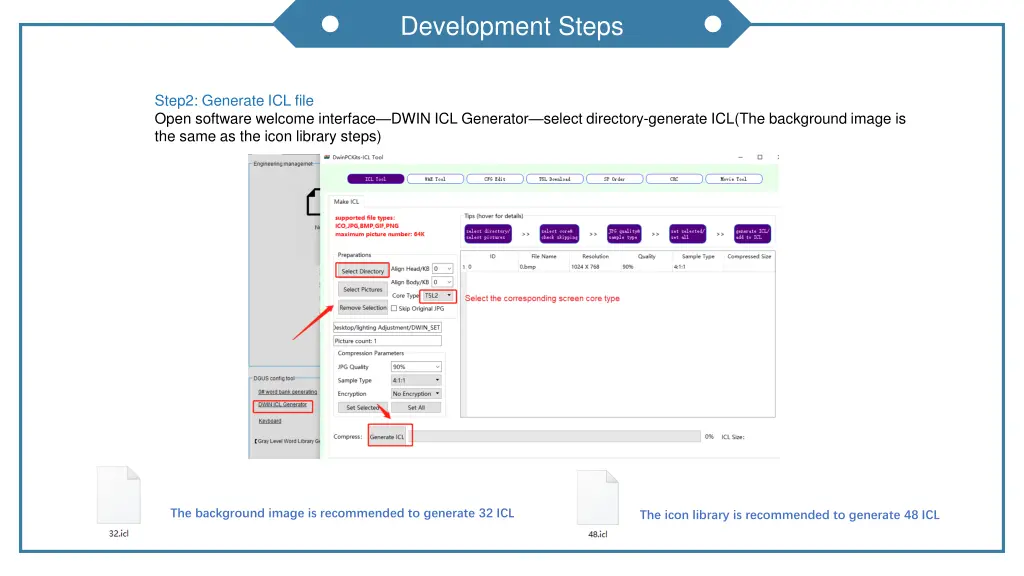
Development Steps Step2: Generate ICL file Open software welcome interface DWIN ICL Generator select directory-generate ICL(The background image is the same as the icon library steps) The background image is recommended to generate 32 ICL The icon library is recommended to generate 48 ICL
Development Steps Step3: Touch Control-Rotation Adjustment Click rotation adjustment and choose the area of rotation, set the parameters
Development Steps Step4: Icon Display-Variable Icon Display Click Variable icon display and choose the area of display, set the parameters
Development Steps Step5:Click save-generate After setting all parameters, click save and generate Put the following files in DWIN_SET folder and download to SD card .