Easy Steps to Verify Purchase Order Sent Status
Learn how to efficiently check if your Purchase Order was successfully sent to the supplier using these simple steps. Verify distribution method, transmission status, and receive supplier confirmation easily.

Download Presentation

Please find below an Image/Link to download the presentation.
The content on the website is provided AS IS for your information and personal use only. It may not be sold, licensed, or shared on other websites without obtaining consent from the author.If you encounter any issues during the download, it is possible that the publisher has removed the file from their server.
You are allowed to download the files provided on this website for personal or commercial use, subject to the condition that they are used lawfully. All files are the property of their respective owners.
The content on the website is provided AS IS for your information and personal use only. It may not be sold, licensed, or shared on other websites without obtaining consent from the author.
E N D
Presentation Transcript
Procure to Pay Project Tips and Tricks How to tell if your PO was sent.
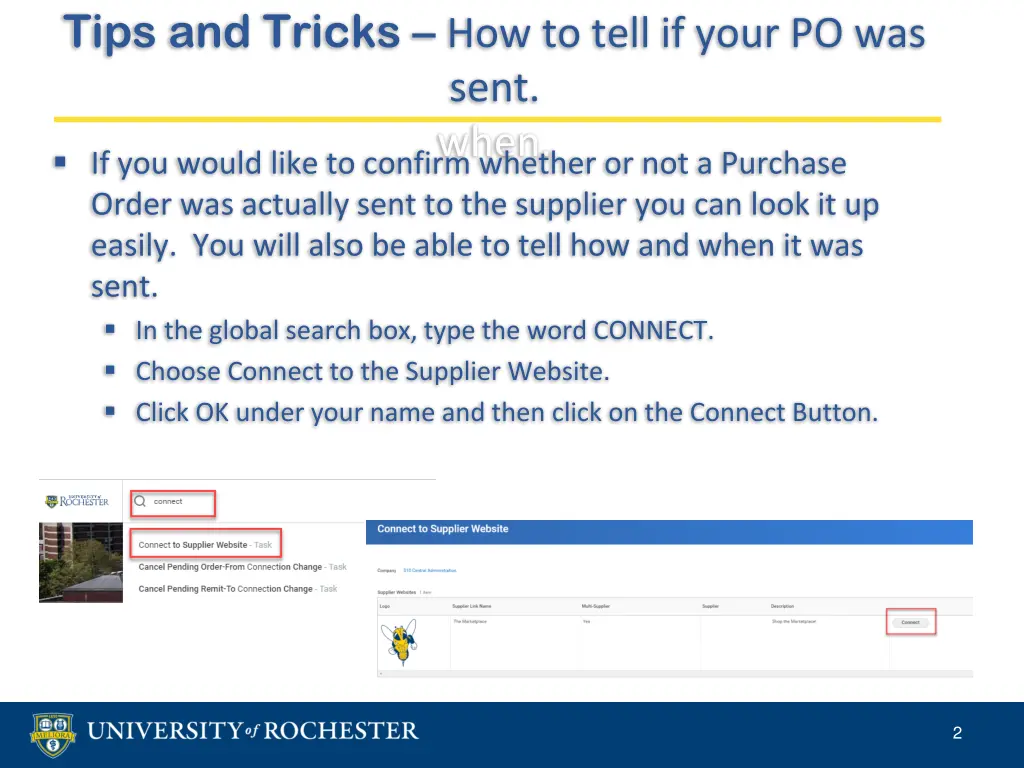
Tips and Tricks How to tell if your PO was sent. when. If you would like to confirm whether or not a Purchase Order was actually sent to the supplier you can look it up easily. You will also be able to tell how and when it was sent. In the global search box, type the word CONNECT. Choose Connect to the Supplier Website. Click OK under your name and then click on the Connect Button. 2
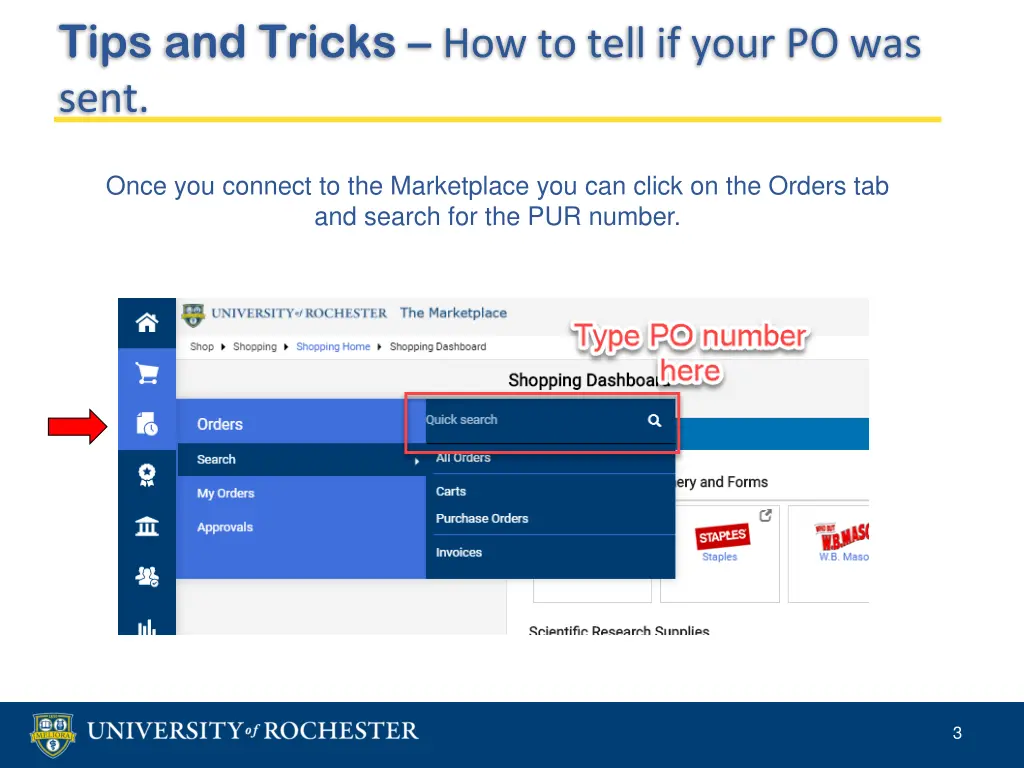
Tips and Tricks How to tell if your PO was sent. Once you connect to the Marketplace you can click on the Orders tab and search for the PUR number. 3
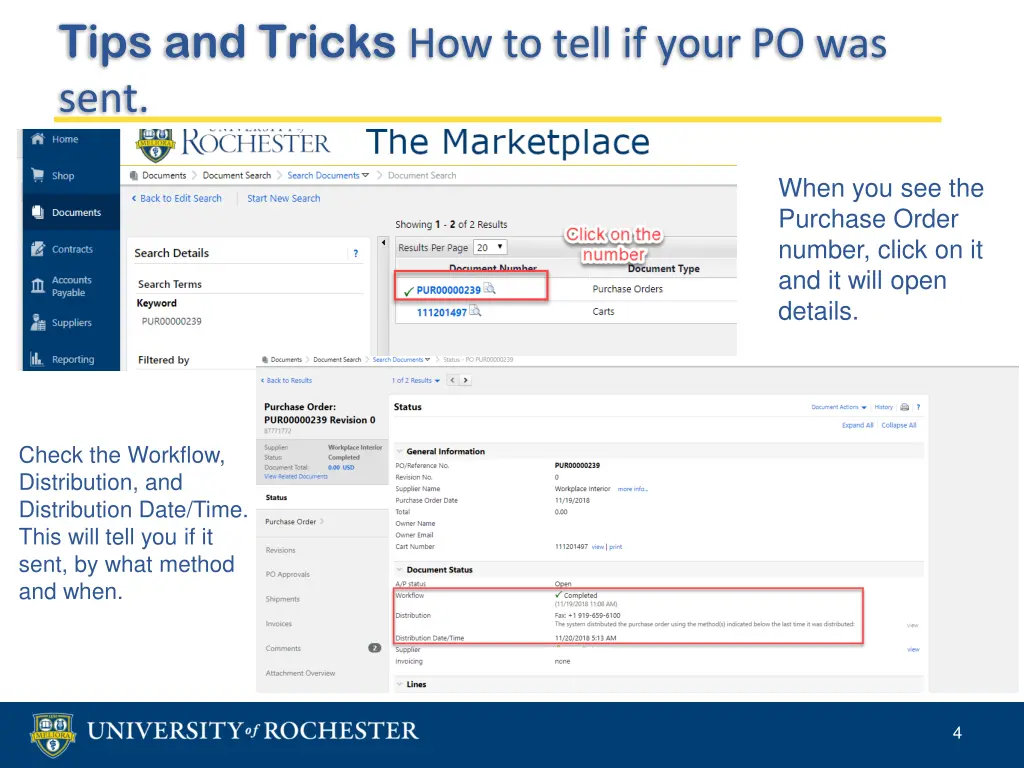
Tips and Tricks How to tell if your PO was sent. When you see the Purchase Order number, click on it and it will open details. Check the Workflow, Distribution, and Distribution Date/Time. This will tell you if it sent, by what method and when. 4
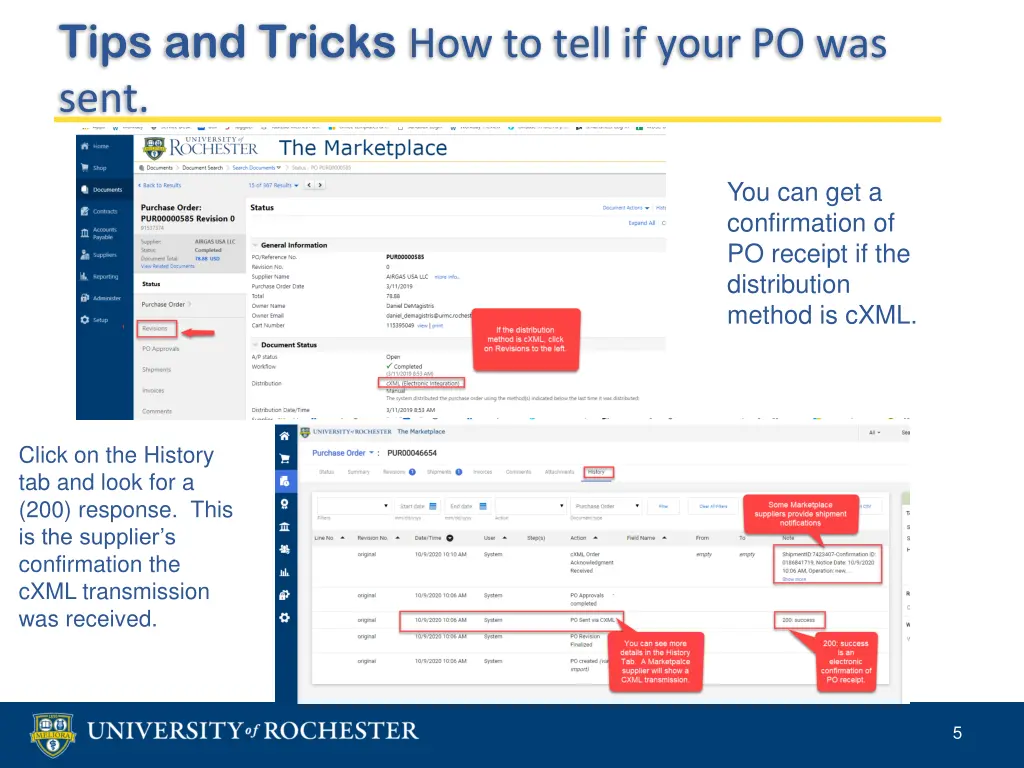
Tips and Tricks How to tell if your PO was sent. You can get a confirmation of PO receipt if the distribution method is cXML. Click on the History tab and look for a (200) response. This is the supplier s confirmation the cXML transmission was received. 5
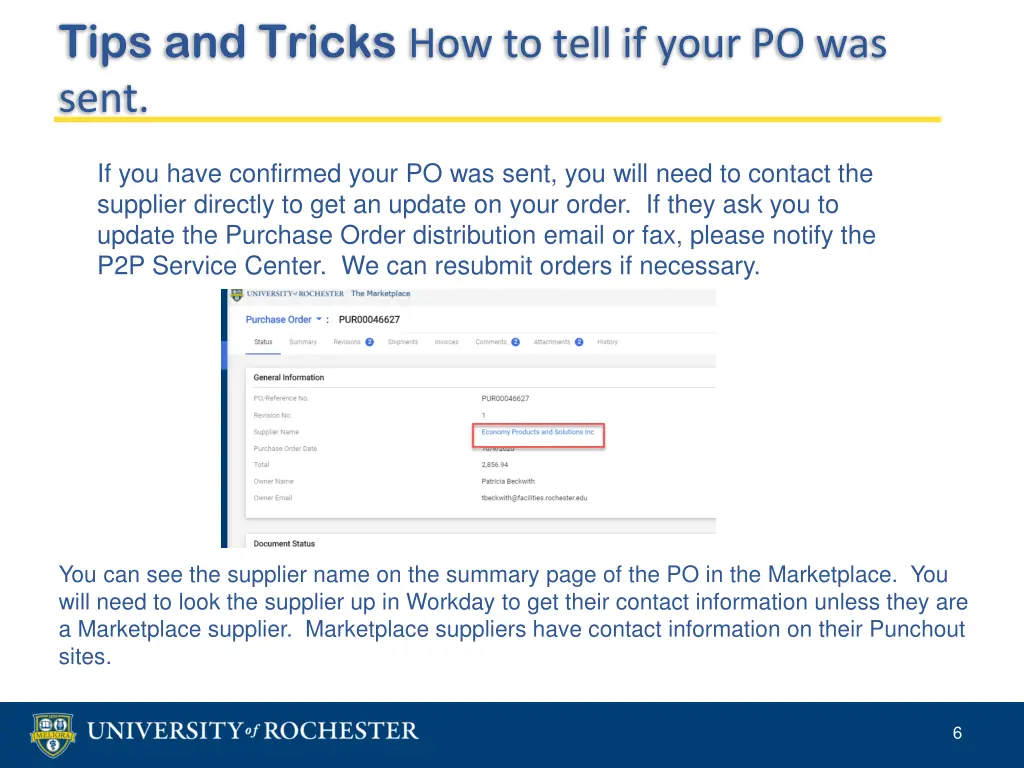
Tips and Tricks How to tell if your PO was sent. If you have confirmed your PO was sent, you will need to contact the supplier directly to get an update on your order. If they ask you to update the Purchase Order distribution email or fax, please notify the P2P Service Center. We can resubmit orders if necessary. You can see the supplier name on the summary page of the PO in the Marketplace. You will need to look the supplier up in Workday to get their contact information unless they are a Marketplace supplier. Marketplace suppliers have contact information on their Punchout sites. 6
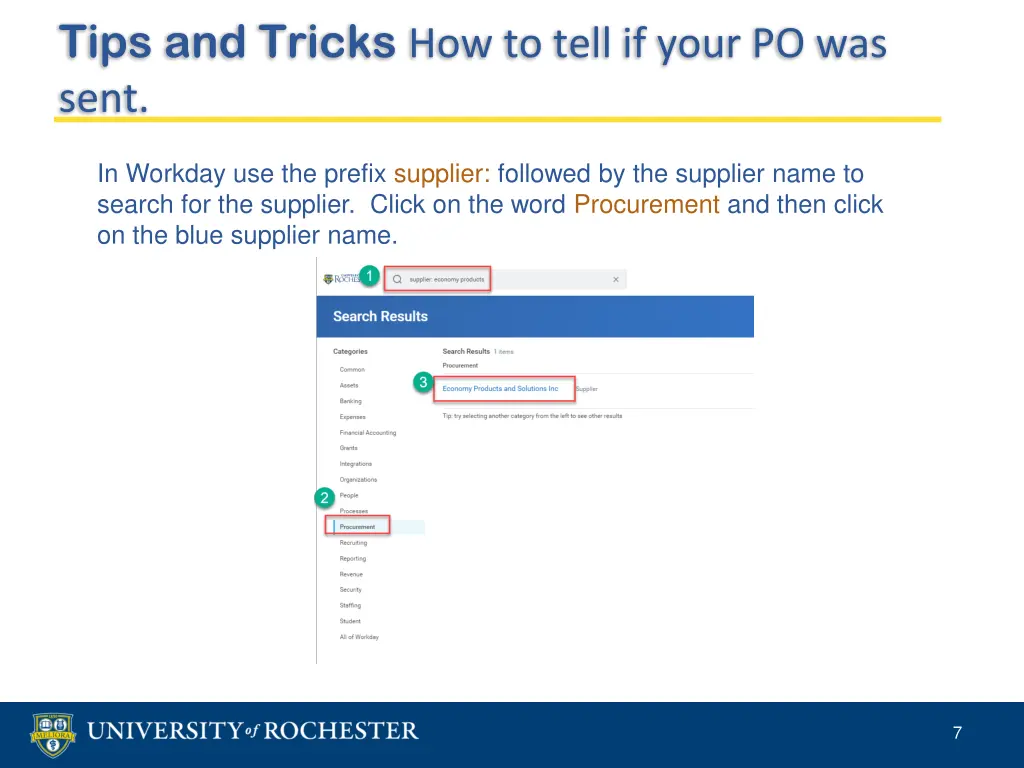
Tips and Tricks How to tell if your PO was sent. In Workday use the prefix supplier: followed by the supplier name to search for the supplier. Click on the word Procurement and then click on the blue supplier name. 7
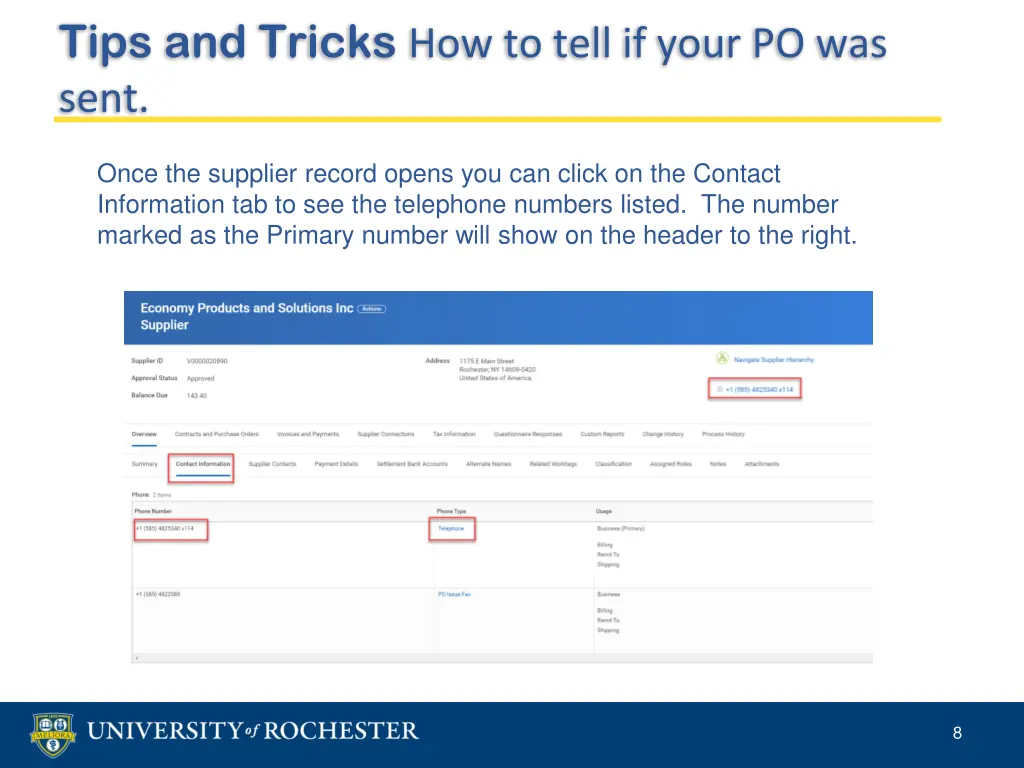
Tips and Tricks How to tell if your PO was sent. Once the supplier record opens you can click on the Contact Information tab to see the telephone numbers listed. The number marked as the Primary number will show on the header to the right. 8