Efficient User Registration and Payment Process
Streamline your registration and payment process with easy account selection, setting limits, de-registration, request lodgement, OTP authentication, and more. Simplify user interactions while ensuring security and compliance with terms and conditions.

Download Presentation

Please find below an Image/Link to download the presentation.
The content on the website is provided AS IS for your information and personal use only. It may not be sold, licensed, or shared on other websites without obtaining consent from the author.If you encounter any issues during the download, it is possible that the publisher has removed the file from their server.
You are allowed to download the files provided on this website for personal or commercial use, subject to the condition that they are used lawfully. All files are the property of their respective owners.
The content on the website is provided AS IS for your information and personal use only. It may not be sold, licensed, or shared on other websites without obtaining consent from the author.
E N D
Presentation Transcript
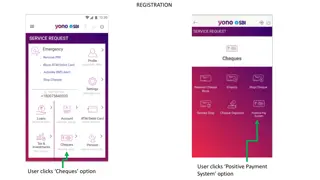
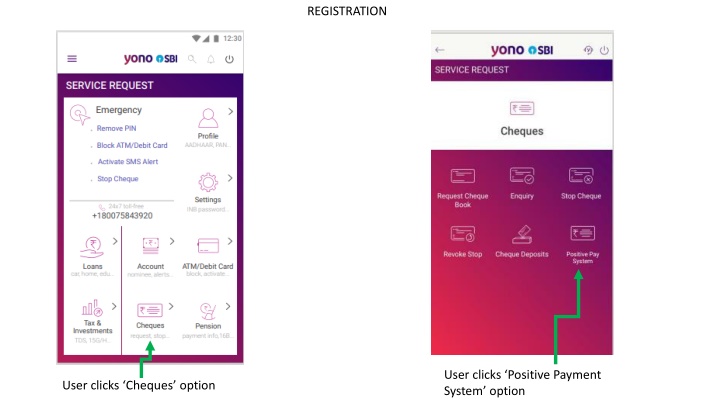
REGISTRATION User clicks Positive Payment System option User clicks Cheques option
User can select the account by clicking the drop box User enters the amount beyond which the PPS will be applicable User can view Terms & Conditions After reading the T&C and ticking the check box , user selects Register Account User clicks Register Account
The Positive Payment Request is raised successfully. After clicking Register Account , OTP is sent to bank registered mobile no. User enters the OTP and clicks submit
CHANGE LIMIT User clicks Change Account Limit User enters new limit
DE-REGISTRATION User selects the account using dropdown. User clicks De-register Account User clicks De-register
User shown warning pop-up message OTP authentication takes place
REQUEST LODGEMENT User enters details account no. , amount, date , beneficiary name, cheque no. and instrument type After reviewing and reading the T&C , user ticks the checkbox and clicks next User clicks Make a request
Success message OTP Authentication
DELETE REQUEST User clicks delete icon to delete the request User clicks View Request User enters the required details