Learn how to enter grades using the grade roster in your KUSIS account. Follow these steps to successfully input grades for your students, ensuring accuracy and efficiency in the process. From logging in to submitting final grades, this guide covers everything you need to know.
Please find below an Image/Link to download the presentation.
The content on the website is provided AS IS for your information and personal use only. It may not be sold, licensed, or shared on other websites without obtaining consent from the author. If you encounter any issues during the download, it is possible that the publisher has removed the file from their server.
You are allowed to download the files provided on this website for personal or commercial use, subject to the condition that they are used lawfully. All files are the property of their respective owners.
The content on the website is provided AS IS for your information and personal use only. It may not be sold, licensed, or shared on other websites without obtaining consent from the author.
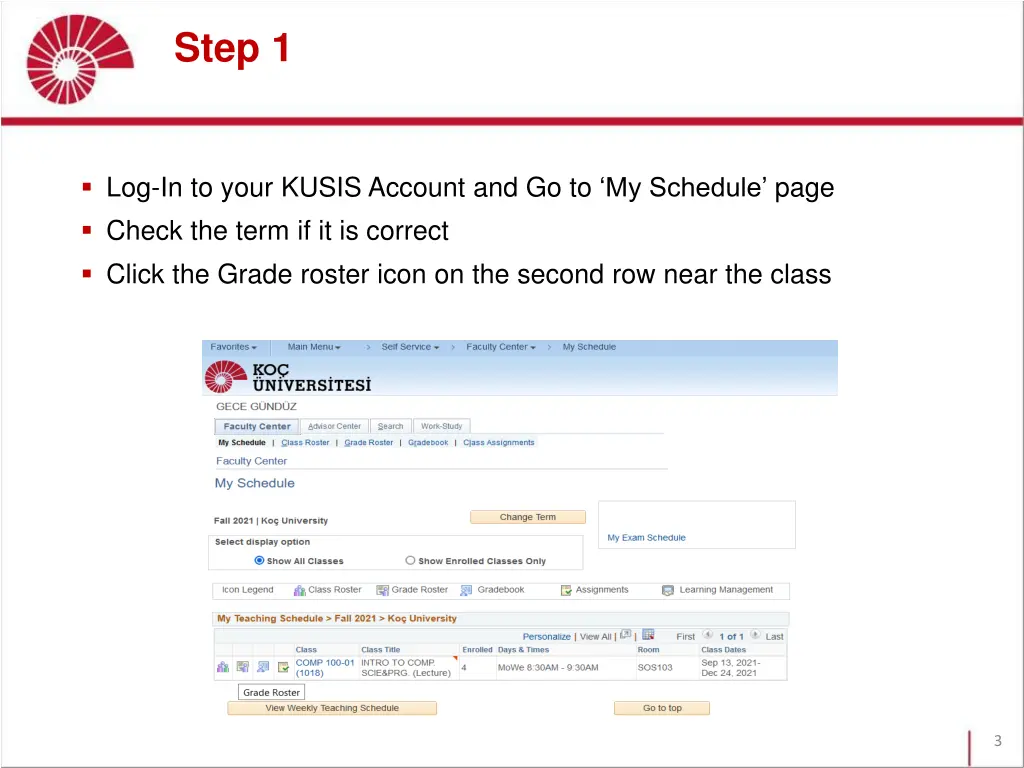
Step 1 Log-In to your KUSIS Account and Go to My Schedule page Check the term if it is correct Click the Grade roster icon on the second row near the class 3
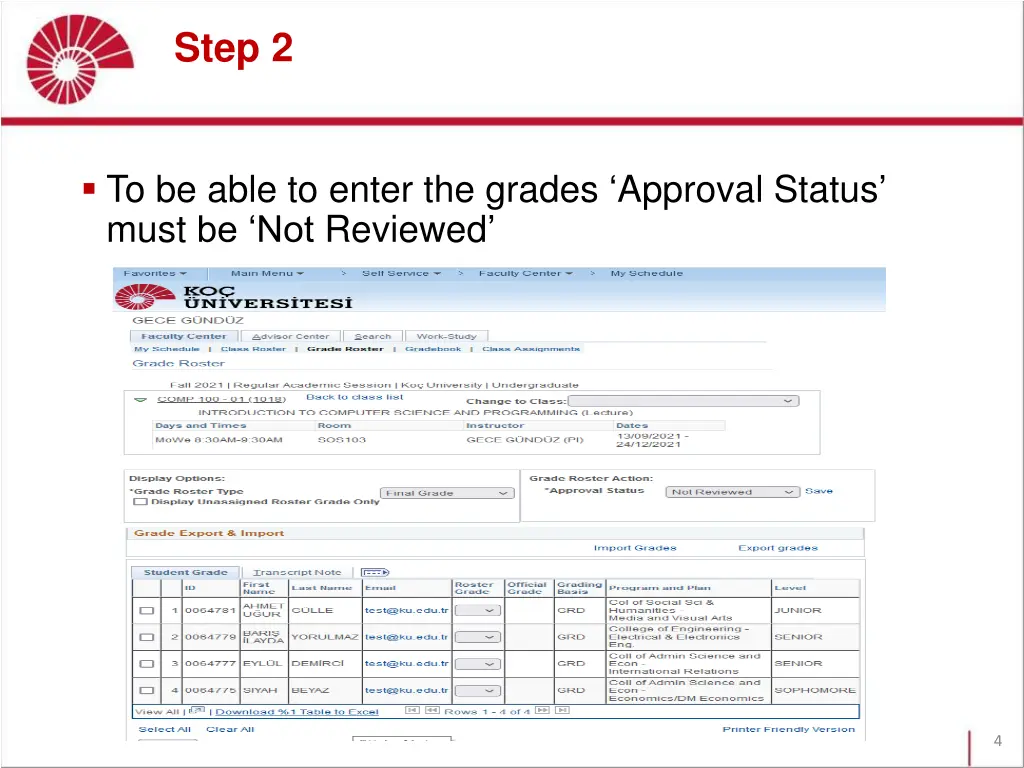
Step 2 To be able to enter the grades Approval Status must be Not Reviewed 4
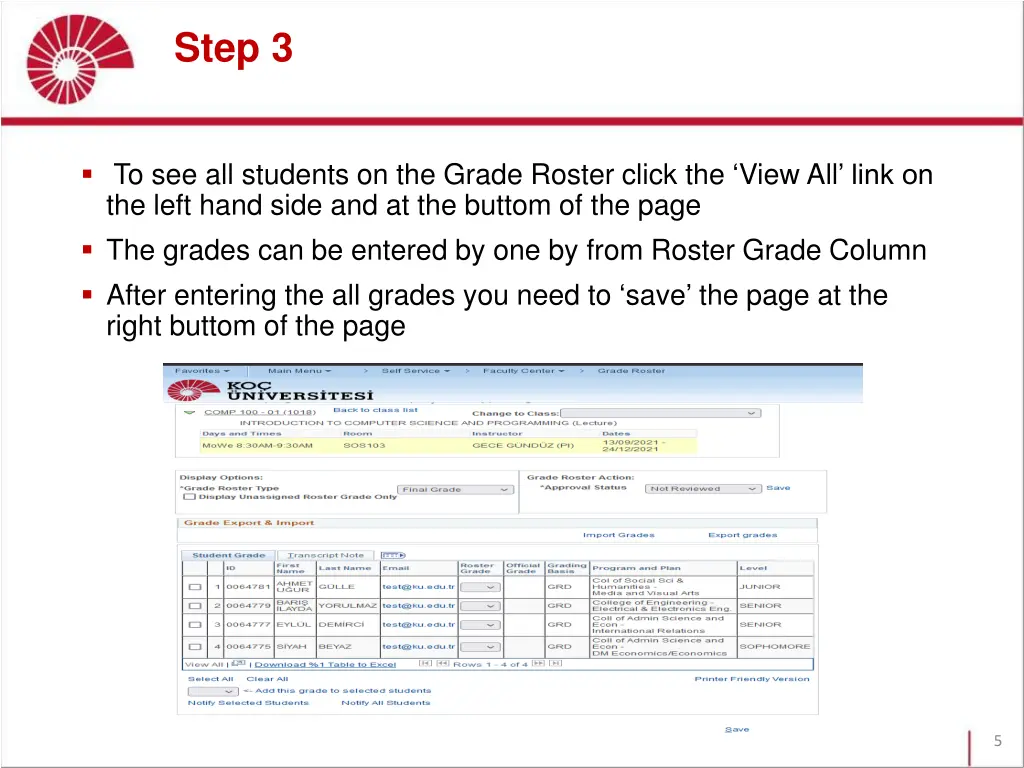
Step 3 To see all students on the Grade Roster click the View All link on the left hand side and at the buttom of the page The grades can be entered by one by from Roster Grade Column After entering the all grades you need to save the page at the right buttom of the page 5
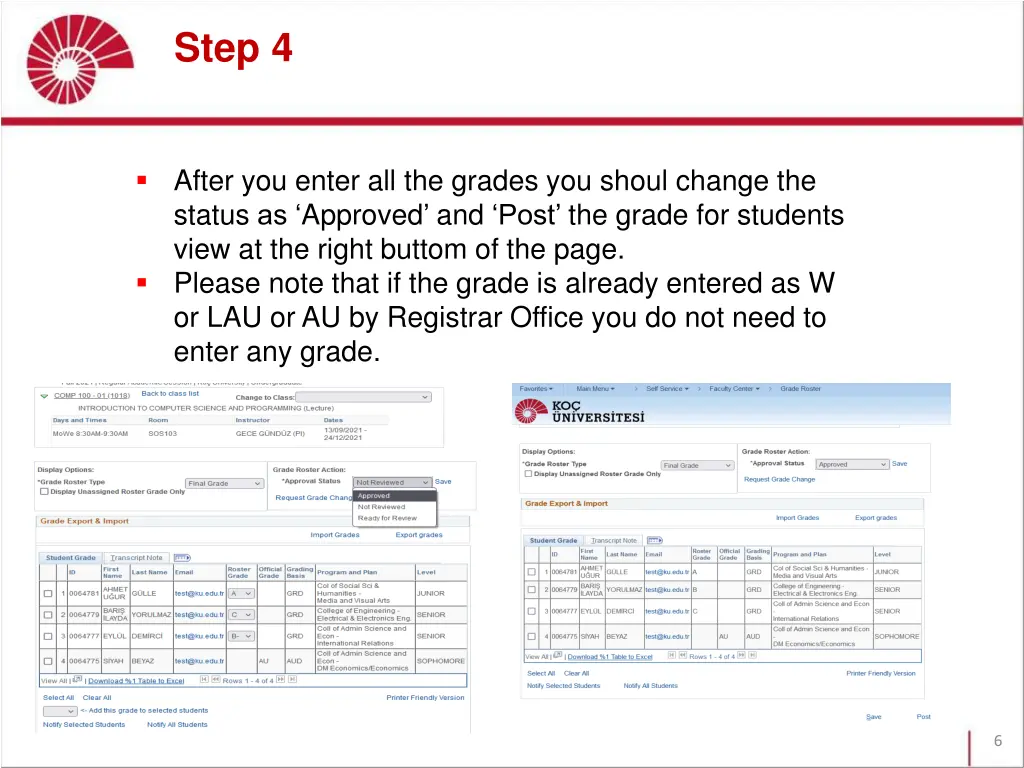
Step 4 After you enter all the grades you shoul change the status as Approved and Post the grade for students view at the right buttom of the page. Please note that if the grade is already entered as W or LAU or AU by Registrar Office you do not need to enter any grade. 6