Getting Started with MSP430FR6989 Microcontroller Development
Dive into the setup process for a microcontroller project using the MSP430FR6989 architecture in Code Composer Studio. Learn how to set up your workspace, transfer projects, and resolve common errors in a step-by-step guide with helpful visuals.

Download Presentation

Please find below an Image/Link to download the presentation.
The content on the website is provided AS IS for your information and personal use only. It may not be sold, licensed, or shared on other websites without obtaining consent from the author.If you encounter any issues during the download, it is possible that the publisher has removed the file from their server.
You are allowed to download the files provided on this website for personal or commercial use, subject to the condition that they are used lawfully. All files are the property of their respective owners.
The content on the website is provided AS IS for your information and personal use only. It may not be sold, licensed, or shared on other websites without obtaining consent from the author.
E N D
Presentation Transcript
ECE 3567 Microcontroller Lab ECE 3567 Microcontroller Lab Lecture 2 Project Demo, Embedded C, MSP430FR6989 Architecture Autumn 2018 Dr. Gregg Chapman
ECE 3567 Microcontroller Lab ECE 3567 Microcontroller Lab Project Demo
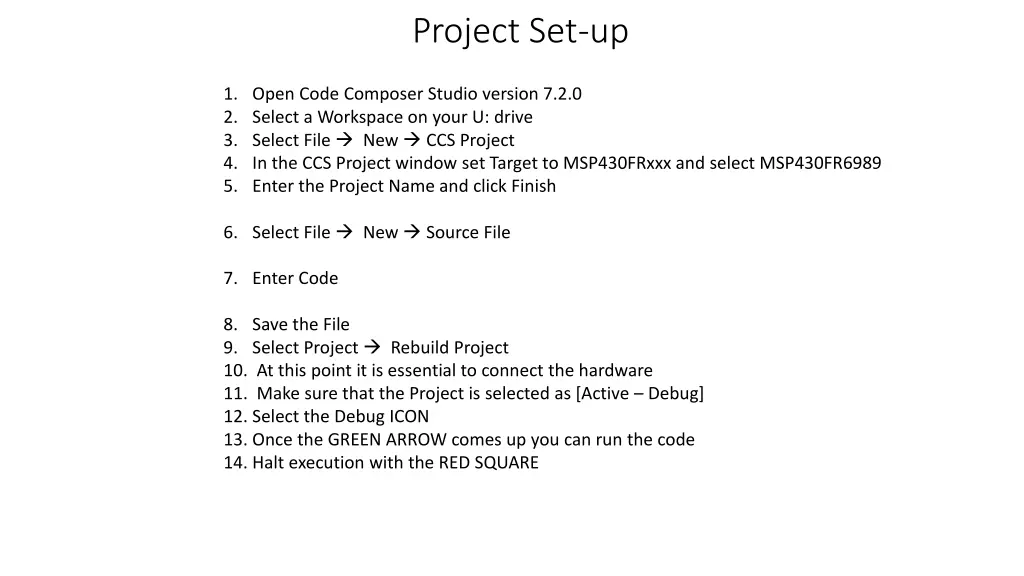
Project Set-up 1. Open Code Composer Studio version 7.2.0 2. Select a Workspace on your U: drive 3. Select File New CCS Project 4. In the CCS Project window set Target to MSP430FRxxx and select MSP430FR6989 5. Enter the Project Name and click Finish 6. Select File New Source File 7. Enter Code 8. Save the File 9. Select Project Rebuild Project 10. At this point it is essential to connect the hardware 11. Make sure that the Project is selected as [Active Debug] 12. Select the Debug ICON 13. Once the GREEN ARROW comes up you can run the code 14. Halt execution with the RED SQUARE
Transferring a Project to a New Location You must do two things before your project will function normally 1. Change the Workspace 2. Update the path for the Include Options under the Complier settings
Change Workspace 1. Select File Switch Workspace Other 2. Enter the new workspace. Always select the file ABOVE your Project file that CCS created. When you select OK, Code Composer will restart
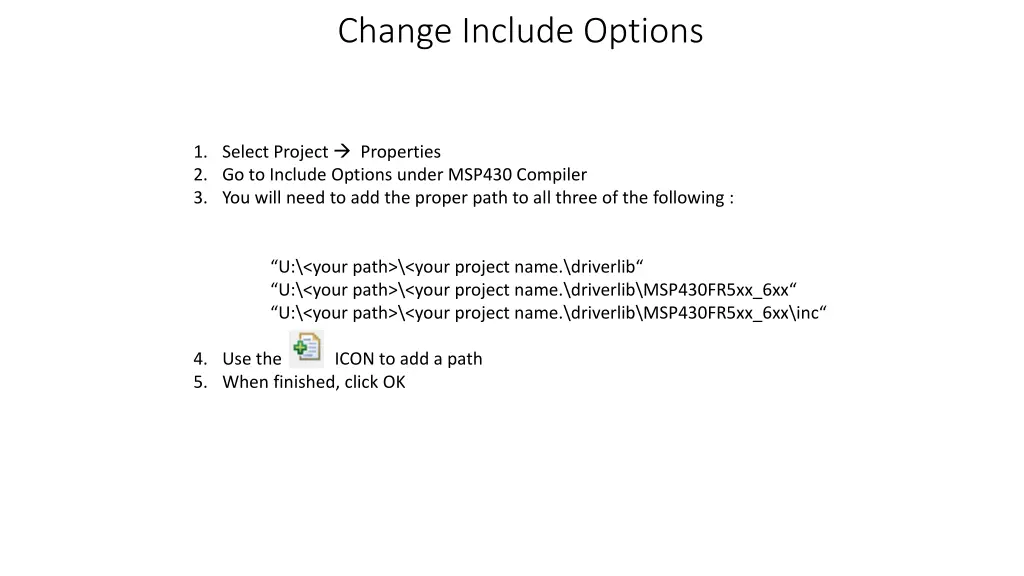
Change Include Options 1. Select Project Properties 2. Go to Include Options under MSP430 Compiler 3. You will need to add the proper path to all three of the following : U:\<your path>\<your project name.\driverlib U:\<your path>\<your project name.\driverlib\MSP430FR5xx_6xx U:\<your path>\<your project name.\driverlib\MSP430FR5xx_6xx\inc 4. Use the ICON to add a path 5. When finished, click OK
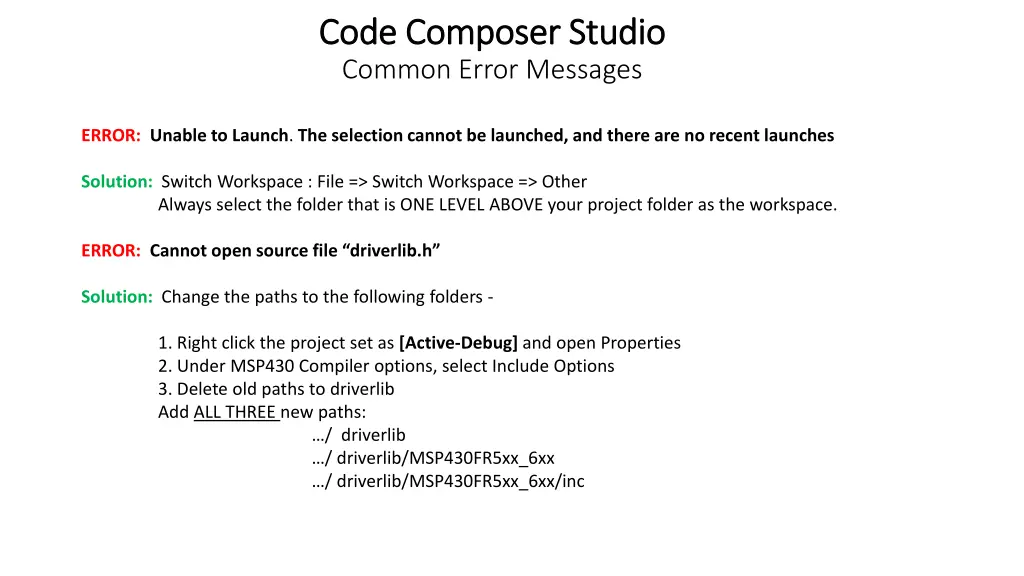
Code Composer Studio Code Composer Studio Common Error Messages ERROR: Unable to Launch. The selection cannot be launched, and there are no recent launches Solution: Switch Workspace : File => Switch Workspace => Other Always select the folder that is ONE LEVEL ABOVE your project folder as the workspace. ERROR: Cannot open source file driverlib.h Solution: Change the paths to the following folders - 1. Right click the project set as [Active-Debug] and open Properties 2. Under MSP430 Compiler options, select Include Options 3. Delete old paths to driverlib Add ALL THREE new paths: / driverlib / driverlib/MSP430FR5xx_6xx / driverlib/MSP430FR5xx_6xx/inc
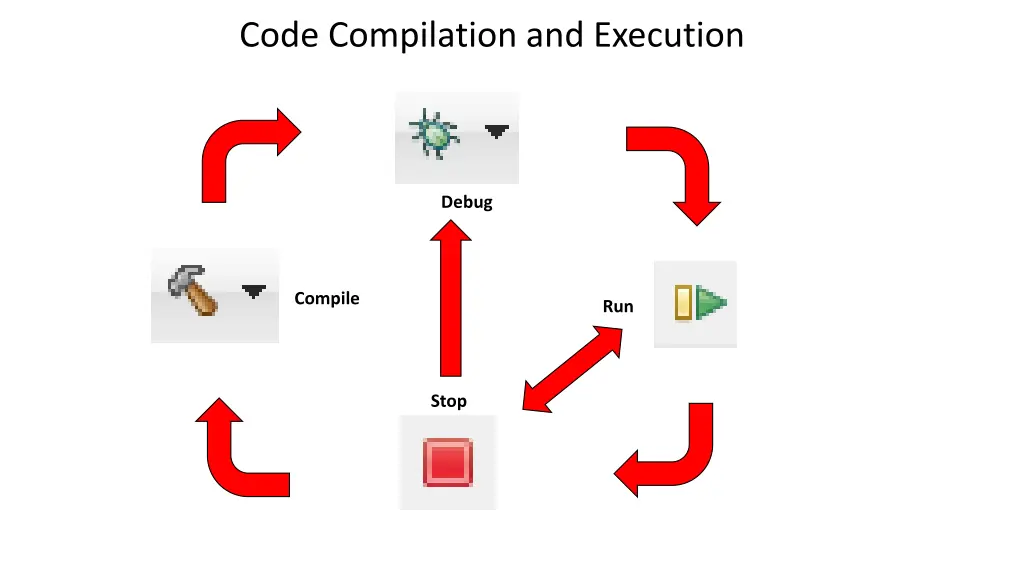
Code Compilation and Execution Debug Compile Run Stop
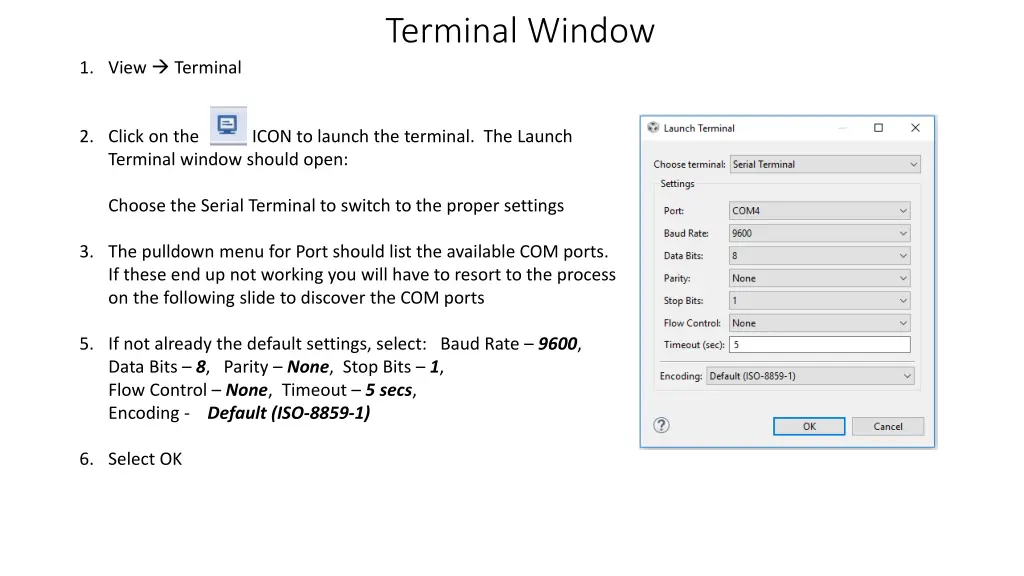
Terminal Window 1. View Terminal 2. Click on the ICON to launch the terminal. The Launch Terminal window should open: Choose the Serial Terminal to switch to the proper settings 3. The pulldown menu for Port should list the available COM ports. If these end up not working you will have to resort to the process on the following slide to discover the COM ports 5. If not already the default settings, select: Baud Rate 9600, Data Bits 8, Parity None, Stop Bits 1, Flow Control None, Timeout 5 secs, Encoding - Default (ISO-8859-1) 6. Select OK
The CCS Com Terminal The CCS Com Terminal Each lab computer uses numerous COM ports. Before you activate the Terminal in CCS, you must identify an available COM port. To do this outside of the CCS Terminal: 1. type CMD in the search window to bring up the Command Line prompt 2. type MODE and write down the communication port numbers that are available (e.g. COM12, COM3) 3. Close the Command window
Communication Communication When you run the ECE 3567 Project program, You should receive the following message from the ECE 3567 software after the next RESET: ECE 3567 Microcontroller Lab Please enter a Command Code: You can test the transmit with valid two character commands, which must be capitalized. If they are not, you will receive: UNKNOWN COMMAND Please enter the next Command Code: For now, a valid command code will only respond with: Please enter the next Command Code: The command: TE should work You will add function to these codes throughout the semester
Watch Window Note that there is not a dynamic debugger for the LaunchPad. Expressions and Variables are only updated after a Breakpoint is reached. 1. Select View Expressions 2. Right click to add registers or variable names.
Breakpoints 1. Double click the line number to set a breakpoint 2. You must re-compile to incorporate the breakpoint 3. Click twice more to clear a breakpoint
ECE 3567 Microcontrollers Embedded C Programming
Embedded C It is C, but does NOT conform to common software practice due to all the # compiler directives and header files. It relies extensively on #defines and #typedefs located in included HEADER files (.h) in order to make low level manipulation of the hardware much easier than assembly language. NOTE: this also makes the C program look funny to software engineers. It is hardware dependent, particularly constant and variable sizes. If unsure of a constant or variable size use sizeof() to find out!
Embedded C REAL WORLD ADVICE ON EMBEDDED PROGRAMMING: 1. NEVER write from the ground up. COPY and MODIFY working source code. Be careful of COPYWRITES. 2. ALWAYS use the HEADER files from the MCU manufacturer. 3. Use an Evaluation Board for development if possible. If not, these usually come with schematics that give you a good idea of what is required to get your MCU off the ground . 4. UNDERSTAND THE HARDWARE! Read the Datasheet, at least for the modules that you are using. 5. Initialization is MORE THAN HALF of the project. Write the initialization for each MCU sub-device (module) as a SEPARATE function.
Embedded C REAL WORLD ADVICE ON EMBEDDED PROGRAMMING: 6. The main.c should consist of the following, in this order: a. A DETAILED DESCRIPTION in comment format b. #includes (esp. xxx.h files) and compiler directives c. Calls to INITIALIZATION FUNCTIONS d. The MAIN LOOP consisting almost entirely of function calls e. Interrupt Service Routines if applicable
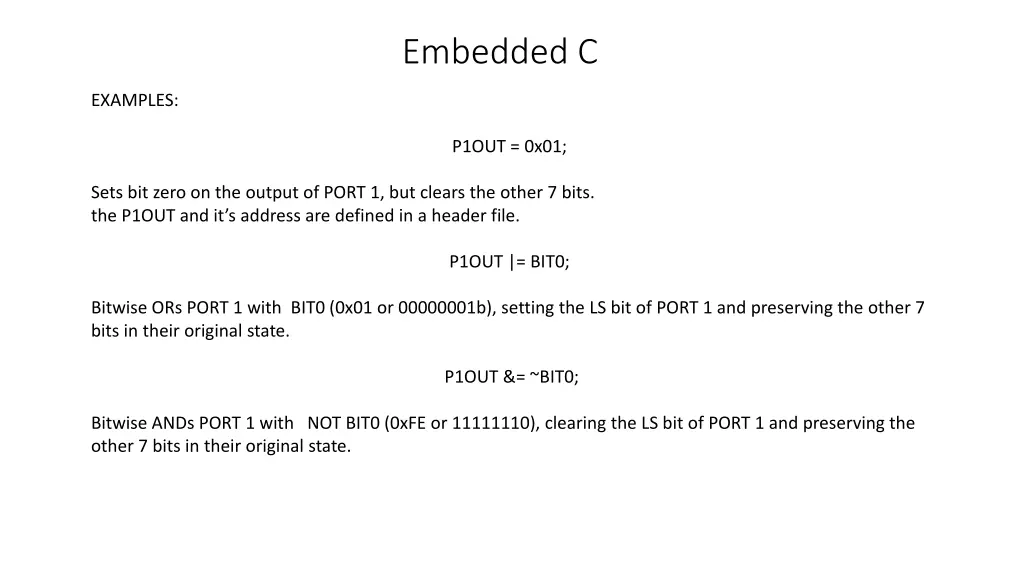
Embedded C EXAMPLES: P1OUT = 0x01; Sets bit zero on the output of PORT 1, but clears the other 7 bits. the P1OUT and it s address are defined in a header file. P1OUT |= BIT0; Bitwise ORs PORT 1 with BIT0 (0x01 or 00000001b), setting the LS bit of PORT 1 and preserving the other 7 bits in their original state. P1OUT &= ~BIT0; Bitwise ANDs PORT 1 with NOT BIT0 (0xFE or 11111110), clearing the LS bit of PORT 1 and preserving the other 7 bits in their original state.
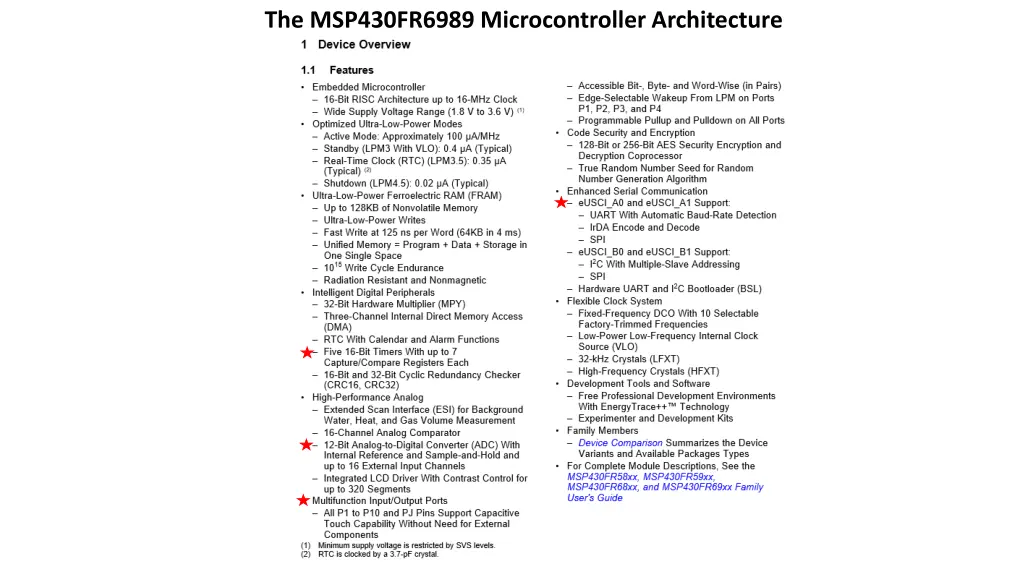
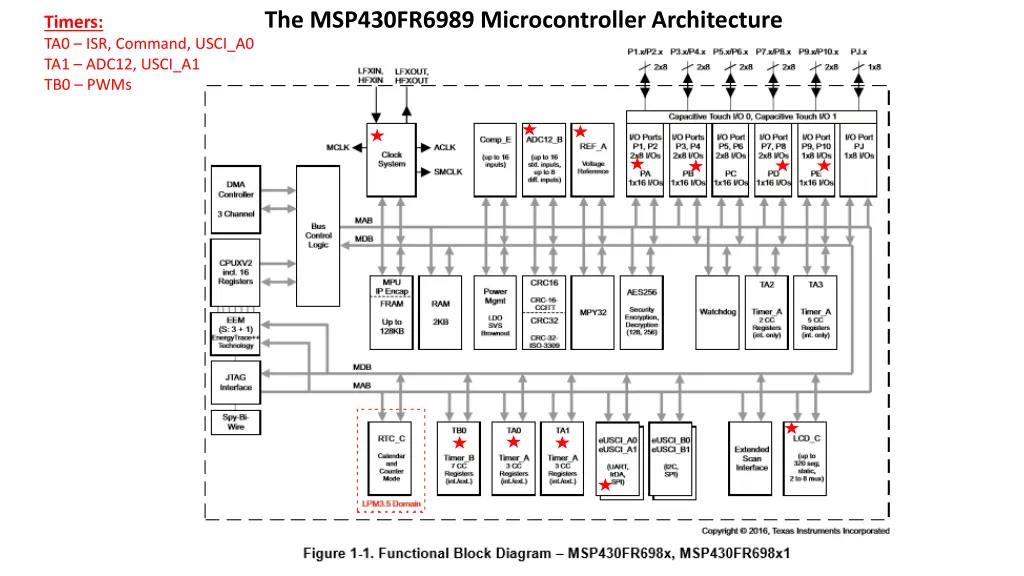
ECE 3567 Microcontrollers The MSP430FR6989 Microcontroller Architecture
The MSP430FR6989 Microcontroller Architecture Timers: TA0 ISR, Command, USCI_A0 TA1 ADC12, USCI_A1 TB0 PWMs