Implementing Advanced Distributed Database Applications with Composite Primary Key Tables
Explore advanced topics in distributed database applications including working with composite primary key tables, creating views, triggers, reports, and forms. Learn to navigate between user-friendly pages, validate data, and export/import applications. The implementation process is detailed with insights on creating views, INSTEAD OF triggers, and designing user-friendly pages.

Download Presentation

Please find below an Image/Link to download the presentation.
The content on the website is provided AS IS for your information and personal use only. It may not be sold, licensed, or shared on other websites without obtaining consent from the author. If you encounter any issues during the download, it is possible that the publisher has removed the file from their server.
You are allowed to download the files provided on this website for personal or commercial use, subject to the condition that they are used lawfully. All files are the property of their respective owners.
The content on the website is provided AS IS for your information and personal use only. It may not be sold, licensed, or shared on other websites without obtaining consent from the author.
E N D
Presentation Transcript
Project Implementation for COSC 5050 Distributed Database Applications Lab6
Advanced Topics Work with table lookups on composite primary key View and trigger Report and form User friendly pages Validations Navigate between pages Publish the application and create test users Export and import the application
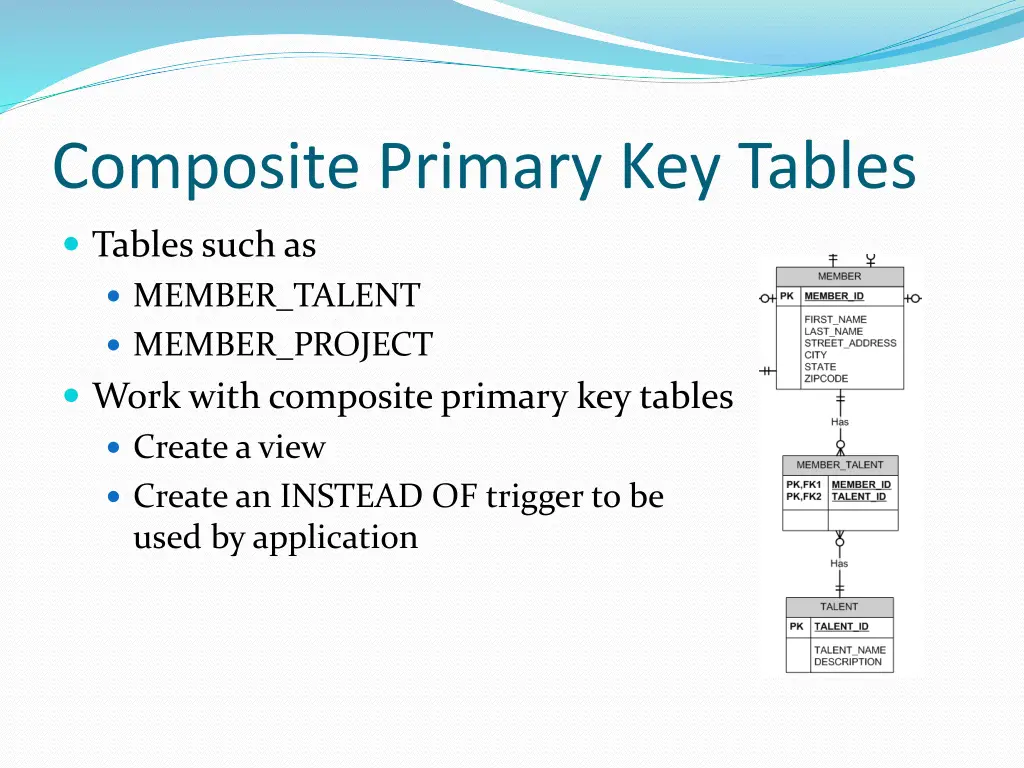
Composite Primary Key Tables Tables such as MEMBER_TALENT MEMBER_PROJECT Work with composite primary key tables Create a view Create an INSTEAD OF trigger to be used by application
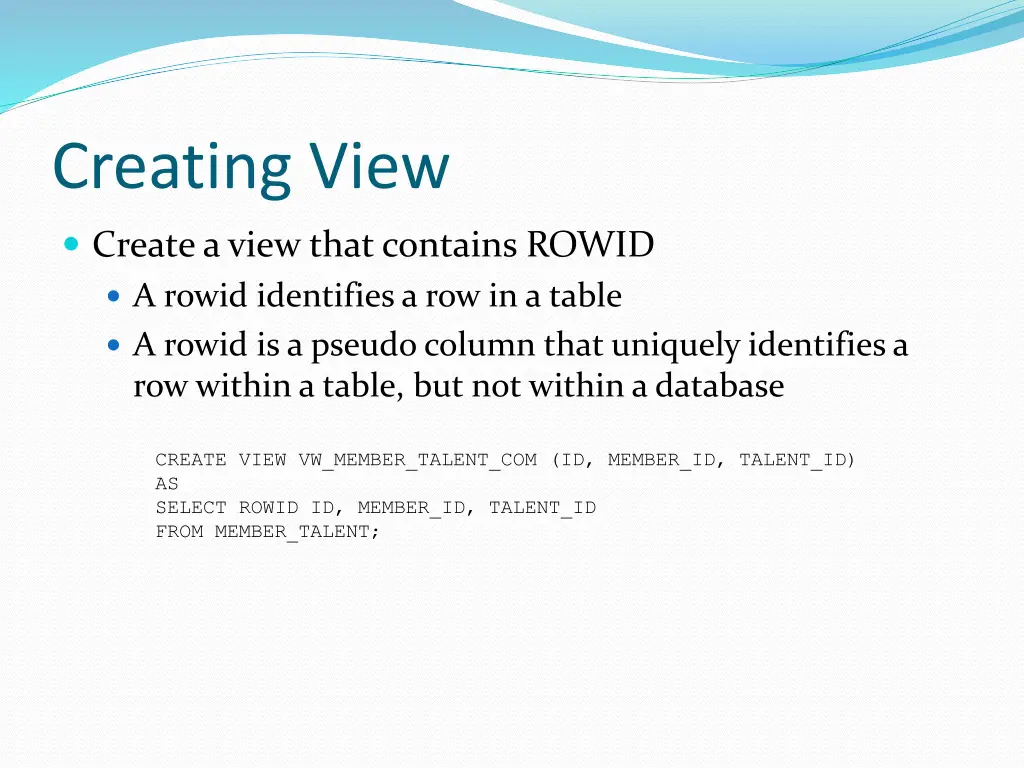
Creating View Create a view that contains ROWID A rowid identifies a row in a table A rowid is a pseudo column that uniquely identifies a row within a table, but not within a database CREATE VIEW VW_MEMBER_TALENT_COM (ID, MEMBER_ID, TALENT_ID) AS SELECT ROWID ID, MEMBER_ID, TALENT_ID FROM MEMBER_TALENT;
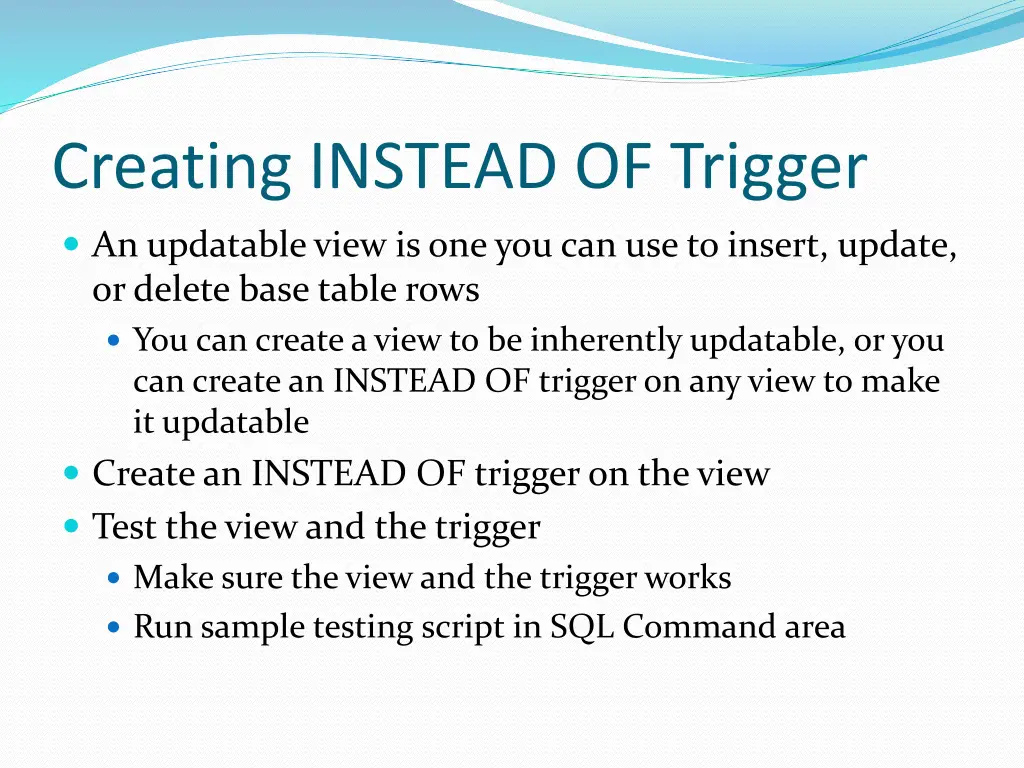
Creating INSTEAD OF Trigger An updatable view is one you can use to insert, update, or delete base table rows You can create a view to be inherently updatable, or you can create an INSTEAD OF trigger on any view to make it updatable Create an INSTEAD OF trigger on the view Test the view and the trigger Make sure the view and the trigger works Run sample testing script in SQL Command area
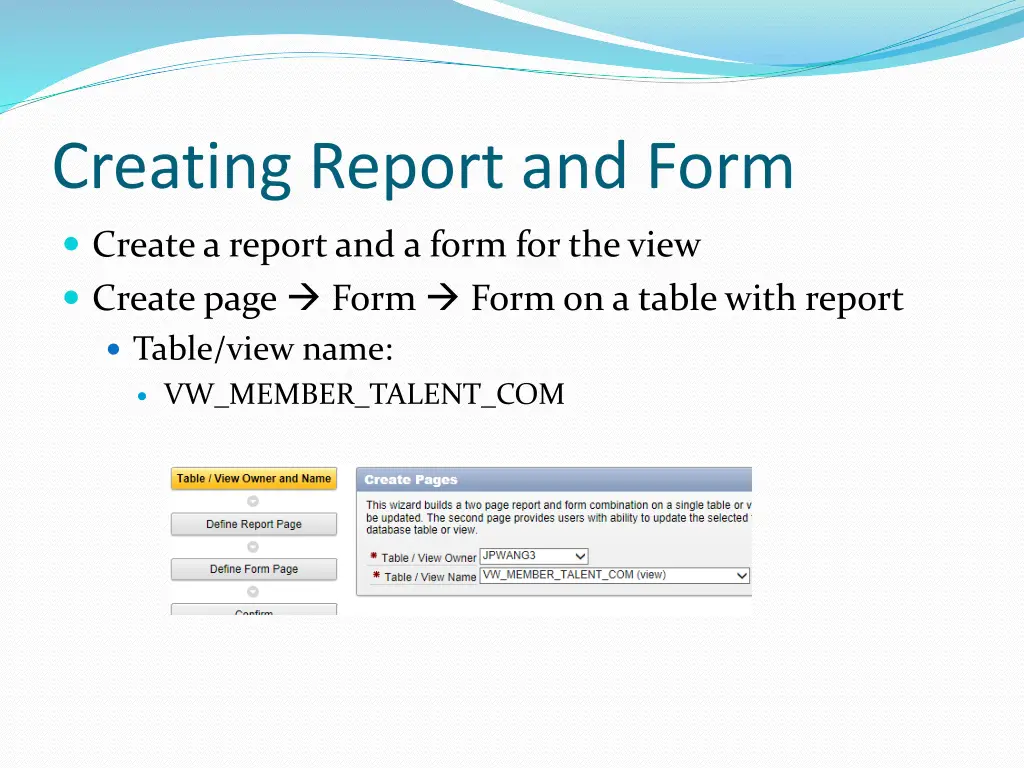
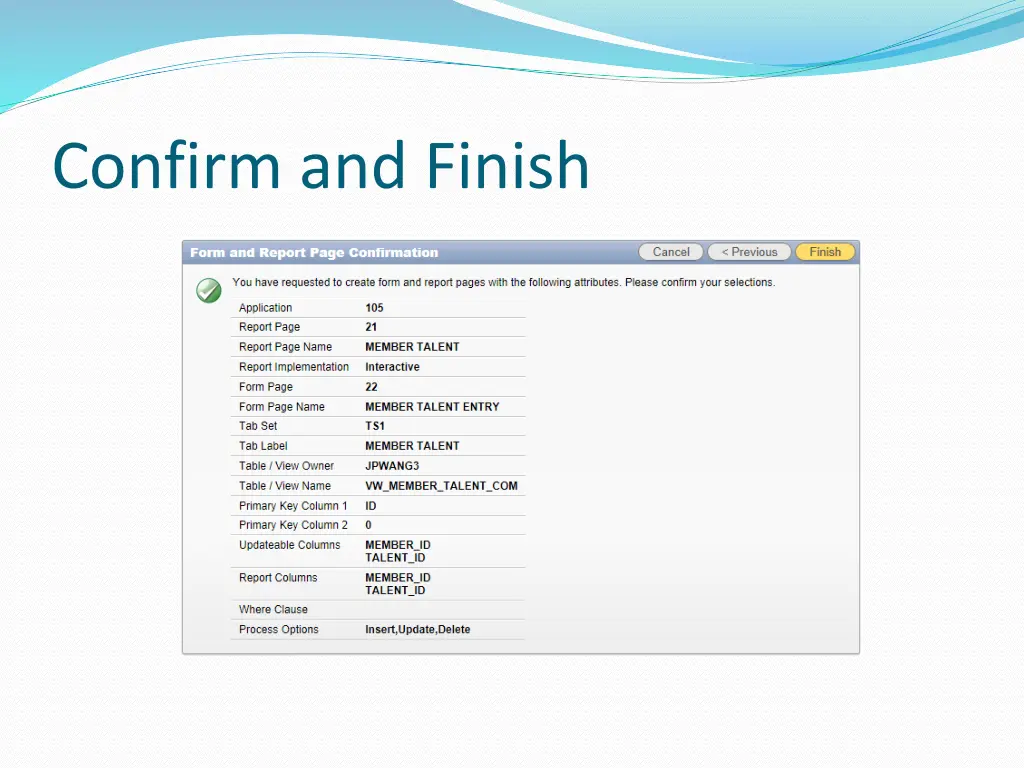
Creating Report and Form Create a report and a form for the view Create page Form Form on a table with report Table/view name: VW_MEMBER_TALENT_COM
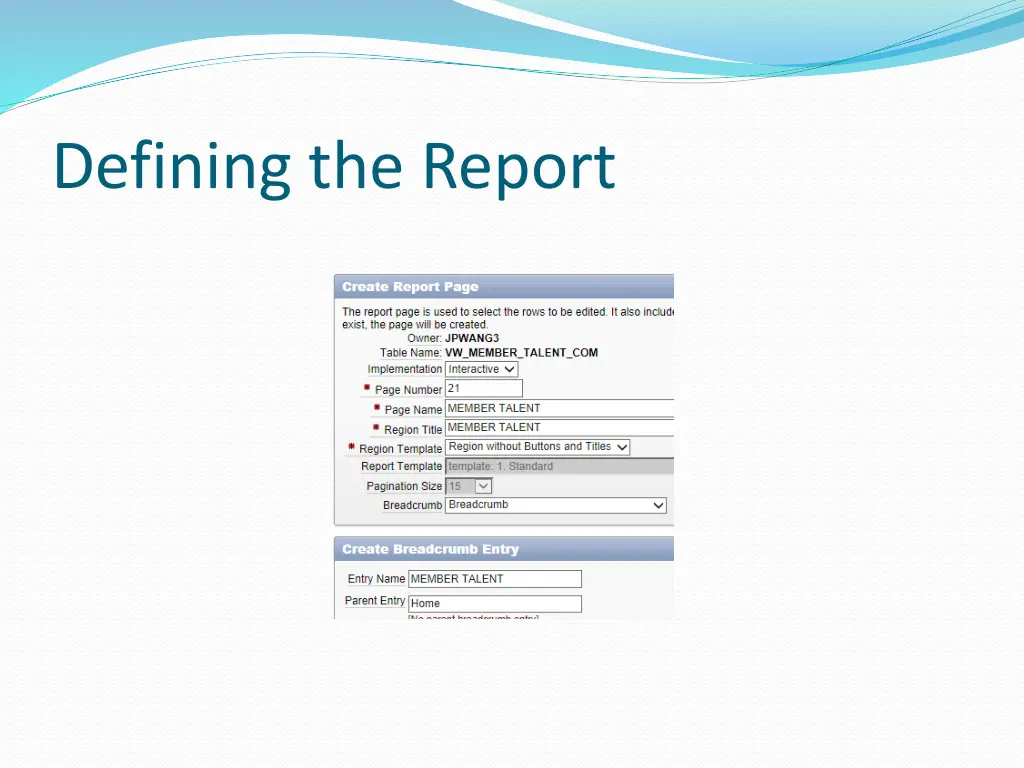
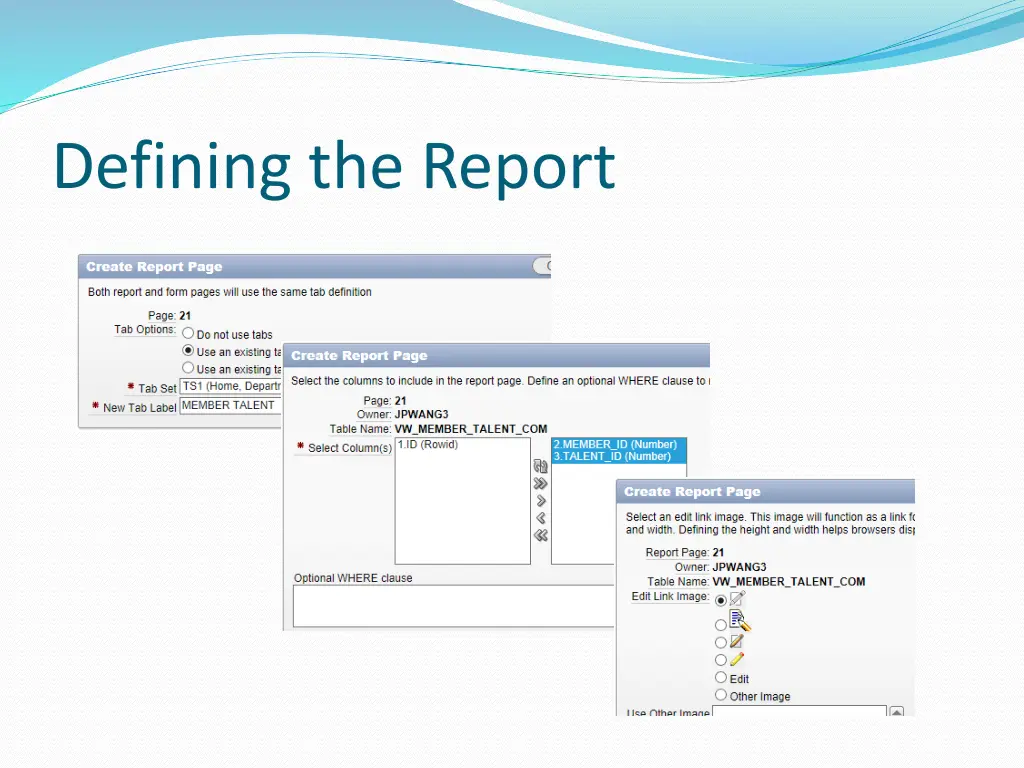
Defining the Report Define report page Page name: MEMBER TALENT Region title: MEMBER TALENT Breadcrumb: Breadcrumb Breadcrumb entry name: MEMBER TALENT Breadcrumb parent entry: Home
Defining the Report Define report page Tab options: Use an existing tab set and create a new tab within the existing tab set Tab set: TS1 New tab label: MEMBER TALENT Select columns: MEMBER_ID and TALENT_ID Edit link image: default
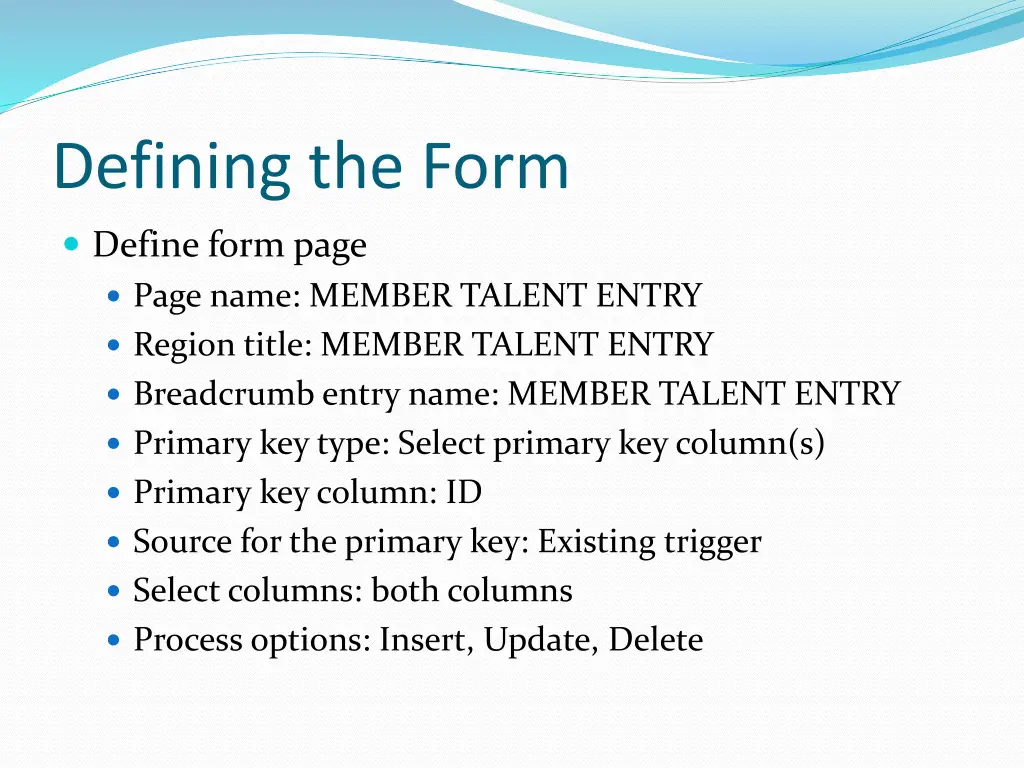
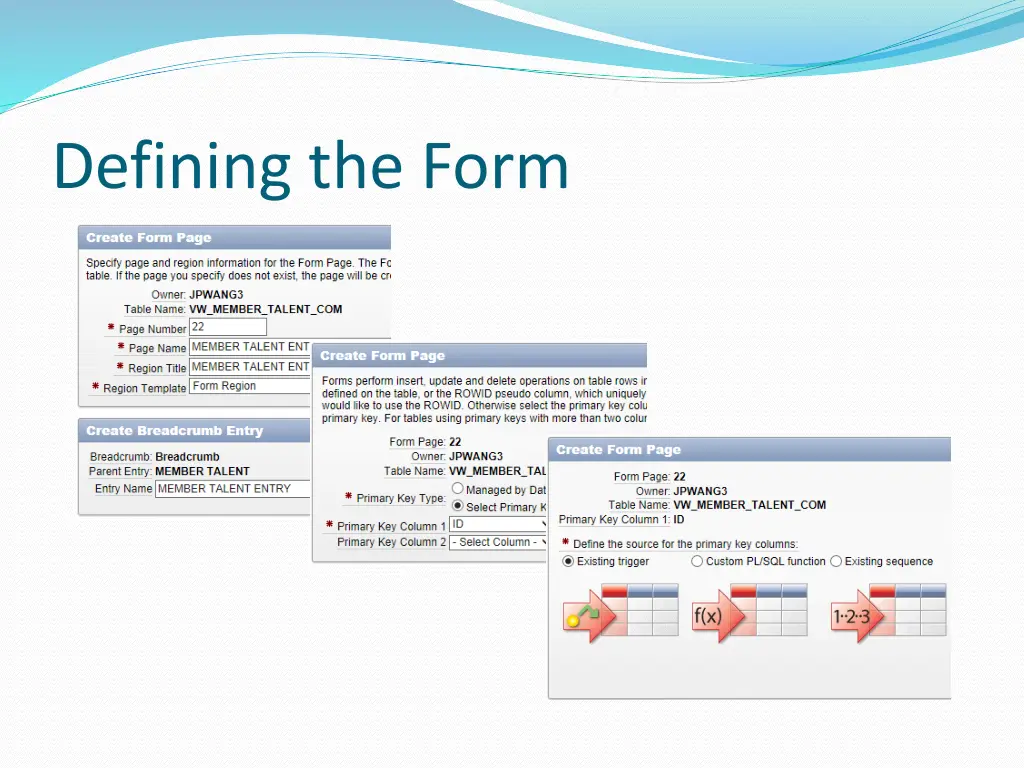
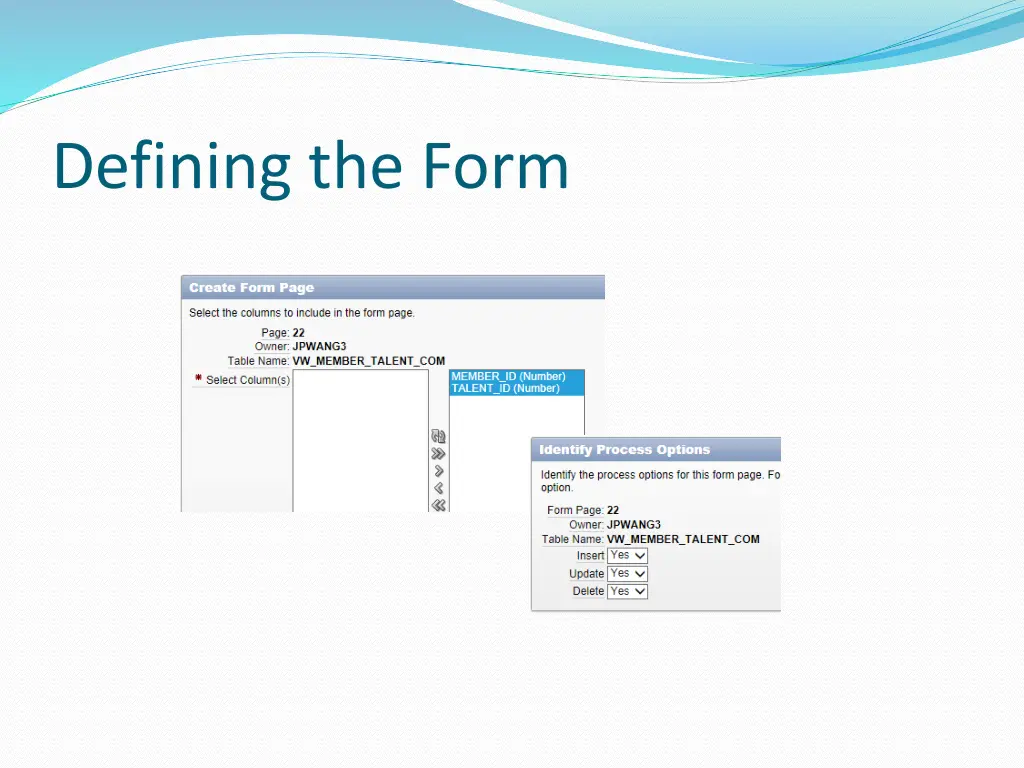
Defining the Form Define form page Page name: MEMBER TALENT ENTRY Region title: MEMBER TALENT ENTRY Breadcrumb entry name: MEMBER TALENT ENTRY Primary key type: Select primary key column(s) Primary key column: ID Source for the primary key: Existing trigger Select columns: both columns Process options: Insert, Update, Delete
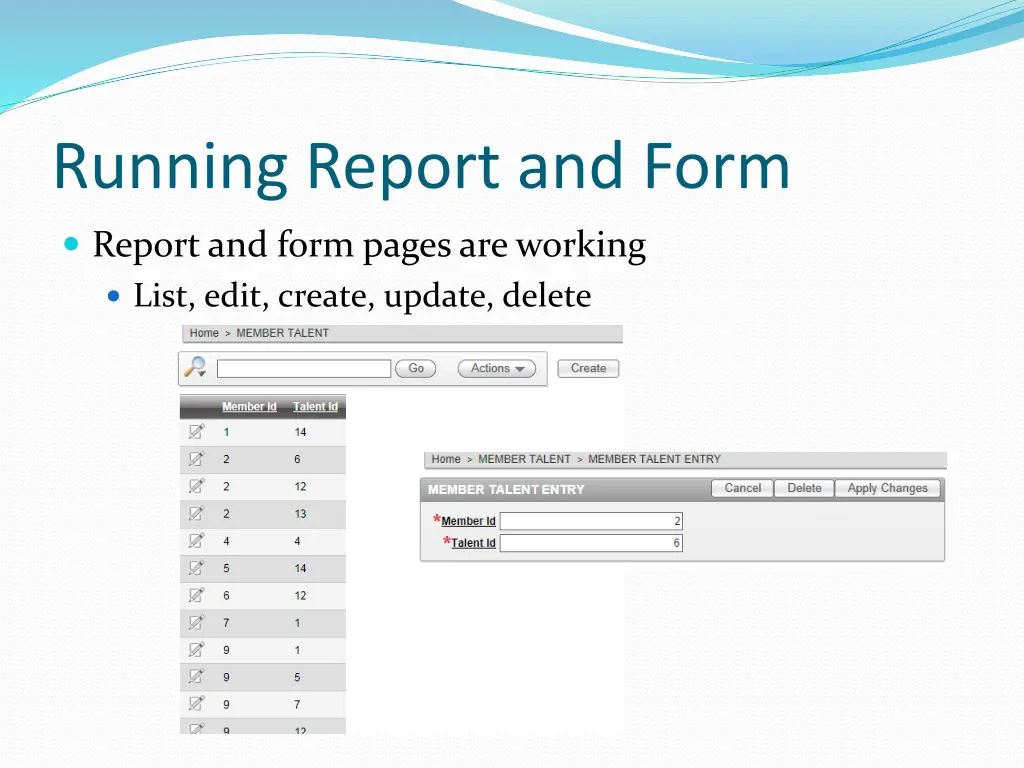
Running Report and Form Report and form pages are working List, edit, create, update, delete
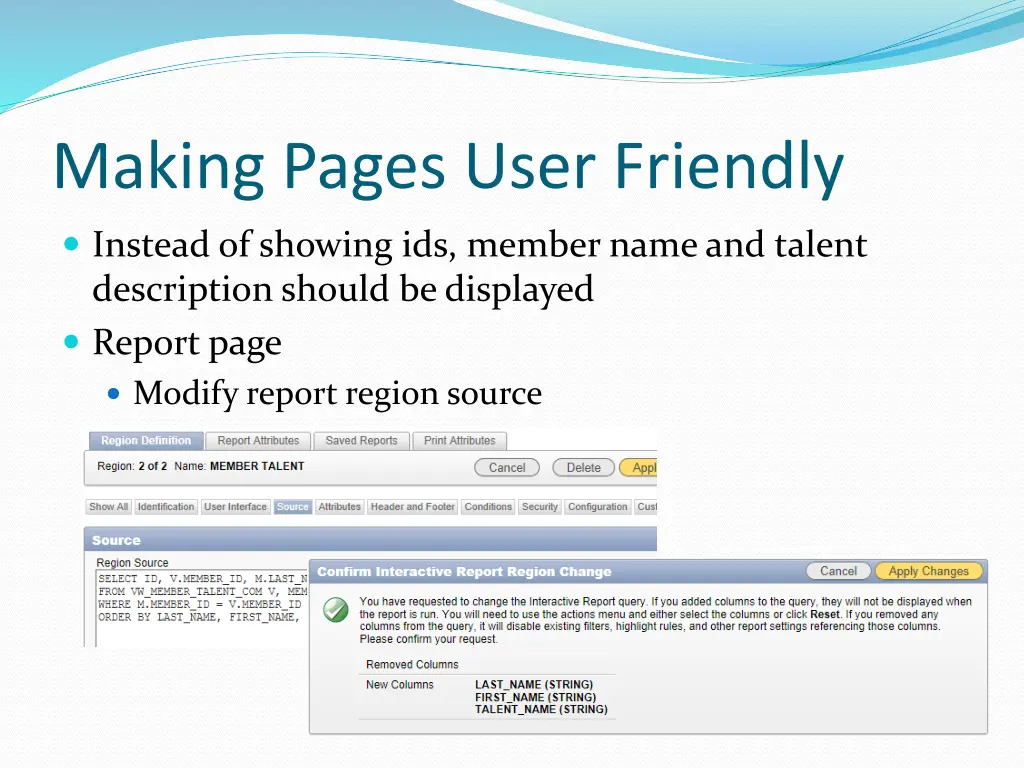
Making Pages User Friendly Instead of showing ids, member name and talent description should be displayed Report page Modify report region source
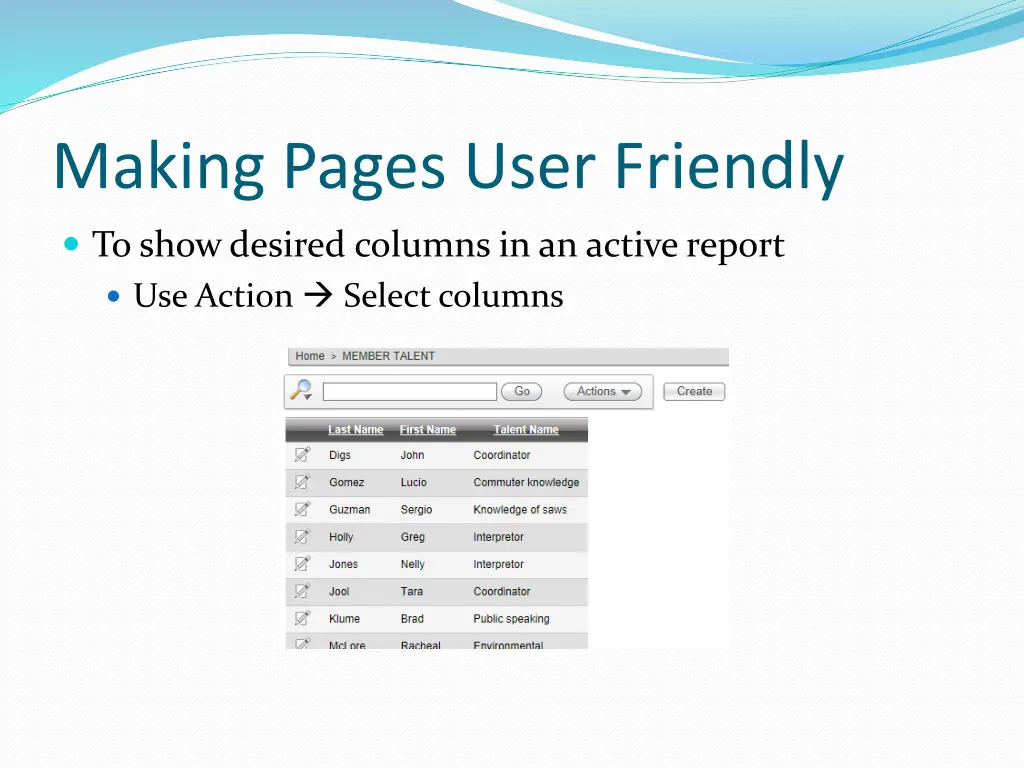
Making Pages User Friendly To show desired columns in an active report Use Action Select columns
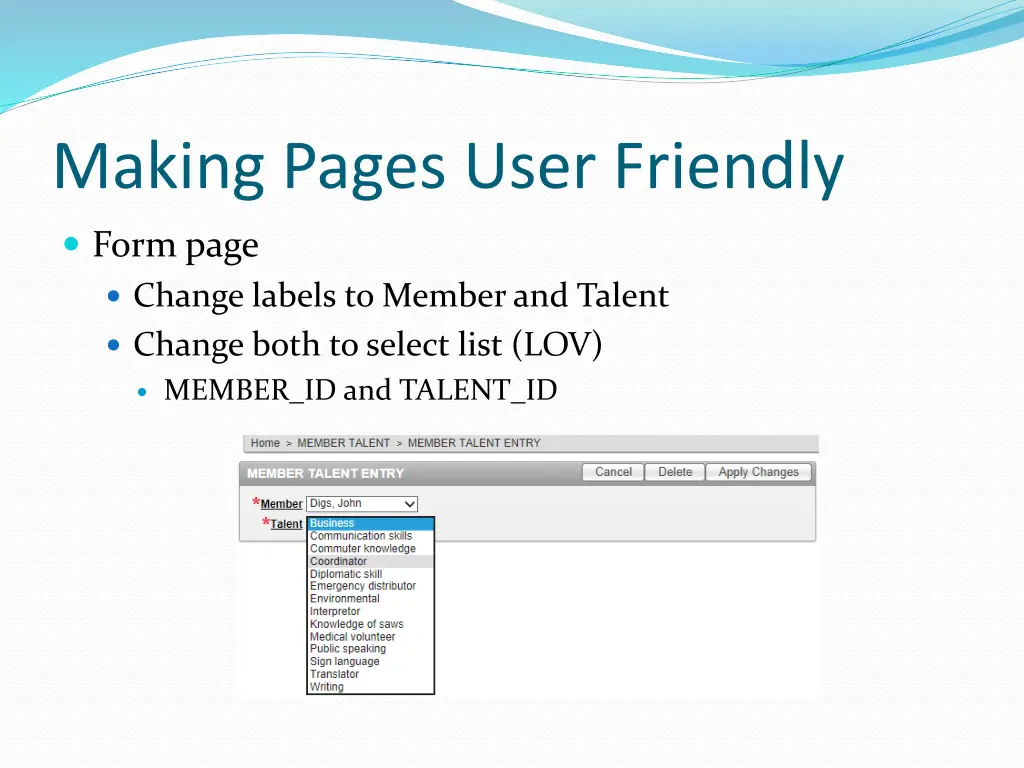
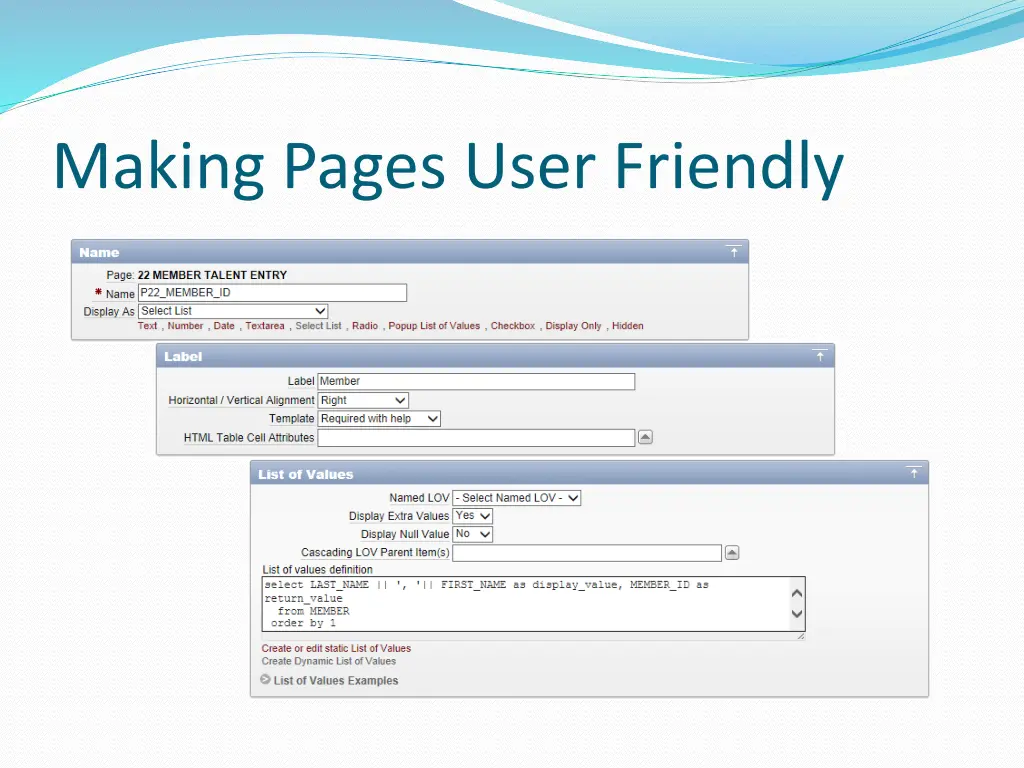
Making Pages User Friendly Form page Change labels to Member and Talent Change both to select list (LOV) MEMBER_ID and TALENT_ID
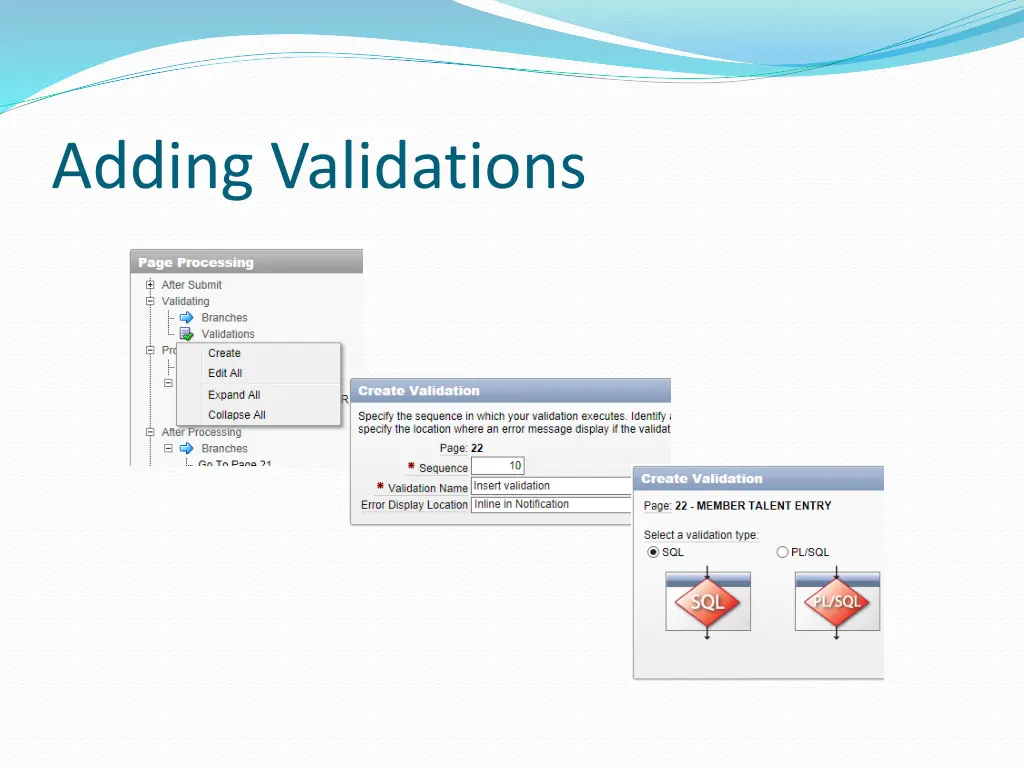
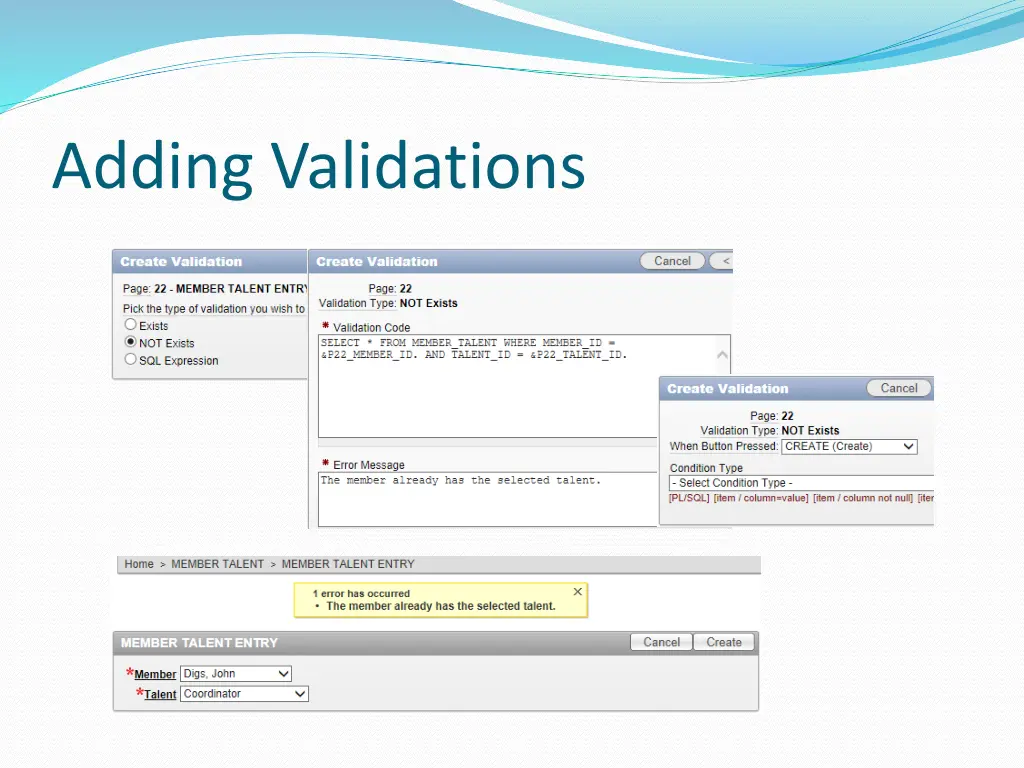
Adding Validations Maintain entity integrity Provide user friendly error message on the form page Validation script SELECT * FROM MEMBER_TALENT WHERE MEMBER_ID = &P??_MEMBER_ID. AND TALENT_ID = &P??_TALENT_ID. Use your page number Notice the ending period for substitution variables
Adding Validations Edit the form page, page processing create validation Validation level: Page Validation name: Insert validation Error display location: Inline in Notification Validation type: SQL NOT Exists Validation code: {the validation script} Error message: The member already has the selected talent. When button pressed: Create Create a similar validation for update
Page Navigation Navigation controls are shared components Create navigation control at the application level on the shared components page Tabs Navigation bar entries Breadcrumbs Lists
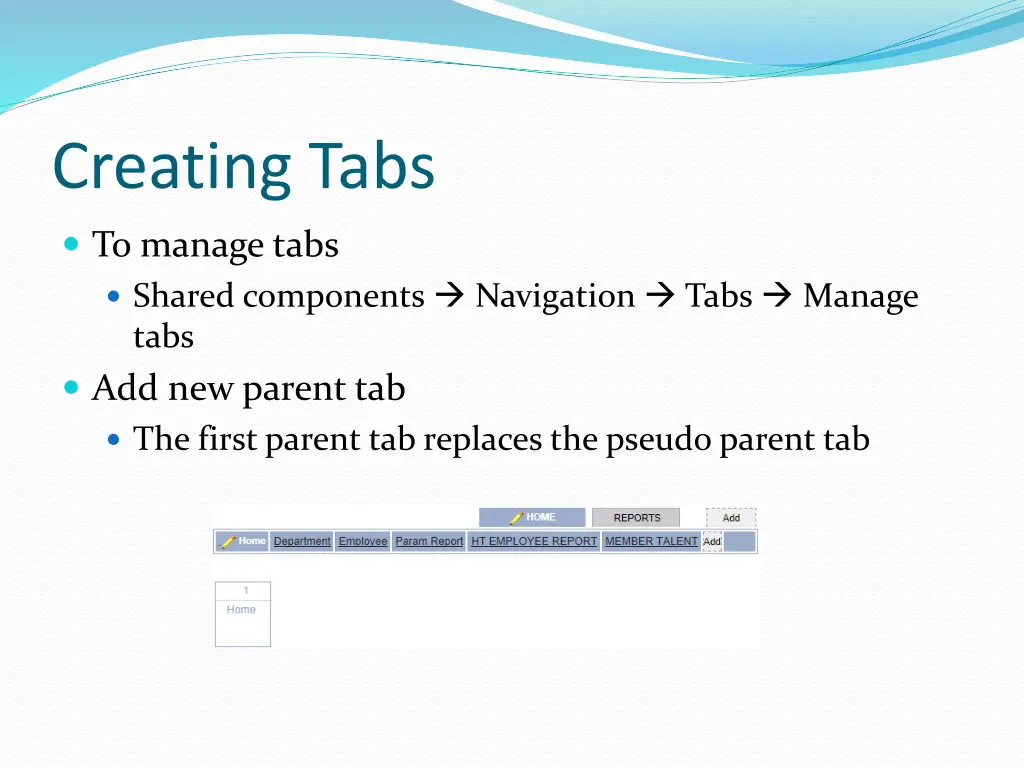
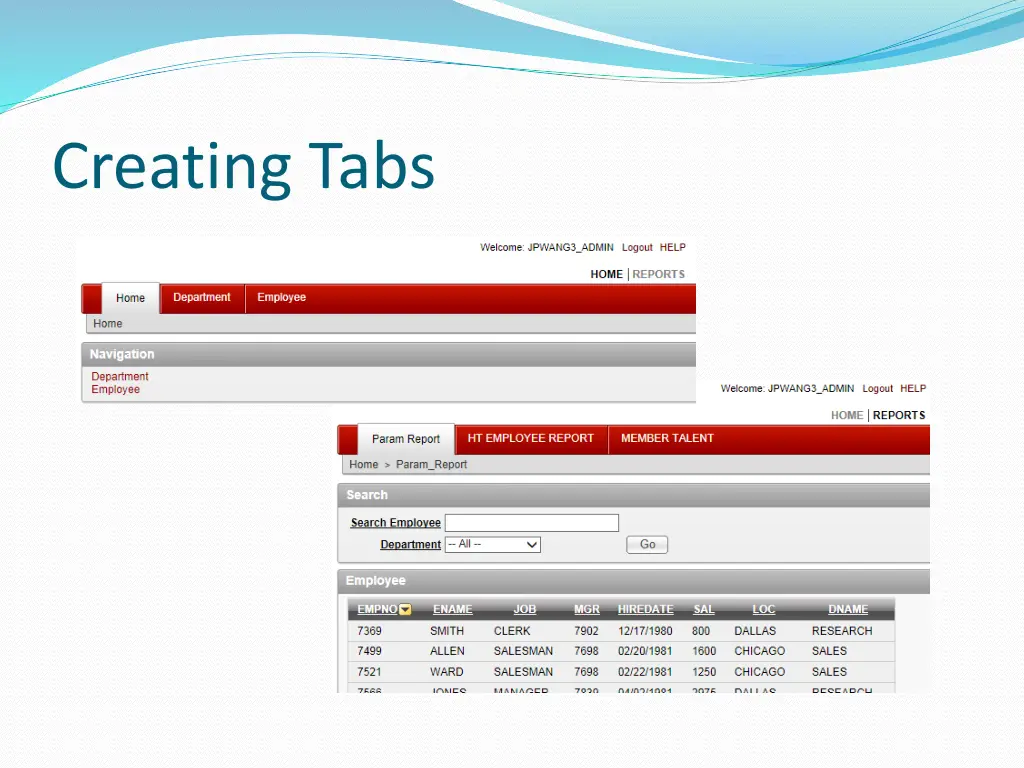
Creating Tabs Tabs are grouped in collections called a tab set Each tab must be part of a tab set Two different types of tabs Standard tabs For only one level of tabs with each tab associated with a particular page Parent tabs Parent tab set acts as a container for a group of standard tabs Define more contextual list of tabs
Creating Tabs To manage tabs Shared components Navigation Tabs Manage tabs Add new parent tab The first parent tab replaces the pseudo parent tab
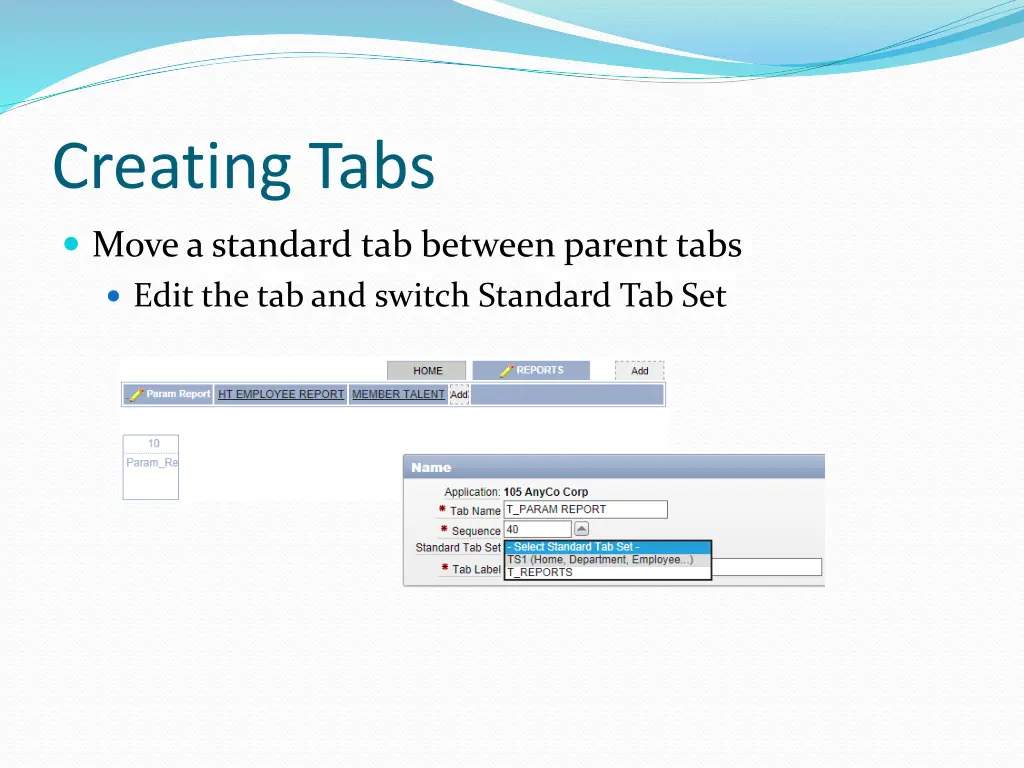
Creating Tabs Move a standard tab between parent tabs Edit the tab and switch Standard Tab Set
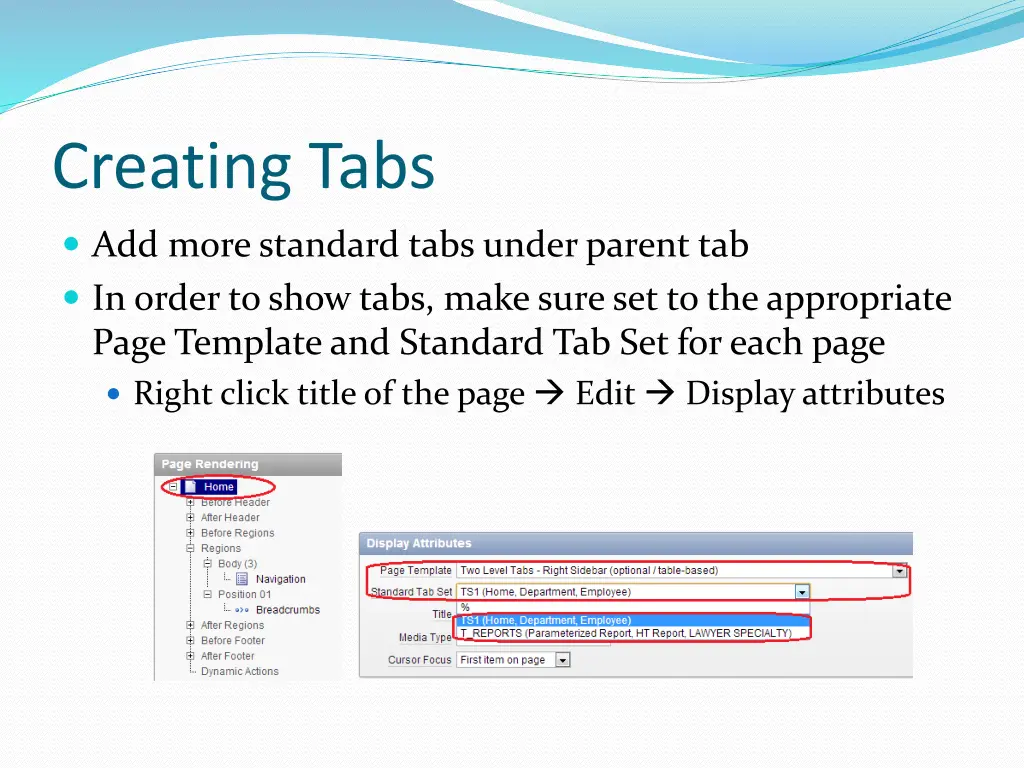
Creating Tabs Add more standard tabs under parent tab In order to show tabs, make sure set to the appropriate Page Template and Standard Tab Set for each page Right click title of the page Edit Display attributes
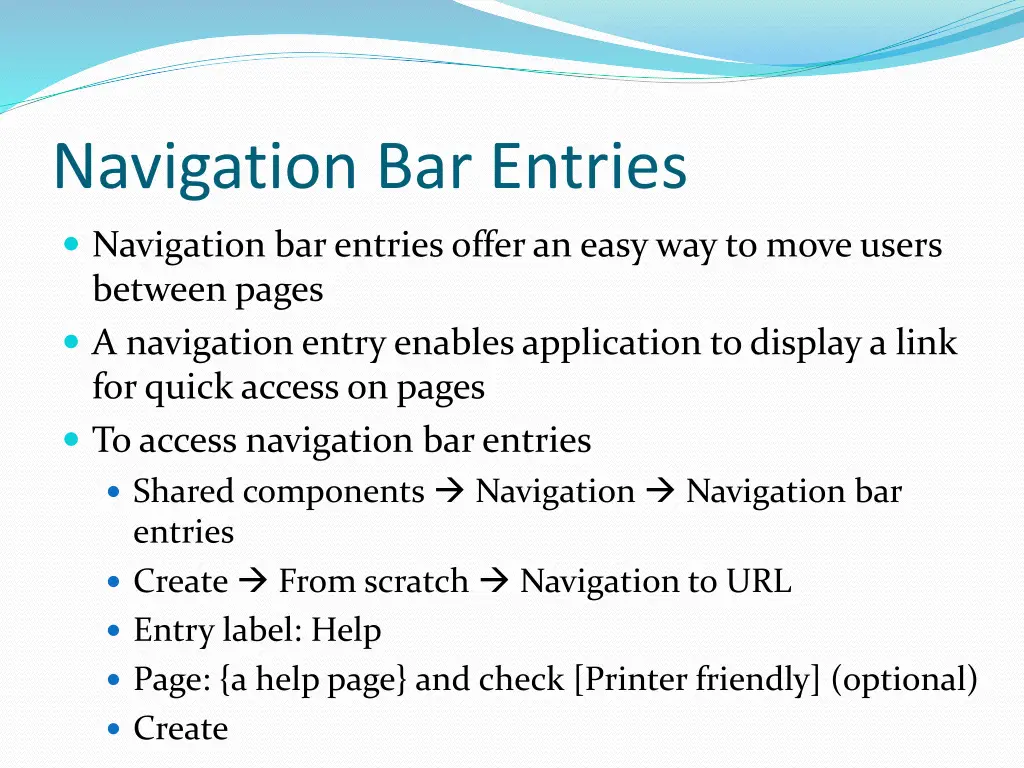
Navigation Bar Entries Navigation bar entries offer an easy way to move users between pages A navigation entry enables application to display a link for quick access on pages To access navigation bar entries Shared components Navigation Navigation bar entries Create From scratch Navigation to URL Entry label: Help Page: {a help page} and check [Printer friendly] (optional) Create
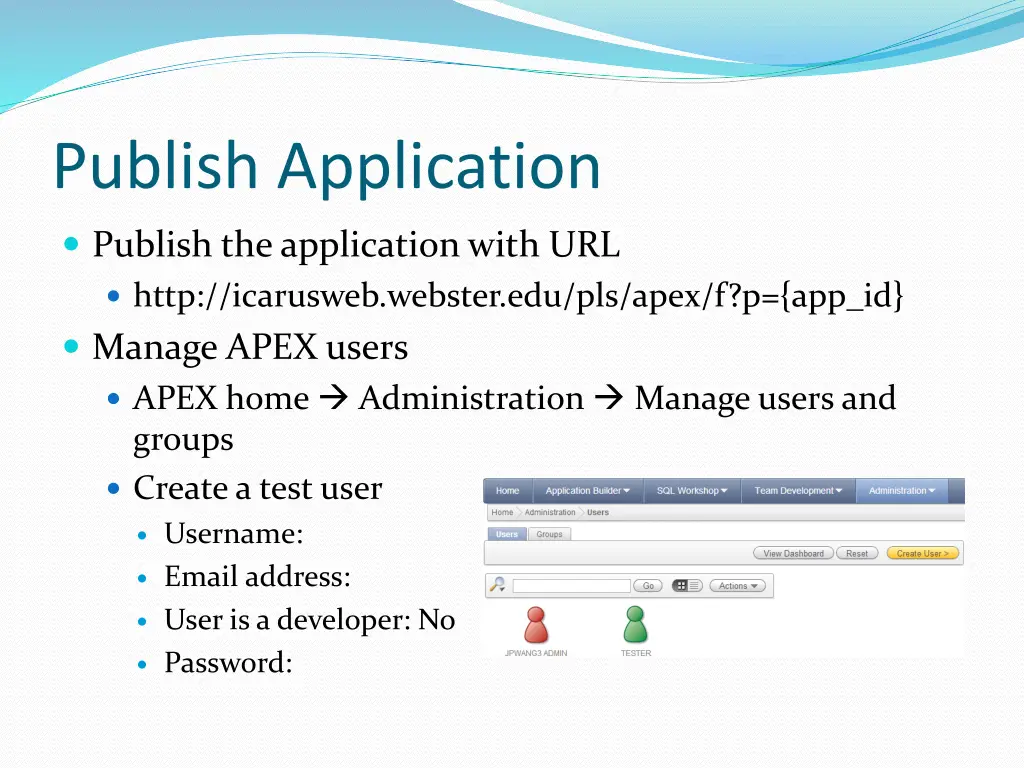
Publish Application Publish the application with URL http://icarusweb.webster.edu/pls/apex/f?p={app_id} Manage APEX users APEX home Administration Manage users and groups Create a test user Username: Email address: User is a developer: No Password:
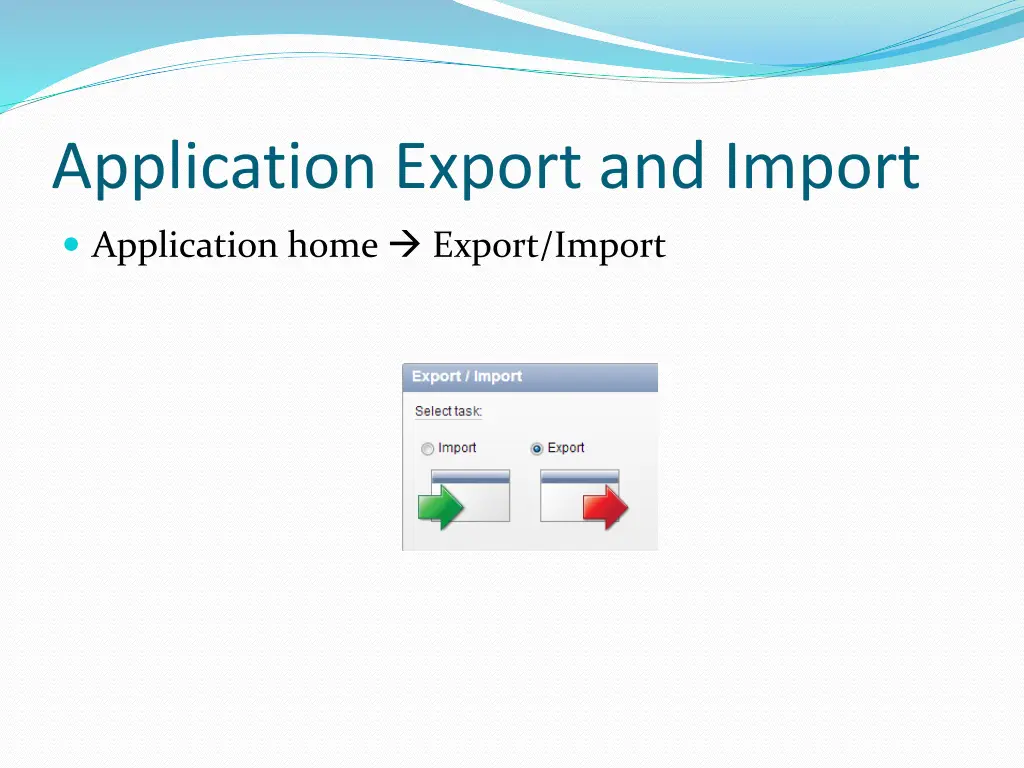
Application Export and Import Application home Export/Import
Readings Application Express User s Guide Adding Navigation Deploying an Application