Learn about managing vendors in the KFS system, including types of vendors, how to search for vendors, vendor actions like editing and creating, and the hierarchy of vendor types. Understand the differences between Special Payment vendors, Purchase Order vendors, and more to efficiently handle vendor transactions in your organization.
Please find below an Image/Link to download the presentation.
The content on the website is provided AS IS for your information and personal use only. It may not be sold, licensed, or shared on other websites without obtaining consent from the author. If you encounter any issues during the download, it is possible that the publisher has removed the file from their server.
You are allowed to download the files provided on this website for personal or commercial use, subject to the condition that they are used lawfully. All files are the property of their respective owners.
The content on the website is provided AS IS for your information and personal use only. It may not be sold, licensed, or shared on other websites without obtaining consent from the author.
Todays Topics Types of vendors and how/when to use them Searching for vendors Vendor actions Editing an existing vendor Creating a division from an existing vendor Creating a new vendor 2
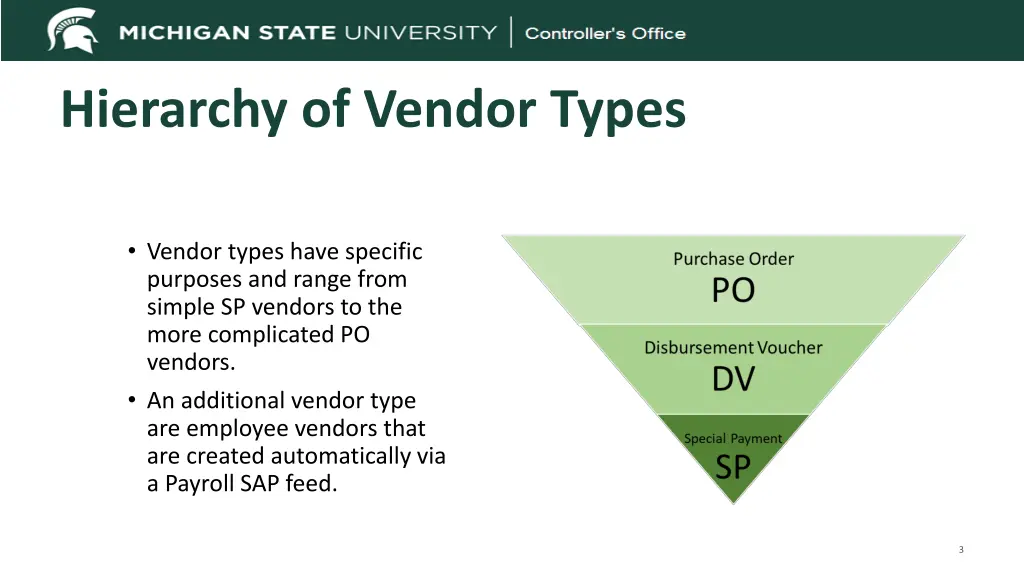
Hierarchy of Vendor Types Vendor types have specific purposes and range from simple SP vendors to the more complicated PO vendors. An additional vendor type are employee vendors that are created automatically via a Payroll SAP feed. 3
Vendor Types Special Payment (SP) o Vendors used for research participant payments ($150 or less), refunds, or non-employee reimbursements. Payment reason codes F, E, and I. o Does not require a Tax ID. o No attachments required (unless paying via wire) Disbursement Voucher (DV) o Vendors used for the purchase of goods or services not requiring a Requisition/PO. Consult with UPL-Procurement if unsure. o Requires a Tax ID (SSN or EIN) unless it is a foreign vendor. o Attachments required (can only be seen by vendor approvers) W-9 for entities, recommended for individuals but not required W-8BEN or W-8BEN-E for foreign vendors Support for address addition or change o Inactivate SP vendor if creating a DV vendor - cannot be changed to a DV vendor. 4
Vendor Types - continued Purchase Order (PO) Created by Procurement when processing a Requisition either from scratch or by changing a DV vendor to a PO vendor. Required documents are handled by Procurement EIN now required. PO vendors can be used on a DV. The U.S. TIN (Tax Identification Number) is the unique identifier for vendors. Names and address may be the same or similar, but KFS does not allow two vendors to be set up with the same TIN. There are also employee vendors used for reimbursements that are a direct feed from Payroll. They can be selected for use on a DV and payment will process in the manner that they receive payroll, direct deposit, pay card, or check. 5
Vendor Search It is important to search for an existing vendor before creating one. The best methods to search for existing vendors include: By US Tax Number (TIN) most accurate as this is the single unique identifier for vendors. SP vendor and some foreign vendors will not have a US TIN. By vendor name using wildcards. This will also search the Search Alias name. These searches do not return results for employee vendors. Search from main menu or during DV creation the vendor must be created before starting the DV. 6
Vendor Actions Create New Used when the vendor doesn t already exist. An SP vendor may exist but should be inactivated before DV vendor creation Edit the vendor Used for address additions, inactivating, adding attachments such as wire info. Create a Division Needed when TIN is the same, but check needs to be in a different name 7
Creating a Vendor Always search to see if a vendor exists before creating a new one. Use the Create New tab in the upper right of the vendor screen. Required items are noted with an asterisk. Some special characters cause issues with check printing. Ampersands, commas, and hyphens are ok. 8
Creating a Vendor continued Document Overview Tab Add a description and/or explanation that indicates why the vendor is required. For example conference speaker or reimbursement for supplies. This is important so that the vendor approvers can make sure you have chosen the correct vendor type. For individuals use the first and last name fields, for entities use the vendor name field. Choose the vendor type. Add a US Tax Number if required and choose the Tax Number and Ownership Type. 9
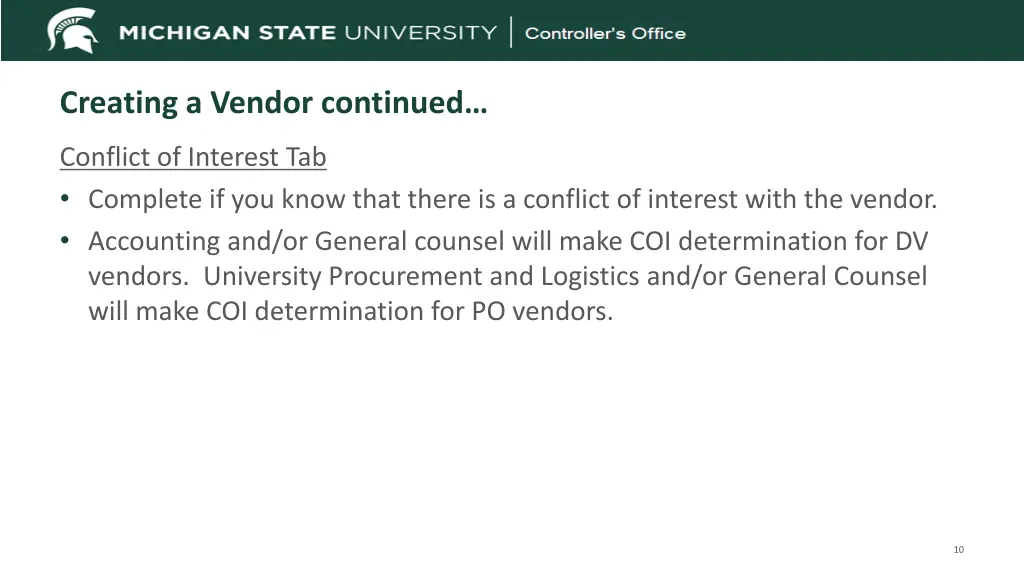
Creating a Vendor continued Conflict of Interest Tab Complete if you know that there is a conflict of interest with the vendor. Accounting and/or General counsel will make COI determination for DV vendors. University Procurement and Logistics and/or General Counsel will make COI determination for PO vendors. 10
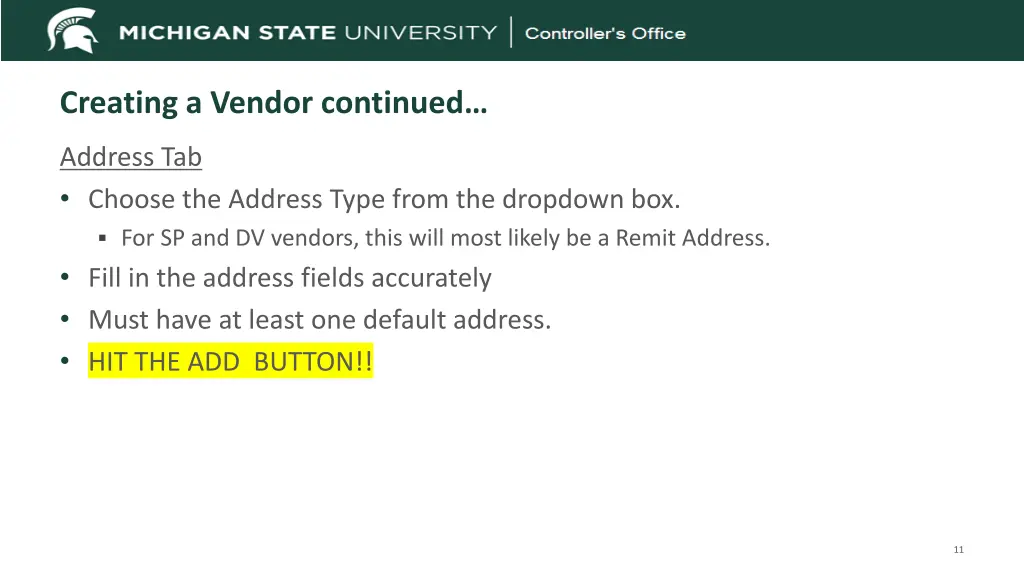
Creating a Vendor continued Address Tab Choose the Address Type from the dropdown box. For SP and DV vendors, this will most likely be a Remit Address. Fill in the address fields accurately Must have at least one default address. HIT THE ADD BUTTON!! 11
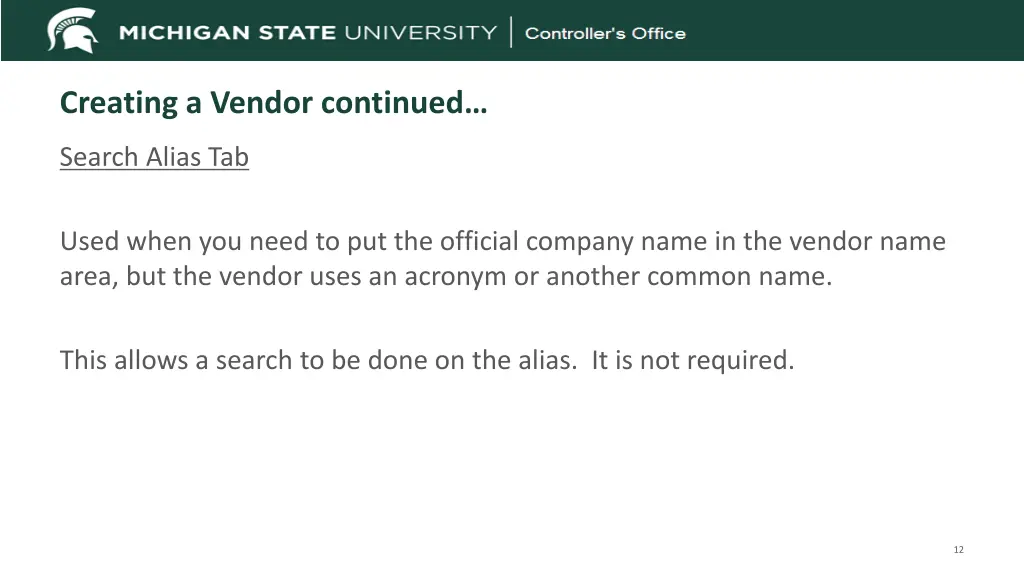
Creating a Vendor continued Search Alias Tab Used when you need to put the official company name in the vendor name area, but the vendor uses an acronym or another common name. This allows a search to be done on the alias. It is not required. 12
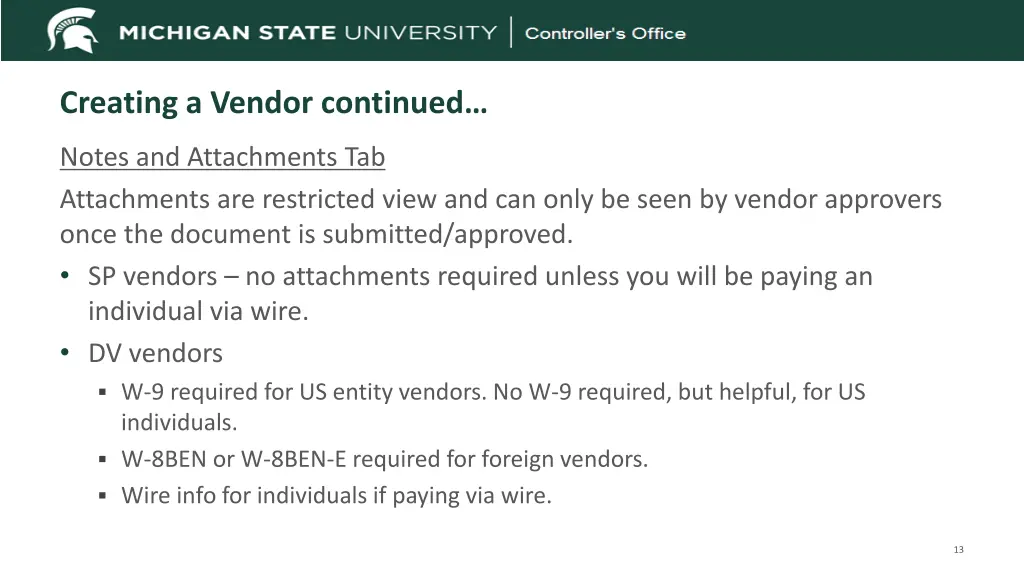
Creating a Vendor continued Notes and Attachments Tab Attachments are restricted view and can only be seen by vendor approvers once the document is submitted/approved. SP vendors no attachments required unless you will be paying an individual via wire. DV vendors W-9 required for US entity vendors. No W-9 required, but helpful, for US individuals. W-8BEN or W-8BEN-E required for foreign vendors. Wire info for individuals if paying via wire. 13
Creating a Vendor continued SP and DV vendor approvers perform the following actions: Verify that the vendor does not already exist Check to see that the vendor is not an employee. Check to see that the vendor is not a student SP is allowed. Verify TIN with the IRS. Review name and address for correct spelling etc. Make sure required support is attached and complete. Perform Visual Compliance check for foreign vendors. Since attachments cannot be added by the initiator once the edoc is submitted, disapprovals are often necessary. 14
Editing a Vendor Used for updating or adding information to an already existing vendor. Search for the vendor. Select edit from the actions. Old/current information will be on the left. New information will be on the right. Fill in a description of what is being changed. Change the appropriate items. Attach support if required. Submit the document. When viewing the document, changed items will be noted with a yellow star on the right. 1. 2. 3. 4. 5. 6. 15
Editing a Vendor - continued Common reasons for editing a vendor include: Address changes Add a new address instead of changing the old one. This maintains the history of the old address. The new one can be the default and/or the old one can be made inactive. It also allows the DV auditor to change the address if the wrong one was selected without a disapproval needed. Documentation is required to be attached for an address change to an entity (invoice, email, etc.). No documentation is required for an address change to an individual. Adding wire info Updated name or tax forms 16
Creating a Division for a Vendor Needed when the TIN is the same, but the check needs to be in a different name. Search for the vendor. Select create division from the actions. Fill in a description of what is needed. Add a vendor name notice there is a parent name . You are unable to change Corporate Information tab Add an address. Attach support for the name usually a W-9 or invoice. Submit the document. 1. 2. 3. 4. 5. 6. 7. 8. 17