Explore essential AutoCAD commands like Array, Explode, Offset, and more in this lecture series by Dr. Ahmed Ibrahim from Minia University. Learn practical skills for Computer-Aided Design (CAD) applications with detailed instructions on using Content Tab ribbon and executing commands efficiently.
Please find below an Image/Link to download the presentation.
The content on the website is provided AS IS for your information and personal use only. It may not be sold, licensed, or shared on other websites without obtaining consent from the author. If you encounter any issues during the download, it is possible that the publisher has removed the file from their server.
You are allowed to download the files provided on this website for personal or commercial use, subject to the condition that they are used lawfully. All files are the property of their respective owners.
The content on the website is provided AS IS for your information and personal use only. It may not be sold, licensed, or shared on other websites without obtaining consent from the author.
E N D
Presentation Transcript
Minia University Faculty of Engineering Prod. Eng.& Mechanical Design Dept. Computer Applications in Engineering (Lecture 6) By/ Dr Ahmed Ibrahim E-mail: ahmedkhalifa@mu.edu.eg Tel: +201117400743
Learning Objectives 1. Learning array command. 2. Scale command. 3. Explode command. 4. Offset command. 5. Stretch, fillet and chamfer commands. 6. How to use Content Tab ribbon.
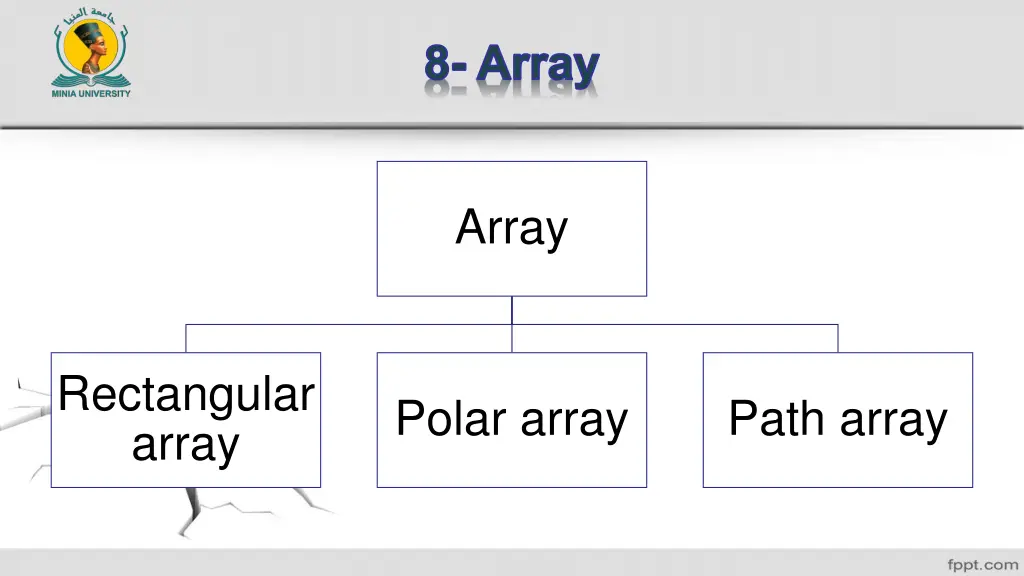
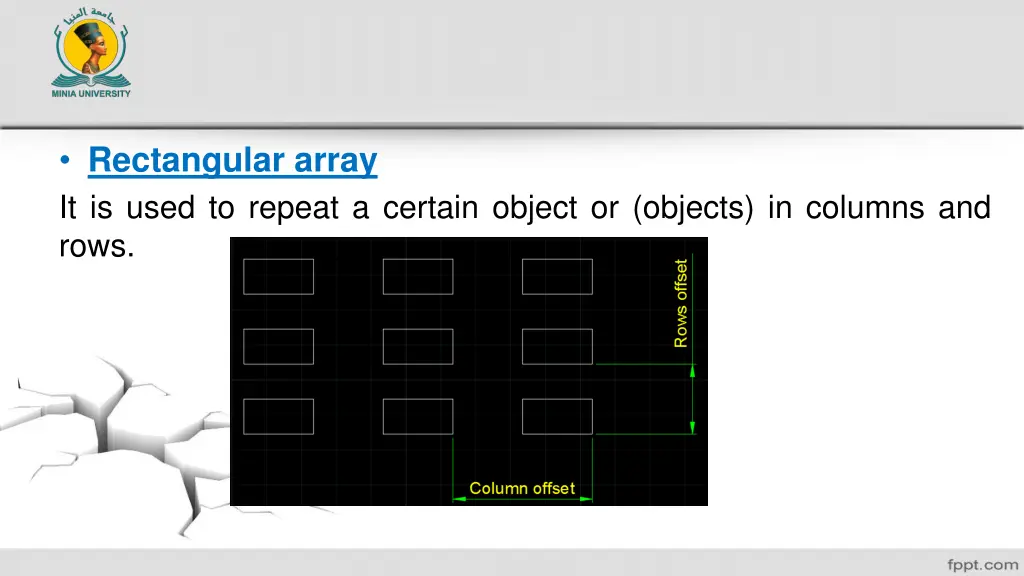
Rectangular array It is used to repeat a certain object or (objects) in columns and rows.
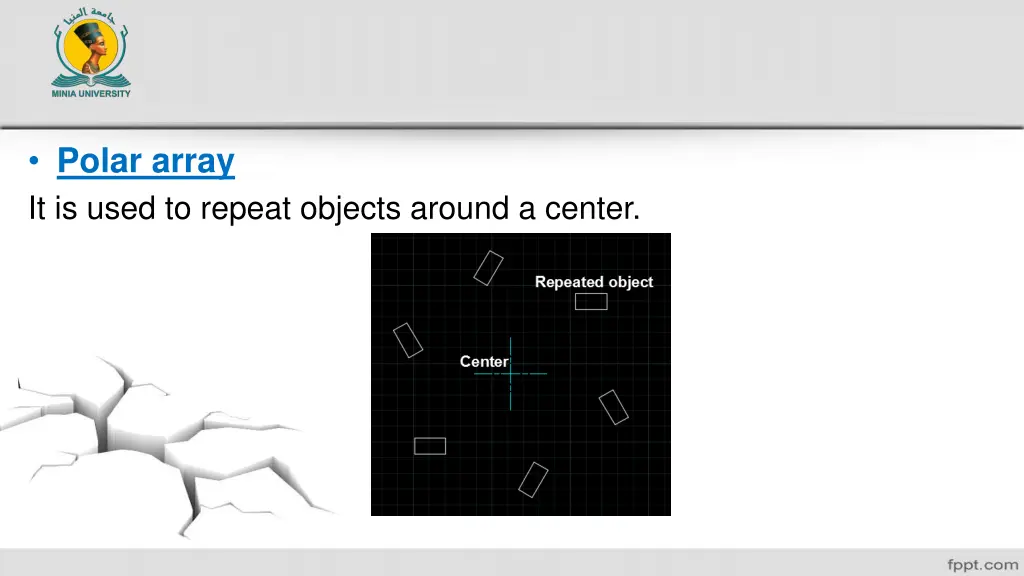
Polar array It is used to repeat objects around a center.
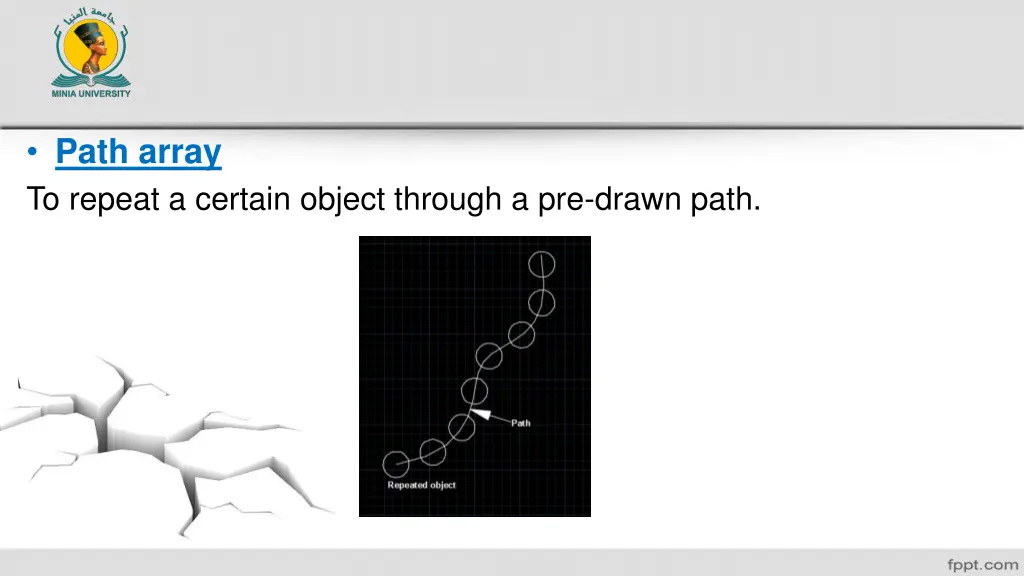
Path array To repeat a certain object through a pre-drawn path.
9- Explode You can use this command by clicking on X in the command bar. OR write This command is mainly used to dissociate the assembled parts to it primary objects.
10- Scale This command could be reached when you click on OR write SC in the command bar. This command is used to magnify or decrease the size of the objects.
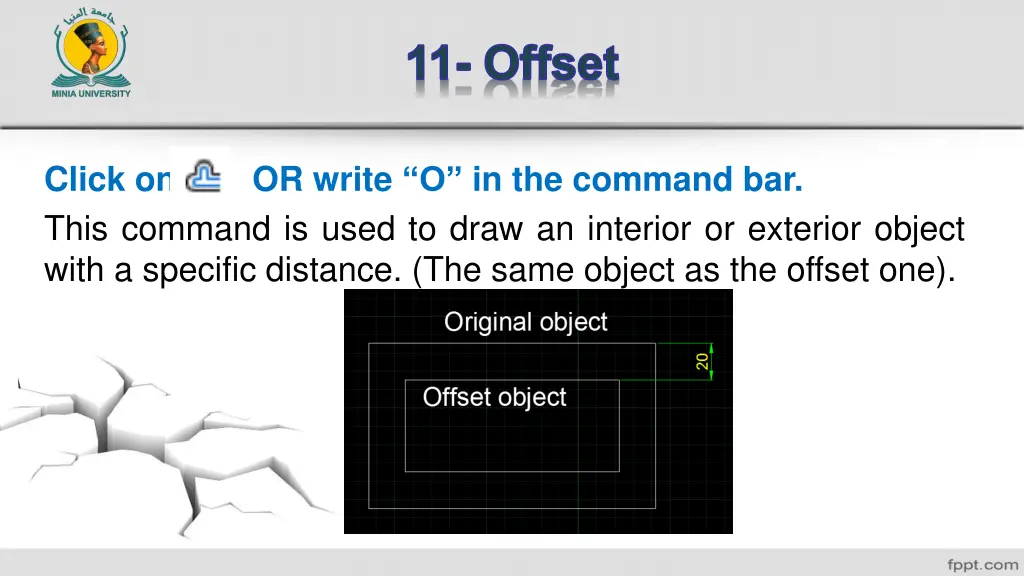
11- Offset Click on This command is used to draw an interior or exterior object with a specific distance. (The same object as the offset one). OR write O in the command bar.
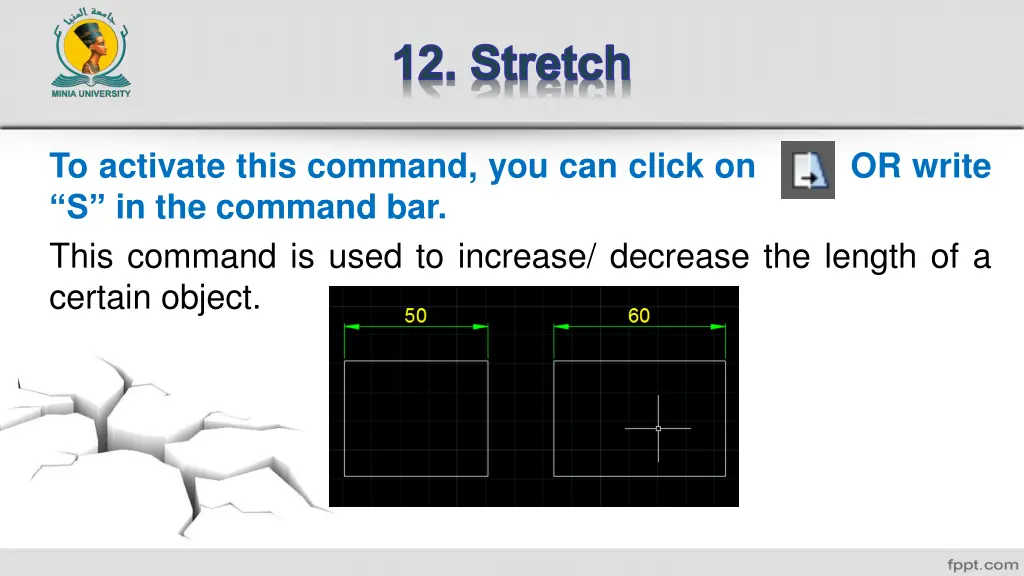
12. Stretch To activate this command, you can click on S in the command bar. This command is used to increase/ decrease the length of a certain object. OR write
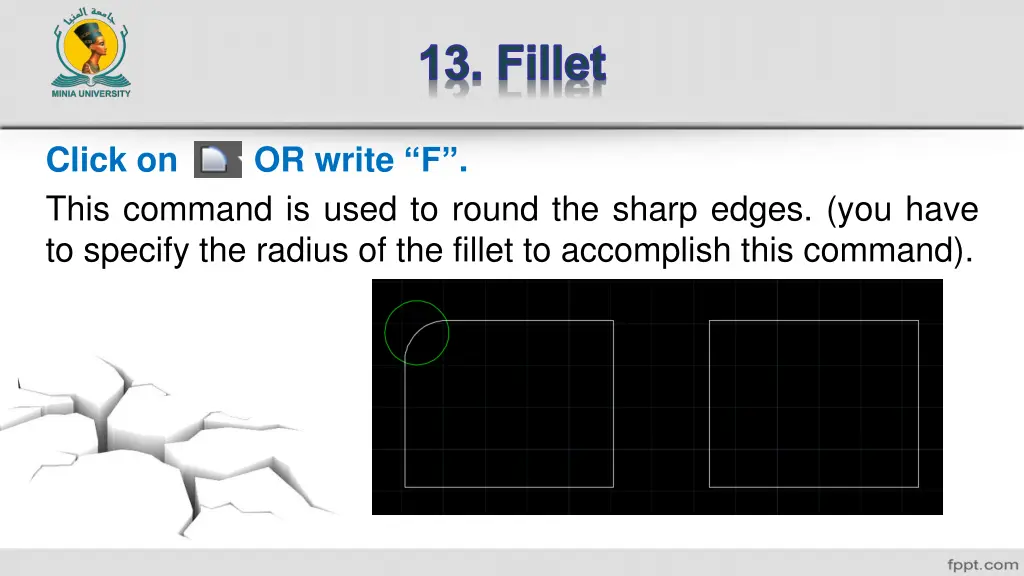
13. Fillet Click on This command is used to round the sharp edges. (you have to specify the radius of the fillet to accomplish this command). OR write F .
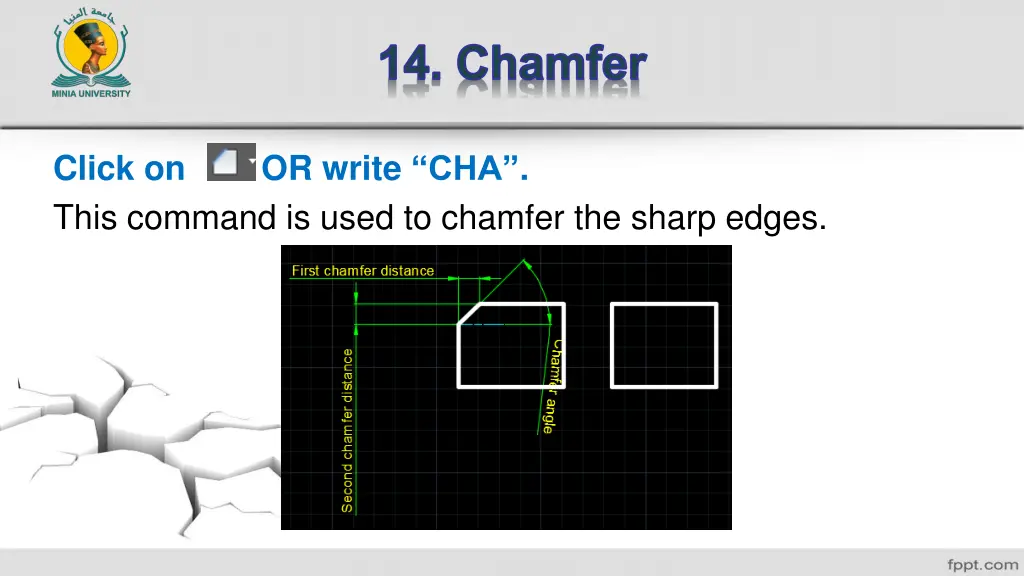
14. Chamfer Click on This command is used to chamfer the sharp edges. OR write CHA .
Content Tab panel This part is the most interesting part in our course. This panel is mainly used to insert most of the mechanical parts. You can insert fasteners, nuts, washers, shafts, bearings, gears, keys, sprockets, chains, holes, threads, oil seals, snap rings, locking nuts, bushes, adjusting nuts, shim rings, adjusting rings, undercuts, plugs, lubricators, in addition of steel sections and etc. Moreover, you can apply the stresses analyses for these parts.
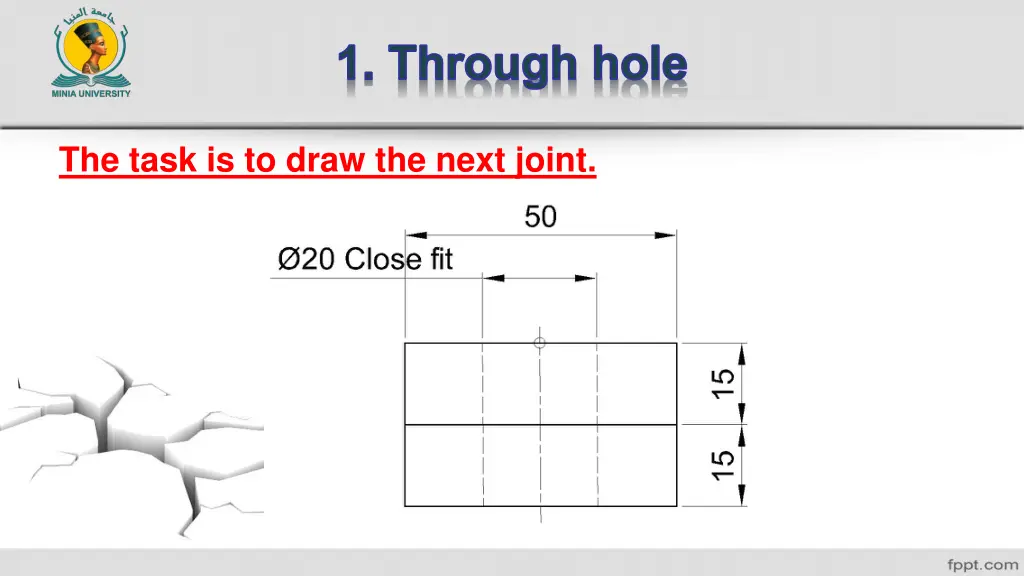
1- First, you can draw two rectangles (50 15) mm. 2- To insert the through hole, Click on Through hole from content ribbon tab, from Hole ribbon panel. OR write amthole2d in the command bar. 3- Choose Close Metric , and then choose the appropriate view. 4- Click on the upper line of the first rectangle, and then, click on the lower line of the second rectangle.
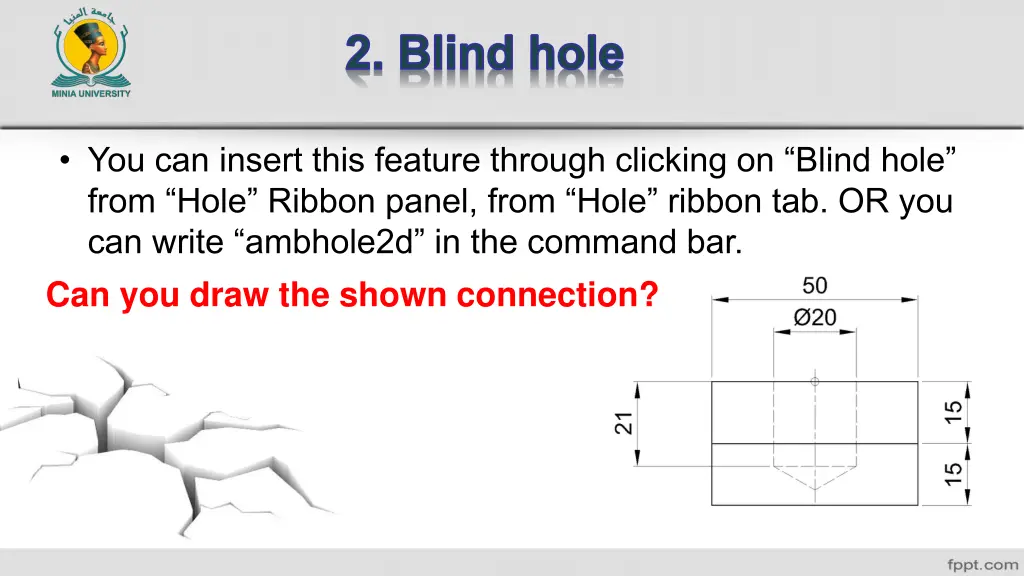
2. Blind hole You can insert this feature through clicking on Blind hole from Hole Ribbon panel, from Hole ribbon tab. OR you can write ambhole2d in the command bar. Can you draw the shown connection?
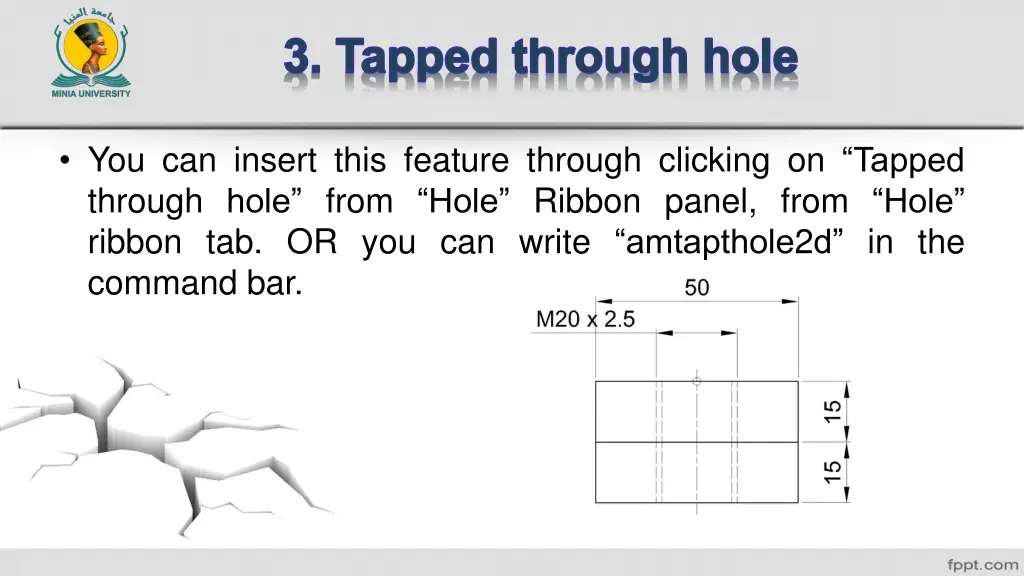
3. Tapped through hole You can insert this feature through clicking on Tapped through hole from Hole Ribbon panel, from Hole ribbon tab. OR you can write amtapthole2d in the command bar.
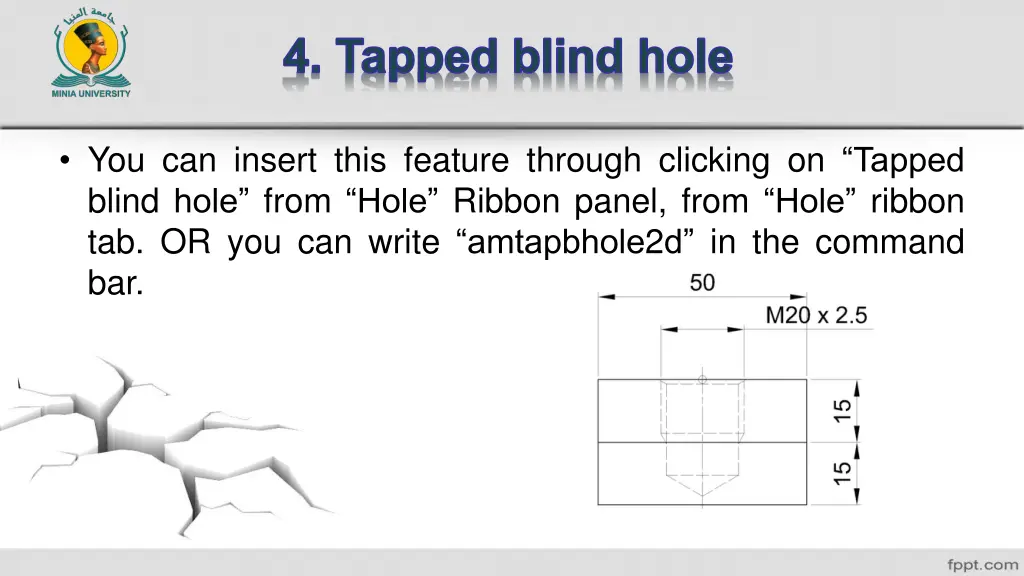
4. Tapped blind hole You can insert this feature through clicking on Tapped blind hole from Hole Ribbon panel, from Hole ribbon tab. OR you can write amtapbhole2d in the command bar.
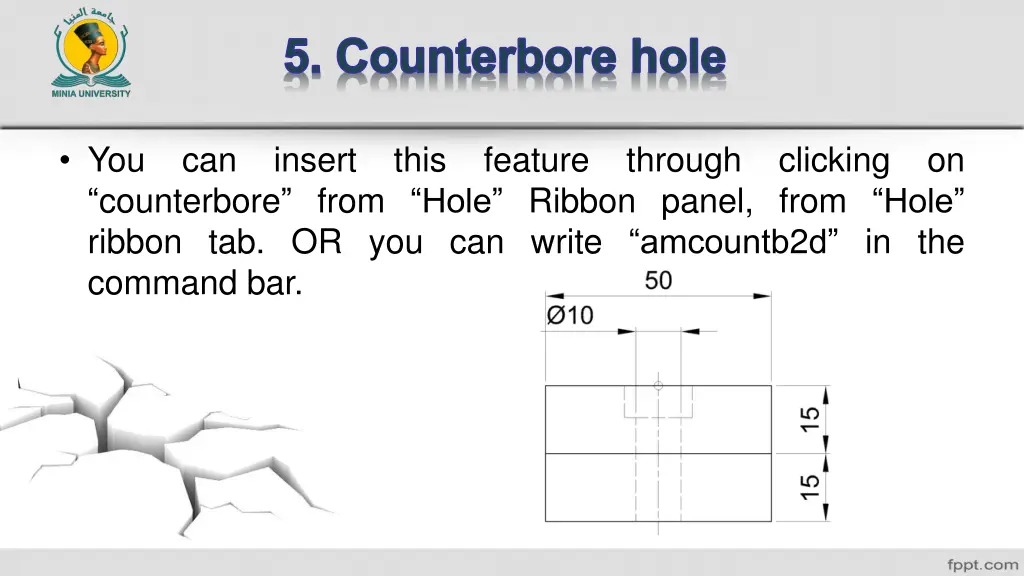
5. Counterbore hole You counterbore from Hole Ribbon panel, from Hole ribbon tab. OR you can write amcountb2d in the command bar. can insert this feature through clicking on
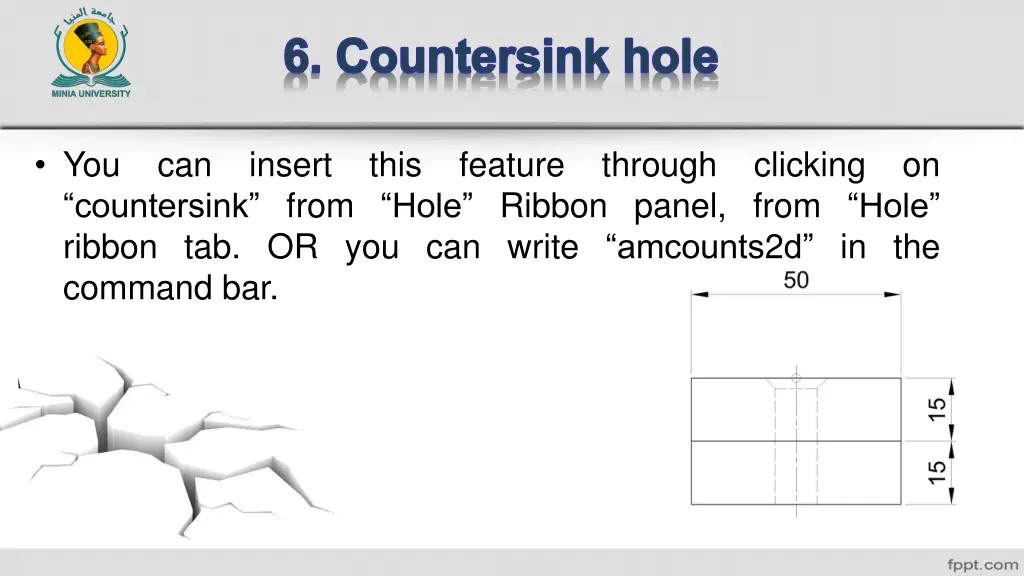
6. Countersink hole You countersink from Hole Ribbon panel, from Hole ribbon tab. OR you can write amcounts2d in the command bar. can insert this feature through clicking on
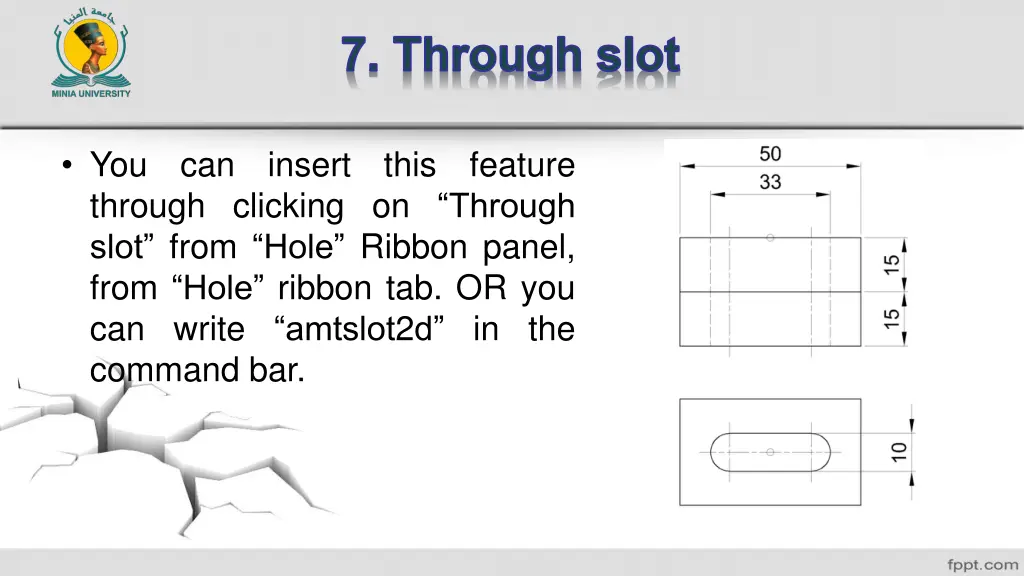
7. Through slot You through clicking on Through slot from Hole Ribbon panel, from Hole ribbon tab. OR you can write amtslot2d in the command bar. can insert this feature
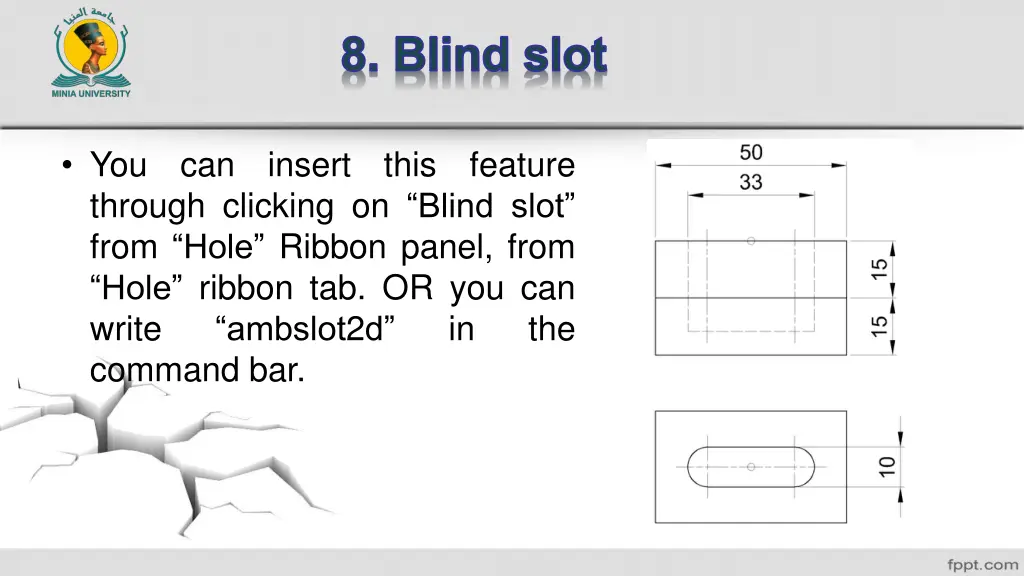
8. Blind slot You through clicking on Blind slot from Hole Ribbon panel, from Hole ribbon tab. OR you can write ambslot2d command bar. can insert this feature in the
9. Taper internal thread You can insert this feature through clicking on Taper Internal Thread from Hole Ribbon panel, from Hole ribbon tab. OR you can write amtapithread2d in the command bar.