Mastering SplashBI: Running Reports with Ease
Discover how to efficiently sign in, navigate, and run reports in SplashBI with our comprehensive 101 training guide. Learn to access, search, and generate reports effortlessly to optimize your data analysis process.

Download Presentation

Please find below an Image/Link to download the presentation.
The content on the website is provided AS IS for your information and personal use only. It may not be sold, licensed, or shared on other websites without obtaining consent from the author. If you encounter any issues during the download, it is possible that the publisher has removed the file from their server.
You are allowed to download the files provided on this website for personal or commercial use, subject to the condition that they are used lawfully. All files are the property of their respective owners.
The content on the website is provided AS IS for your information and personal use only. It may not be sold, licensed, or shared on other websites without obtaining consent from the author.
E N D
Presentation Transcript
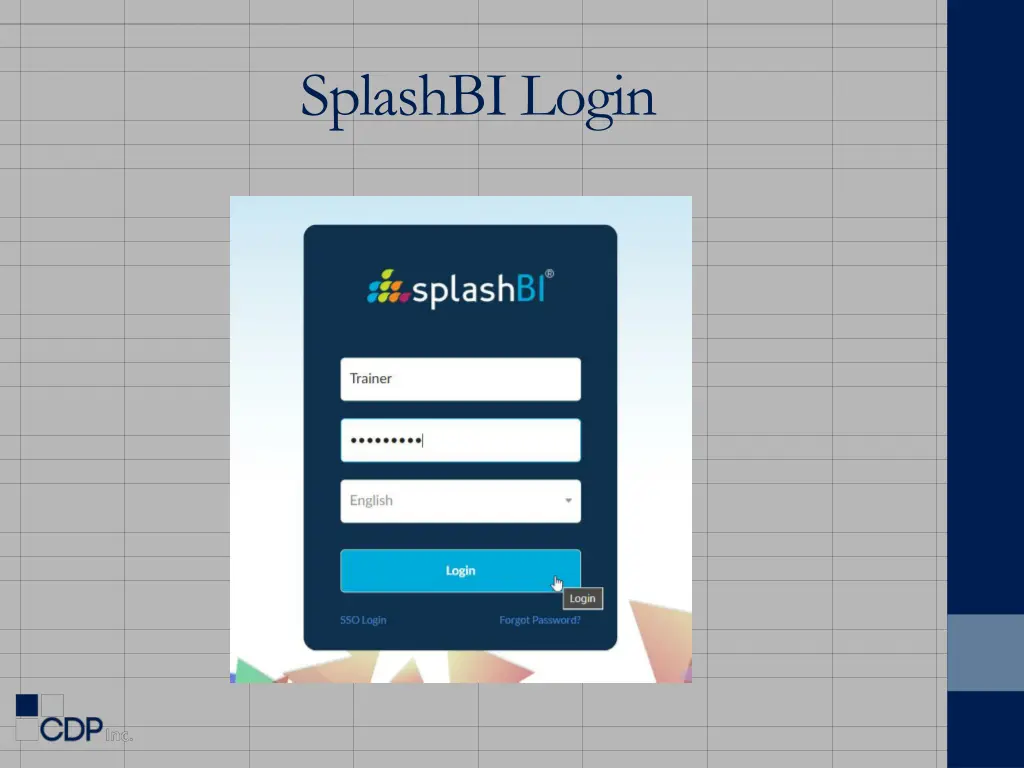
Signing In and Running Reports in SplashBI (101 Training)
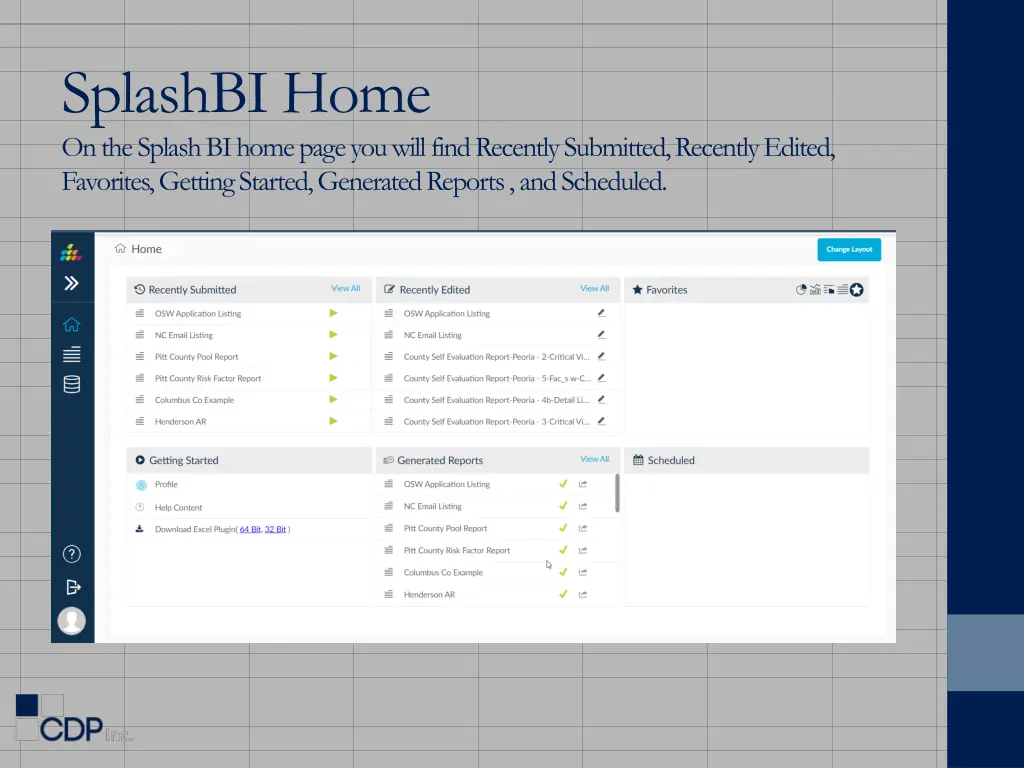
SplashBIHome On the Splash BI home page you will find Recently Submitted, Recently Edited, Favorites, Getting Started, Generated Reports , and Scheduled.
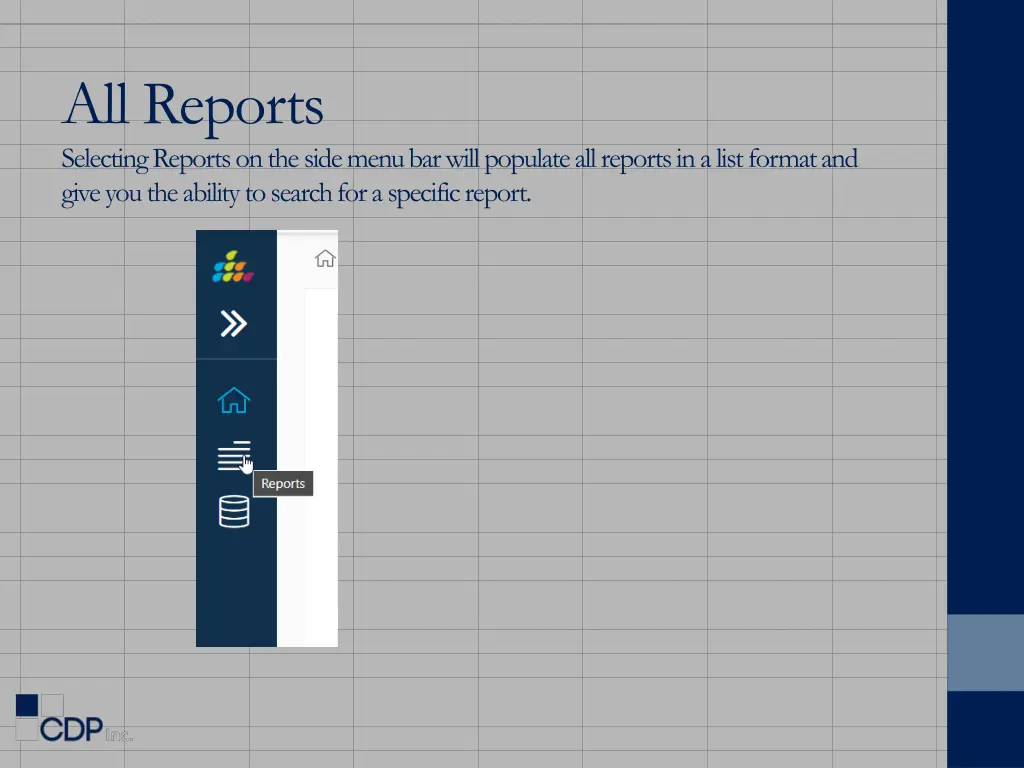
All Reports Selecting Reports on the side menu bar will populate all reports in a list format and give you the ability to search for a specific report.
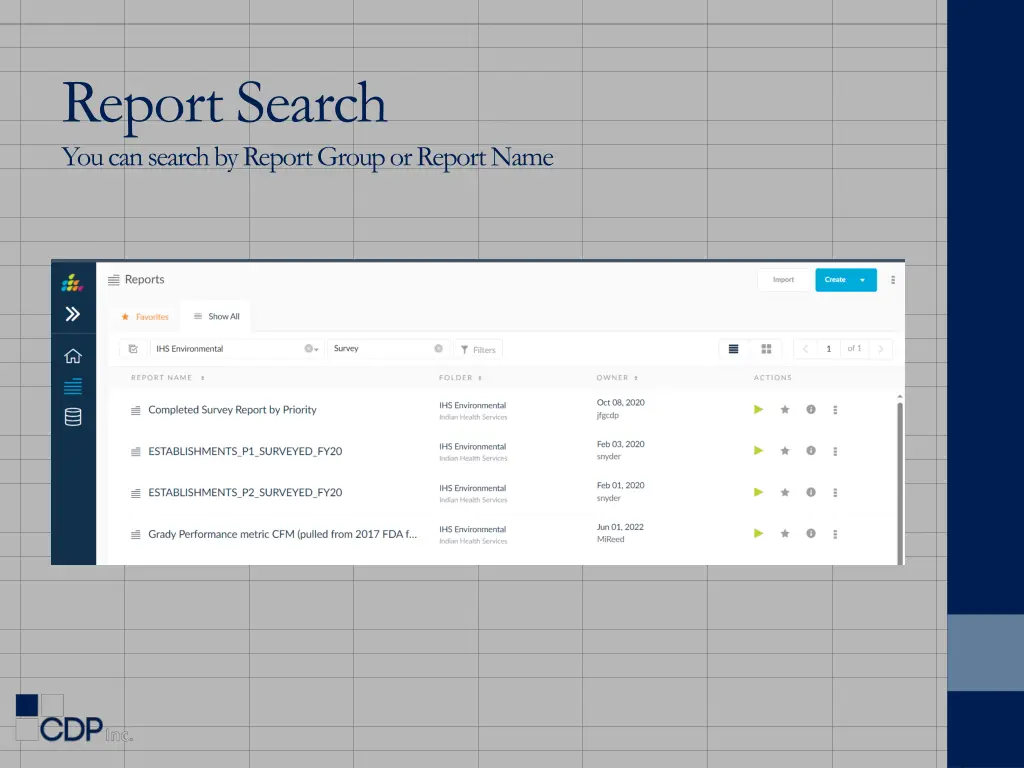
Report Search You can search by Report Group or Report Name
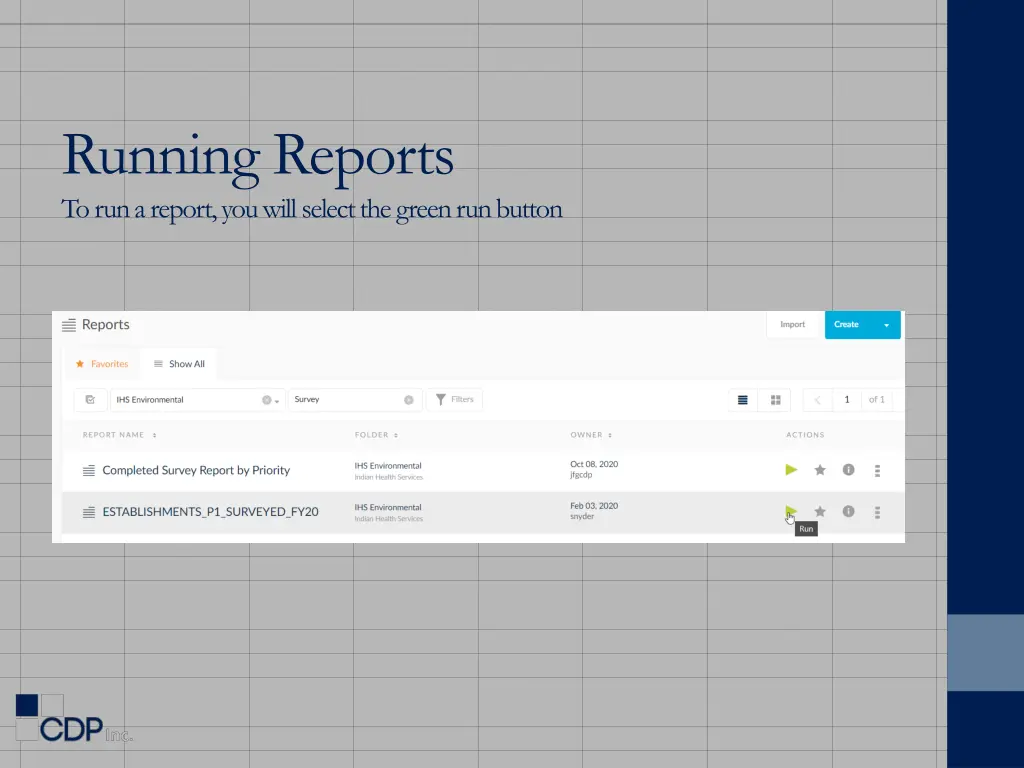
Running Reports To run a report, you will select the green run button
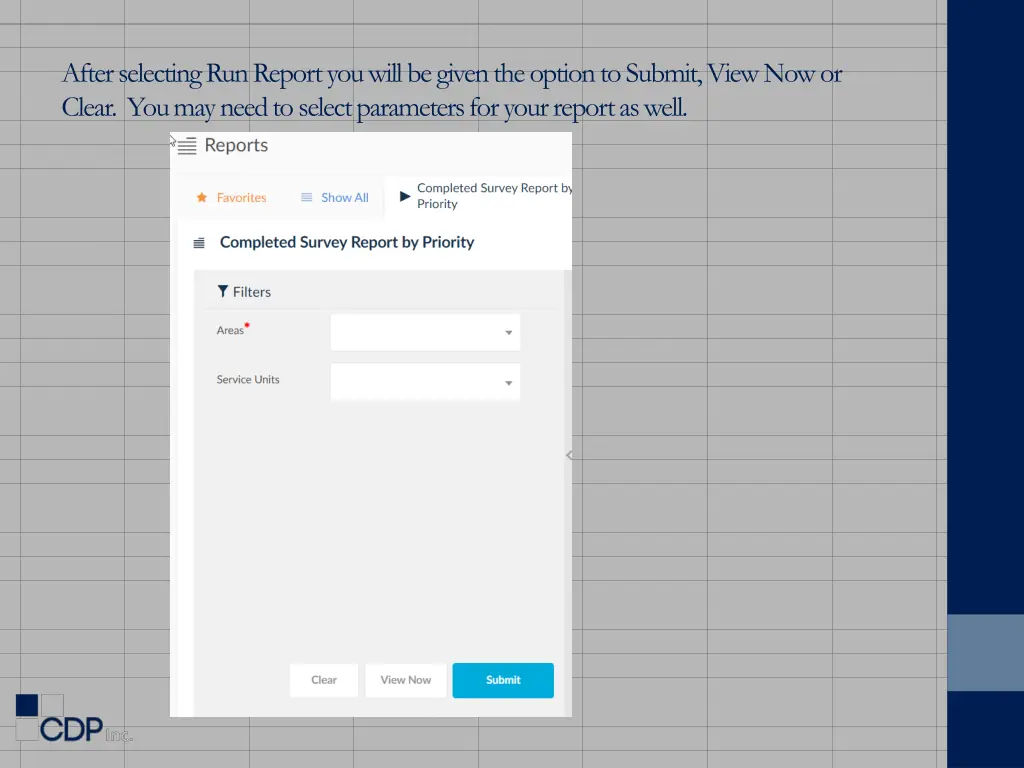
After selecting Run Report you will be given the option to Submit, View Now or Clear. You may need to select parameters for your report as well.
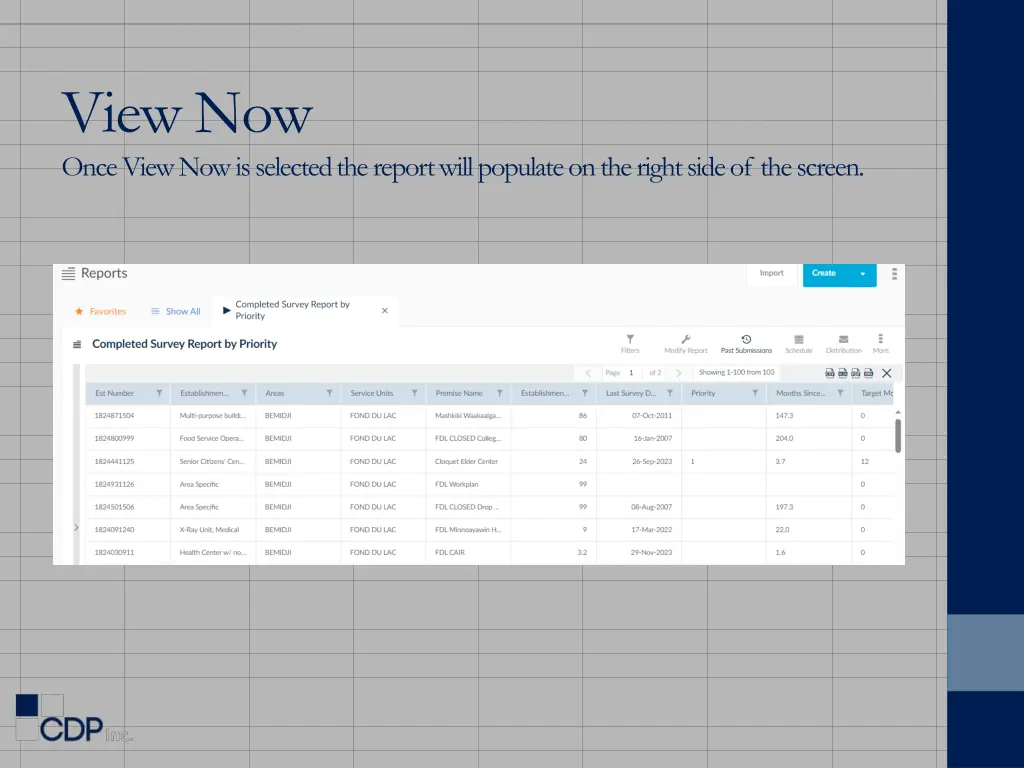
View Now Once View Now is selected the report will populate on the right side of the screen.
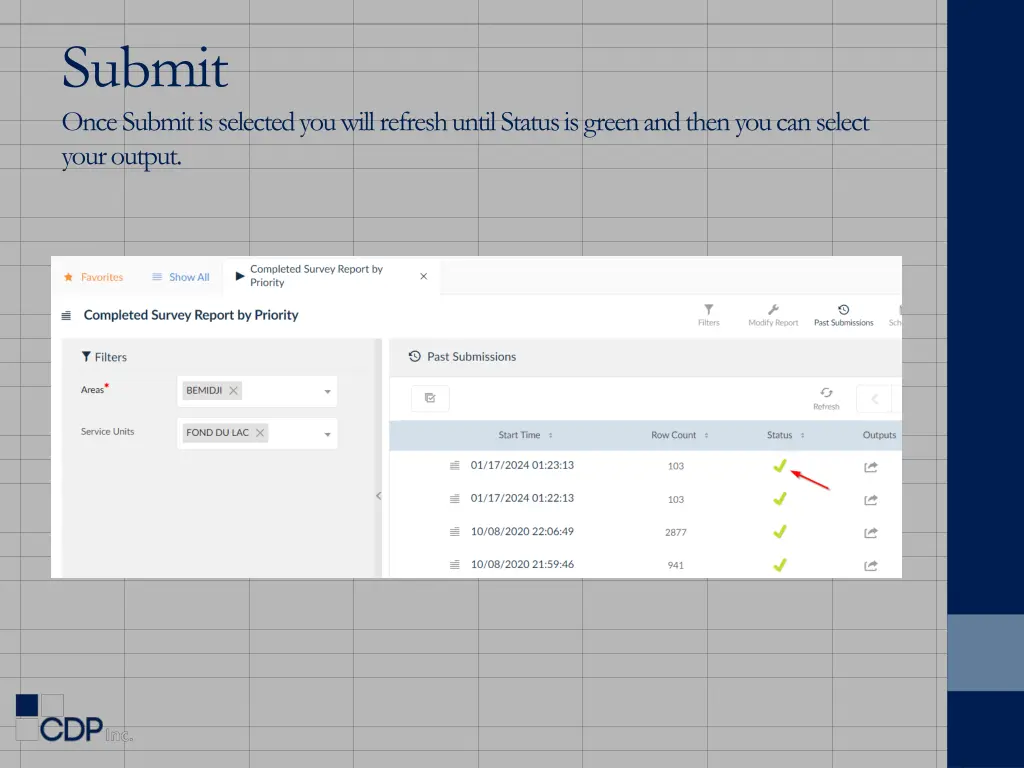
Submit Once Submit is selected you will refresh until Status is green and then you can select your output.
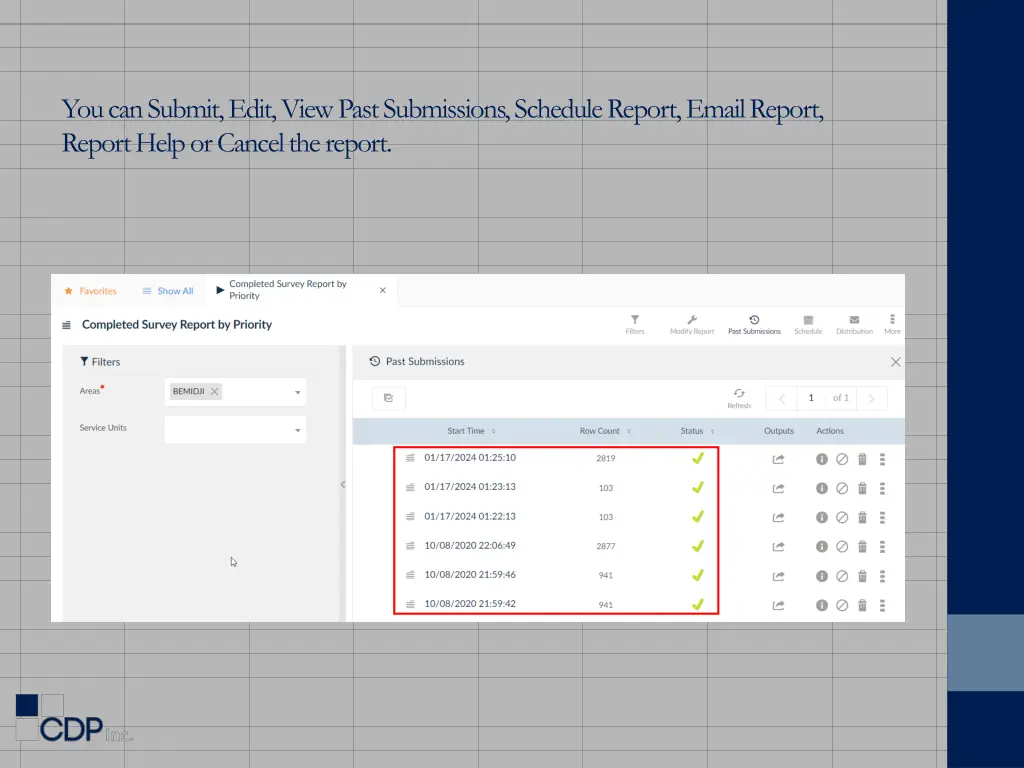
You can Submit, Edit, View Past Submissions, Schedule Report, Email Report, Report Help or Cancel the report.
This concludes our SplashBI 101 training presentation. This should give you enough of a basis to log in and view reports. For a tutorial on creating and editing your own reports, please go through our SplashBI 201 PowerPoint.
Contact CDPs Customer Support www.cdpehs.com ehsupport@cdpehs.com - this email includes the following: Shelly Cecil John Grady Trevor Cannon 866-237-4814