Mastering Table Creation in HTML for Web Design | Lesson 7
Learn how to define tables in HTML, create captions, rows, heading and data cells, modify cell alignment, span multiple rows or columns, and add color to tables. Understand the importance and impact of tables on web page design and construction. Get detailed insights into table parts and the element in HTML with examples. Start mastering table creation for effective web design.

Uploaded on | 1 Views
Download Presentation

Please find below an Image/Link to download the presentation.
The content on the website is provided AS IS for your information and personal use only. It may not be sold, licensed, or shared on other websites without obtaining consent from the author. If you encounter any issues during the download, it is possible that the publisher has removed the file from their server.
You are allowed to download the files provided on this website for personal or commercial use, subject to the condition that they are used lawfully. All files are the property of their respective owners.
The content on the website is provided AS IS for your information and personal use only. It may not be sold, licensed, or shared on other websites without obtaining consent from the author.
E N D
Presentation Transcript
Tables Lesson 7 Week 7 Course project defence Nov. 7, 2017
Objectives At the end of this lesson, you should be able to do the following: Defining tables in HTML Creating captions, rows, and heading and data cells Modifying cell alignment Creating cells that span multiple rows or columns Adding color to tables
Defining Tables Introduction Tables were officially introduced in HTML 3.2. Since then, they ve had an enormous influence on Web page design and construction. HTML 4.01 includes changes that improve the way tables are loaded and displayed in browsers.
Creating captions, rows, and heading and data cells Creating tables in HTML is a degree more complex than anything you ve seen so far in this lessons. Think about how many different types of tables there are. A table can be a 3-by-3 grid with labels across the top, or two side-by-side cells, or a complex Excel spreadsheet that comprises many rows and columns of various sizes. Representing tables in HTML is heavy on tags, and the tags can be hard to keep track of when you get going.
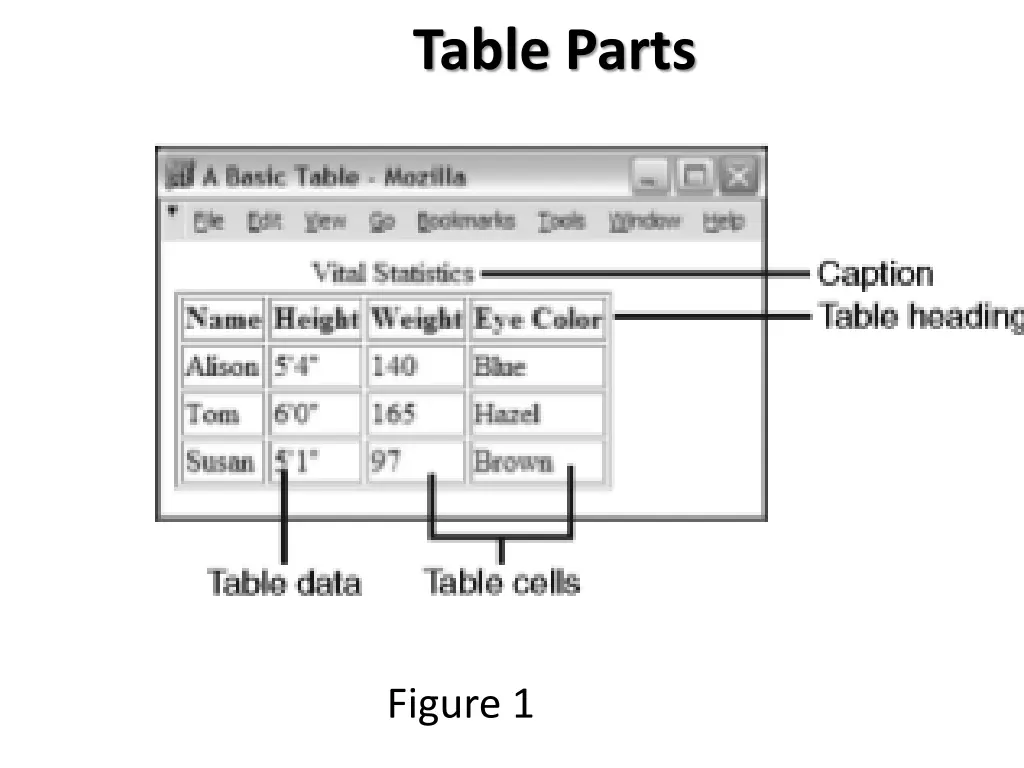
Table Parts Before getting into the actual HTML code to create a table, let s look at the following terms so that we both know what we re talking about: The caption also called title comes before the heading and are optional. The table headings label the rows, columns, or both. Usually they re in an emphasized font that s different from the rest of the table. They re optional. Table cells are the individual squares in the table. A cell can contain normal table data or a table heading. Table data is the values in the table itself. The combination of the table headings and table data makes up the sum of the table.
Table Parts Figure 1
The <table> Element To create a table in HTML, you use the <table>...</table> element to enclose the code for an optional caption, and then add the contents of the table itself: <table> ...table caption contents... </table> (optional) and
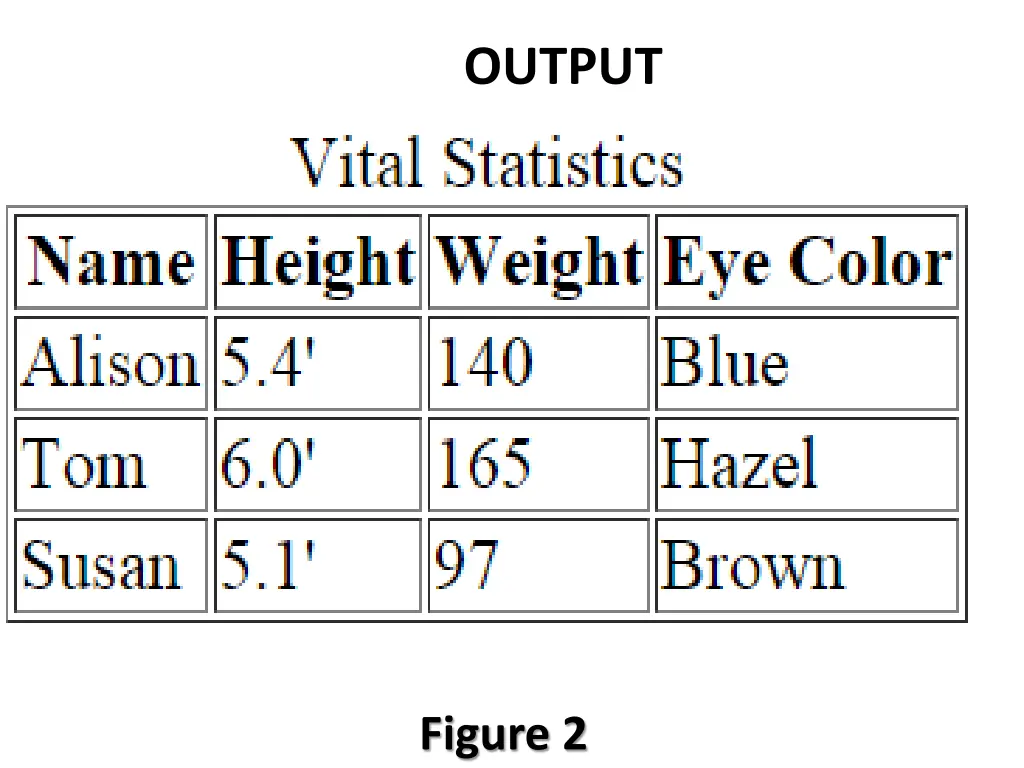
Example <table border="1"> <caption>Vital Statistics</caption> <tr> <th>Name</th> <th>Height</th> <th>Weight</th> <th>Eye Color</th> </tr> <tr> <td>Alison</td> <td>5.4'</td> <td>140</td> <td>Blue</td> </tr>
<tr> <td>Tom</td> <td>6.0'</td> <td>165</td> <td>Hazel</td> </tr> <tr> <td>Susan</td> <td>5.1'</td> <td>97</td> <td>Brown</td> </tr> </table>
OUTPUT Figure 2
Rows and Cells The cells within each row are created using one of two elements: <th>...</th> elements are used for heading cells. Generally, browsers center the contents of a <th> cell and render any text in the cell in boldface. <td>...</td> elements are used for data cells. td stands for table data as seen in figure 2.
Captions Table captions tell your visitor what the table is for. The <caption> element, created just for this purpose, displays the text inside the tag as the table caption (usually centered above the table). <caption>Vital Statistics</caption>
Sizing Tables, Borders, and Cells The width attribute of the <table> element defines how wide the table will be on the page. width can have a value that is either the exact width of the table (in pixels) or a percentage (50% or 75%) of the current browser width, which can therefore change if the window is resized. If width is specified, the width of the columns within the table can be compressed or expanded to fit the required width. <table border= 1 width= 100% > //this will cover the length of the window while 50% covers half of the window. Try and apply this in the table created earlier to see the effects(show your Teacher)
Resizing table border The border attribute, which appears immediately inside the opening <table> tag, is the most common attribute of the <table> element. With it, you specify whether border lines are displayed around the table, and if so, how wide the borders should be. The default is border= 1 . border= 0 suppresses the border, just as if you had omitted the border attribute altogether. NB// You can also use CSS to control your border which is more neater. <table border= 10 width= 100% > (try this out)
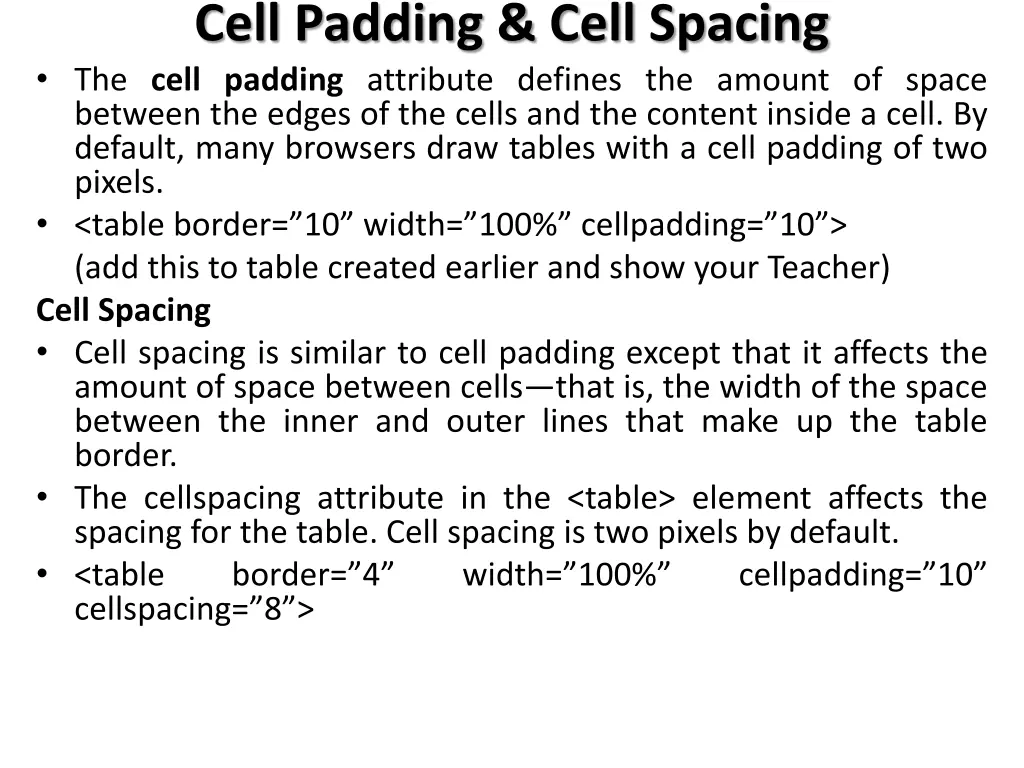
Cell Padding & Cell Spacing The cell padding attribute defines the amount of space between the edges of the cells and the content inside a cell. By default, many browsers draw tables with a cell padding of two pixels. <table border= 10 width= 100% cellpadding= 10 > (add this to table created earlier and show your Teacher) Cell Spacing Cell spacing is similar to cell padding except that it affects the amount of space between cells that is, the width of the space between the inner and outer lines that make up the table border. The cellspacing attribute in the <table> element affects the spacing for the table. Cell spacing is two pixels by default. <table border= 4 width= 100% cellspacing= 8 > cellpadding= 10
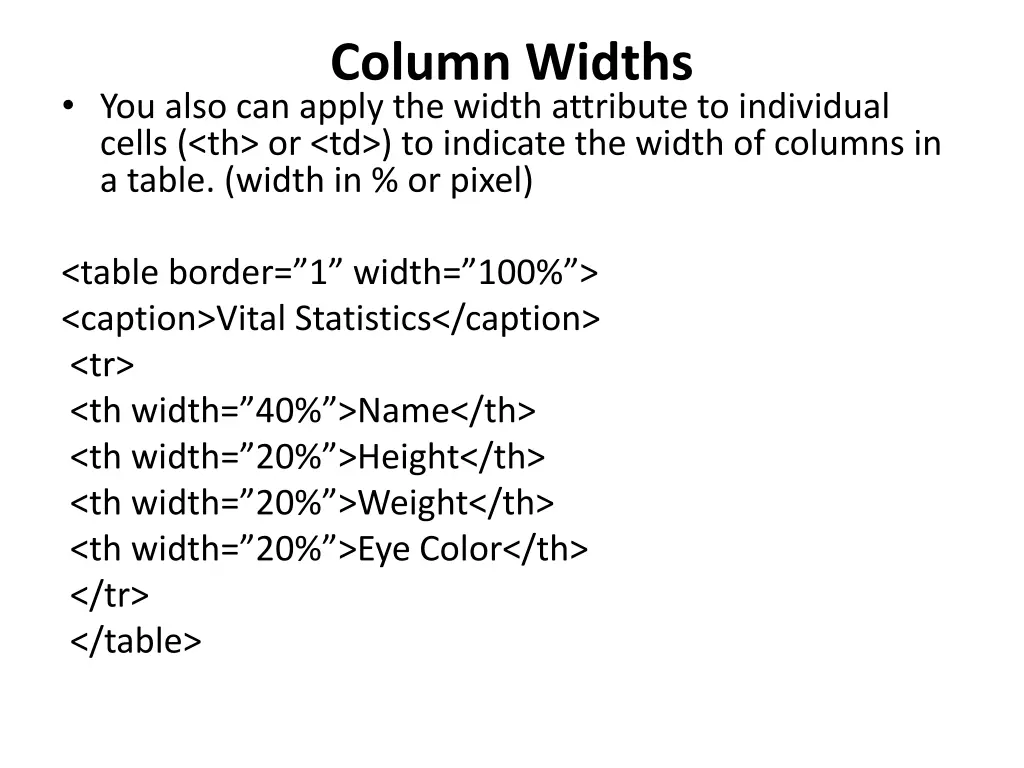
Column Widths You also can apply the width attribute to individual cells (<th> or <td>) to indicate the width of columns in a table. (width in % or pixel) <table border= 1 width= 100% > <caption>Vital Statistics</caption> <tr> <th width= 40% >Name</th> <th width= 20% >Height</th> <th width= 20% >Weight</th> <th width= 20% >Eye Color</th> </tr> </table>
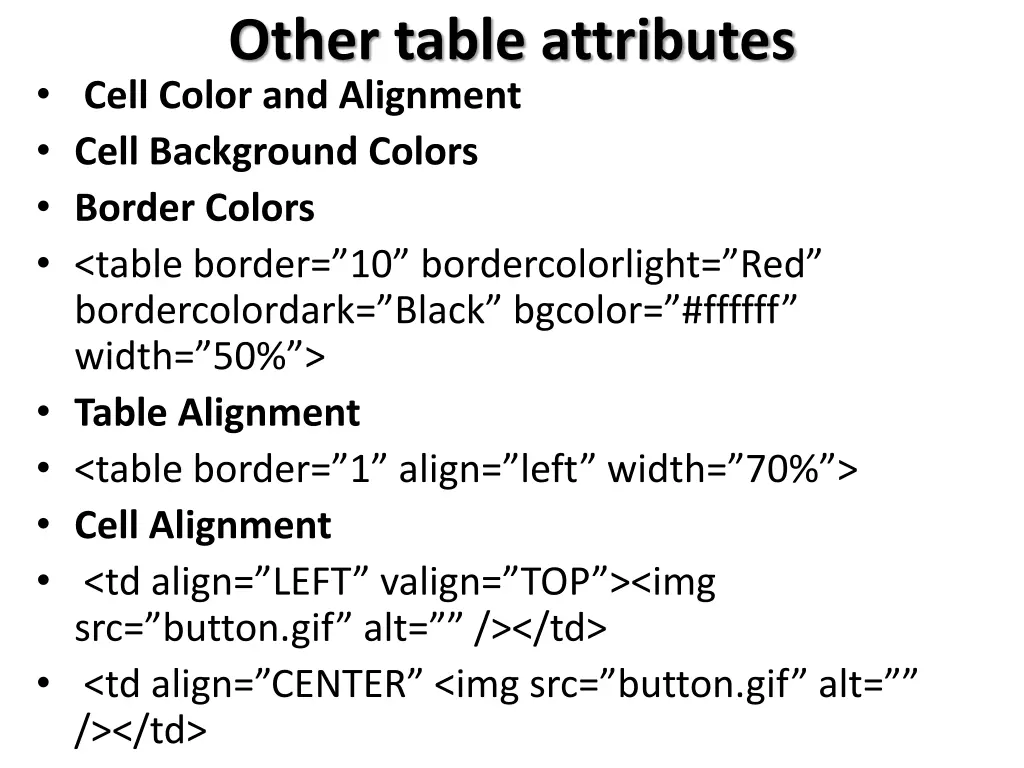
Other table attributes Cell Color and Alignment Cell Background Colors Border Colors <table border= 10 bordercolorlight= Red bordercolordark= Black bgcolor= #ffffff width= 50% > Table Alignment <table border= 1 align= left width= 70% > Cell Alignment <td align= LEFT valign= TOP ><img src= button.gif alt= /></td> <td align= CENTER <img src= button.gif alt= /></td>
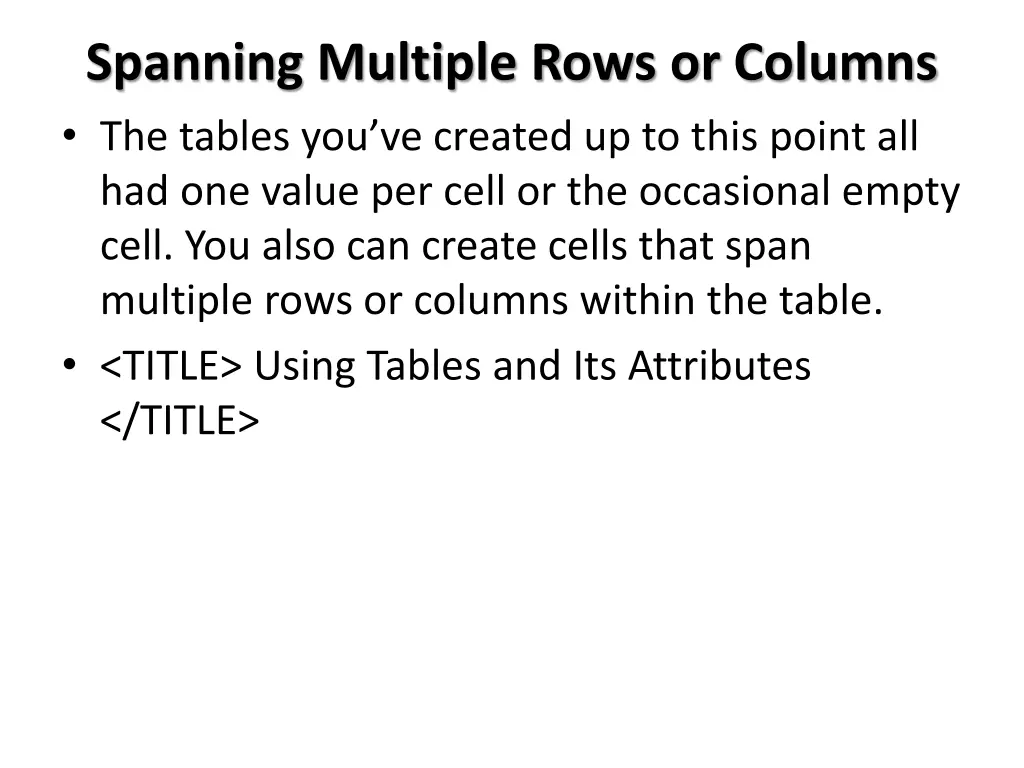
Spanning Multiple Rows or Columns The tables you ve created up to this point all had one value per cell or the occasional empty cell. You also can create cells that span multiple rows or columns within the table. <TITLE> Using Tables and Its Attributes </TITLE>
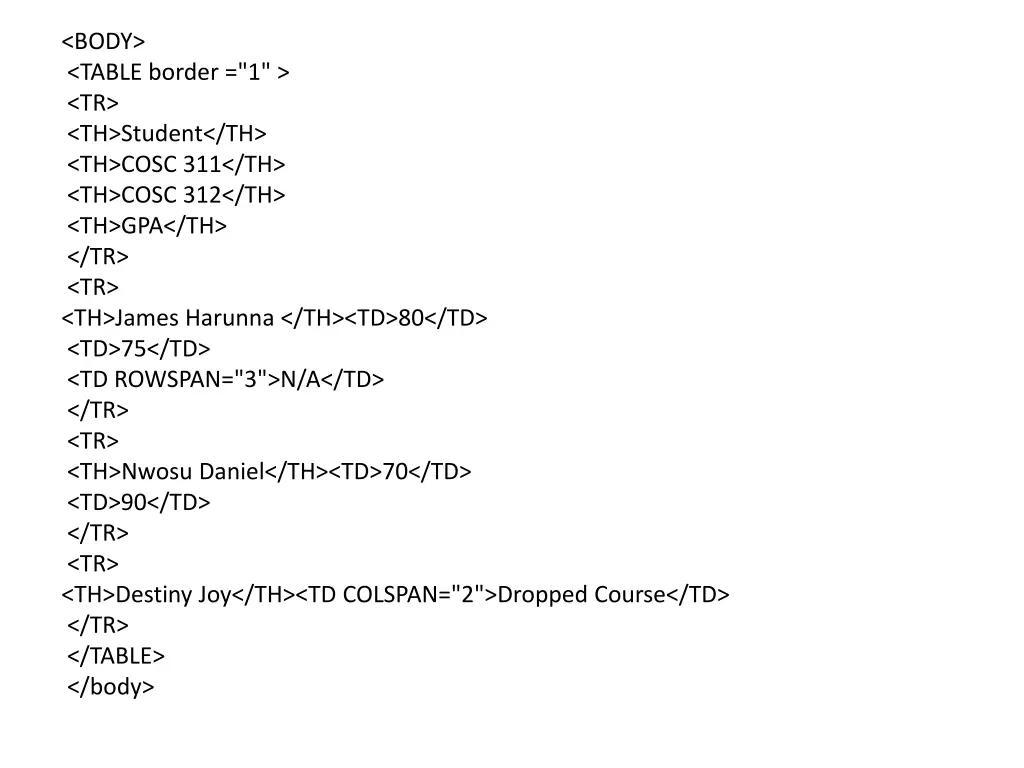
<BODY> <TABLE border ="1" > <TR> <TH>Student</TH> <TH>COSC 311</TH> <TH>COSC 312</TH> <TH>GPA</TH> </TR> <TR> <TH>James Harunna </TH><TD>80</TD> <TD>75</TD> <TD ROWSPAN="3">N/A</TD> </TR> <TR> <TH>Nwosu Daniel</TH><TD>70</TD> <TD>90</TD> </TR> <TR> <TH>Destiny Joy</TH><TD COLSPAN="2">Dropped Course</TD> </TR> </TABLE> </body>