Maximum Ingredient Level Optimization Workbook User Guide

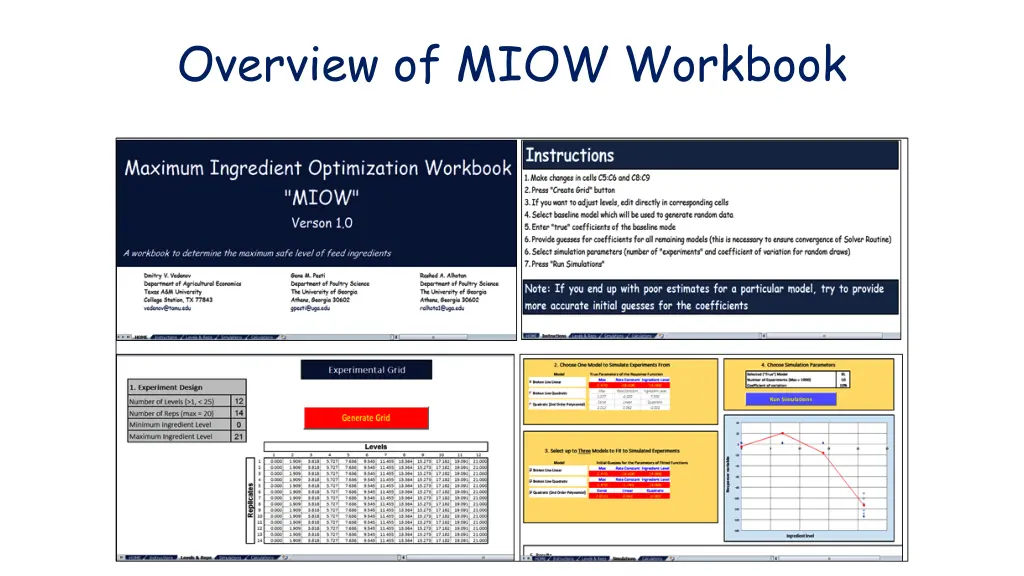
This user guide provides a step-by-step overview of using the Maximum Ingredient Level Optimization Workbook. It covers designing experiments, selecting models, providing regression coefficients, running simulations, and interpreting results effectively.

Download Presentation

Please find below an Image/Link to download the presentation.
The content on the website is provided AS IS for your information and personal use only. It may not be sold, licensed, or shared on other websites without obtaining consent from the author.If you encounter any issues during the download, it is possible that the publisher has removed the file from their server.
You are allowed to download the files provided on this website for personal or commercial use, subject to the condition that they are used lawfully. All files are the property of their respective owners.
The content on the website is provided AS IS for your information and personal use only. It may not be sold, licensed, or shared on other websites without obtaining consent from the author.
E N D
Presentation Transcript
Maximum Ingredient Level Optimization Workbook MIOW User Guide Rashed A. Alhotan, Graduate Student Dmitry V. Vedenov, Associate Professor Gene M. Pesti, Professor
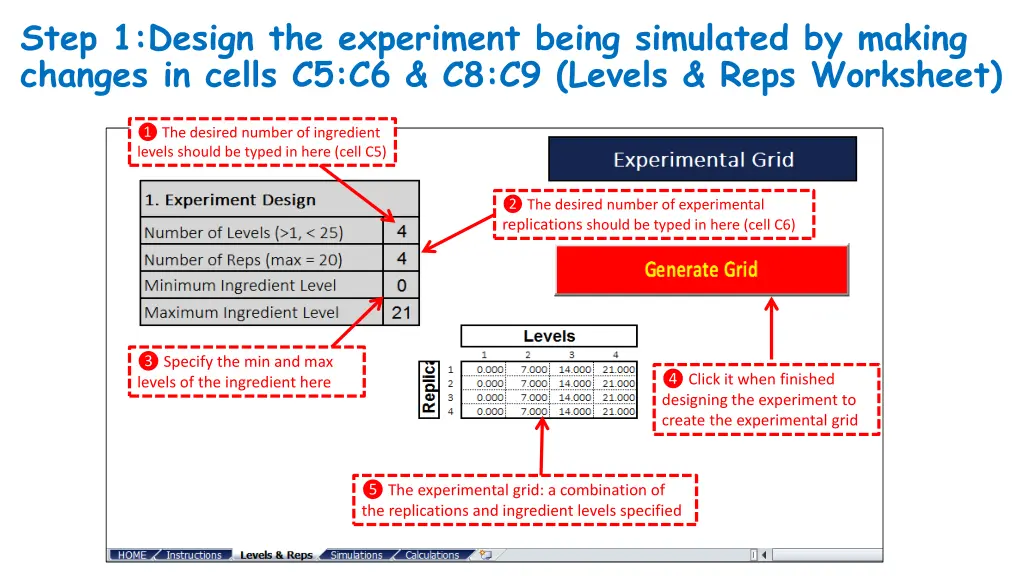
Step 1:Design the experiment being simulated by making changes in cells C5:C6 & C8:C9 (Levels & Reps Worksheet) The desired number of ingredient levels should be typed in here (cell C5) The desired number of experimental replications should be typed in here (cell C6) Specify the min and max levels of the ingredient here Click it when finished designing the experiment to create the experimental grid The experimental grid: a combination of the replications and ingredient levels specified
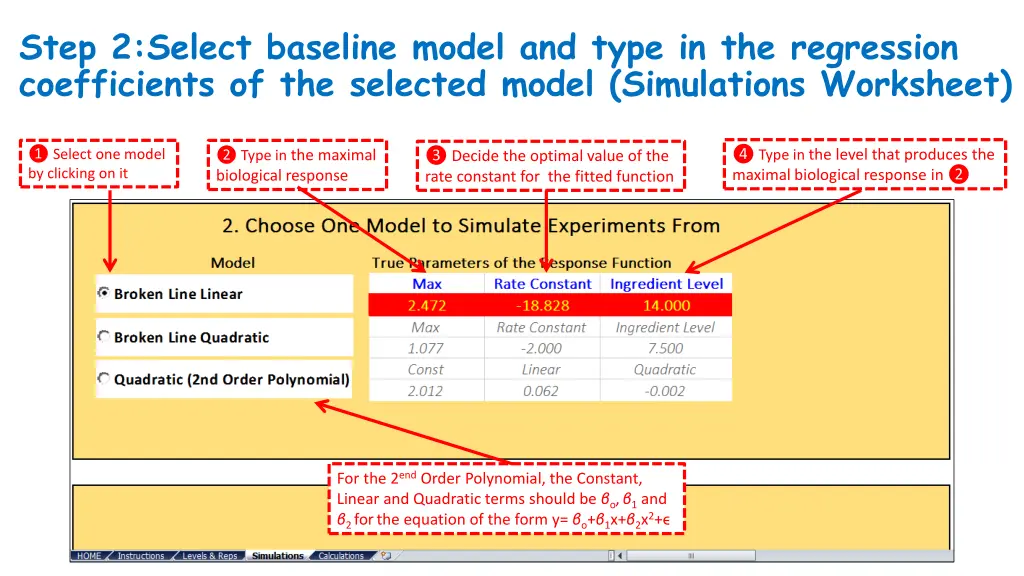
Step 2:Select baseline model and type in the regression coefficients of the selected model (Simulations Worksheet) Type in the level that produces the maximal biological response in Select one model by clicking on it Type in the maximal biological response Decide the optimal value of the rate constant for the fitted function For the 2end Order Polynomial, the Constant, Linear and Quadratic terms should be o, 1 and 2 forthe equation of the form y= o+ 1x+ 2x2+
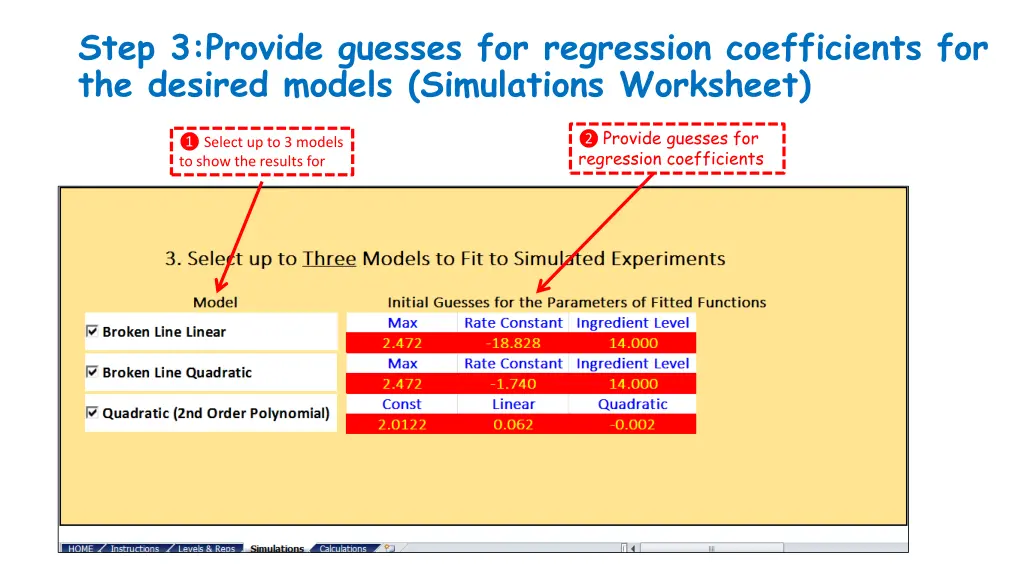
Step 3:Provide guesses for regression coefficients for the desired models (Simulations Worksheet) Provide guesses for regression coefficients Select up to 3 models to show the results for
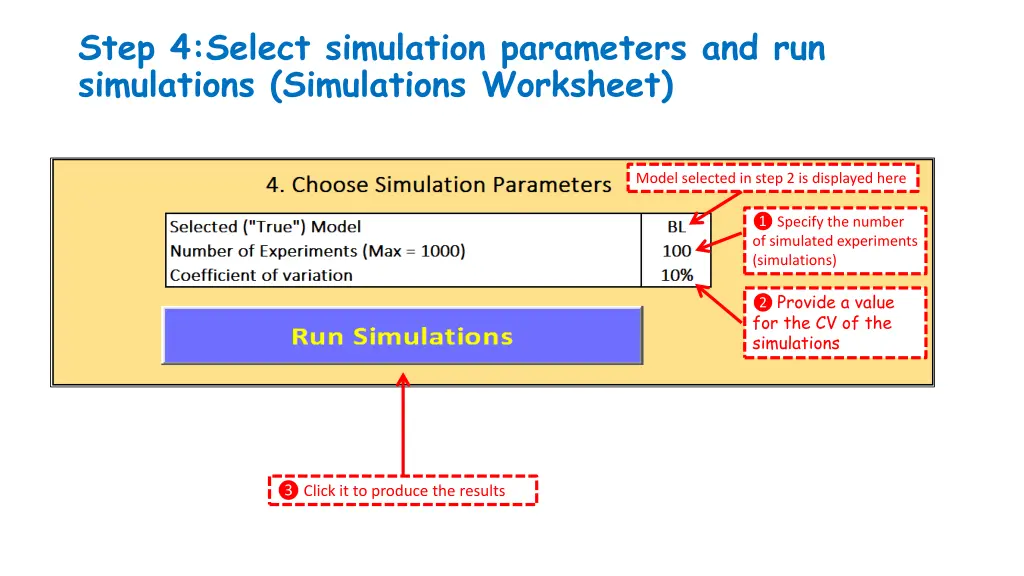
Step 4:Select simulation parameters and run simulations (Simulations Worksheet) Model selected in step 2 is displayed here Specify the number of simulated experiments (simulations) Step 1: Provide a value for the CV of the simulations Click it to produce the results
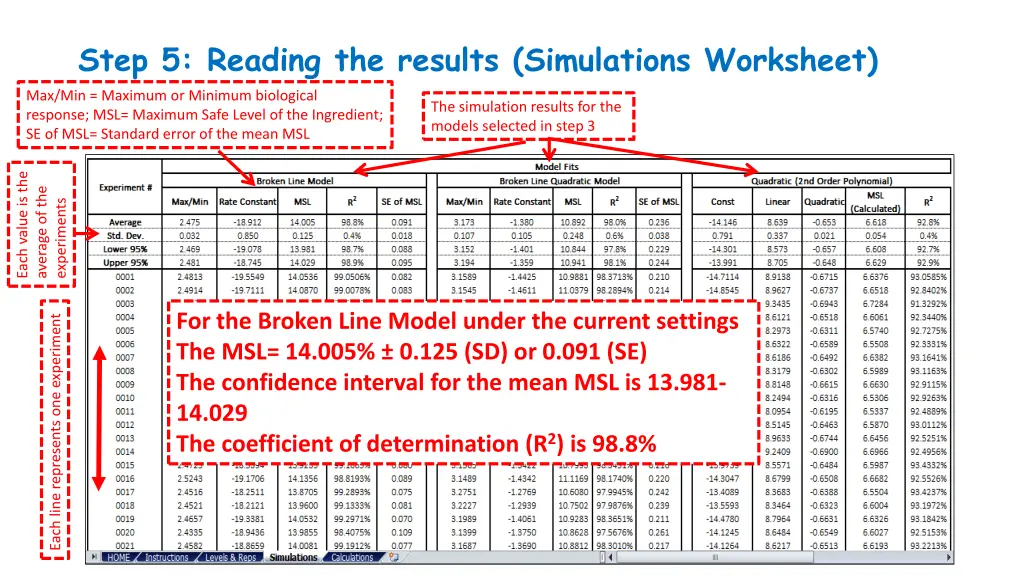
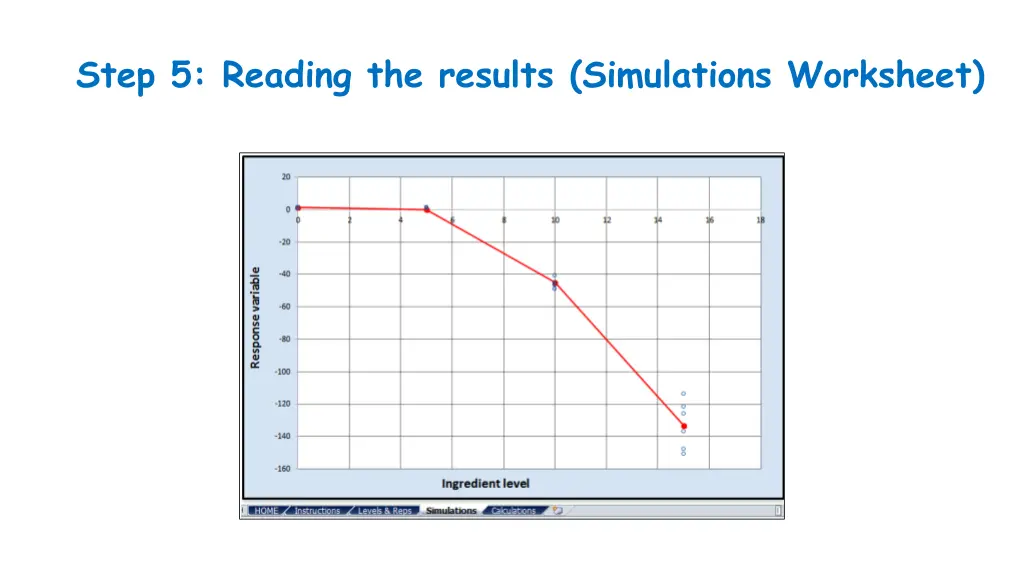
Step 5: Reading the results (Simulations Worksheet) Max/Min = Maximum or Minimum biological response; MSL= Maximum Safe Level of the Ingredient; SE of MSL= Standard error of the mean MSL The simulation results for the models selected in step 3 Each value is the average of the experiments Step 1: For the Broken Line Model under the current settings The MSL= 14.005% 0.125 (SD) or 0.091 (SE) The confidence interval for the mean MSL is 13.981- 14.029 The coefficient of determination (R2) is 98.8% Each line represents one experiment
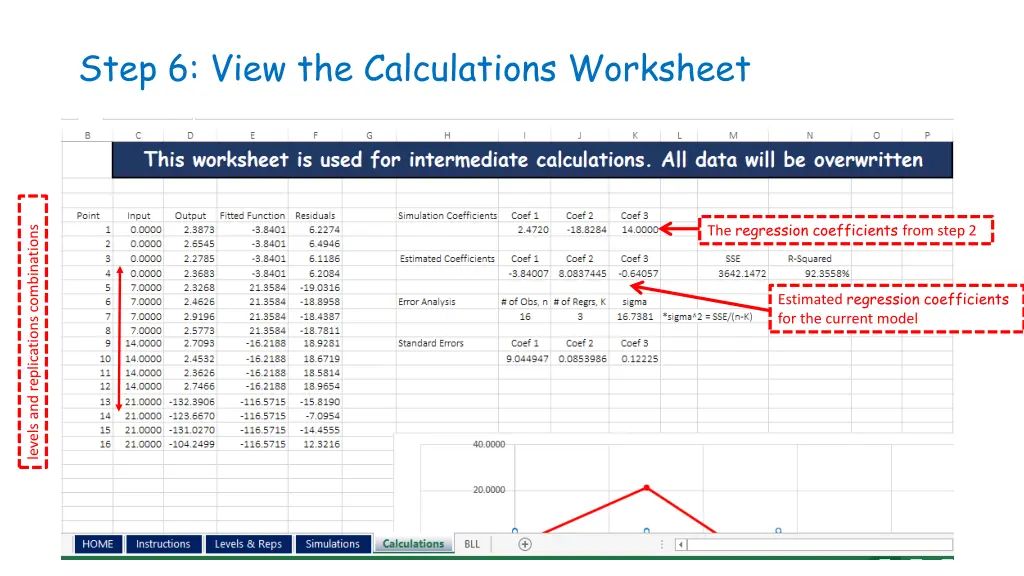
Step 6: View the Calculations Worksheet The regression coefficients from step 2 levels and replications combinations Step 1: Estimated regression coefficients for the current model