Understand the LEAP Holds Process in Polaris libraries where items are managed through a systematic hold system for both local and other ODIN Polaris libraries. Learn about the different types of holds and how requests are processed, ensuring efficient circulation of materials within the library network.
Please find below an Image/Link to download the presentation.
The content on the website is provided AS IS for your information and personal use only. It may not be sold, licensed, or shared on other websites without obtaining consent from the author. If you encounter any issues during the download, it is possible that the publisher has removed the file from their server.
You are allowed to download the files provided on this website for personal or commercial use, subject to the condition that they are used lawfully. All files are the property of their respective owners.
The content on the website is provided AS IS for your information and personal use only. It may not be sold, licensed, or shared on other websites without obtaining consent from the author.
E N D
Presentation Transcript
LEAP into Holds The Holds Process: An Overview The Holds Process: An Overview The hold process in Polaris pertains to all items in ODIN Polaris libraries, not just the items in our own individual library as we ve become accustomed to in ALEPH. Any item that would have previously circulated between ODIN public and school libraries in Aleph as an ILL, will now be processed as a hold in Polaris. Holds processing will be for both material in your library and material in other ODIN Polaris libraries.
LEAP into Holds The Holds Process: An Overview The Holds Process: An Overview 1. The system determines the item is owned by the patron s local library. 2. The system determines the item is owned by the patron s library, but the item is NOT available NOT available on the shelf, the request stays in the local library s queue for a certain number of days. 3. The system determines the item is not owned by the patron s library. The hold is then distributed to other ODIN Polaris libraries on a randomized basis in order to spread out the requests.
LEAP into Holds The Holds Process: An Overview The Holds Process: An Overview 1. If material is on hold for multiple patrons throughout the ODIN Polaris libraries, and the item is checked in at a library where one of their local patrons is in the hold queue, that local patron will rise to the top of the list. 2. The library s copy will fulfill the hold for their local patron first, even if that local patron is not first in the hold queue.
LEAP into Holds The Holds Process: Two Types of Holds in The Holds Process: Two Types of Holds in LEAP LEAP Title Hold (Bibliographic Record Hold) Item Hold (Item Record Hold)
LEAP into Holds The Holds Process: Title (Bibliographic) The Holds Process: Title (Bibliographic) Hold Hold A Title or Bibliographic hold is one that is placed from the bibliographic record. This type of hold will first place a hold on an item in your collection. If the item is not in your collection, a bibliographic hold will still be placed. LEAP will select libraries that have that item in their collection and add that item to their picklist, starting with the first one on the list. This list is selected by LEAP and is randomized. If the first library on the list does not fill the hold request, the request moves to the second library and so on. If you are not filling the request, please deny it so it can move on. Once a lending library processes the holds request, the item is now On Hold for the patron or it is ready for transfer to another library.
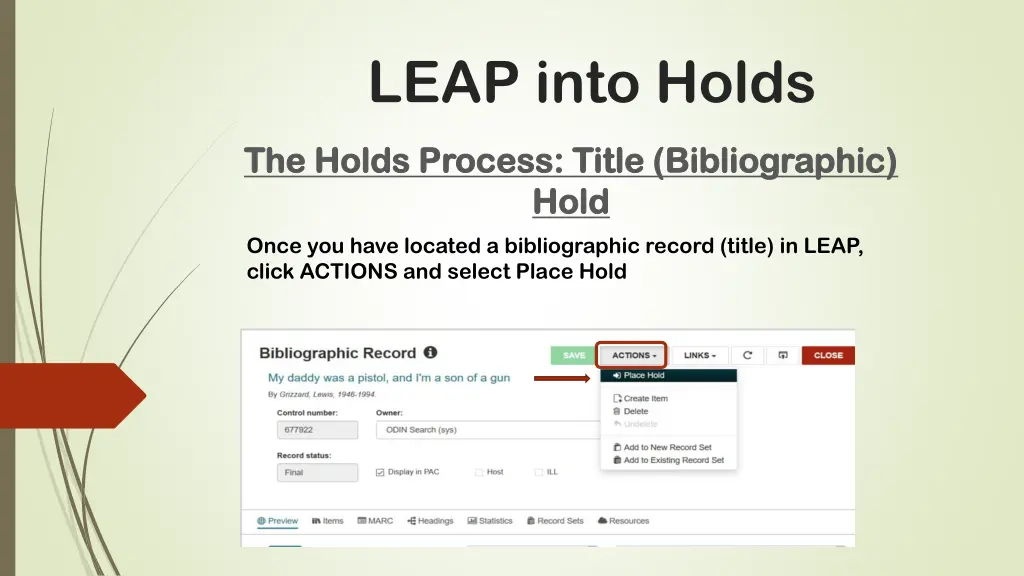
LEAP into Holds The Holds Process: Title (Bibliographic) The Holds Process: Title (Bibliographic) Hold Hold Once you have located a bibliographic record (title) in LEAP, click ACTIONS and select Place Hold
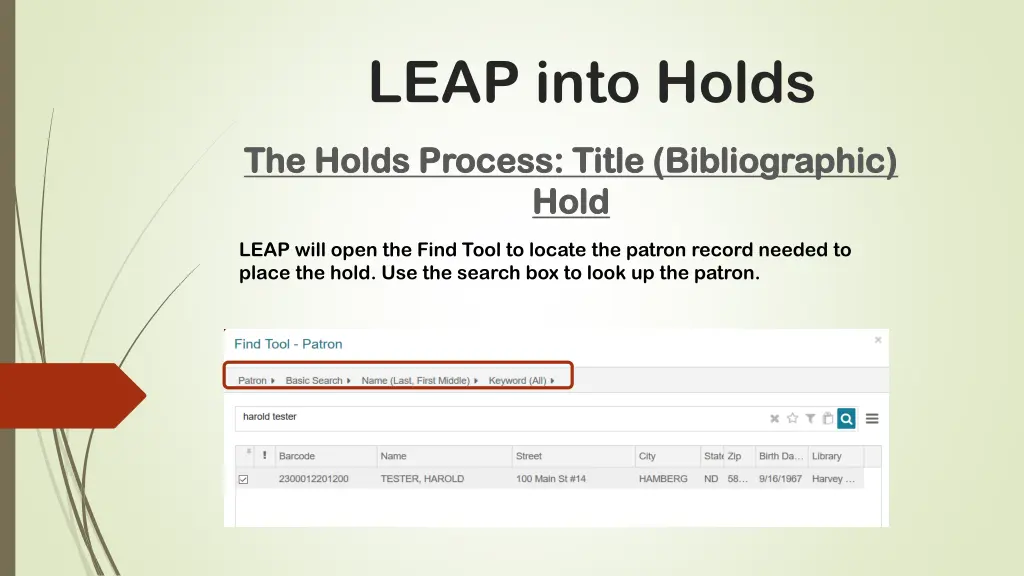
LEAP into Holds The Holds Process: Title (Bibliographic) The Holds Process: Title (Bibliographic) Hold Hold LEAP will open the Find Tool to locate the patron record needed to place the hold. Use the search box to look up the patron.
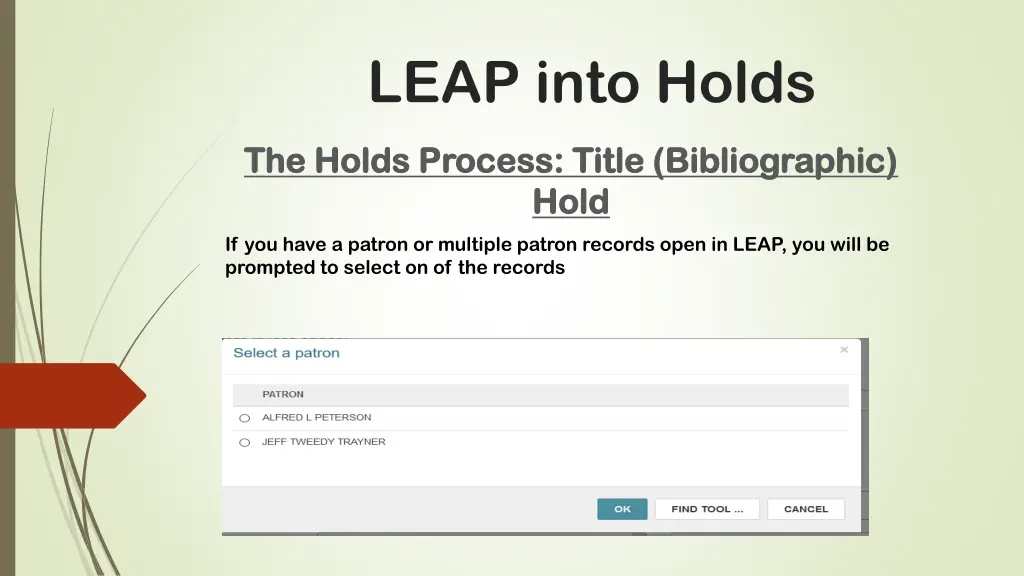
LEAP into Holds The Holds Process: Title (Bibliographic) The Holds Process: Title (Bibliographic) Hold Hold If you have a patron or multiple patron records open in LEAP, you will be prompted to select on of the records
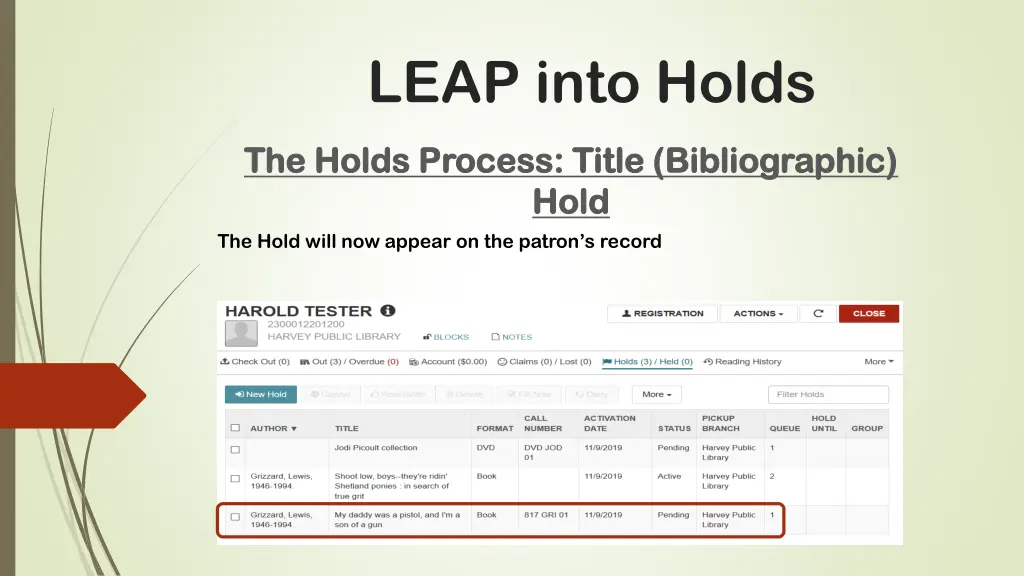
LEAP into Holds The Holds Process: Title (Bibliographic) The Holds Process: Title (Bibliographic) Hold Hold The Hold will now appear on the patron s record
LEAP into Holds The Holds Process: Item (Item Record) Hold The Holds Process: Item (Item Record) Hold An Item Level Hold is placed on a specific item in a specific library. This type of hold is used less frequently than a Bibliographic Level hold. It can be used to shorten the time it takes to process a hold by requesting the item from a specific library.
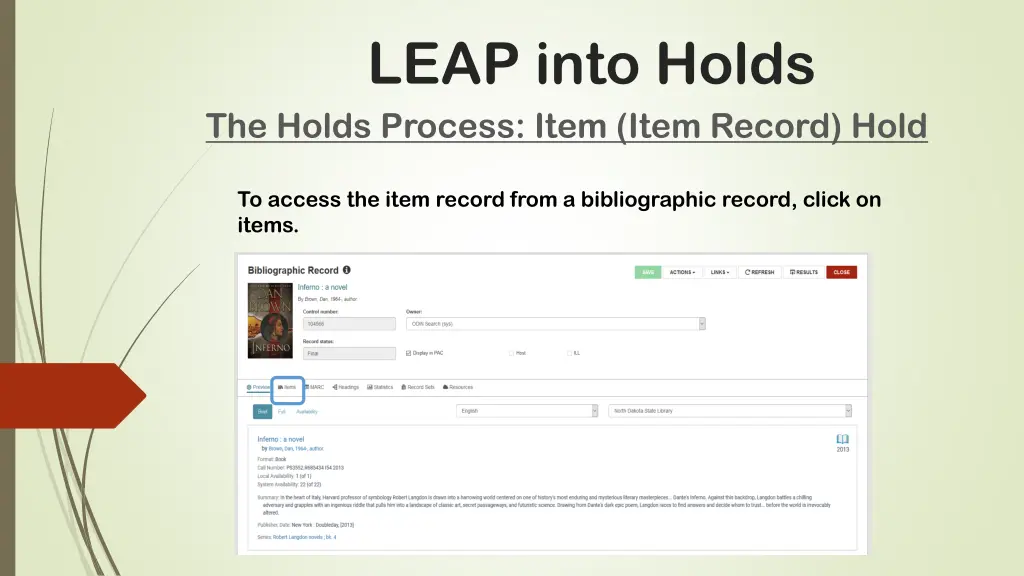
LEAP into Holds The Holds Process: Item (Item Record) Hold To access the item record from a bibliographic record, click on items.
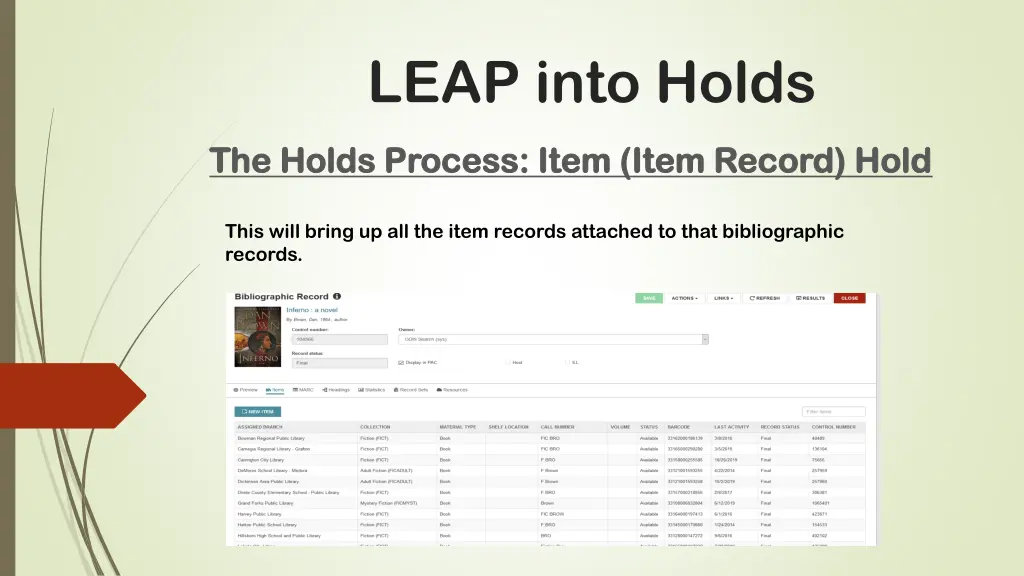
LEAP into Holds The Holds Process: Item (Item Record) Hold The Holds Process: Item (Item Record) Hold This will bring up all the item records attached to that bibliographic records.
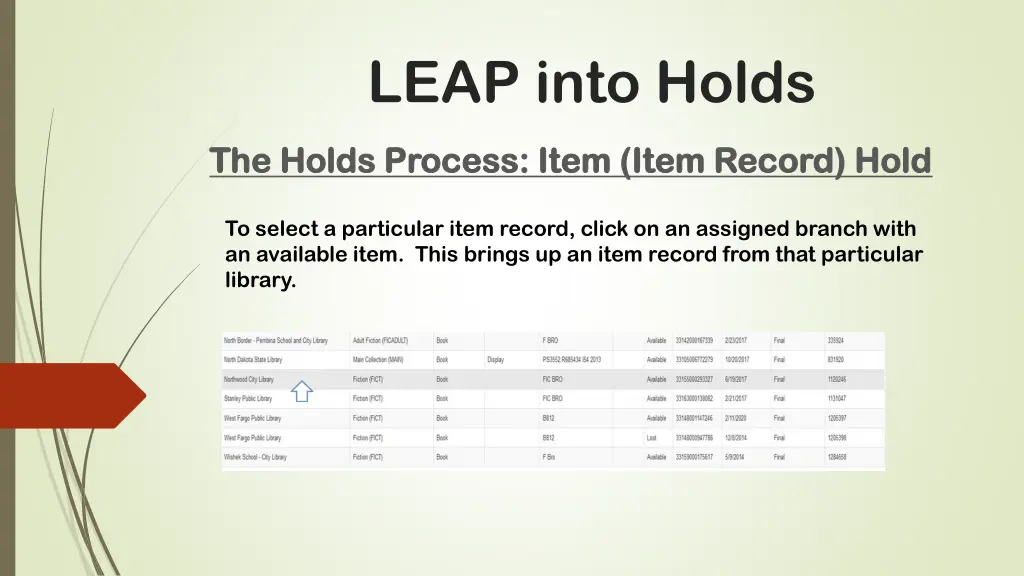
LEAP into Holds The Holds Process: Item (Item Record) Hold The Holds Process: Item (Item Record) Hold To select a particular item record, click on an assigned branch with an available item. This brings up an item record from that particular library.
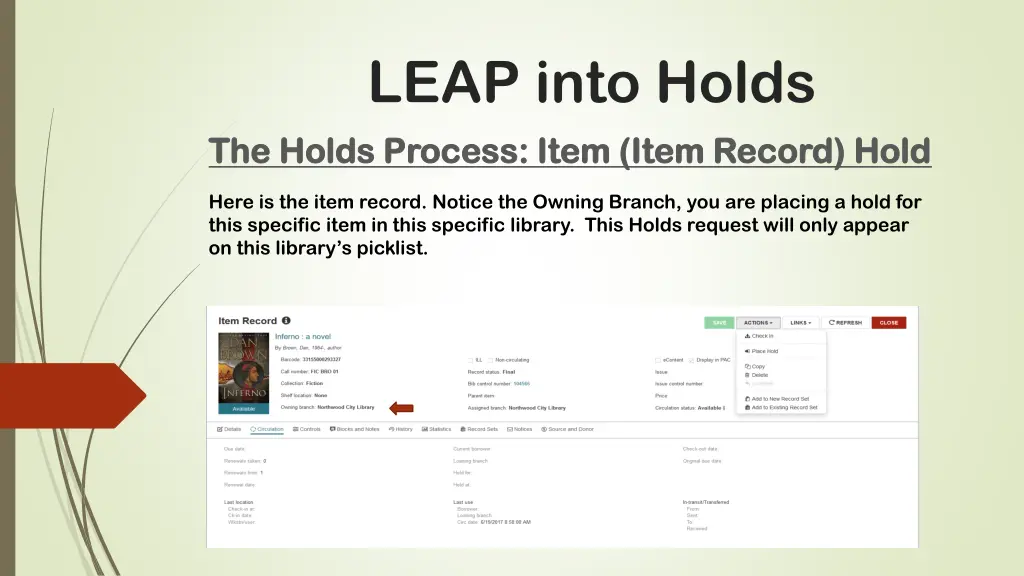
LEAP into Holds The Holds Process: Item (Item Record) Hold The Holds Process: Item (Item Record) Hold Here is the item record. Notice the Owning Branch, you are placing a hold for this specific item in this specific library. This Holds request will only appear on this library s picklist.
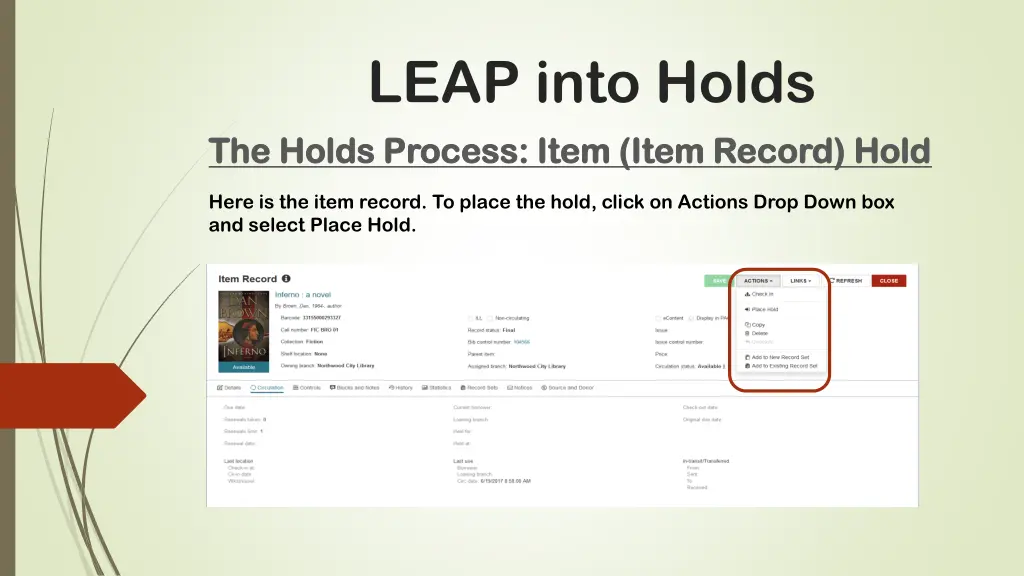
LEAP into Holds The Holds Process: Item (Item Record) Hold The Holds Process: Item (Item Record) Hold Here is the item record. To place the hold, click on Actions Drop Down box and select Place Hold.
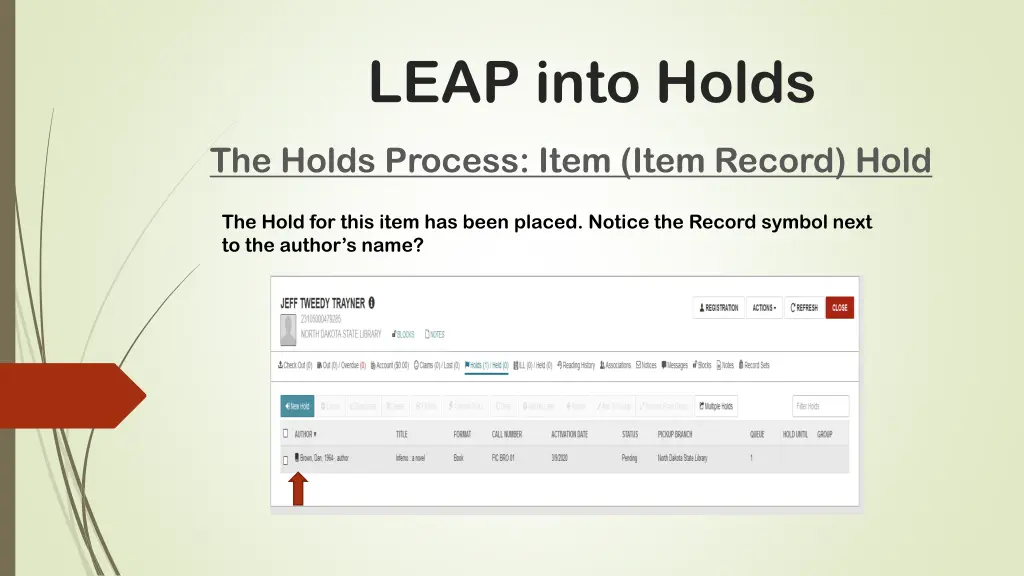
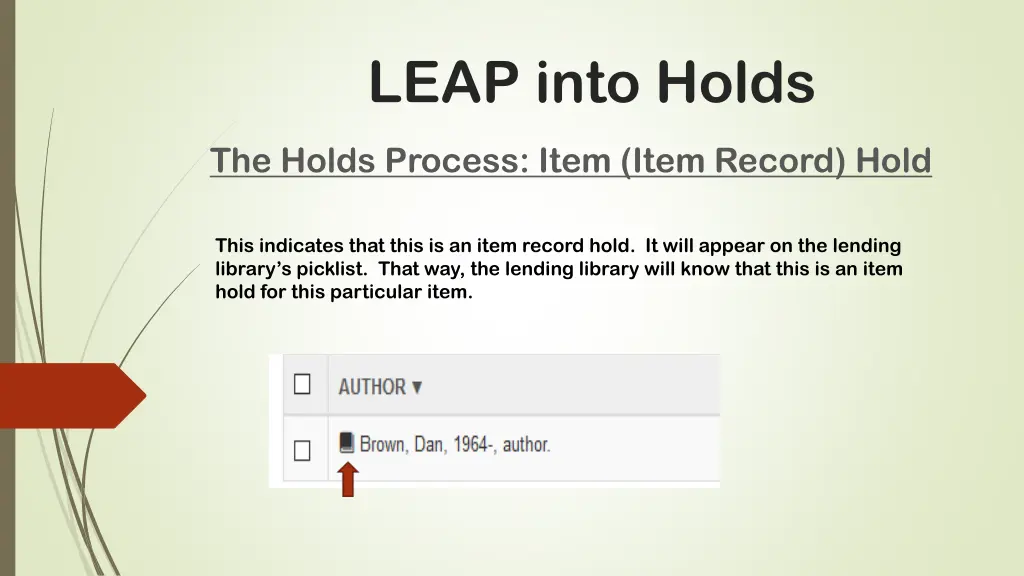
LEAP into Holds The Holds Process: Item (Item Record) Hold The Hold for this item has been placed. Notice the Record symbol next to the author s name?
LEAP into Holds The Holds Process: Item (Item Record) Hold This indicates that this is an item record hold. It will appear on the lending library s picklist. That way, the lending library will know that this is an item hold for this particular item.
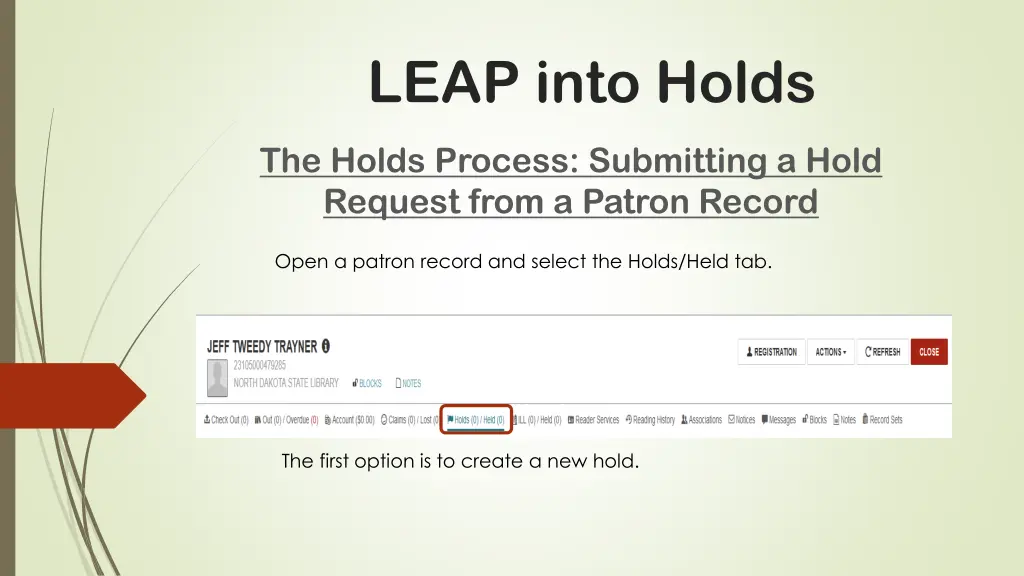
LEAP into Holds The Holds Process: Submitting a Hold Request from a Patron Record Open a patron record and select the Holds/Held tab. The first option is to create a new hold.
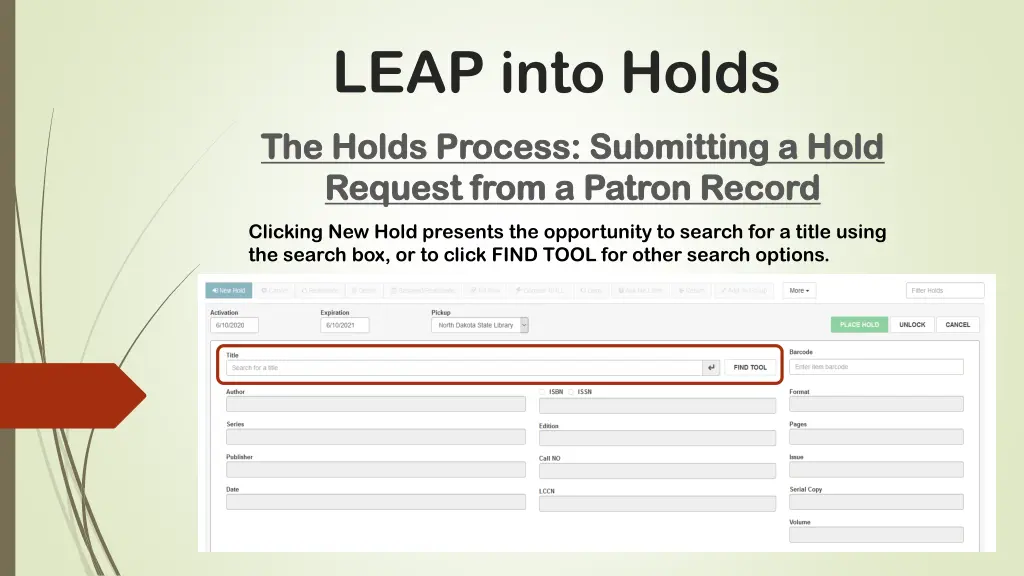
LEAP into Holds The Holds Process: Submitting a Hold The Holds Process: Submitting a Hold Request from a Patron Record Request from a Patron Record Clicking New Hold presents the opportunity to search for a title using the search box, or to click FIND TOOL for other search options.
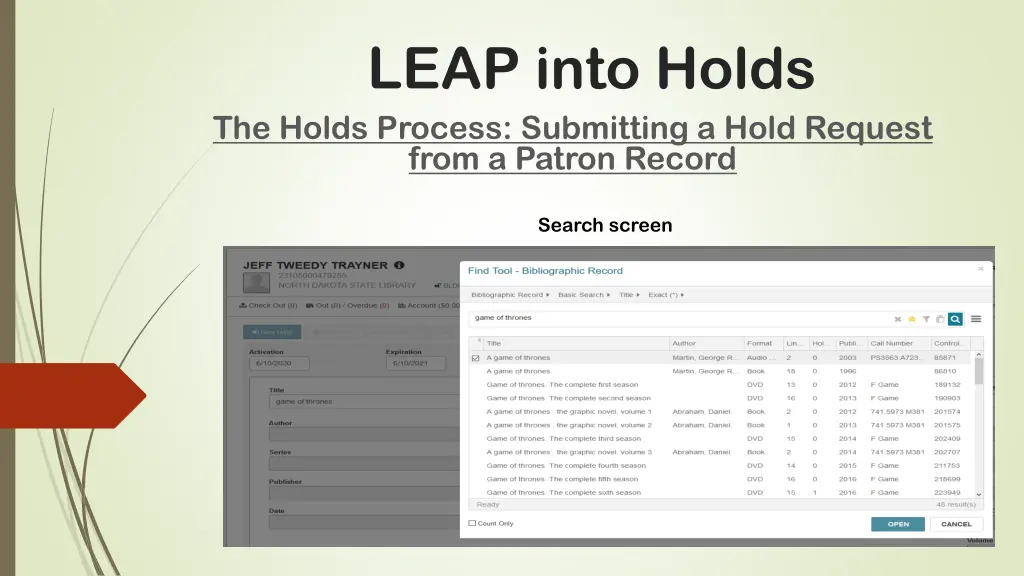
LEAP into Holds The Holds Process: Submitting a Hold Request from a Patron Record Search screen
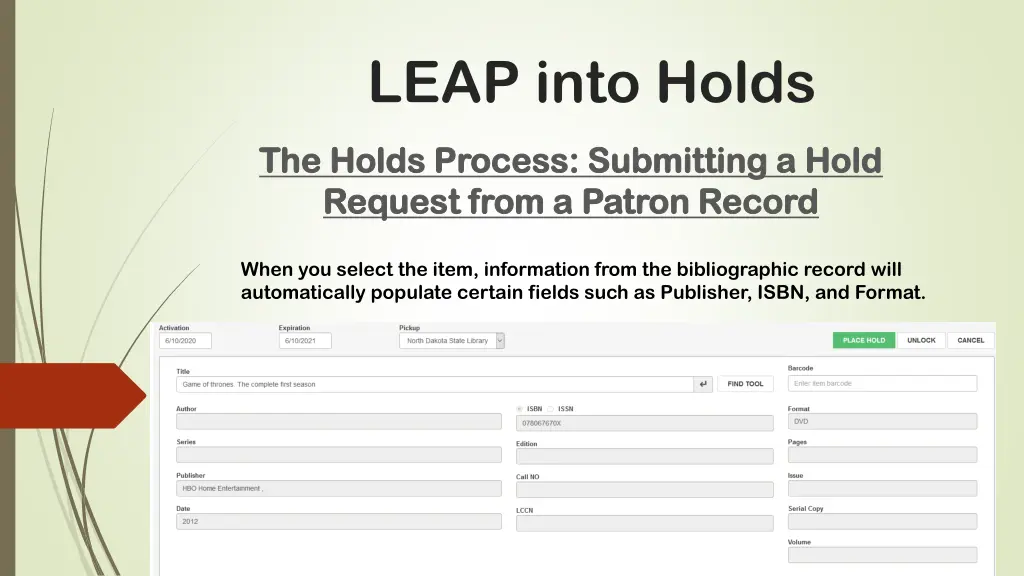
LEAP into Holds The Holds Process: Submitting a Hold The Holds Process: Submitting a Hold Request from a Patron Record Request from a Patron Record When you select the item, information from the bibliographic record will automatically populate certain fields such as Publisher, ISBN, and Format.
LEAP into Holds The Holds Process: Questions? The Holds Process: Questions?