Purchase Order Confirmation
This guide simplifies the process of confirming purchase orders through a web-based application, email notifications, and order attachments. It offers a streamlined user experience for Bio-Rad suppliers, allowing quick access to order details and confirmation. The guide includes steps for confirming orders, accessing order information, submitting confirmation, and reviewing and downloading relevant documents.

Download Presentation

Please find below an Image/Link to download the presentation.
The content on the website is provided AS IS for your information and personal use only. It may not be sold, licensed, or shared on other websites without obtaining consent from the author.If you encounter any issues during the download, it is possible that the publisher has removed the file from their server.
You are allowed to download the files provided on this website for personal or commercial use, subject to the condition that they are used lawfully. All files are the property of their respective owners.
The content on the website is provided AS IS for your information and personal use only. It may not be sold, licensed, or shared on other websites without obtaining consent from the author.
E N D
Presentation Transcript
Purchase Order Confirmation Quick Reference Guide (QRG)
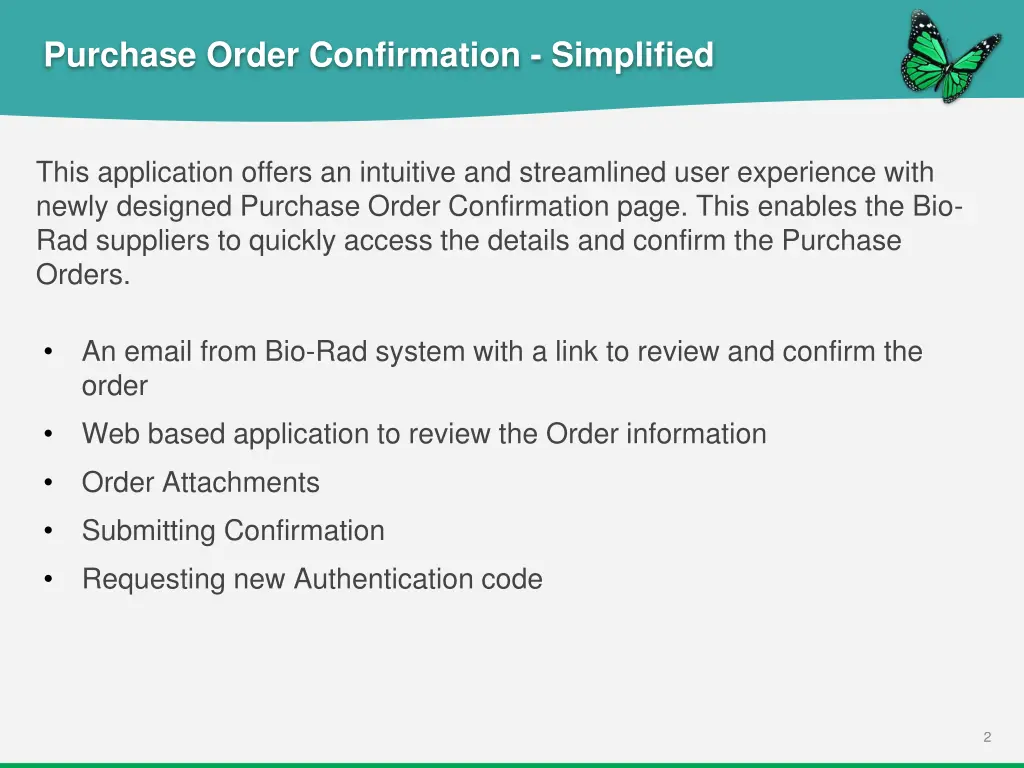
Purchase Order Confirmation - Simplified This application offers an intuitive and streamlined user experience with newly designed Purchase Order Confirmation page. This enables the Bio- Rad suppliers to quickly access the details and confirm the Purchase Orders. An email from Bio-Rad system with a link to review and confirm the order Web based application to review the Order information Order Attachments Submitting Confirmation Requesting new Authentication code 2
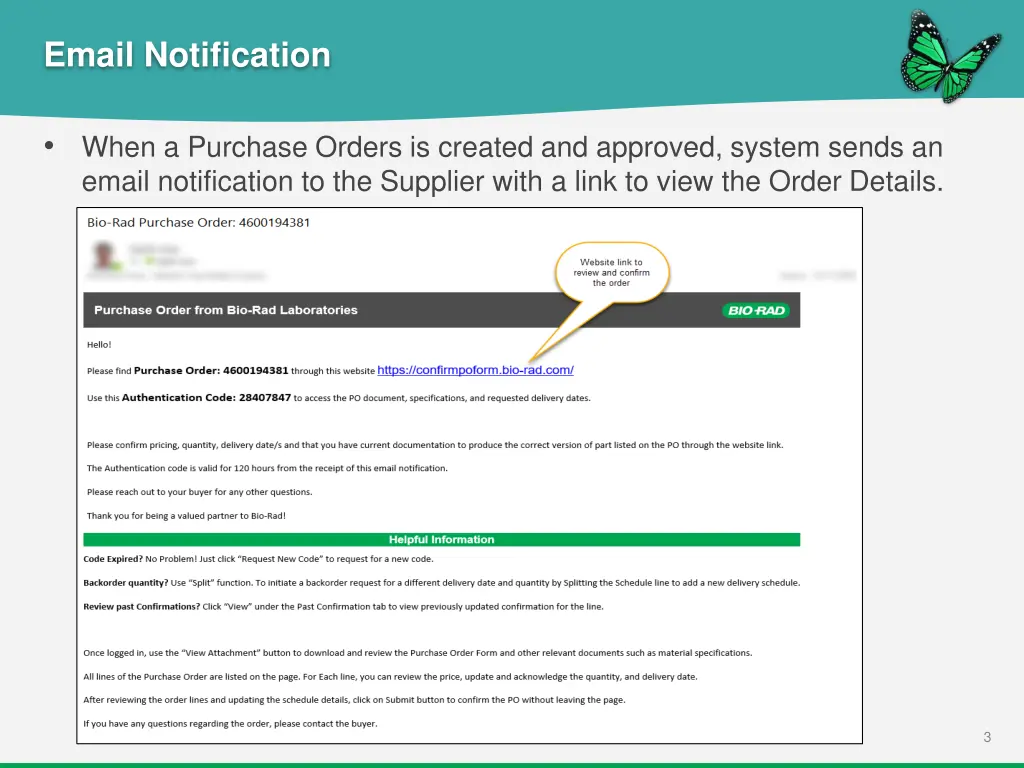
Email Notification When a Purchase Orders is created and approved, system sends an email notification to the Supplier with a link to view the Order Details. 3
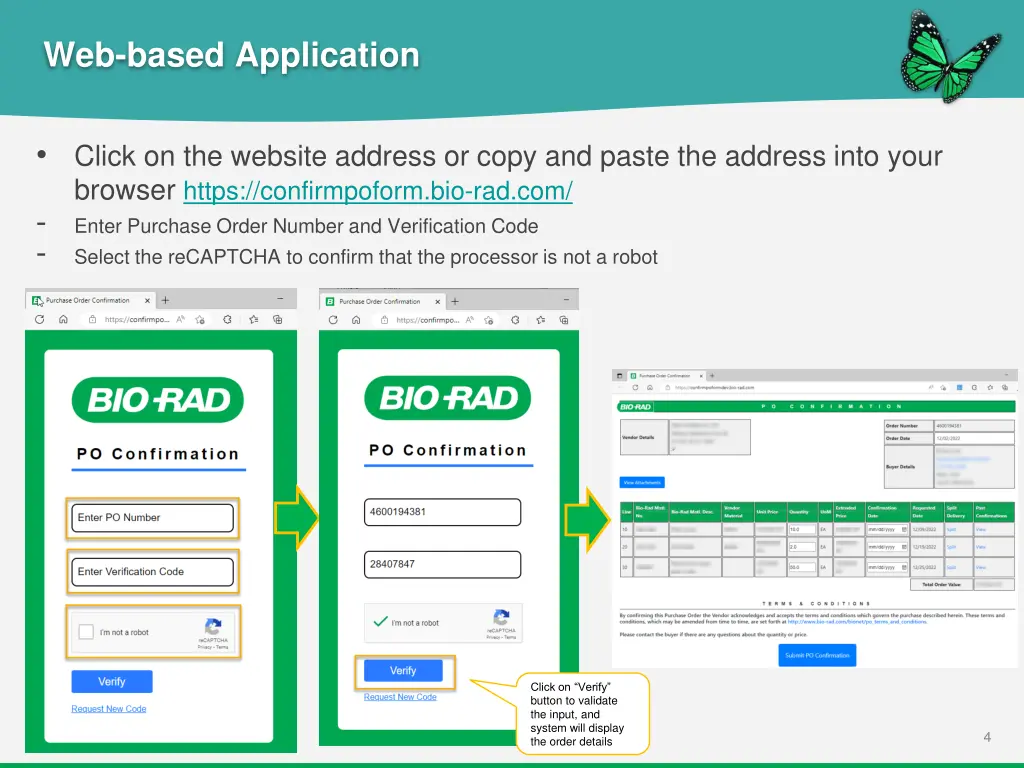
Web-based Application Click on the website address or copy and paste the address into your browser https://confirmpoform.bio-rad.com/ Enter Purchase Order Number and Verification Code Select the reCAPTCHA to confirm that the processor is not a robot - - Click on Verify button to validate the input, and system will display the order details 4
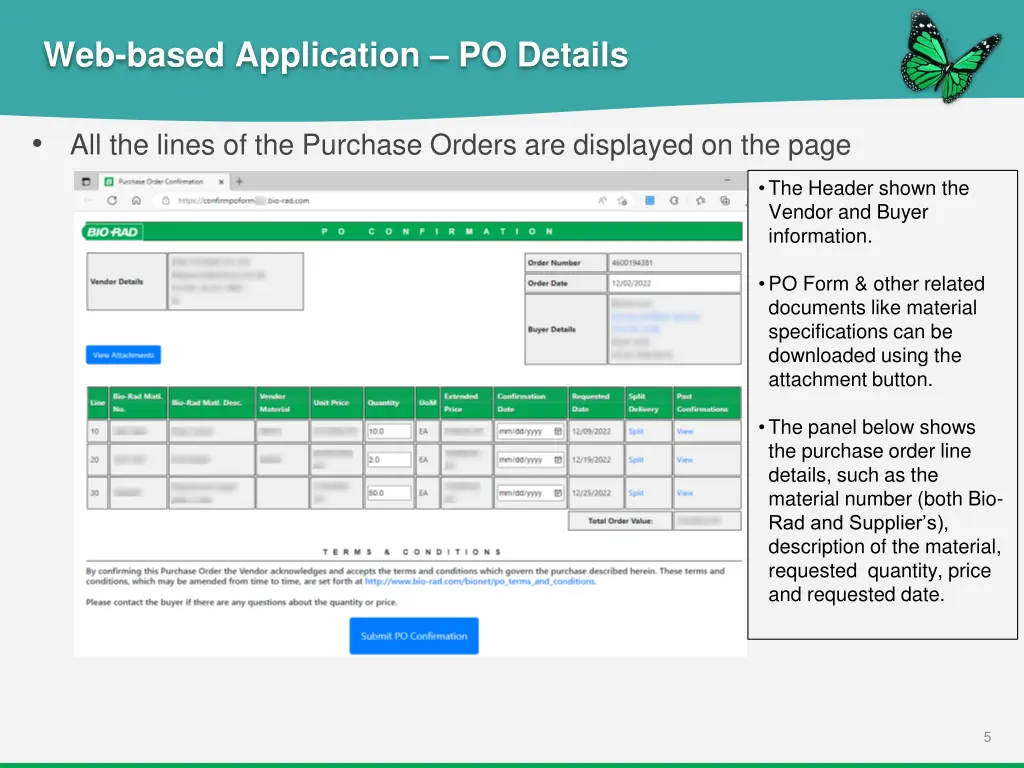
Web-based Application PO Details All the lines of the Purchase Orders are displayed on the page The Header shown the Vendor and Buyer information. PO Form & other related documents like material specifications can be downloaded using the attachment button. The panel below shows the purchase order line details, such as the material number (both Bio- Rad and Supplier s), description of the material, requested quantity, price and requested date. 5
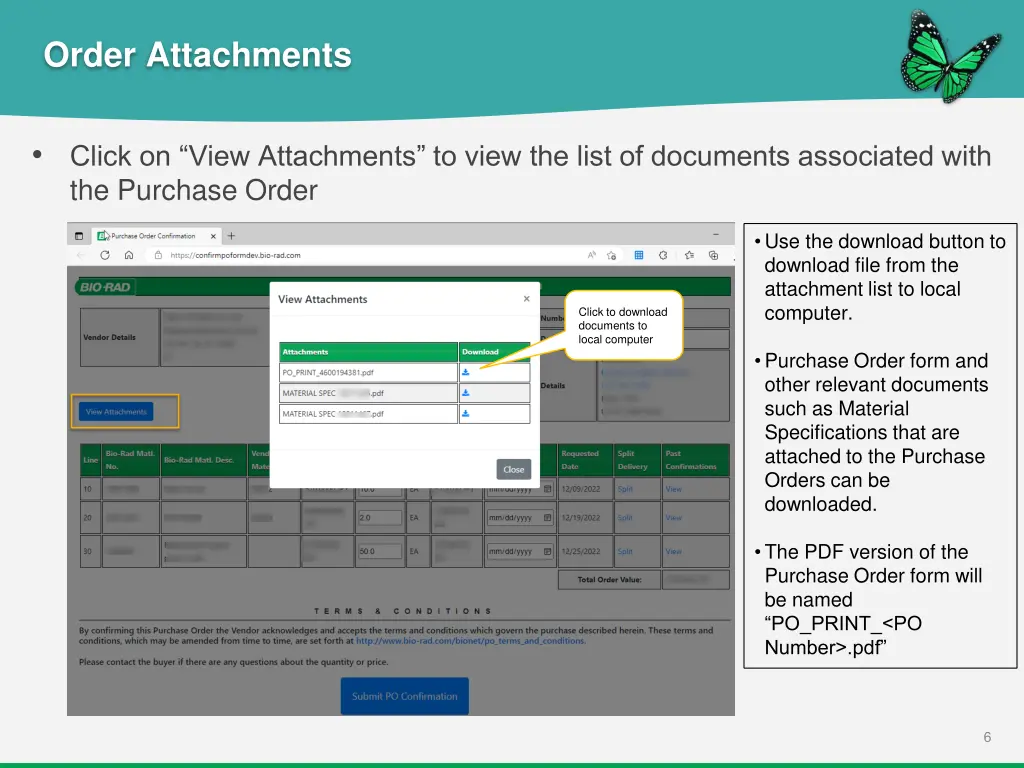
Order Attachments Click on View Attachments to view the list of documents associated with the Purchase Order Use the download button to download file from the attachment list to local computer. Click to download documents to local computer Purchase Order form and other relevant documents such as Material Specifications that are attached to the Purchase Orders can be downloaded. The PDF version of the Purchase Order form will be named PO_PRINT_<PO Number>.pdf 6
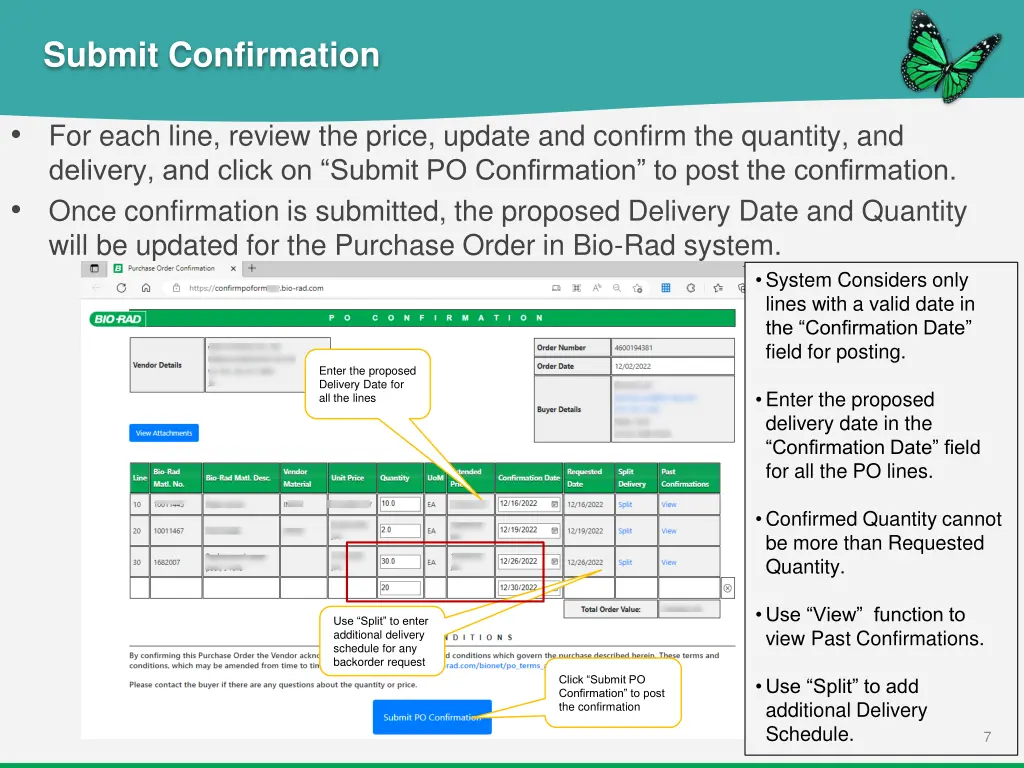
Submit Confirmation For each line, review the price, update and confirm the quantity, and delivery, and click on Submit PO Confirmation to post the confirmation. Once confirmation is submitted, the proposed Delivery Date and Quantity will be updated for the Purchase Order in Bio-Rad system. System Considers only lines with a valid date in the Confirmation Date field for posting. Enter the proposed Delivery Date for all the lines Enter the proposed delivery date in the Confirmation Date field for all the PO lines. Confirmed Quantity cannot be more than Requested Quantity. Use View function to view Past Confirmations. Use Split to enter additional delivery schedule for any backorder request Click Submit PO Confirmation to post the confirmation Use Split to add additional Delivery Schedule. 7
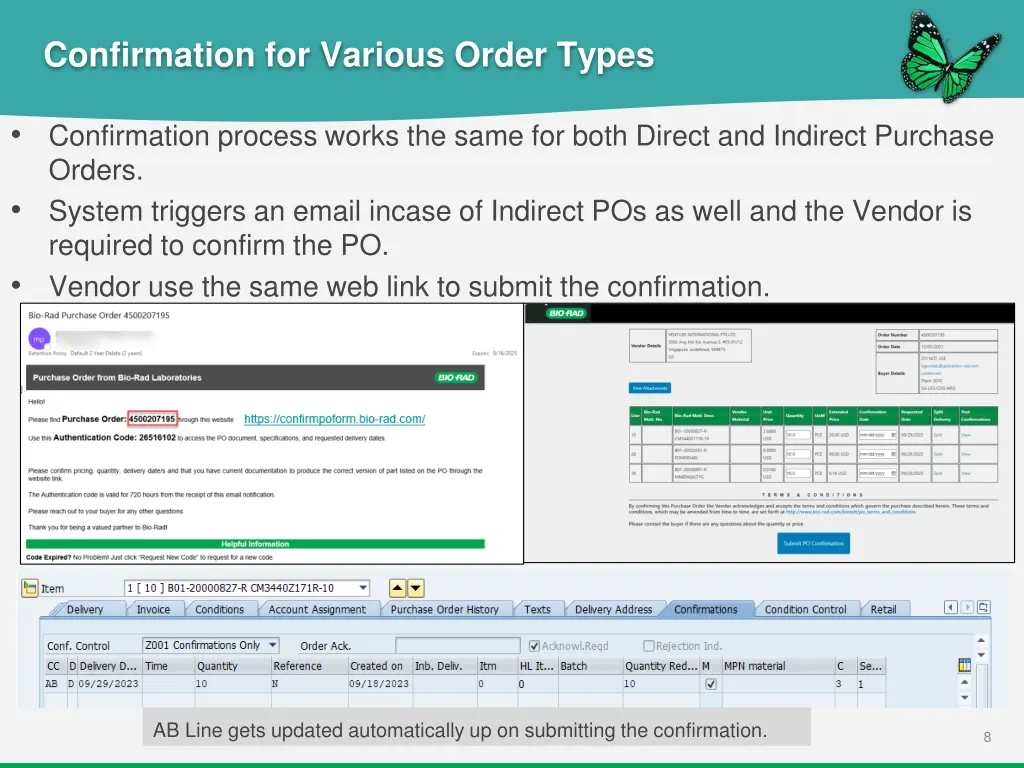
Confirmation for Various Order Types Confirmation process works the same for both Direct and Indirect Purchase Orders. System triggers an email incase of Indirect POs as well and the Vendor is required to confirm the PO. Vendor use the same web link to submit the confirmation. AB Line gets updated automatically up on submitting the confirmation. 8
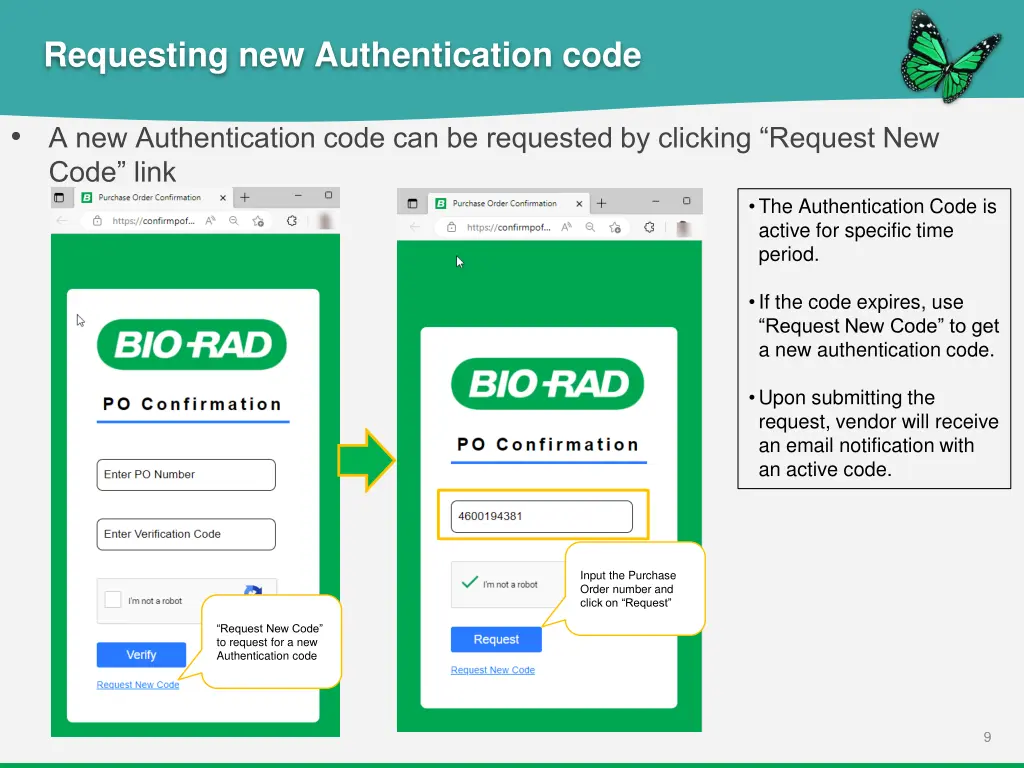
Requesting new Authentication code A new Authentication code can be requested by clicking Request New Code link The Authentication Code is active for specific time period. If the code expires, use Request New Code to get a new authentication code. Upon submitting the request, vendor will receive an email notification with an active code. Input the Purchase Order number and click on Request Request New Code to request for a new Authentication code 9
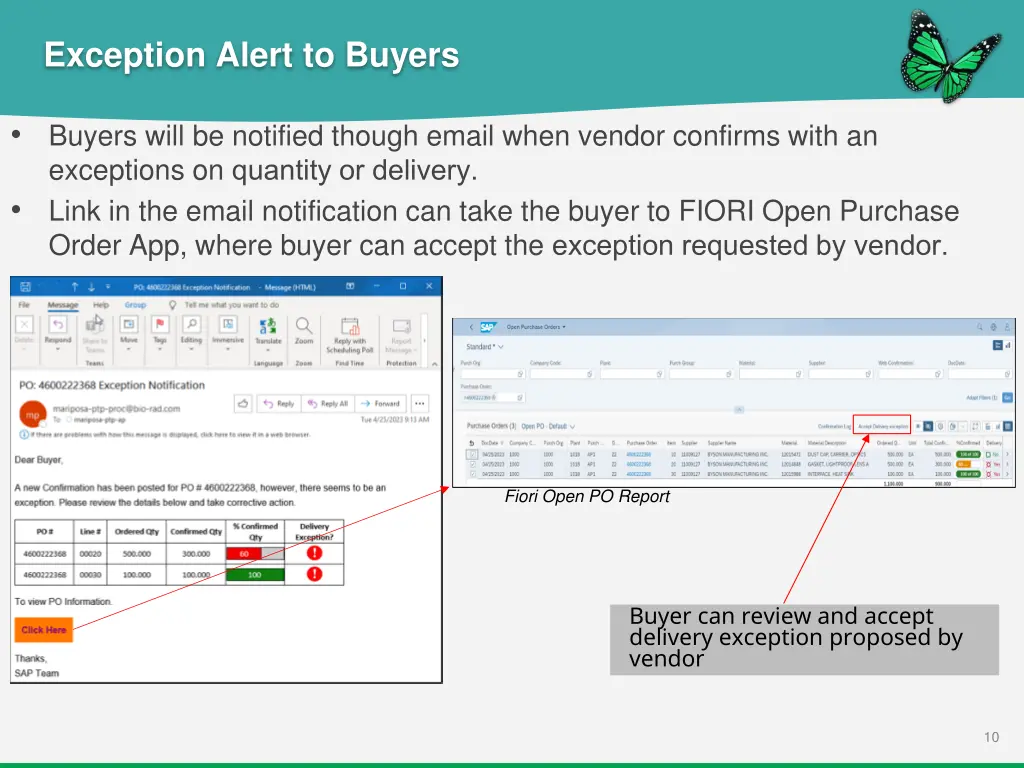
Exception Alert to Buyers Buyers will be notified though email when vendor confirms with an exceptions on quantity or delivery. Link in the email notification can take the buyer to FIORI Open Purchase Order App, where buyer can accept the exception requested by vendor. Fiori Open PO Report Buyer can review and accept delivery exception proposed by vendor 10