Setting Up DMR with DroidStar: Step-by-Step Guide
In this guide, you will learn the step-by-step process to set up DMR with DroidStar on your Android phone. From obtaining a DMR ID to configuring a Brandmeister account and adjusting settings, each step is clearly outlined with accompanying images. Follow these instructions to seamlessly configure your setup and start communicating through DMR technology from your Android device.

Download Presentation

Please find below an Image/Link to download the presentation.
The content on the website is provided AS IS for your information and personal use only. It may not be sold, licensed, or shared on other websites without obtaining consent from the author.If you encounter any issues during the download, it is possible that the publisher has removed the file from their server.
You are allowed to download the files provided on this website for personal or commercial use, subject to the condition that they are used lawfully. All files are the property of their respective owners.
The content on the website is provided AS IS for your information and personal use only. It may not be sold, licensed, or shared on other websites without obtaining consent from the author.
E N D
Presentation Transcript
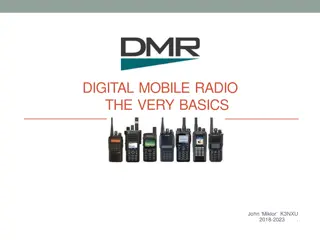
DMR With DroidStar Do DMR from an Android Phone By Dave Mosteller KC3JNW
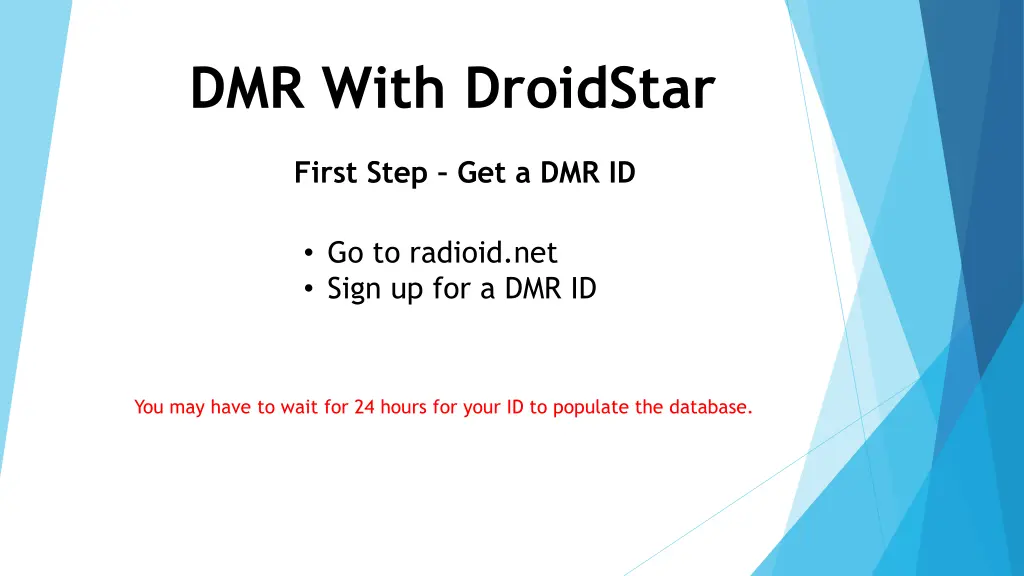
DMR With DroidStar First Step Get a DMR ID Go to radioid.net Sign up for a DMR ID You may have to wait for 24 hours for your ID to populate the database.
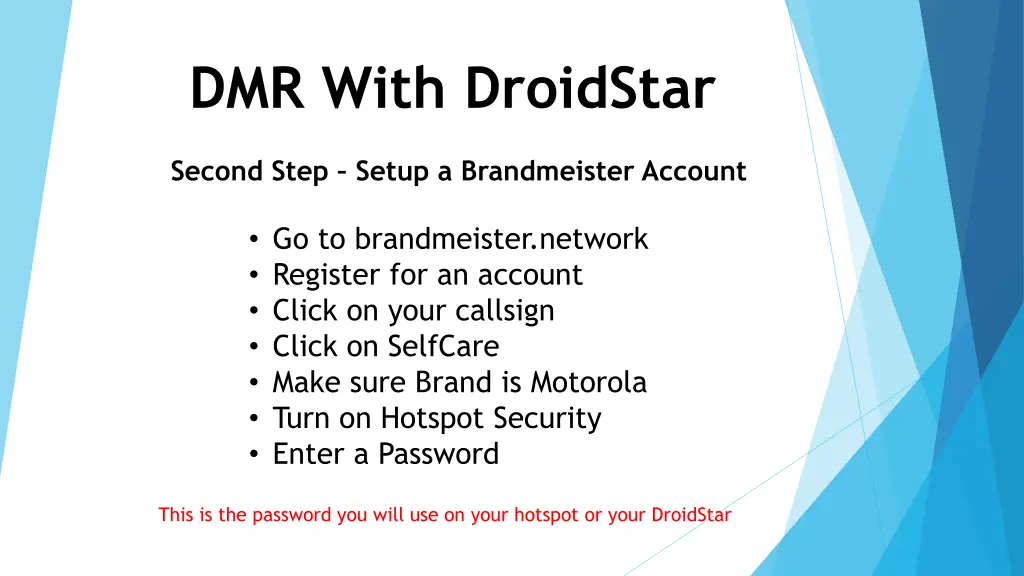
DMR With DroidStar Second Step Setup a Brandmeister Account Go to brandmeister.network Register for an account Click on your callsign Click on SelfCare Make sure Brand is Motorola Turn on Hotspot Security Enter a Password This is the password you will use on your hotspot or your DroidStar
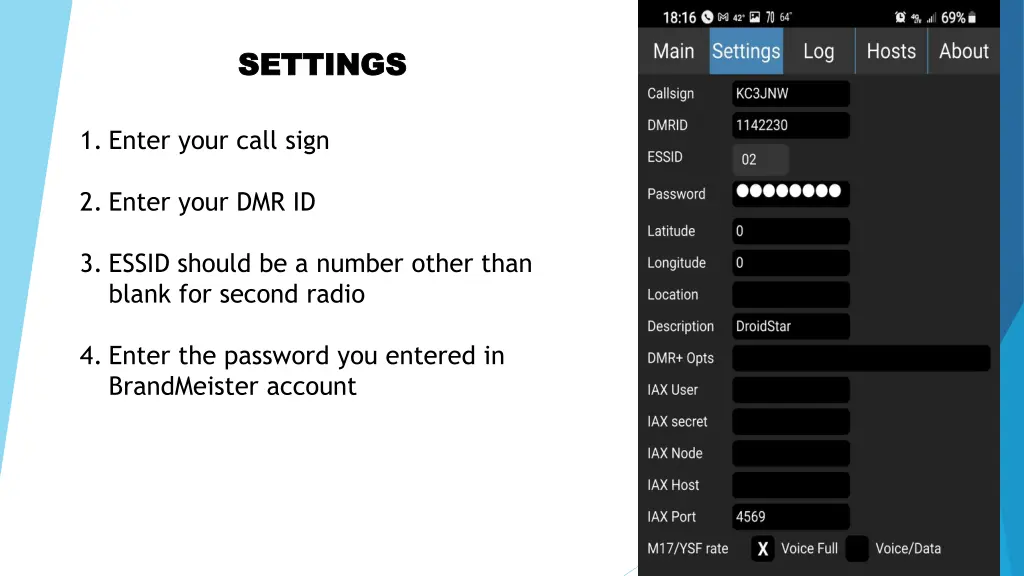
SETTINGS SETTINGS 1. Enter your call sign 2. Enter your DMR ID 3. ESSID should be a number other than blank for second radio 4. Enter the password you entered in BrandMeister account
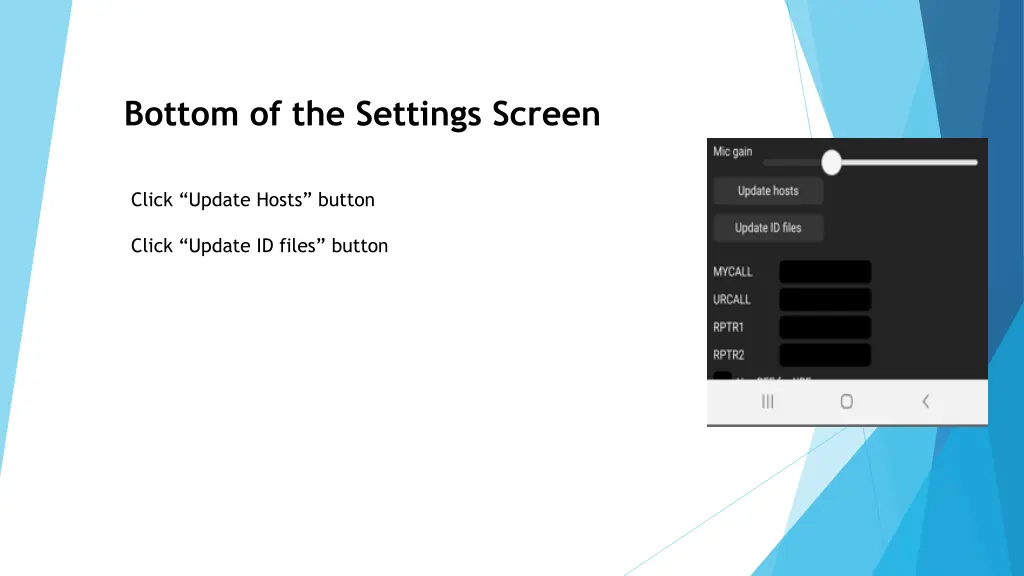
Bottom of the Settings Screen Click Update Hosts button Click Update ID files button
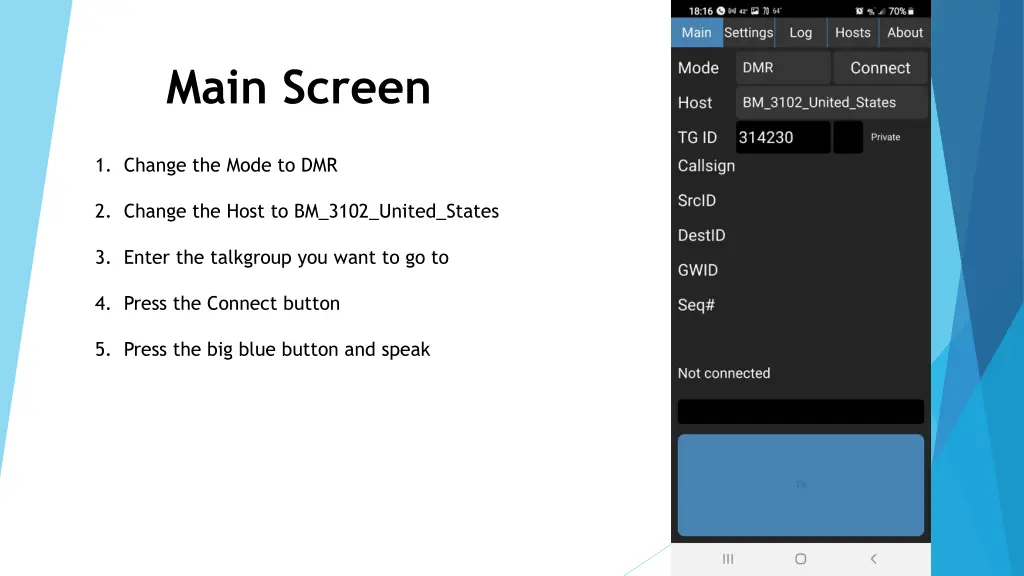
Main Screen 1. Change the Mode to DMR 2. Change the Host to BM_3102_United_States 3. Enter the talkgroup you want to go to 4. Press the Connect button 5. Press the big blue button and speak