Learn how to create and customize image templates for Adobe Connect events, including the steps to define pixel sizes, work with colors, and seamlessly integrate templates into PowerPoint presentations. This comprehensive guide will streamline your event preparation process and ensure a professional and cohesive visual presentation across emails and web pages.
Please find below an Image/Link to download the presentation.
The content on the website is provided AS IS for your information and personal use only. It may not be sold, licensed, or shared on other websites without obtaining consent from the author. If you encounter any issues during the download, it is possible that the publisher has removed the file from their server.
You are allowed to download the files provided on this website for personal or commercial use, subject to the condition that they are used lawfully. All files are the property of their respective owners.
The content on the website is provided AS IS for your information and personal use only. It may not be sold, licensed, or shared on other websites without obtaining consent from the author.
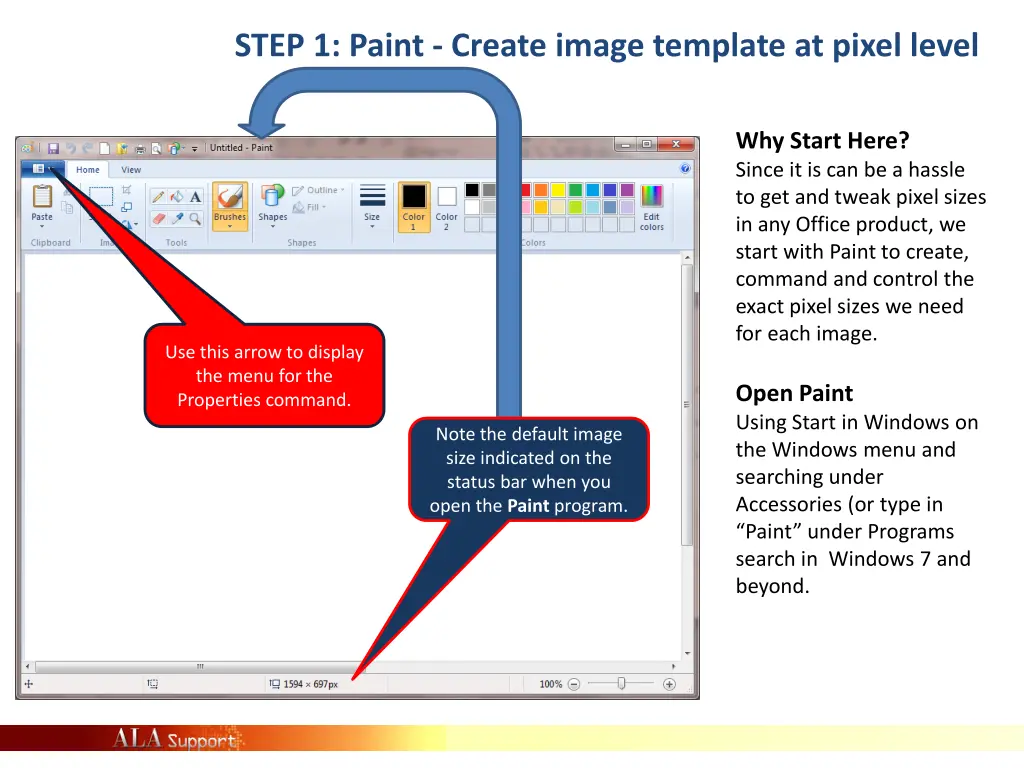
STEP 1: Paint - Create image template at pixel level Why Start Here? Since it is can be a hassle to get and tweak pixel sizes in any Office product, we start with Paint to create, command and control the exact pixel sizes we need for each image. Use this arrow to display the menu for the Properties command. Open Paint Using Start in Windows on the Windows menu and searching under Accessories (or type in Paint under Programs search in Windows 7 and beyond. Note the default image size indicated on the status bar when you open the Paint program.
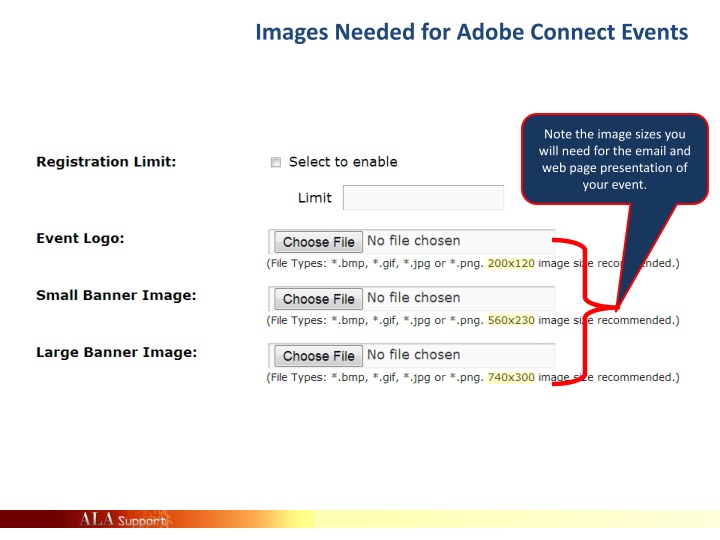
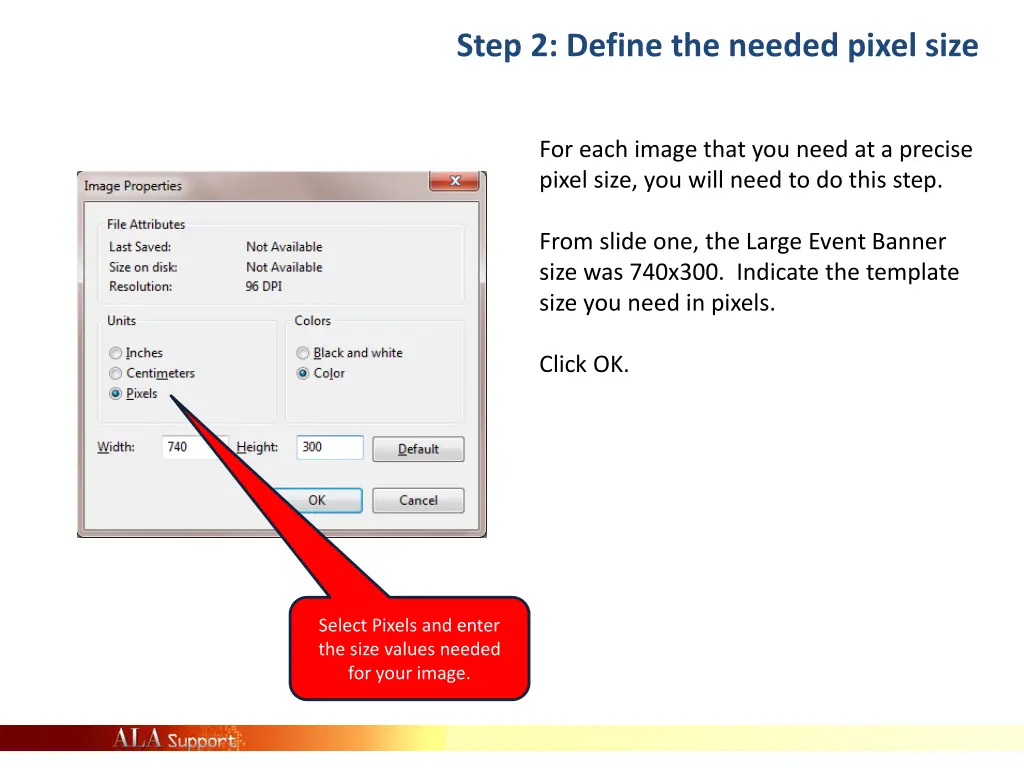
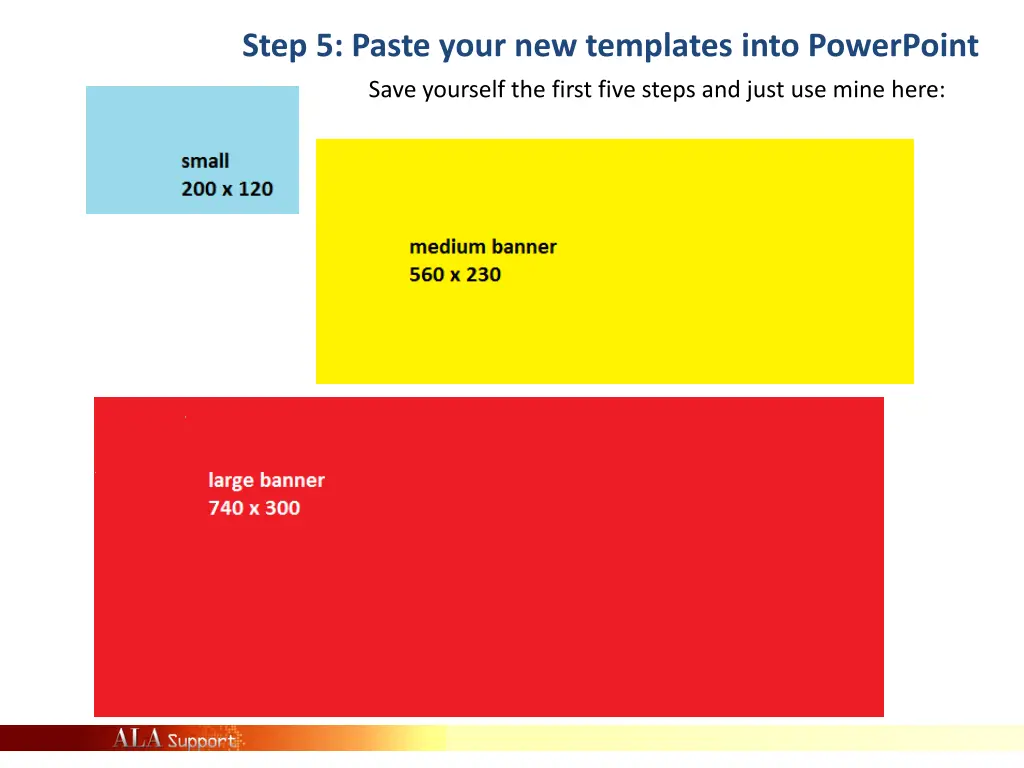
Step 2: Define the needed pixel size For each image that you need at a precise pixel size, you will need to do this step. From slide one, the Large Event Banner size was 740x300. Indicate the template size you need in pixels. Click OK. Select Pixels and enter the size values needed for your image.
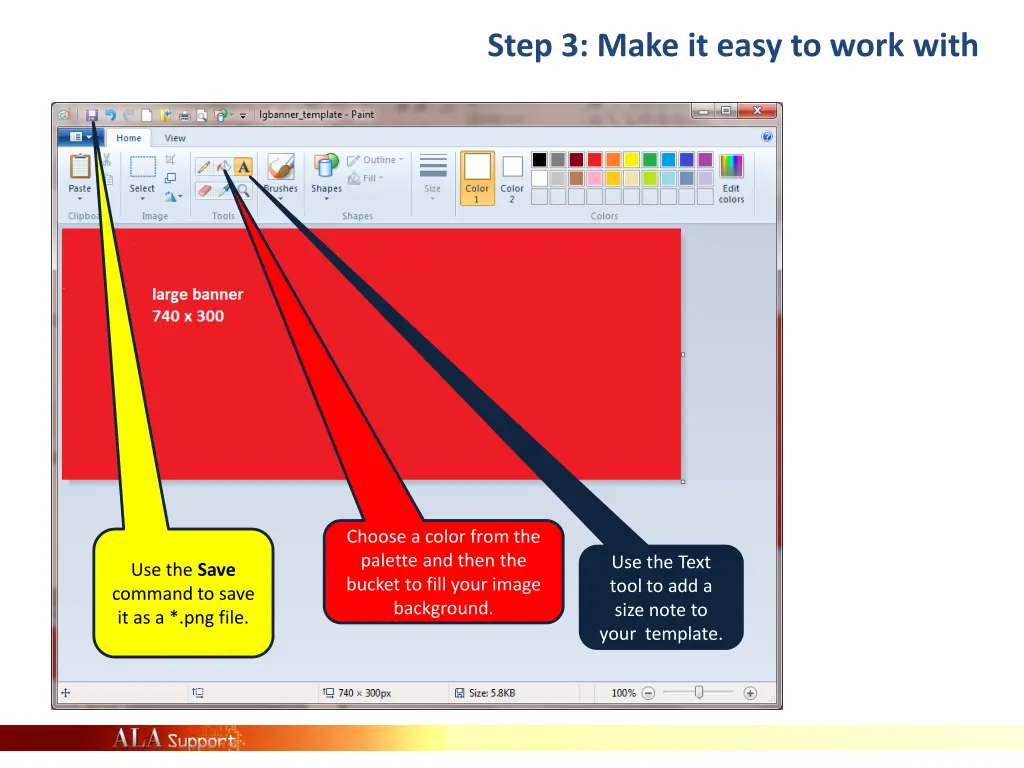
Step 3: Make it easy to work with Choose a color from the palette and then the bucket to fill your image background. Use the Text tool to add a size note to your template. Use the Save command to save it as a *.png file.
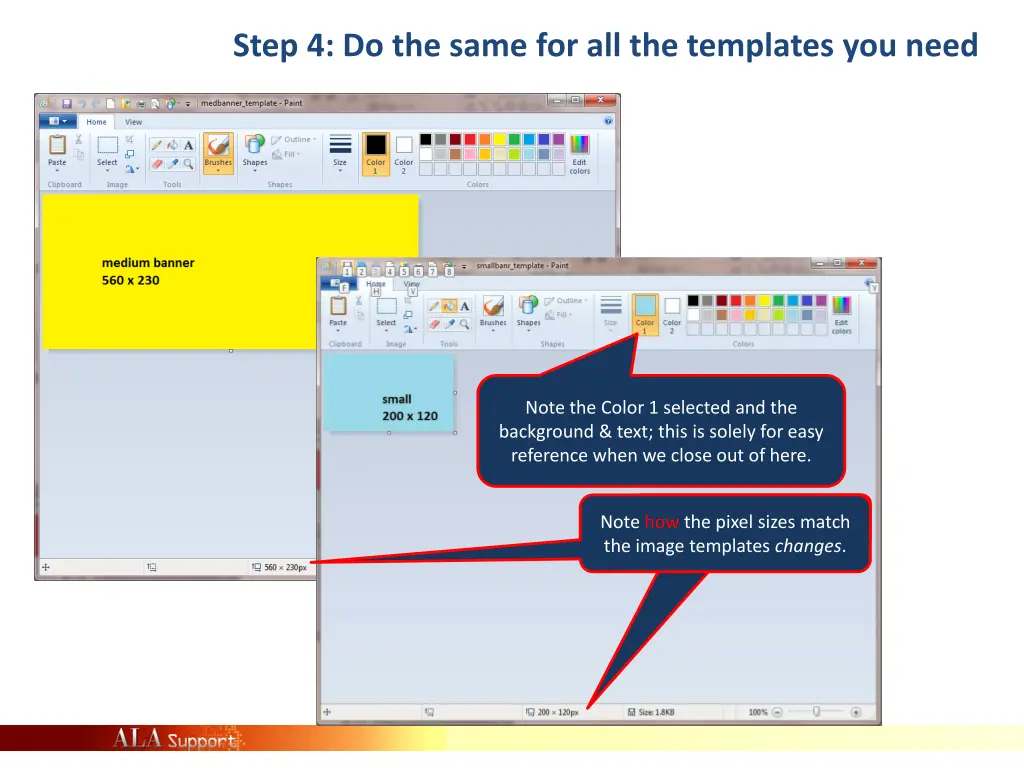
Step 4: Do the same for all the templates you need Note the Color 1 selected and the background & text; this is solely for easy reference when we close out of here. Note the pixel size changes. the image templates changes. Note how the pixel sizes match
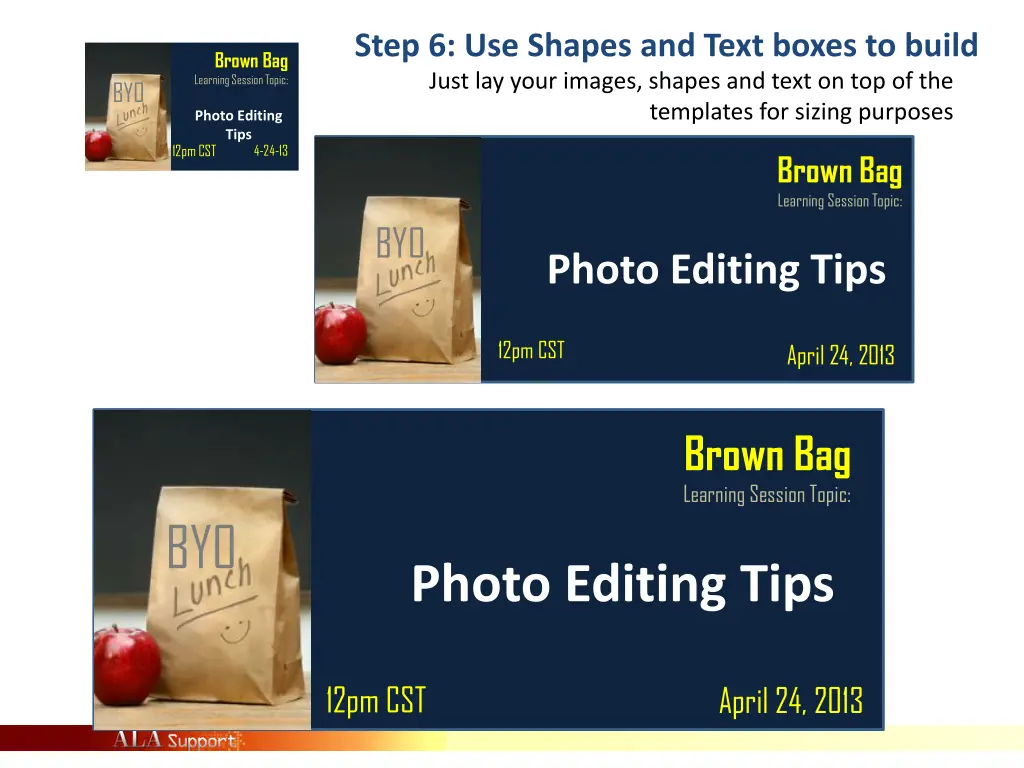
Step 6: Use Shapes and Text boxes to build Just lay your images, shapes and text on top of the templates for sizing purposes Brown Bag Learning Session Topic: BYO Photo Editing Tips 12pm CST 4-24-13 Brown Bag Learning Session Topic: BYO Photo Editing Tips 12pm CST April 24, 2013 Brown Bag Learning Session Topic: BYO Photo Editing Tips 12pm CST April 24, 2013
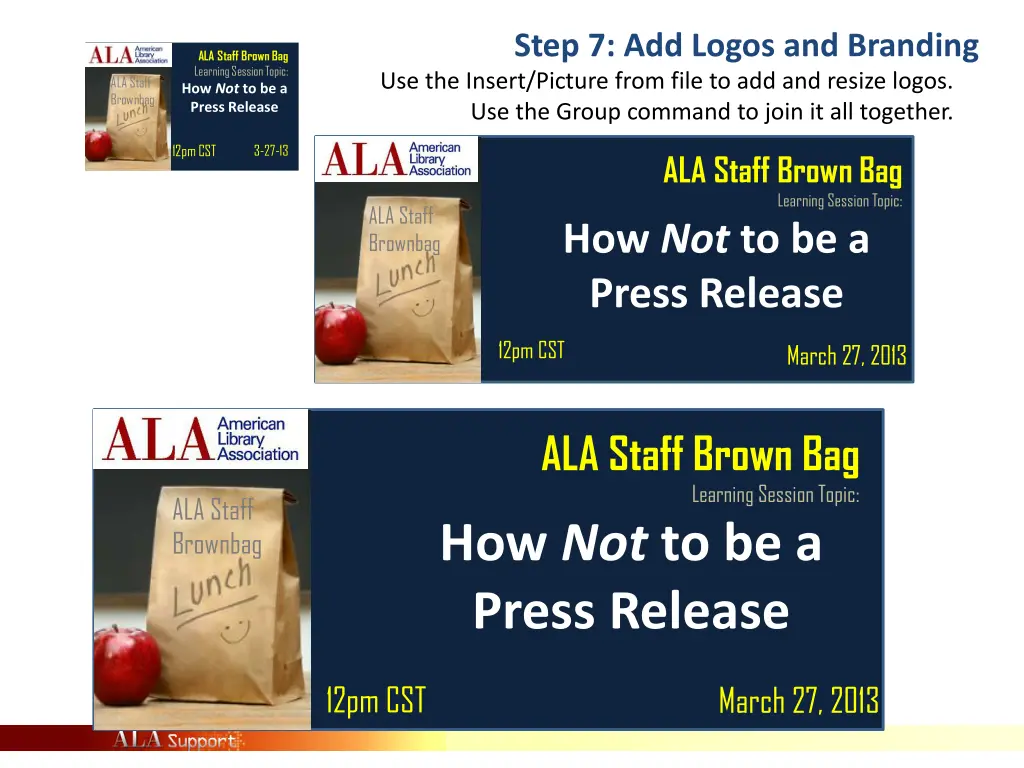
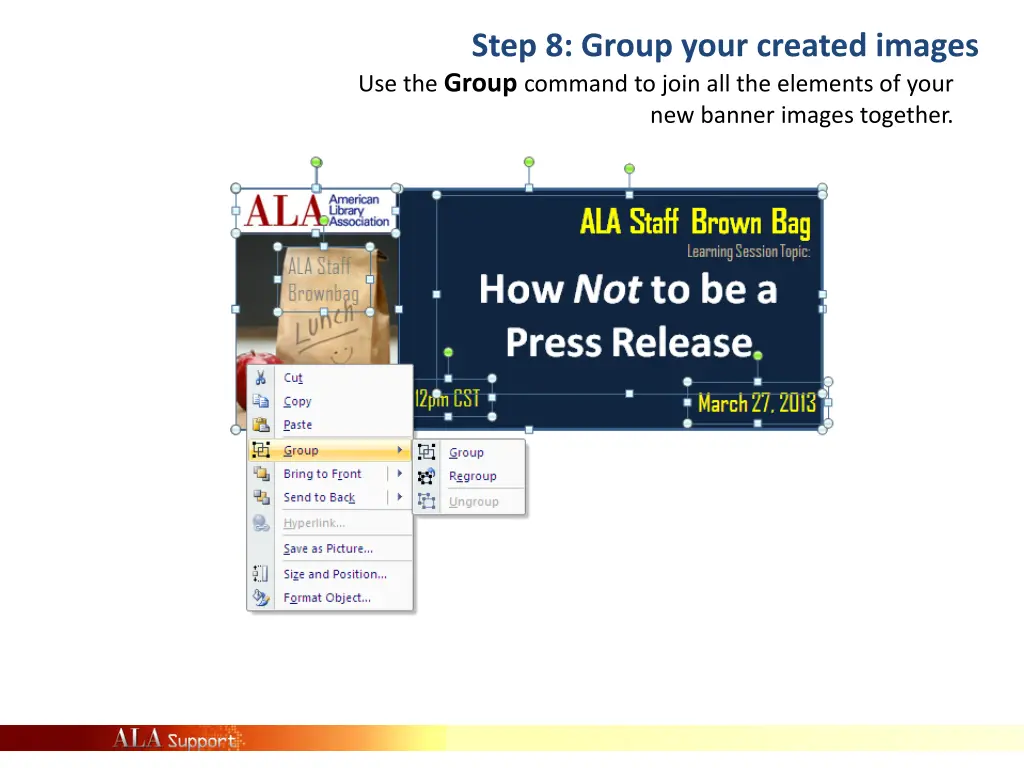
Step 7: Add Logos and Branding Use the Insert/Picture from file to add and resize logos. Use the Group command to join it all together. ALA Staff Brown Bag Learning Session Topic: How Not to be a Press Release ALA Staff Brownbag 12pm CST 3-27-13 ALA Staff Brown Bag Learning Session Topic: How Not to be a Press Release ALA Staff Brownbag 12pm CST March 27, 2013 ALA Staff Brown Bag Learning Session Topic: How Not to be a Press Release ALA Staff Brownbag 12pm CST March 27, 2013
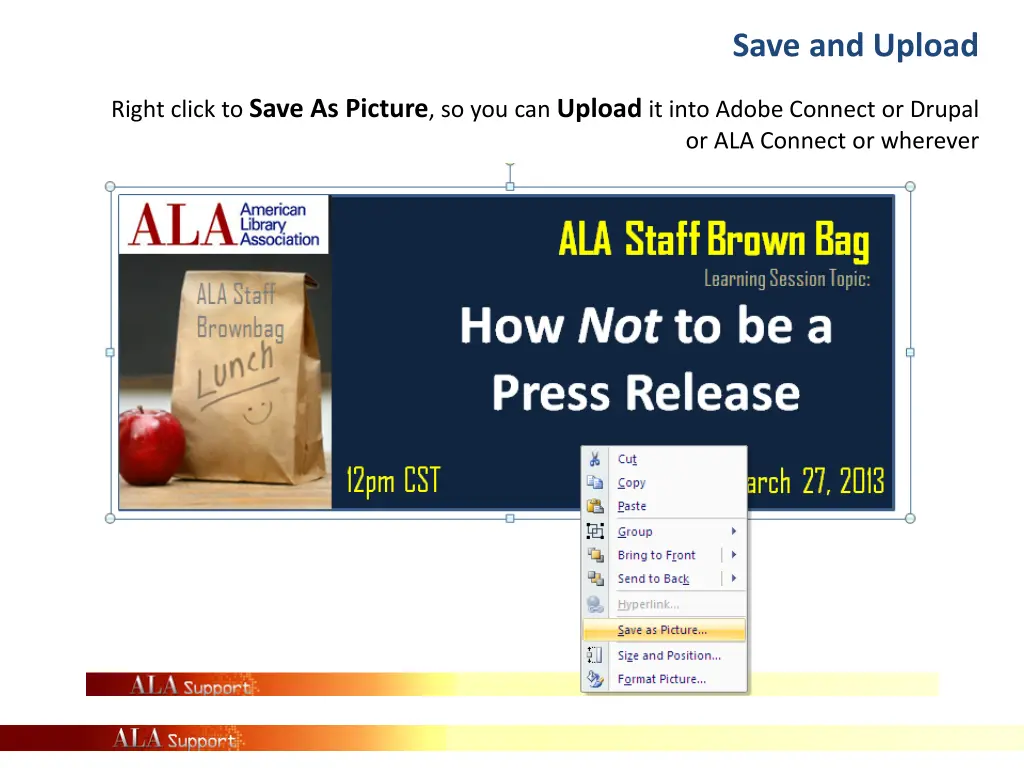
Save and Upload Right click to Save As Picture, so you can Uploadit into Adobe Connect or Drupal or ALA Connect or wherever
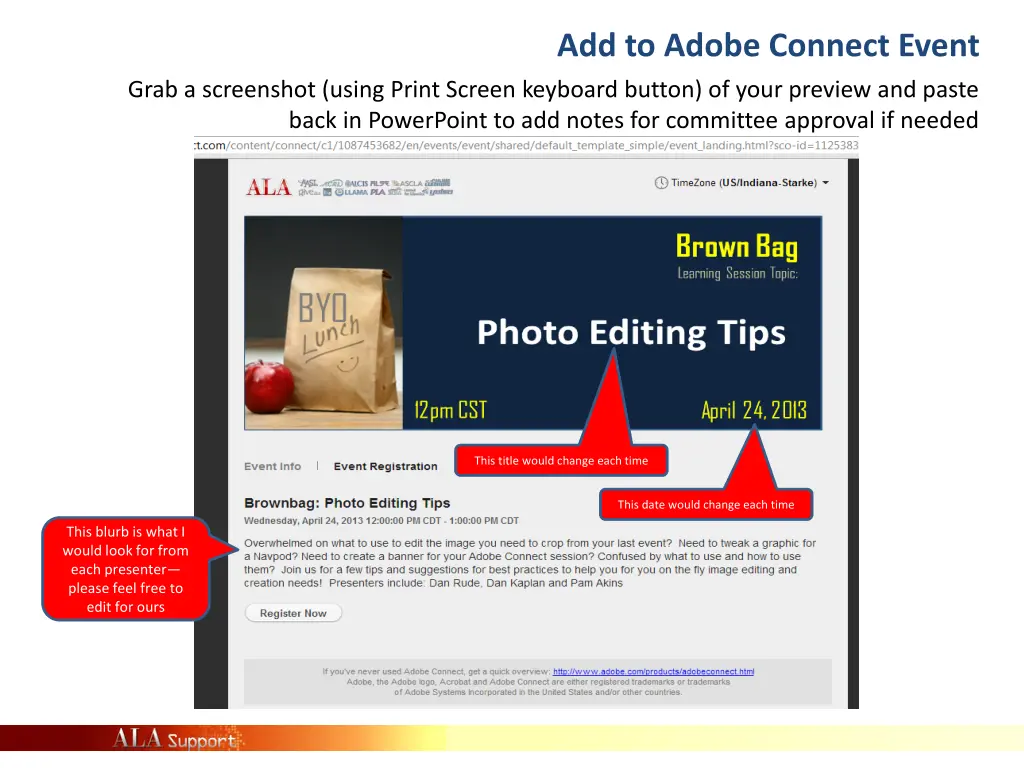
Add to Adobe Connect Event Grab a screenshot (using Print Screen keyboard button) of your preview and paste back in PowerPoint to add notes for committee approval if needed This title would change each time This date would change each time This blurb is what I would look for from each presenter please feel free to edit for ours