Learn Microcontroller Programming: Lab 1 - Blinking LEDs Tutorial
"Explore the fundamentals of microcontroller programming in this lab tutorial focusing on blinking LEDs. Set up, code, compile, and run your project in Code Composer Studio to control external hardware using Bitwise C operators. Enhance your skills in configuring output pins and handling code re-configuration. Start your journey into embedded systems programming now!"

Download Presentation

Please find below an Image/Link to download the presentation.
The content on the website is provided AS IS for your information and personal use only. It may not be sold, licensed, or shared on other websites without obtaining consent from the author. If you encounter any issues during the download, it is possible that the publisher has removed the file from their server.
You are allowed to download the files provided on this website for personal or commercial use, subject to the condition that they are used lawfully. All files are the property of their respective owners.
The content on the website is provided AS IS for your information and personal use only. It may not be sold, licensed, or shared on other websites without obtaining consent from the author.
E N D
Presentation Transcript
ECE 3567 Microcontrollers Lab ECE 3567 Microcontrollers Lab Laboratory #1 Blinking LEDs (A Simple Practicum in Code Composer Studio v 10.1.0) Autumn 2024 Dr. Gregg Chapman 1
Laboratory 1 Laboratory 1 Blinking LEDs Blinking LEDs Goals: 1) Learn to set-up a new Project in Code Composer Studio 2) Learn to code, compile and run a project in Code Composer Studio 3) Gain experience with the Bitwise C operators to control external hardware. 4) Learn how to re-configure your project when the code is moved to a different path.
Laboratory 1 Laboratory 1 Blinking LEDs, Overview Blinking LEDs, Overview Write a program that will illuminate the red and green LEDs on the MSP430FR6989 Launchpad board. Which LED is illuminated should alternate at approximately one second intervals. For this lab, we will not use timers or interrupts. Write a delay function and call it in the main loop for the 1 second delay. Configure the proper output pins using a function called Init_GPIO(), located in a separate file called myGpio.c the proper output pins to the LEDs using generalized I/O ports 1 and 9 (see schematic). Once your project is working. You will be asked to change the location of your code and make the necessary changes to get the code running again.
Lab #1 Project Set Lab #1 Project Set- -up up 1. Create a workspace folder on you U: drive in the path called ECE3567
Lab #1 Project Set Lab #1 Project Set- -up up 2. Open Code Composer Studio v 10.1.0 by double clicking the ICON located on your lab computer desktop:
Lab #1 Project Set Lab #1 Project Set- -up up 3. Select the ECE3567 folder on your U: drive as your workspace. File Switch Workspace, and navigate to ECE3567
Lab #1 Project Set Lab #1 Project Set- -up up 4. Follow the steps outlined in Lecture #3 to create the Lab1 project:
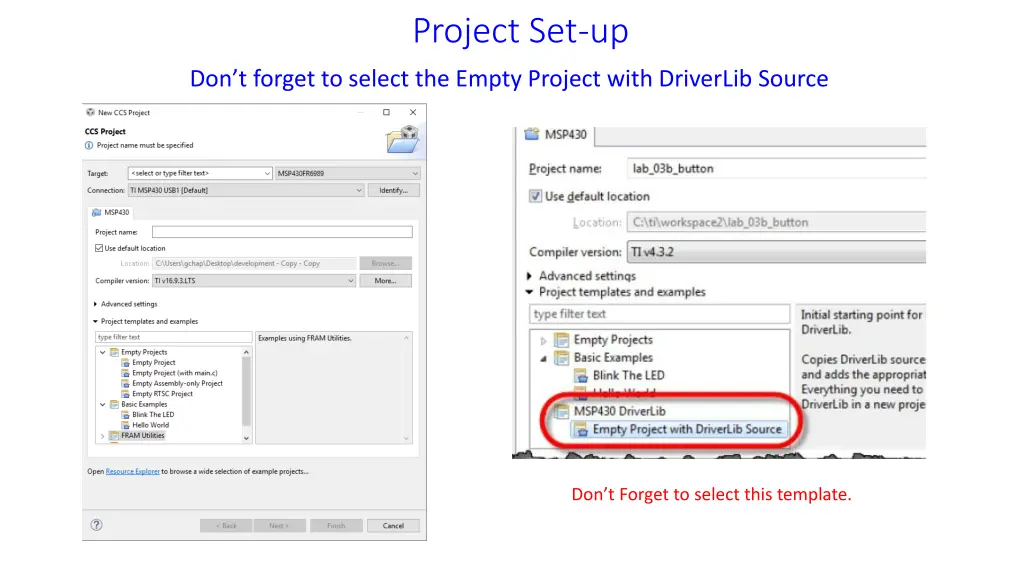
Project Set-up Don t forget to select the Empty Project with DriverLib Source Don t Forget to select this template.
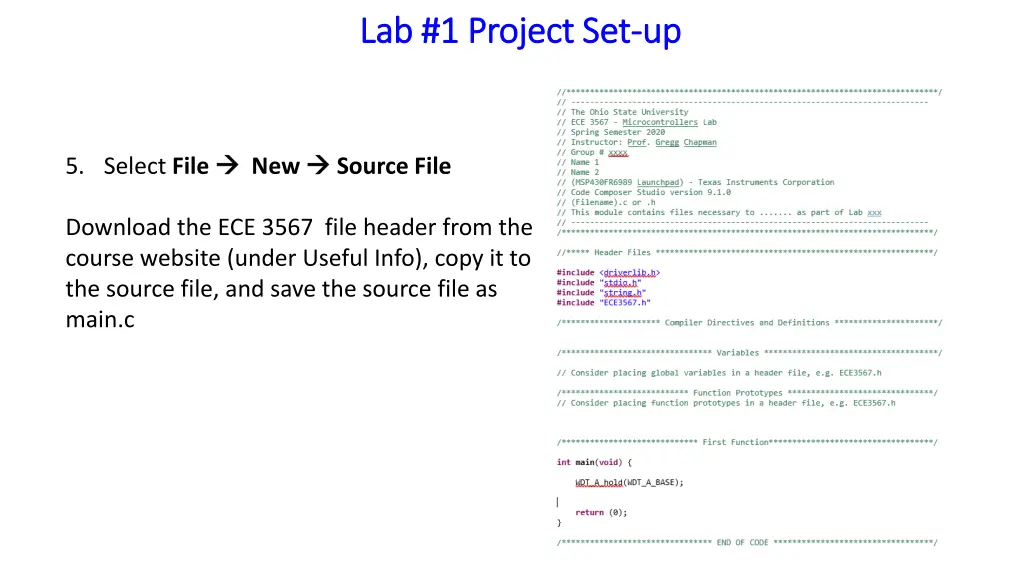
Lab #1 Project Set Lab #1 Project Set- -up up 5. Select File New Source File Download the ECE 3567 file header from the course website (under Useful Info), copy it to the source file, and save the source file as main.c
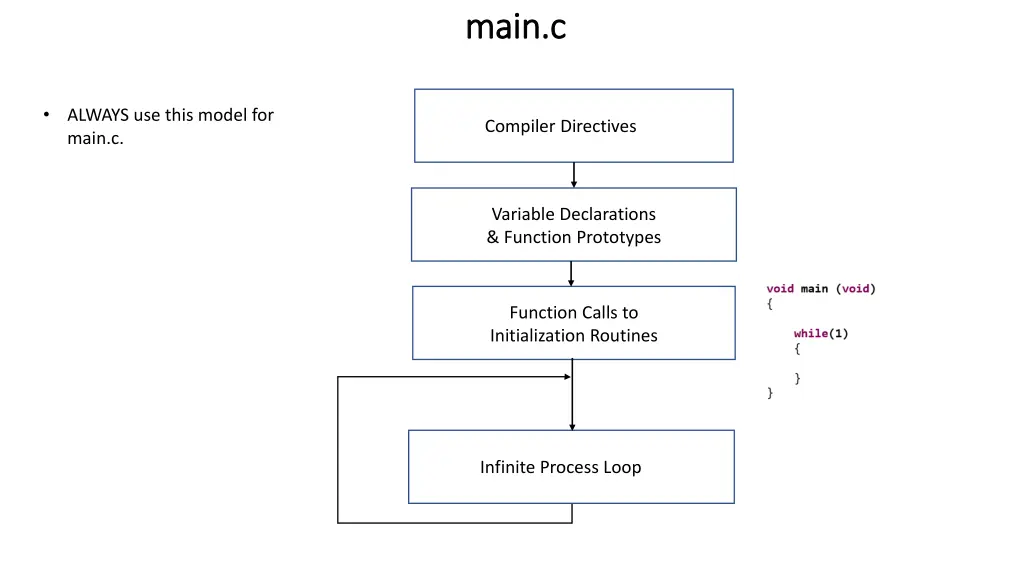
main.c main.c ALWAYS use this model for main.c. Compiler Directives Variable Declarations & Function Prototypes Function Calls to Initialization Routines Infinite Process Loop
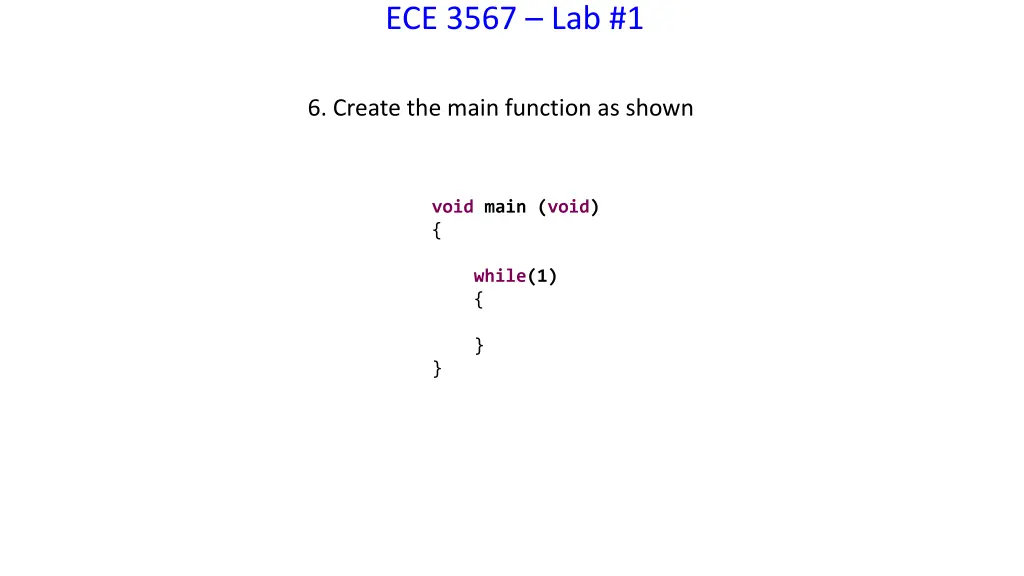
ECE 3567 Lab #1 6. Create the main function as shown void main (void) { while(1) { } }
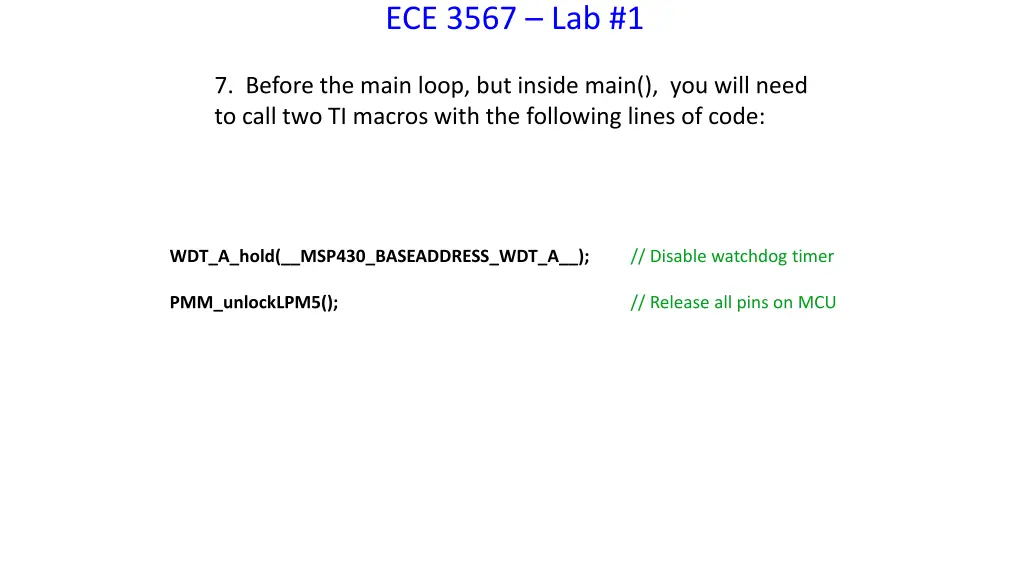
ECE 3567 Lab #1 7. Before the main loop, but inside main(), you will need to call two TI macros with the following lines of code: WDT_A_hold(__MSP430_BASEADDRESS_WDT_A__); // Disable watchdog timer PMM_unlockLPM5(); // Release all pins on MCU
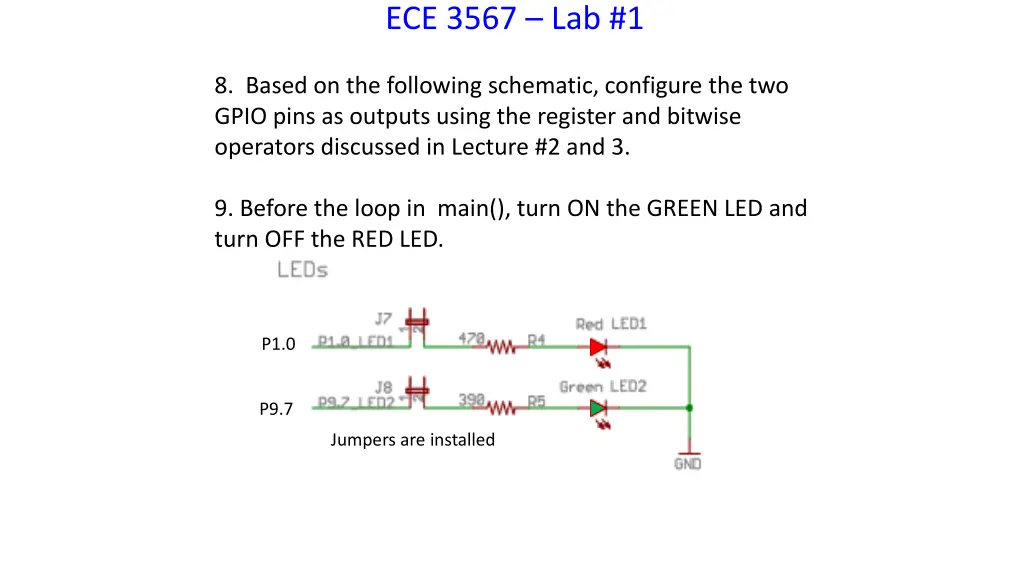
ECE 3567 Lab #1 8. Based on the following schematic, configure the two GPIO pins as outputs using the register and bitwise operators discussed in Lecture #2 and 3. 9. Before the loop in main(), turn ON the GREEN LED and turn OFF the RED LED. P1.0 P9.7 Jumpers are installed
ECE 3567 Lab #1 Checkpoint #1: Demonstrate that the Lab that the GREEN LED is on, and the RED LED is off before adding code to alternate the LEDs every 1 second.
ECE 3567 Lab #1 11. Write a delay function capable of delaying up to 1 (or more) seconds. Call the function: delay(unsigned int x). The argument passed into the function will need to be an (unsigned long). Declare the argument variable delay_count as a local variable in main(); Don t forget to prototype the function.
ECE 3567 Lab #1 12. Inside the infinite loop of main(), call the delay function with the appropriate value of delay_count for a 1 second delay. 13. After the one second delay, alternate which of the 2 LEDs is illuminated using the ^= operator recommended in Lecture #2.
ECE 3567 Lab #1 14. Compile, Program and Run your Lab #1 project.
ECE 3567 Lab #1 Checkpoint #2: Demonstrate that the Lab #1 project is operating correctly. 1. One LED should flash at a time. 2. The GREEN LED should be the default after initialization. 3. The LEDs should alternate, RED .. GREEN .. RED at 1 Hz.
ECE 3567 Lab #1 15. Once your program is working correctly, create a second workspace folder on the U: drive, and copy the entire Lab 1 project folder into the new workspace. 16. Change the Workspace in Code Composer Studio to the new location for your project. 17. Recompile your project in the new workspace and run the code. NOTE: If this doesn t work, investigate why not from the Lecture #3 notes.
ECE 3567 Lab #1 Checkpoint #3: Demonstrate that the Lab #1 project operates correctly in the new workspace. 1. One LED should flash at a time. 2. The GREEN LED should be the default after initialization. 3. The LEDs should alternate, RED .. GREEN .. RED at 1 Hz.
REMEMBER If finished, initial your Checkpoints on the Checkpoint Sheet. Remember to COMMENT and submit your CODE in the Assignment section of the Carmen Website. DON T FORGET TO TAKE THE LAB #1 QUIZ before MIDNIGHT on FRIDAY.
ECE 3567 Lab #1 This is the end of Laboratory #1