Spring 2026 Scheduling Process and Important Dates for Spring 2026
Learn about the scheduling process for Spring 2026, important dates, room requests, and application processes. Get insights into Wymer Hall availability and GA spaces. Stay informed to ensure a smooth scheduling experience.

Download Presentation

Please find below an Image/Link to download the presentation.
The content on the website is provided AS IS for your information and personal use only. It may not be sold, licensed, or shared on other websites without obtaining consent from the author. If you encounter any issues during the download, it is possible that the publisher has removed the file from their server.
You are allowed to download the files provided on this website for personal or commercial use, subject to the condition that they are used lawfully. All files are the property of their respective owners.
The content on the website is provided AS IS for your information and personal use only. It may not be sold, licensed, or shared on other websites without obtaining consent from the author.
E N D
Presentation Transcript
Spring 2026 Scheduling Process
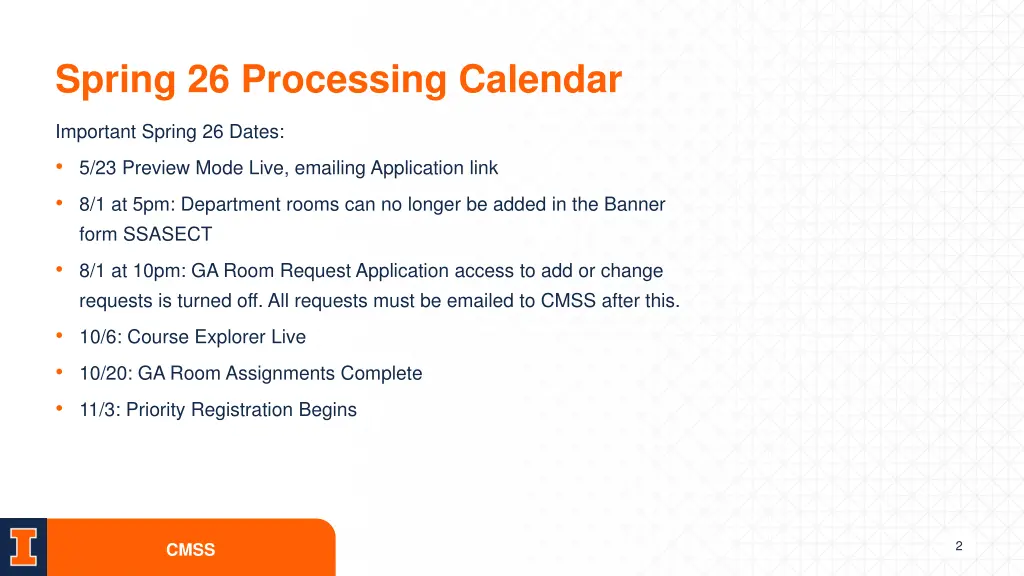
Spring 26 Processing Calendar Important Spring 26 Dates: 5/23 Preview Mode Live, emailing Application link 8/1 at 5pm: Department rooms can no longer be added in the Banner form SSASECT 8/1 at 10pm: GA Room Request Application access to add or change requests is turned off. All requests must be emailed to CMSS after this. 10/6: Course Explorer Live 10/20: GA Room Assignments Complete 11/3: Priority Registration Begins 2 CMSS
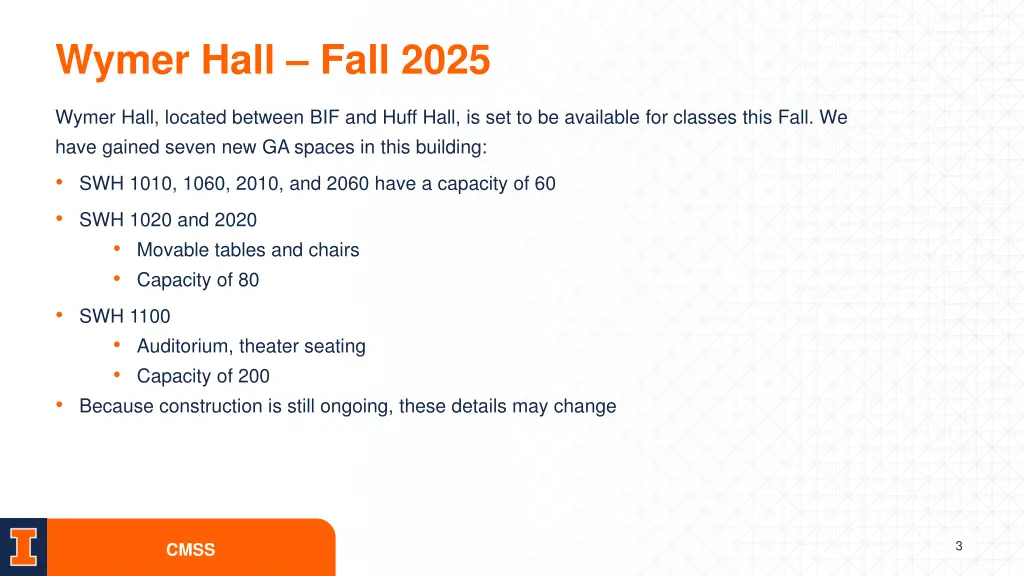
Wymer Hall Fall 2025 Wymer Hall, located between BIF and Huff Hall, is set to be available for classes this Fall. We have gained seven new GA spaces in this building: SWH 1010, 1060, 2010, and 2060 have a capacity of 60 SWH 1020 and 2020 Movable tables and chairs Capacity of 80 SWH 1100 Auditorium, theater seating Capacity of 200 Because construction is still ongoing, these details may change 3 CMSS
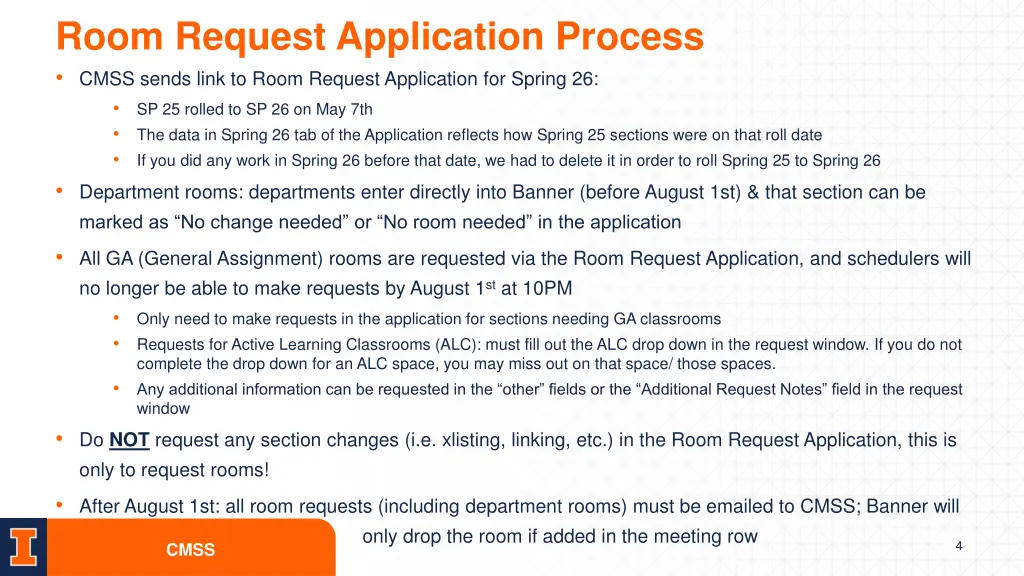
Room Request Application Process CMSS sends link to Room Request Application for Spring 26: SP 25 rolled to SP 26 on May 7th The data in Spring 26 tab of the Application reflects how Spring 25 sections were on that roll date If you did any work in Spring 26 before that date, we had to delete it in order to roll Spring 25 to Spring 26 Department rooms: departments enter directly into Banner (before August 1st) & that section can be marked as No change needed or No room needed in the application All GA (General Assignment) rooms are requested via the Room Request Application, and schedulers will no longer be able to make requests by August 1st at 10PM Only need to make requests in the application for sections needing GA classrooms Requests for Active Learning Classrooms (ALC): must fill out the ALC drop down in the request window. If you do not complete the drop down for an ALC space, you may miss out on that space/ those spaces. Any additional information can be requested in the other fields or the Additional Request Notes field in the request window Do NOT request any section changes (i.e. xlisting, linking, etc.) in the Room Request Application, this is only to request rooms! After August 1st: all room requests (including department rooms) must be emailed to CMSS; Banner will only drop the room if added in the meeting row CMSS 4
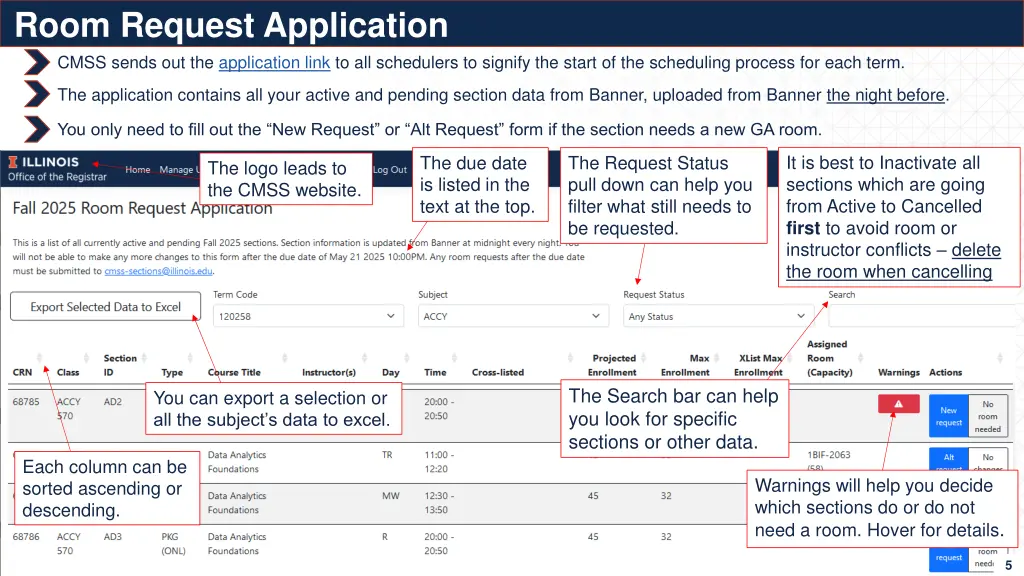
Room Request Application CMSS sends out the application link to all schedulers to signify the start of the scheduling process for each term. The application contains all your active and pending section data from Banner, uploaded from Banner the night before. You only need to fill out the New Request or Alt Request form if the section needs a new GA room. It is best to Inactivate all sections which are going from Active to Cancelled first to avoid room or instructor conflicts delete the room when cancelling The due date is listed in the text at the top. The Request Status pull down can help you filter what still needs to be requested. The logo leads to the CMSS website. The Search bar can help you look for specific sections or other data. You can export a selection or all the subject s data to excel. Each column can be sorted ascending or descending. Warnings will help you decide which sections do or do not need a room. Hover for details. 5
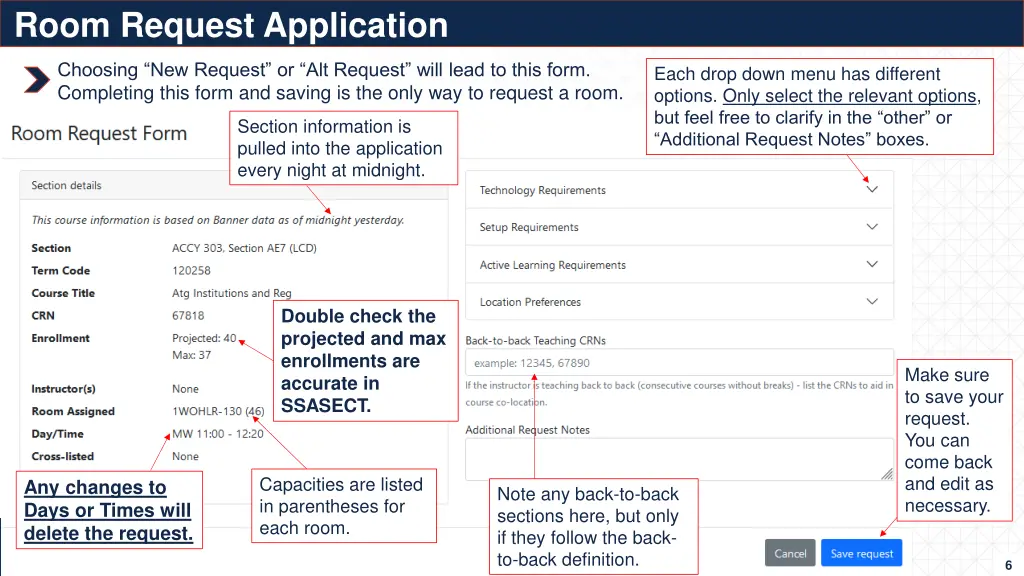
Room Request Application Choosing New Request or Alt Request will lead to this form. Completing this form and saving is the only way to request a room. Each drop down menu has different options. Only select the relevant options, but feel free to clarify in the other or Additional Request Notes boxes. Section information is pulled into the application every night at midnight. Double check the projected and max enrollments are accurate in SSASECT. Make sure to save your request. You can come back and edit as necessary. Capacities are listed in parentheses for each room. Any changes to Days or Times will delete the request. Note any back-to-back sections here, but only if they follow the back- to-back definition. 6
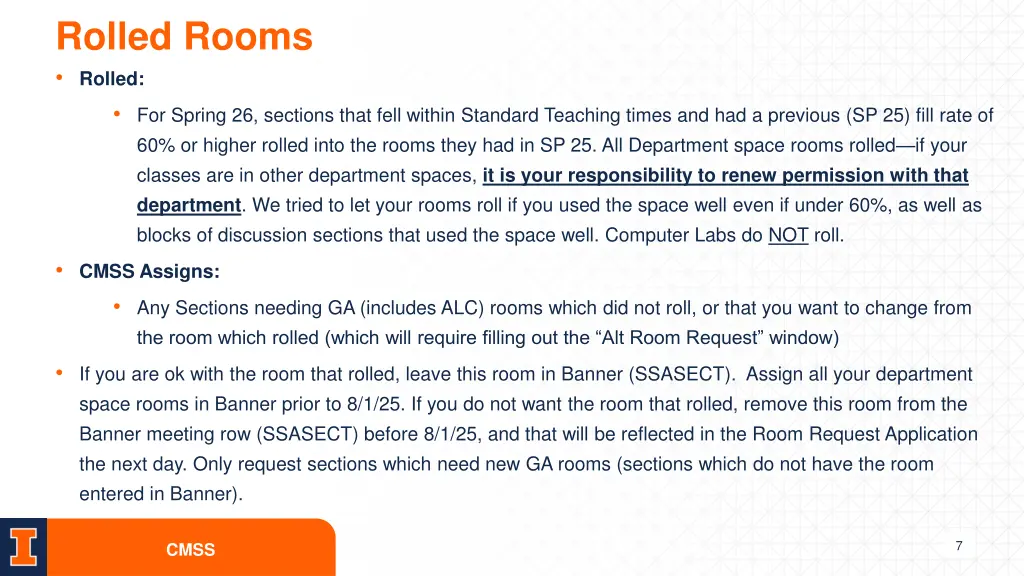
Rolled Rooms Rolled: For Spring 26, sections that fell within Standard Teaching times and had a previous (SP 25) fill rate of 60% or higher rolled into the rooms they had in SP 25. All Department space rooms rolled if your classes are in other department spaces, it is your responsibility to renew permission with that department. We tried to let your rooms roll if you used the space well even if under 60%, as well as blocks of discussion sections that used the space well. Computer Labs do NOT roll. CMSS Assigns: Any Sections needing GA (includes ALC) rooms which did not roll, or that you want to change from the room which rolled (which will require filling out the Alt Room Request window) If you are ok with the room that rolled, leave this room in Banner (SSASECT). Assign all your department space rooms in Banner prior to 8/1/25. If you do not want the room that rolled, remove this room from the Banner meeting row (SSASECT) before 8/1/25, and that will be reflected in the Room Request Application the next day. Only request sections which need new GA rooms (sections which do not have the room entered in Banner). 7 CMSS
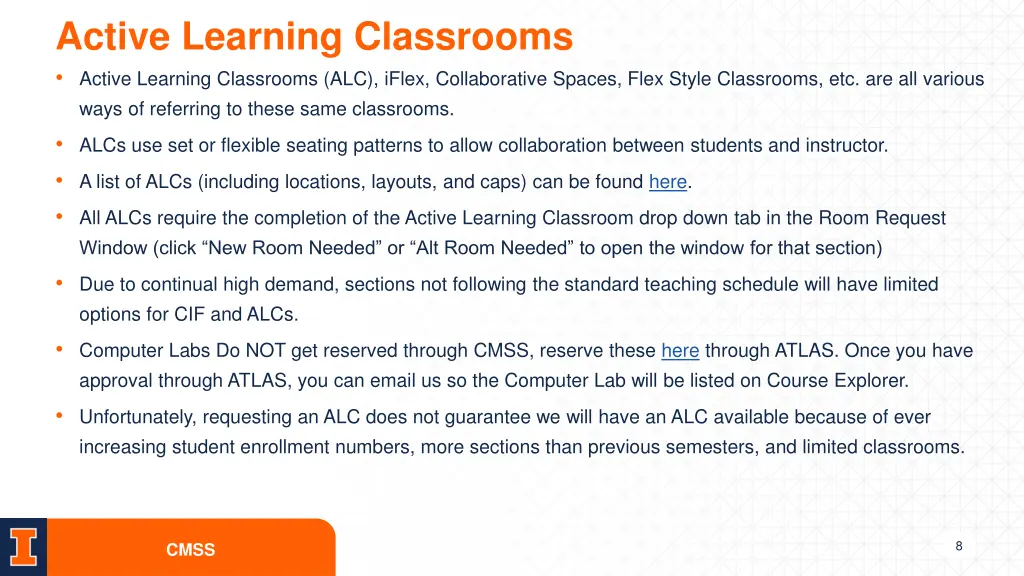
Active Learning Classrooms Active Learning Classrooms (ALC), iFlex, Collaborative Spaces, Flex Style Classrooms, etc. are all various ways of referring to these same classrooms. ALCs use set or flexible seating patterns to allow collaboration between students and instructor. A list of ALCs (including locations, layouts, and caps) can be found here. All ALCs require the completion of the Active Learning Classroom drop down tab in the Room Request Window (click New Room Needed or Alt Room Needed to open the window for that section) Due to continual high demand, sections not following the standard teaching schedule will have limited options for CIF and ALCs. Computer Labs Do NOT get reserved through CMSS, reserve these here through ATLAS. Once you have approval through ATLAS, you can email us so the Computer Lab will be listed on Course Explorer. Unfortunately, requesting an ALC does not guarantee we will have an ALC available because of ever increasing student enrollment numbers, more sections than previous semesters, and limited classrooms. 8 CMSS
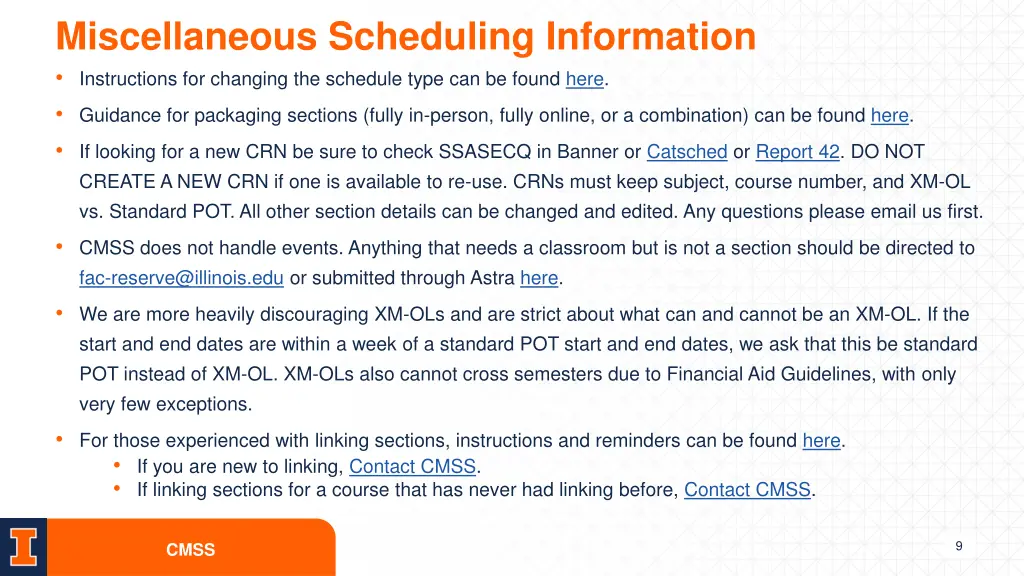
Miscellaneous Scheduling Information Instructions for changing the schedule type can be found here. Guidance for packaging sections (fully in-person, fully online, or a combination) can be found here. If looking for a new CRN be sure to check SSASECQ in Banner or Catsched or Report 42. DO NOT CREATE A NEW CRN if one is available to re-use. CRNs must keep subject, course number, and XM-OL vs. Standard POT. All other section details can be changed and edited. Any questions please email us first. CMSS does not handle events. Anything that needs a classroom but is not a section should be directed to fac-reserve@illinois.edu or submitted through Astra here. We are more heavily discouraging XM-OLs and are strict about what can and cannot be an XM-OL. If the start and end dates are within a week of a standard POT start and end dates, we ask that this be standard POT instead of XM-OL. XM-OLs also cannot cross semesters due to Financial Aid Guidelines, with only very few exceptions. For those experienced with linking sections, instructions and reminders can be found here. If you are new to linking, Contact CMSS. If linking sections for a course that has never had linking before, Contact CMSS. 9 CMSS
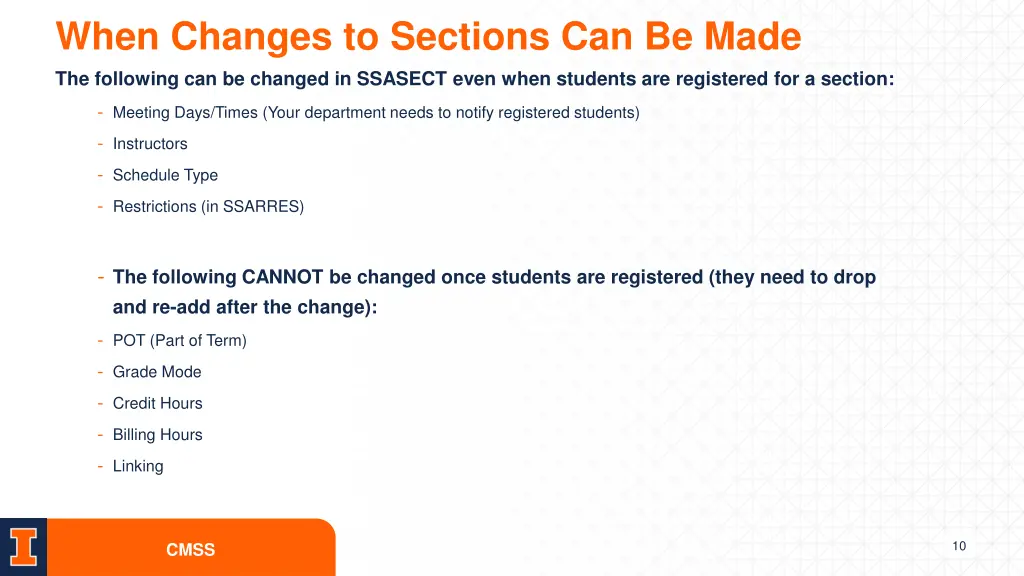
When Changes to Sections Can Be Made The following can be changed in SSASECT even when students are registered for a section: - Meeting Days/Times (Your department needs to notify registered students) - Instructors - Schedule Type - Restrictions (in SSARRES) - The following CANNOT be changed once students are registered (they need to drop and re-add after the change): - POT (Part of Term) - Grade Mode - Credit Hours - Billing Hours - Linking 10 CMSS
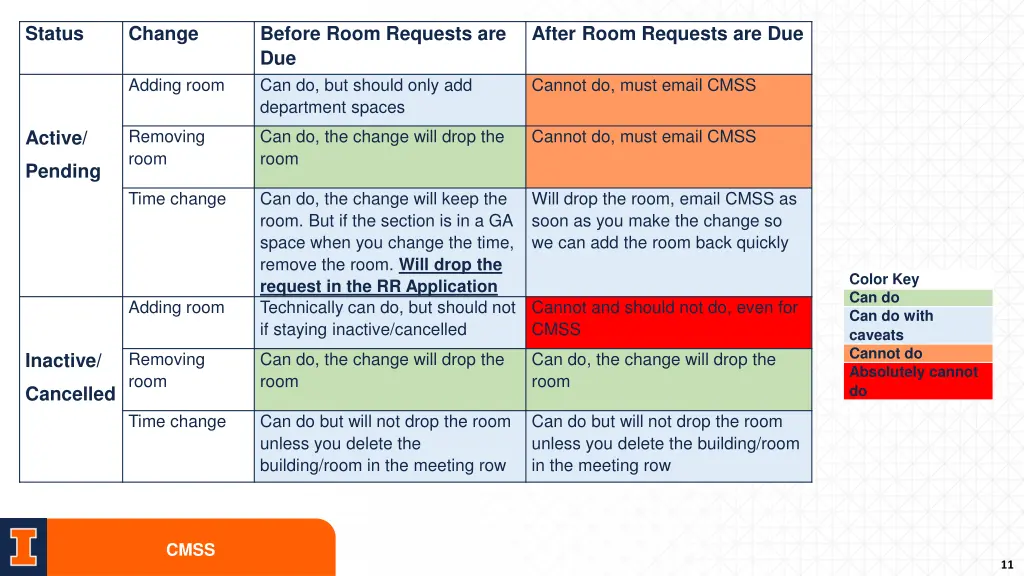
Status Change Before Room Requests are Due Can do, but should only add department spaces After Room Requests are Due Adding room Cannot do, must email CMSS Removing room Can do, the change will drop the room Cannot do, must email CMSS Active/ Pending Time change Can do, the change will keep the room. But if the section is in a GA space when you change the time, remove the room. Will drop the request in the RR Application Technically can do, but should not if staying inactive/cancelled Will drop the room, email CMSS as soon as you make the change so we can add the room back quickly Color Key Can do Can do with caveats Cannot do Absolutely cannot do Adding room Cannot and should not do, even for CMSS Removing room Can do, the change will drop the room Can do, the change will drop the room Inactive/ Cancelled Time change Can do but will not drop the room unless you delete the building/room in the meeting row Can do but will not drop the room unless you delete the building/room in the meeting row CMSS 11
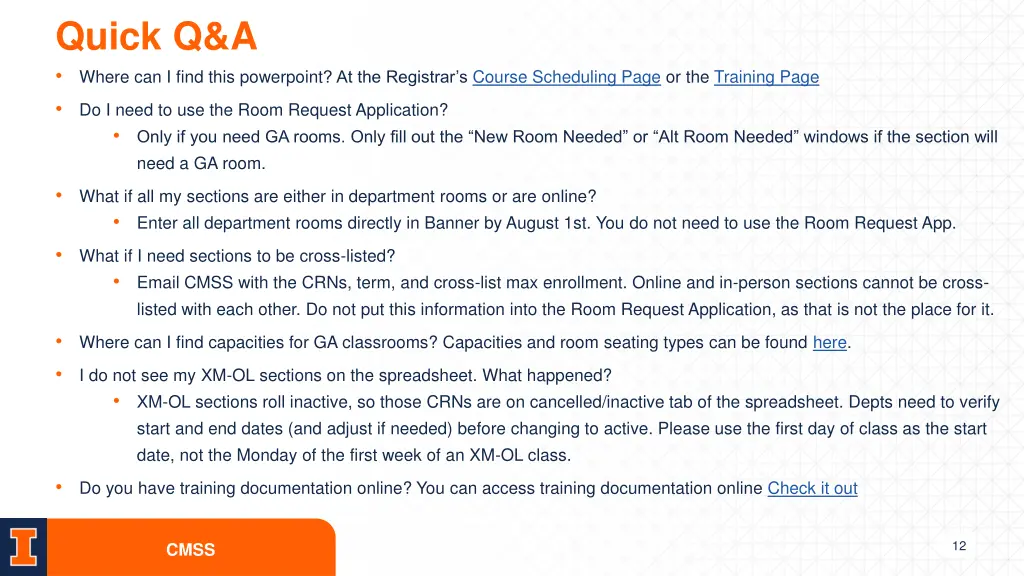
Quick Q&A Where can I find this powerpoint? At the Registrar s Course Scheduling Page or the Training Page Do I need to use the Room Request Application? Only if you need GA rooms. Only fill out the New Room Needed or Alt Room Needed windows if the section will need a GA room. What if all my sections are either in department rooms or are online? Enter all department rooms directly in Banner by August 1st. You do not need to use the Room Request App. What if I need sections to be cross-listed? Email CMSS with the CRNs, term, and cross-list max enrollment. Online and in-person sections cannot be cross- listed with each other. Do not put this information into the Room Request Application, as that is not the place for it. Where can I find capacities for GA classrooms? Capacities and room seating types can be found here. I do not see my XM-OL sections on the spreadsheet. What happened? XM-OL sections roll inactive, so those CRNs are on cancelled/inactive tab of the spreadsheet. Depts need to verify start and end dates (and adjust if needed) before changing to active. Please use the first day of class as the start date, not the Monday of the first week of an XM-OL class. Do you have training documentation online? You can access training documentation online Check it out 12 CMSS